
In the app: gear (settings menu) Interface
Interface: how the shooting screen looks and which of its elements are shown. None of these settings affect the recording.
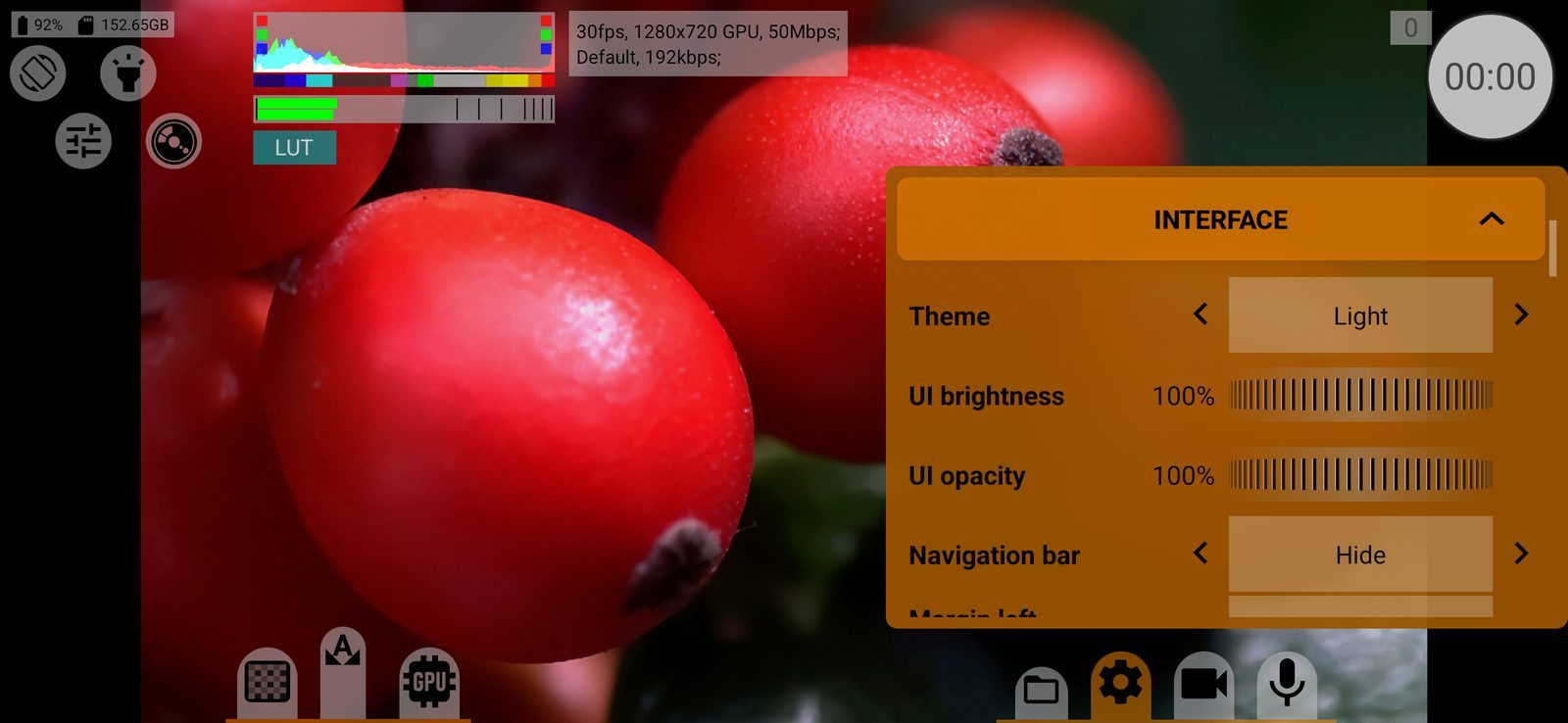
Theme
System default, Light or Dark: the colour of buttons and menus. Changing it restarts the camera and the screen. Available on Android 10 and later. Default: Light.
UI brightness
Dims the buttons and menus, from 10 to 100 %, so that they do not distract in the dark. The viewfinder is not affected. Double-tap the wheel to return to 100 %. Default: 100 %.
UI opacity
How solid the buttons and menus are, from 10 to 150 %. Lower values let more of the viewfinder show through, values above 100 % make the backgrounds denser. Double-tap the wheel to return to 100 %. Default: 100 %.
Navigation bar
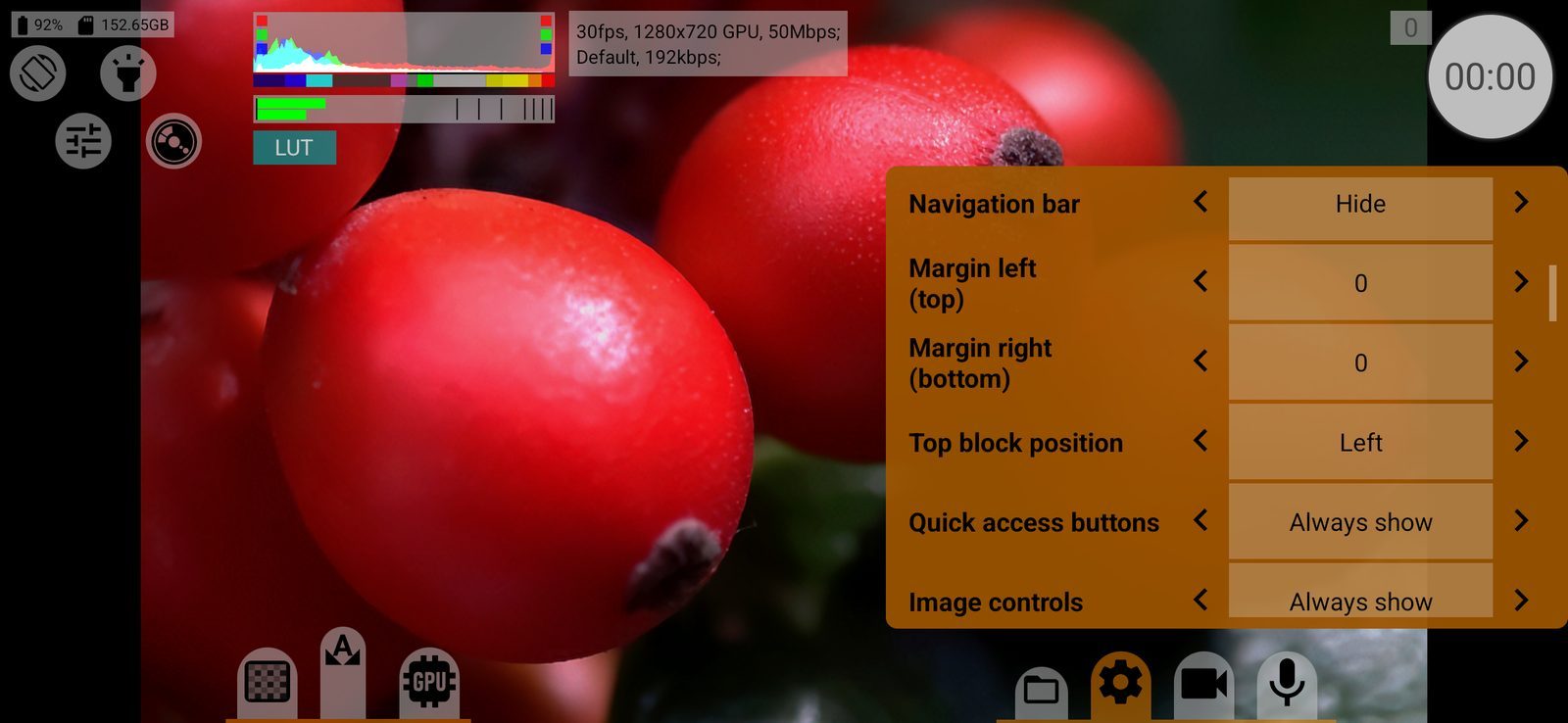
Hide / Show: Android's navigation bar on the shooting screen. With the bar shown, the Back button closes the app only when pressed twice. Default: Hide.
Margin left (top)
Moves all controls in from the left edge of the screen (the top edge in portrait), in steps of 6 dp. Useful with a phone cage or a case that covers the edge. Default: 0.
Margin right (bottom)
The same from the right edge (the bottom edge in portrait). The two margins together cannot leave less than about 540 dp for the controls.
Top block position
Left or Center: where the top block (battery and storage, quick access buttons, indicators) sits. Centred, the information panel moves down. Default: Left.
Screen elements
The next seven rows control the seven groups of elements on the shooting screen. Each has the same four modes:
- Always show: the group is always on the screen;
- Toggle by swipe: a swipe across the screen hides and shows the group, with or without recording;
- Toggle by swipe during recording: the group hides by itself when recording starts and comes back when it stops; during recording a swipe shows and hides it, so you do not need to touch buttons while shooting;
- Never show: the group is never shown; only this menu brings it back.
A swipe is a stroke of at least about 60 dp over an empty part of the screen. During recording one swipe switches all groups in the second and third modes together. Default for all seven: Always show.
Quick access buttons
The quick access buttons: orientation, flashlight, presets, camera choice.
Image controls
The image controls: white balance, its lock, manual white balance, the colour menu.
Settings buttons & media manager
Settings buttons & media manager: the buttons that open the media manager, the settings and the video and audio menus. This group has no Never show mode, otherwise the menus could not be reached.
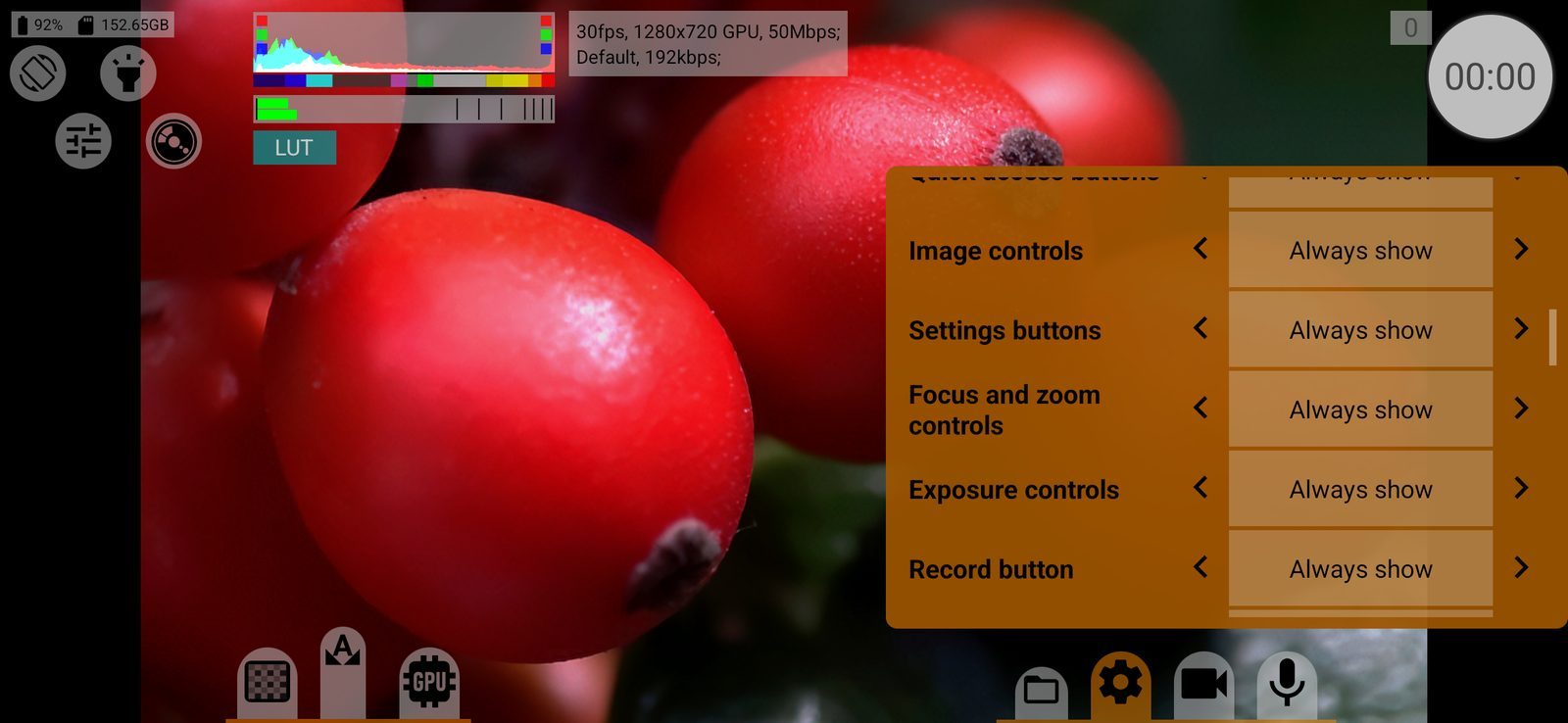
Focus and zoom controls
Focus and zoom controls: the focus wheel, focus modes, zoom factor buttons, programmed moves and limits.
Exposure controls
Exposure controls: ISO and shutter speed, exposure compensation and lock, zebra, false colour and the viewfinder LUT button.
Record button
The record button with the recording time and size, the snapshot button and the dropped frames counter.
Indicators & information area
The indicators and information area: histogram, audio level meter, battery and storage, warnings and the information panel.
Zoom factor buttons
Show / Never show: the row of zoom factor buttons (x0.6, x1, x2…) next to the focus wheel. Shown by default when the camera has zoom factors.
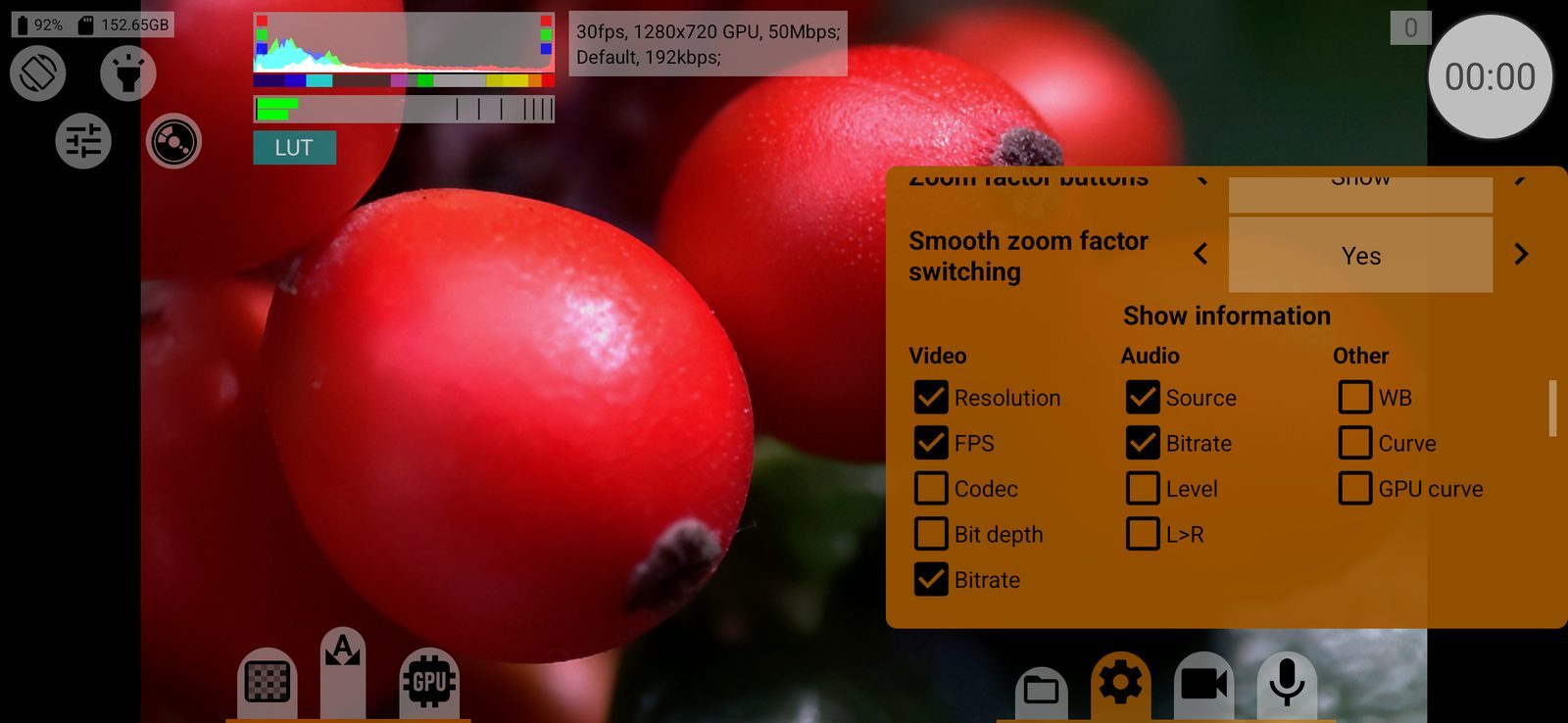
Smooth zoom factor switching
Yes: tapping a zoom factor zooms smoothly. No: it jumps straight to the new zoom. Default: Yes.
Show information
What the information panel on the shooting screen shows, ticked in three groups:
- Video: Resolution, FPS, Codec, Bit depth, Bitrate;
- Audio: Source, Bitrate, Level (shown only when not at Bypass), L>R (shown only when channels are swapped);
- Other: WB, Curve, GPU curve.
The frame size shown is the size of the file, after desqueeze, crop and scale. With slow motion the frame rate is shown as "120>24". Untick everything to hide the panel. Default: resolution, frame rate, bitrate, audio source and audio bitrate.