
The Record button group is on the right edge of the screen: the button itself, recording time and file size, the dropped frames counter and, if enabled, the snapshot button. The group can be hidden or shown on a swipe in Interface.
12Record button
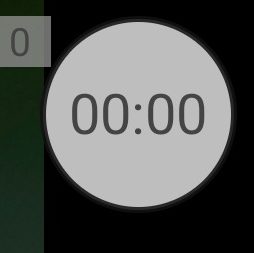
The round button starts and stops recording. It has no icon; its colour shows the state:
- grey: ready to record (the frame above);
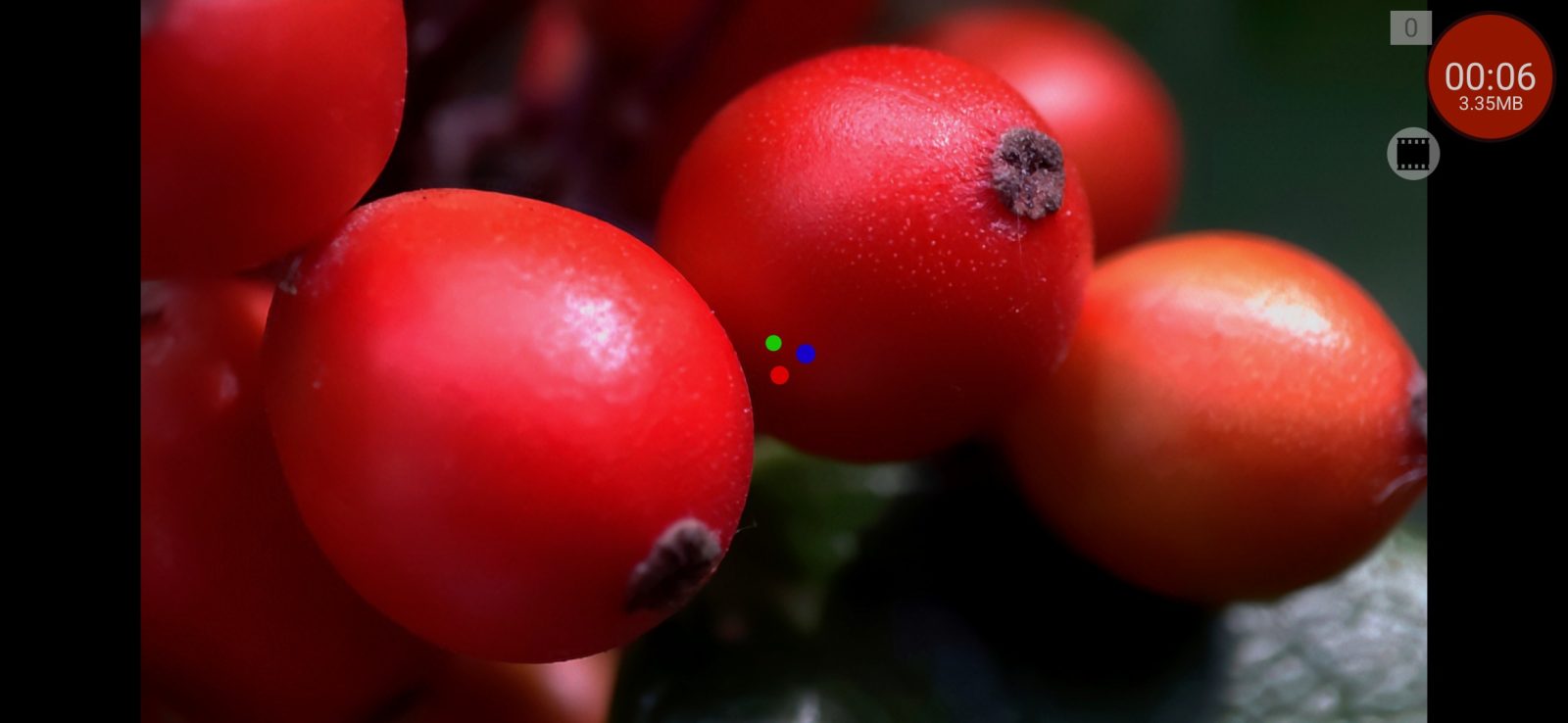
- red: recording is running, with the time and file size inside the button (the frame further down);
- pale: the camera is restarting after a settings change, and recording cannot start yet.
Tap the grey button to start recording. When the first frame is written, the button turns red and REC starts blinking among the indicators. When recording starts, menus close, the screen orientation is fixed, and the elements set to hide during recording are hidden. Audio signals plays a start sound if enabled.
Recording does not start when:
- the camera is restarting after a settings change: the button is pale and the app shows Please close all menus;
- there is less than 50 MB free (500 MB for RAW): Not enough space on the media.;
- the app has no access to storage: it asks for it;
- output for an external recorder over HDMI is on;
- the selected format needs a purchase: the purchase window opens.
How recording stops is set by Stop recording by in Control: Tap, Double tap or Long press. Volume and camera keys, if assigned to recording, start and stop it regardless of this setting. Recordings shorter than about 1.5 seconds are not stopped by the button.
After stopping, three coloured dots spin in the centre of the screen while the rest of the buffer is written to the file. Then the button turns grey again. If the app keeps working on the file in the background, appears at the bottom of the screen.
Recording also stops on its own when storage runs out, when the memory buffer overflows (the app shows which buffer), and on overheating if that is enabled in Other settings.
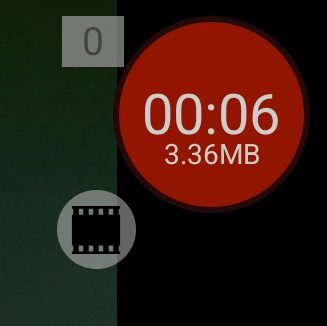
While recording runs, the time and the file size are shown inside the button, and the dropped frames counter next to it.
Recording time
Inside the button: the recording time, in minutes and seconds, then hours. For RAW the time is counted from the number of recorded frames.
File size
Under the time: the size of the file being recorded, in MB or GB. When recording is split into parts, the size is that of the current part.
Dropped frames
The number on the counter shows how many frames were lost during the current recording. For video it is calculated from gaps in the encoder's timestamps; for RAW it counts frames the camera did not deliver or the app could not save in time. The counter turns red at the first dropped frame and stays red until the next recording.
3Snapshot
The snapshot button appears when Allow snapshots is on in the video menu and the phone supports it. A tap saves a JPEG frame the size of the video next to your recordings, with the same file name pattern. It works with and without recording.