
In the app: video camera (video menu)
The video camera button opens the recording settings: frame size and rate, slow motion, snapshots and HDMI output. Below them are four sections: Codec and container settings, Metadata settings, GPU and hardware settings.
The menu does not open during recording.
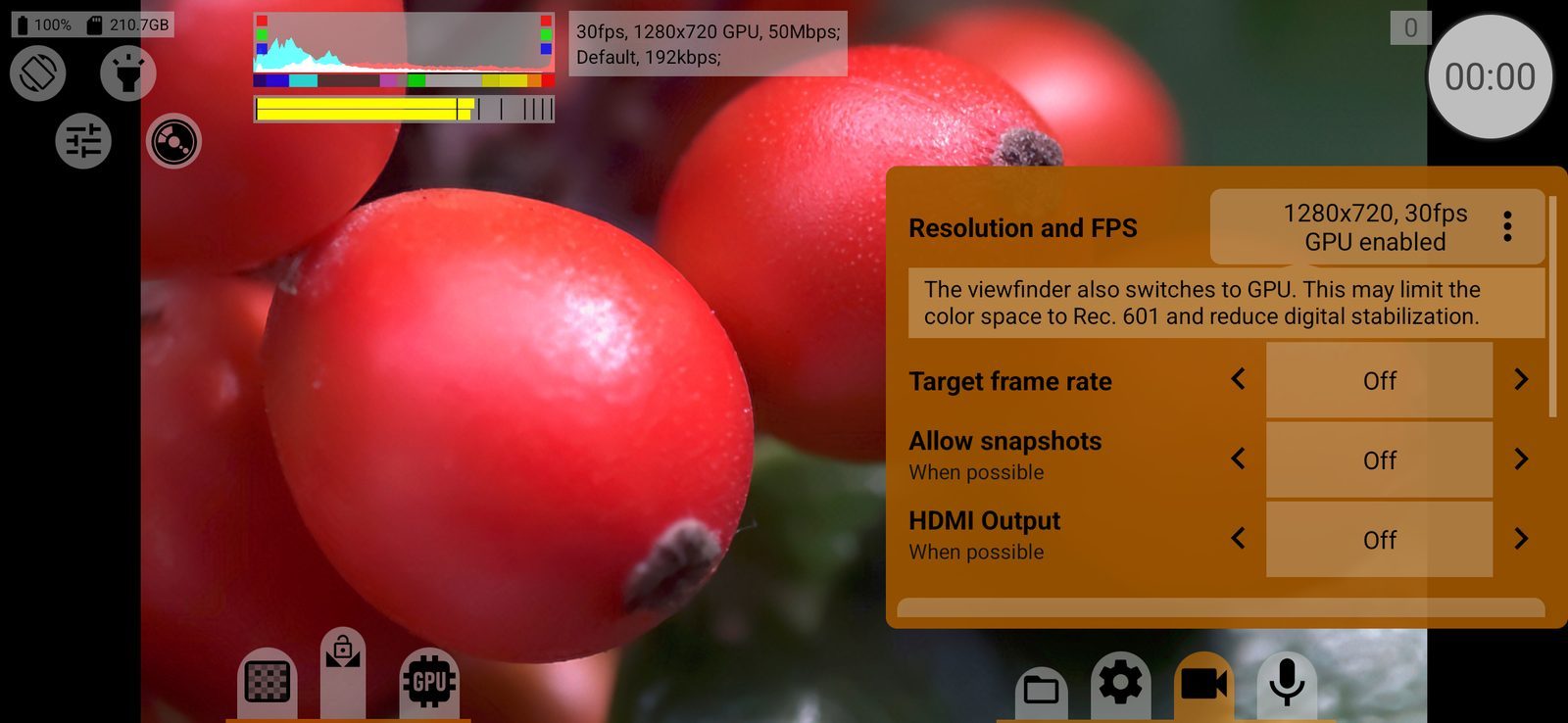
Resolution and FPS
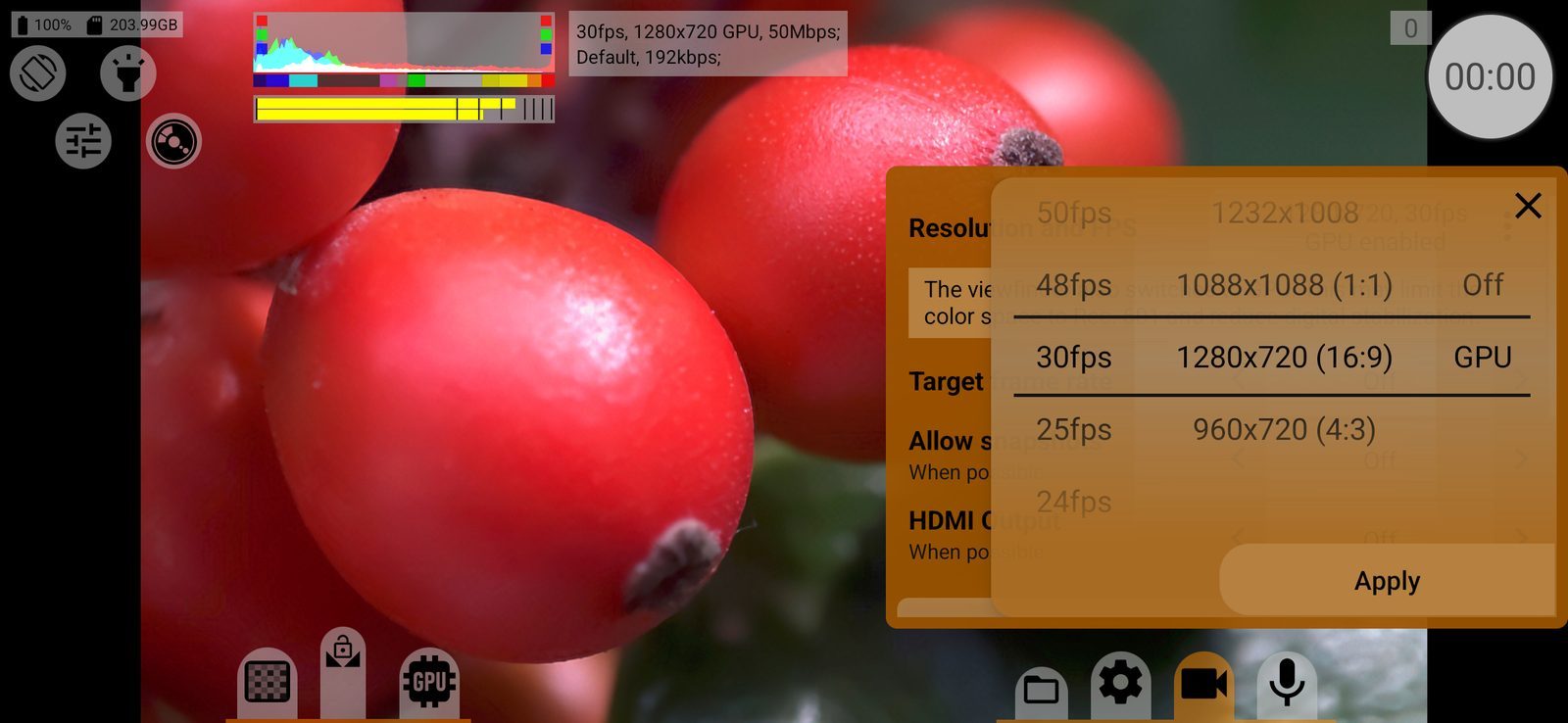
Shows the current frame size, frame rate and whether recording goes through the GPU (GPU enabled / GPU disabled). Tap it to open the picker with three wheels:
- frame rate, from 480 down to 24 fps and lower rates (down to 1 fps where the camera allows it);
- frame size;
- Off / GPU: record straight from the camera, or through the GPU, where LUTs, curves and other image processing are applied to the recording.
Turn one wheel at a time; the other two adjust to it. Values that do not work with the current choice are dimmed and the wheel skips them. A red background means the value is not officially supported by the phone: you can select it, but results vary. Tap Apply to confirm, or close the picker to keep the old setting. Changing the size or frame rate resets zoom.
Size, frame rate and GPU are stored separately for each camera. Default: 1280×720, 30 fps, without GPU.
Which combinations are available depends on the phone and the camera. Above 60 fps the camera switches to high-speed mode, where manual settings are usually unavailable. Above 30 fps, selecting a size can switch exposure to manual or automatic if the phone supports that size in only one of them. In RAW, only sizes and frame rates that RAW recording can handle are offered, without GPU.
Notes under the row explain the current choice:
- Your device does not officially support this frame rate. It may not work correctly, especially in automatic exposure mode.
- This frame rate may not work with manual exposure.
- High-speed modes usually don't allow manual settings, may be unstable and may not work with some setting combinations.
- The viewfinder also switches to GPU. This may limit the color space to Rec. 601 and reduce digital stabilization.
Target frame rate
The frame rate written into the file: Off, 6, 12, 24, 25, 30, 60, 120 or 240 fps. The camera shoots at the frame rate set above, and the file plays back at this one. Lower than the shooting rate gives slow motion (for example, 120 fps played at 24), higher gives fast motion. The sound is adjusted to the new speed. While slow or fast motion is on, the target rate is shown on the screen. Stored separately for each camera. Default: Off.
The value equal to the shooting rate is skipped. At 1 fps a target rate is required.
Works with the MOV and MP4 containers and RAW. On the system container it needs Metadata to be on, or a phone with Android 11+ on Qualcomm, Exynos or Kirin; otherwise the row shows Off.
Allow snapshots
Adds a snapshot button to the shooting screen: Off / Allow. The snapshot is taken from the video stream through the GPU. When possible: without GPU recording it works only in some modes (at up to 30 fps, or on Android 9+ when the sizes match), and the button appears only when a snapshot is possible. Default: Off.
HDMI Output
Sends the clean video stream to an external display connected over HDMI or USB-C, for an external recorder or monitor: Off / On. The phone does not record while this is on: starting a recording shows Recording via HDMI is On. Without GPU the monitor shows the picture only in sizes and frame rates it can take. If no display is connected, the app shows HDMI connection not found. Default: Off.
For the viewfinder picture with your monitoring tools on the monitor, use HDMI Output in the viewfinder settings instead.