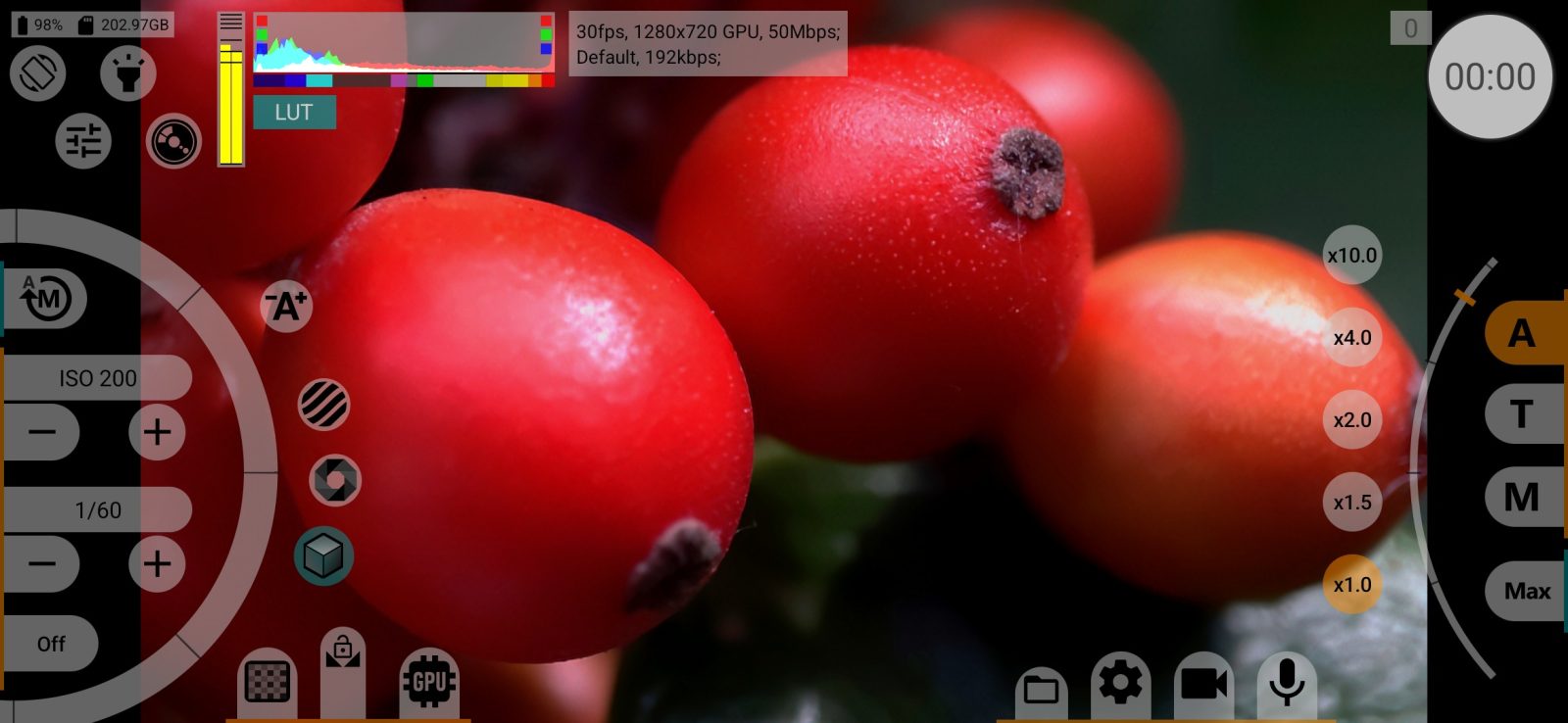
In the app: gear (settings menu) Viewfinder settings
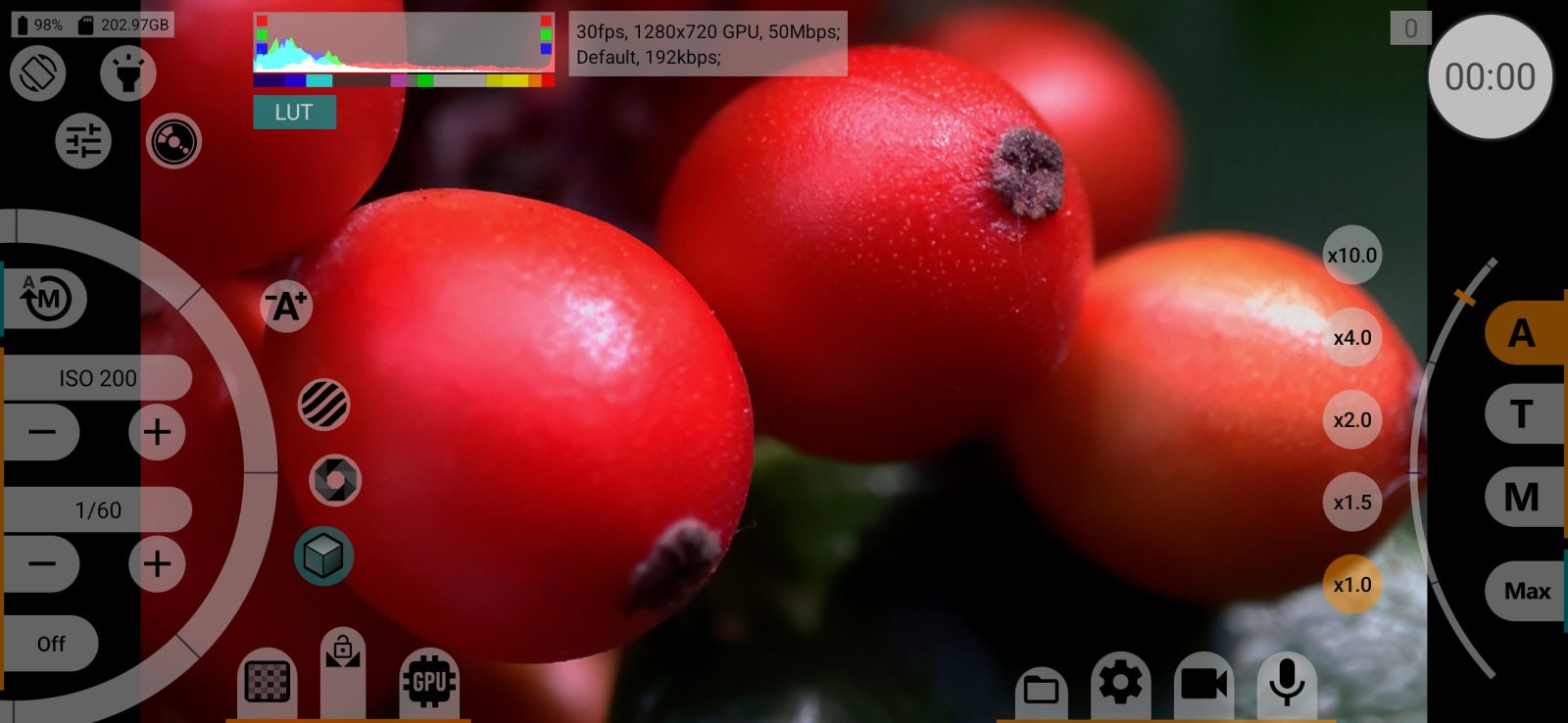
Viewfinder settings control what you see on the phone screen and on an external HDMI monitor: the image path, monitoring LUT, histogram, exposure and focus aids, frame lines and grids. None of them change the recorded file; they only affect what you see.
Most tools here are drawn by the GPU. If the viewfinder does not go through the GPU, they are greyed out.
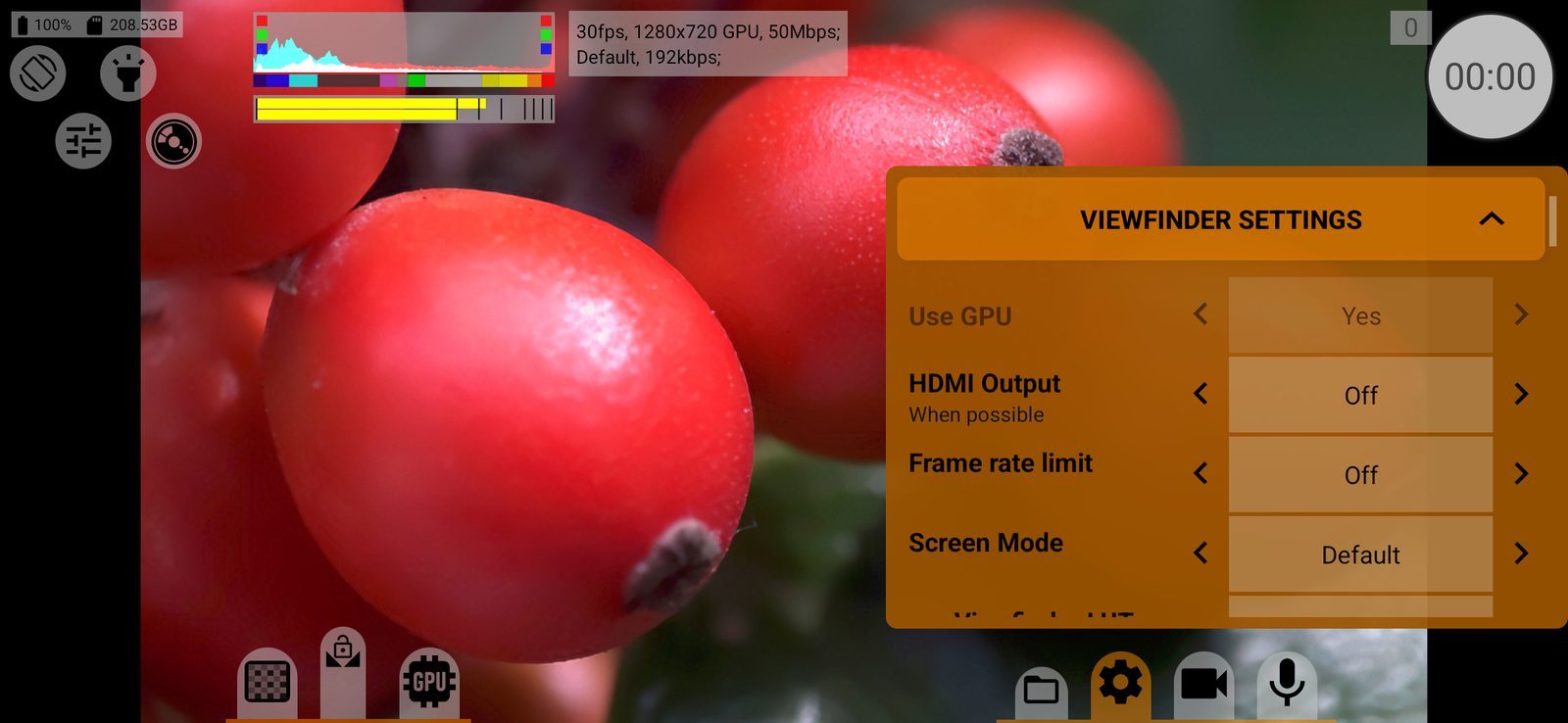
Use GPU
How the viewfinder image is drawn.
- Yes: the image goes through the GPU, with and without recording. All tools on this page are available.
- No: the image comes straight from the camera. The LUT, histogram, focus peaking, expo-peaking, EV and Kelvin indicators and Screen Mode are unavailable; Frame rate limit is hidden.
- Turn off when recording: GPU tools work while you frame the shot and are switched off for the recording. The camera session restarts briefly when recording starts and stops.
Default: Yes on Android 11 and later, No on older versions.
If recording through the GPU is selected in the video menu, this row is locked to Yes and greyed out.
HDMI Output
Shows the viewfinder on an external display connected over HDMI or USB-C: Off / On. Frame lines and the grid are shown on the monitor too. Default: Off.
The monitor gets the viewfinder picture with your monitoring tools on it. For a clean picture for an external recorder, use HDMI Output in the video menu instead; while that one is on, this row does nothing.
Frame rate limit
Caps how often the viewfinder is redrawn: Off, 12, 24, 25, 30, 48, 50 or 60 fps. A lower limit takes load off the phone during heavy modes; the recording keeps its full frame rate. Default: Off.
The viewfinder drops whole camera frames to stay under the limit, so the actual rate can be lower: with the camera at 30 fps, a 25 fps limit gives 15 fps. Shown only when the viewfinder goes through the GPU.
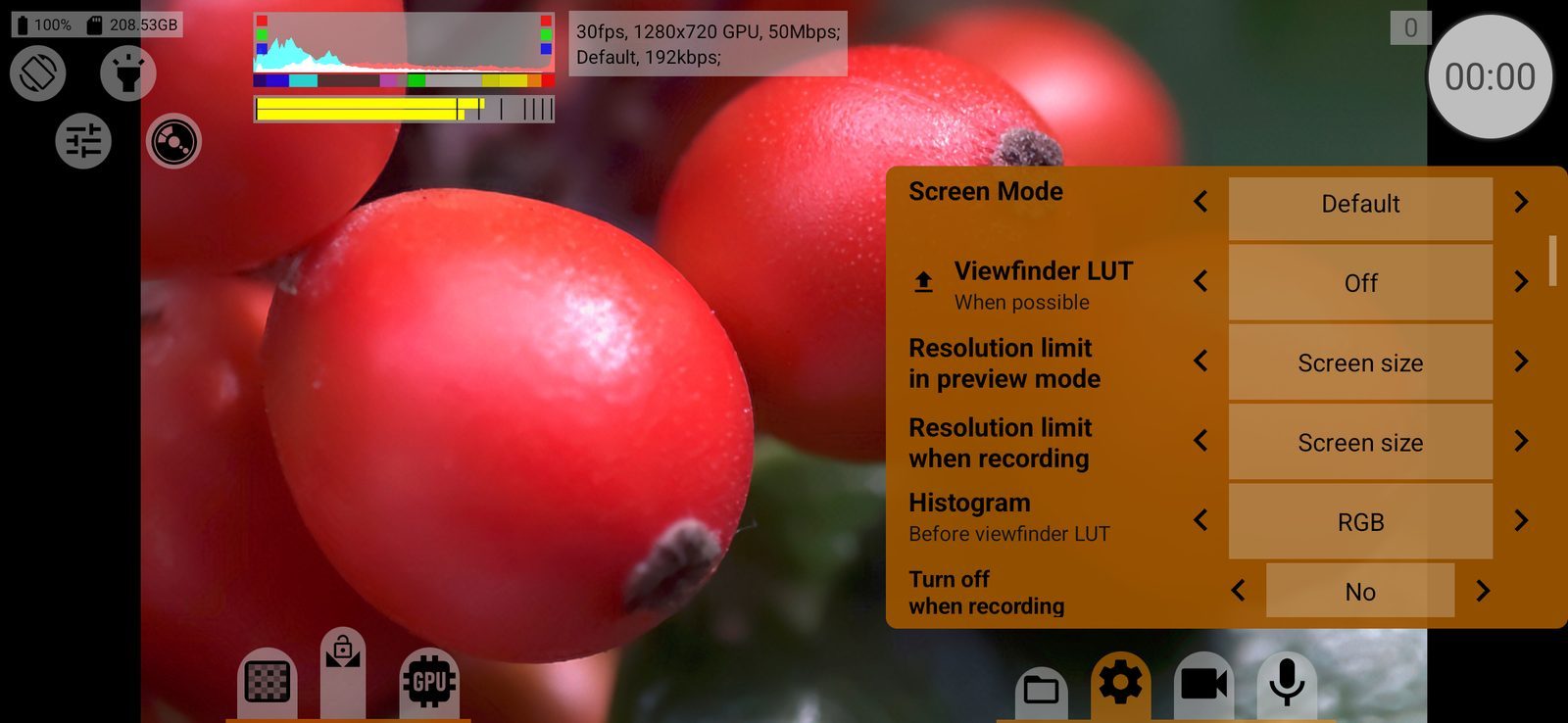
Screen Mode
How the viewfinder is shown on the screen:
- Default: the usual screen mode;
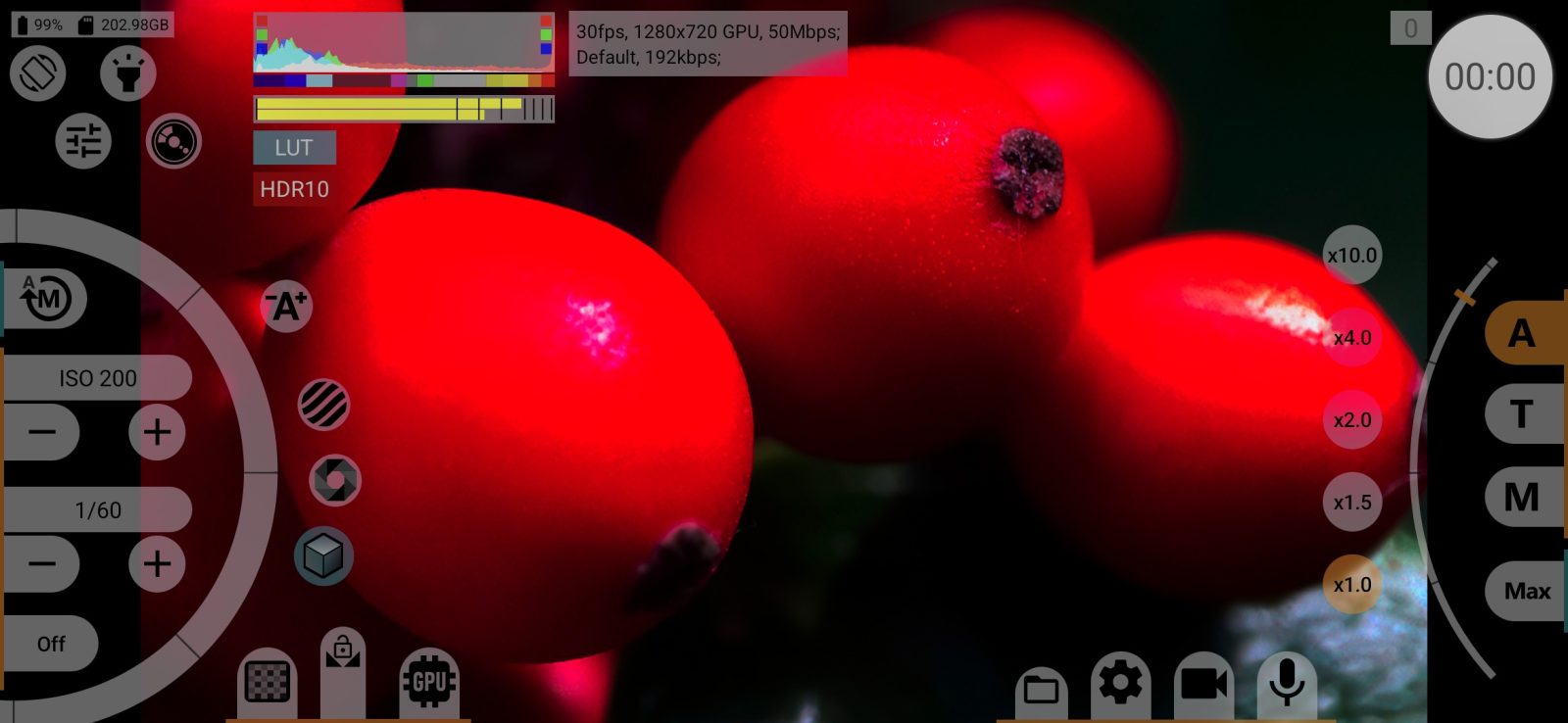
- HDR10: HDR10 output, if the phone screen or the HDMI monitor supports it;
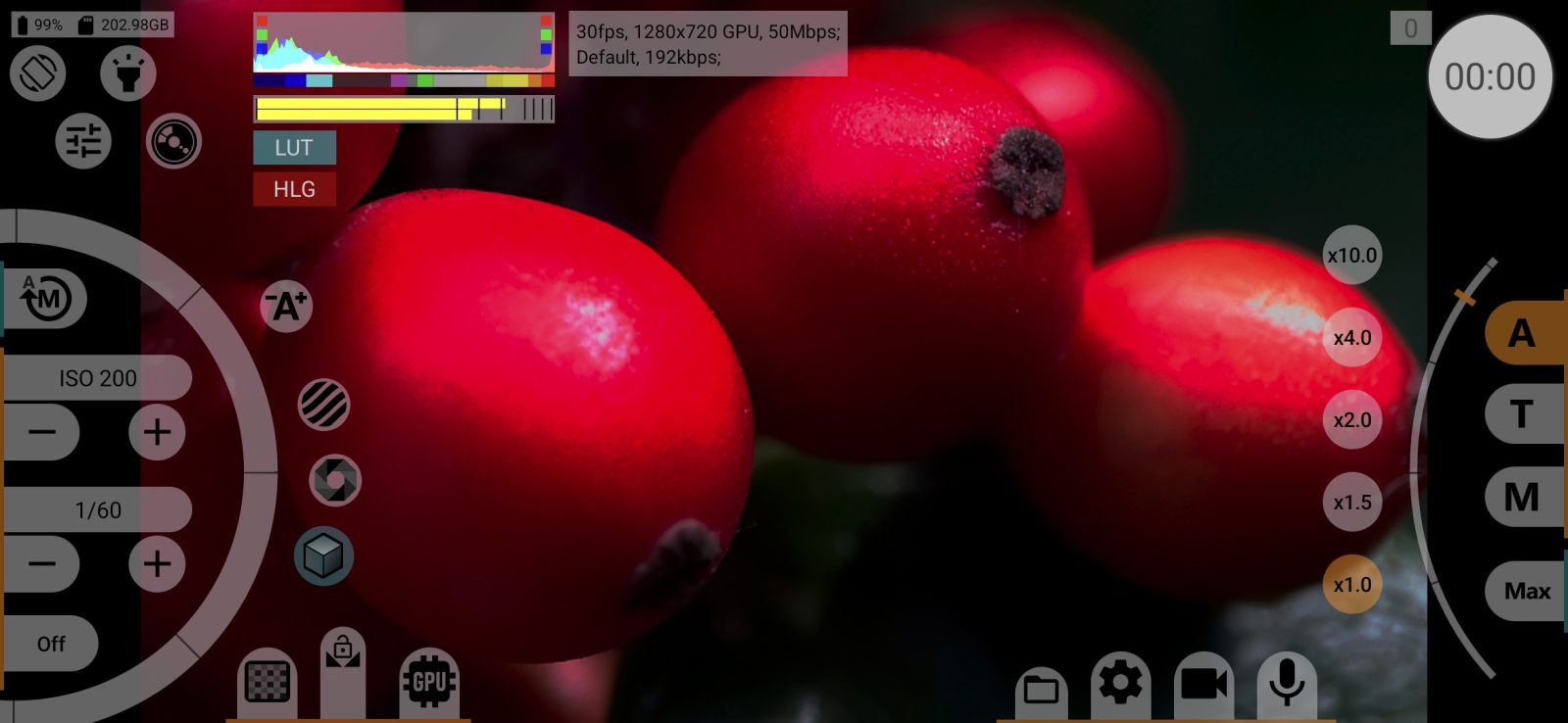
- HLG: HLG output, if supported. Before Android 14 it is emulated through PQ and shown as ~HLG (PQ conversion);
- Linear sRGB: linear sRGB.
Modes the screen does not support are skipped. While an HDR mode is on, a small HDR10 / HLG / Linear badge is shown on the screen. The setting is stored separately for each camera. Default: Default.
Unavailable without the GPU and when recording RAW. The row is hidden if the phone does not support screen colour modes.
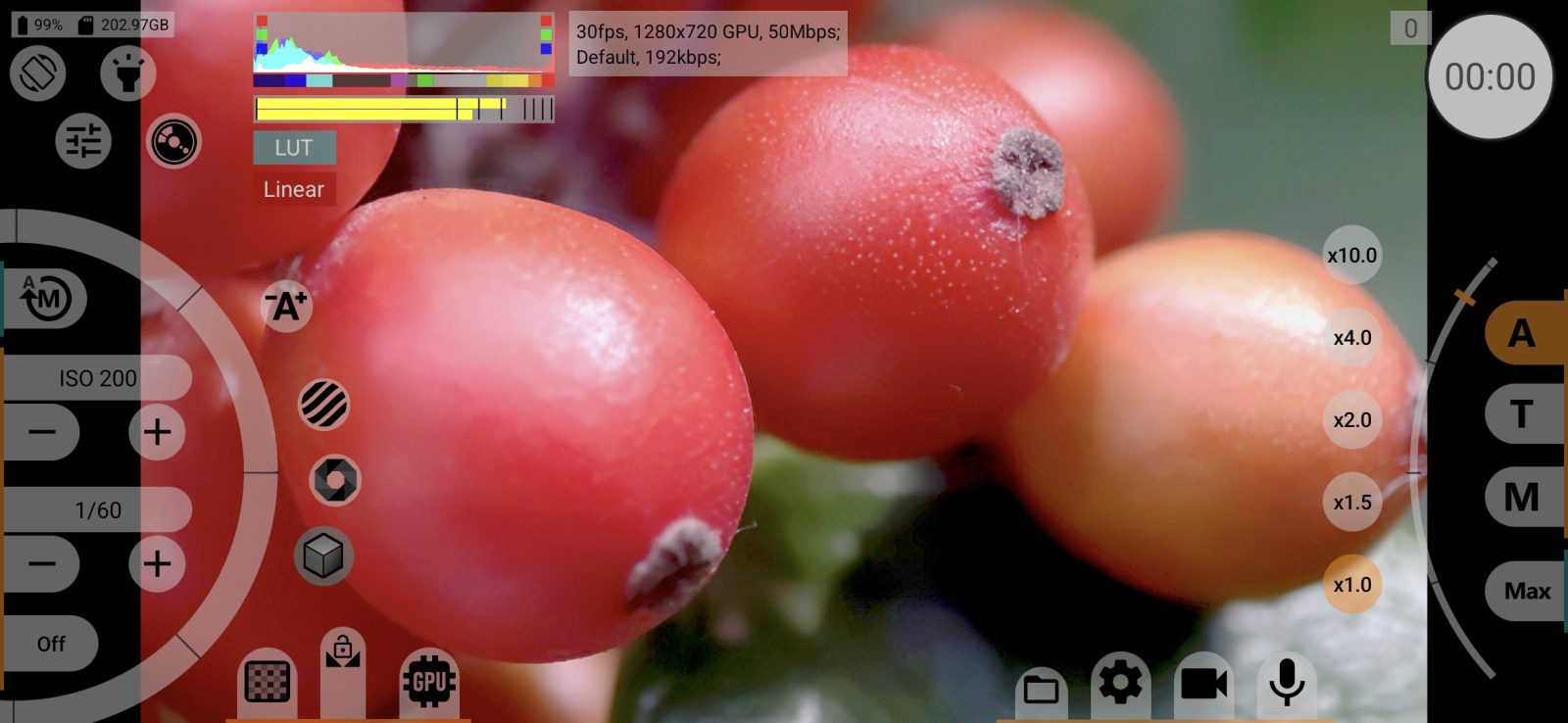
Viewfinder LUT
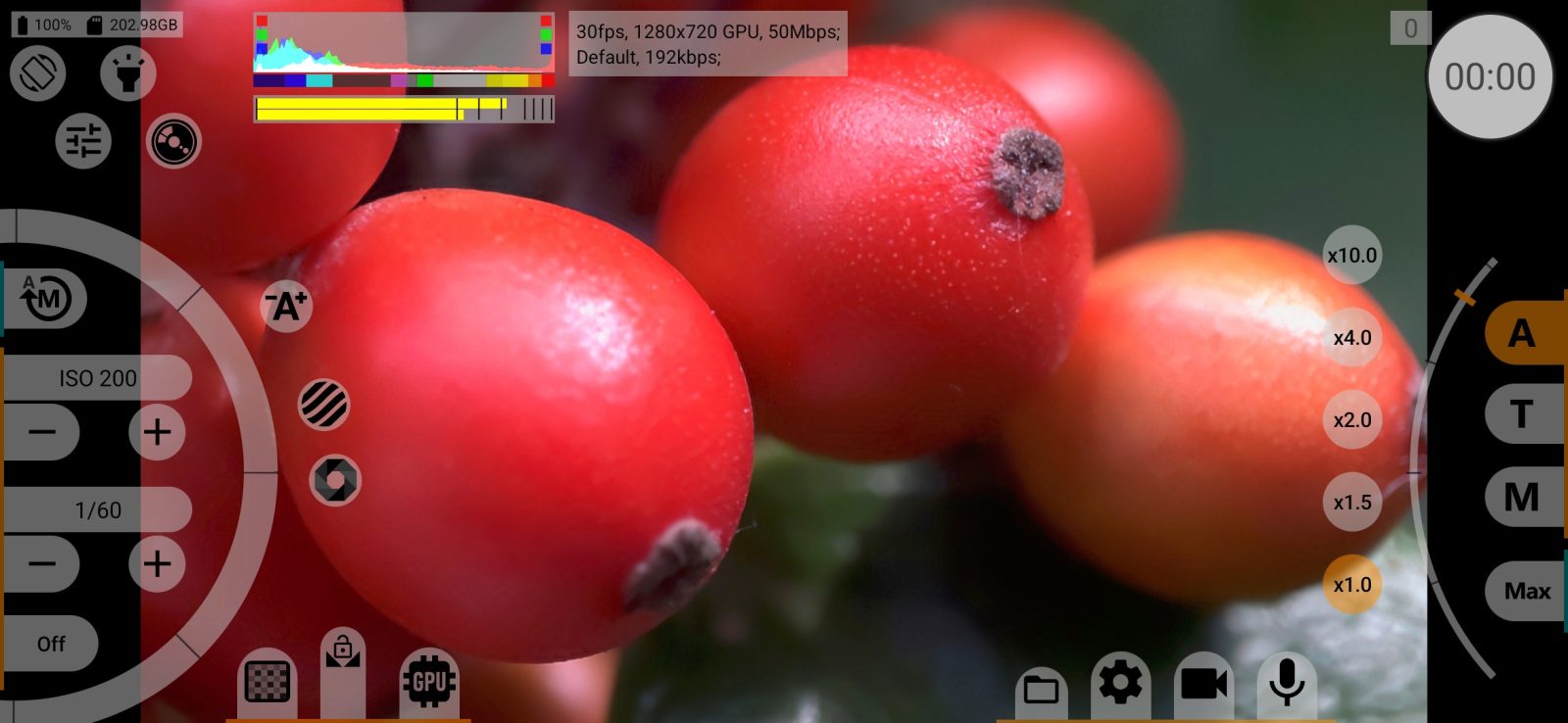
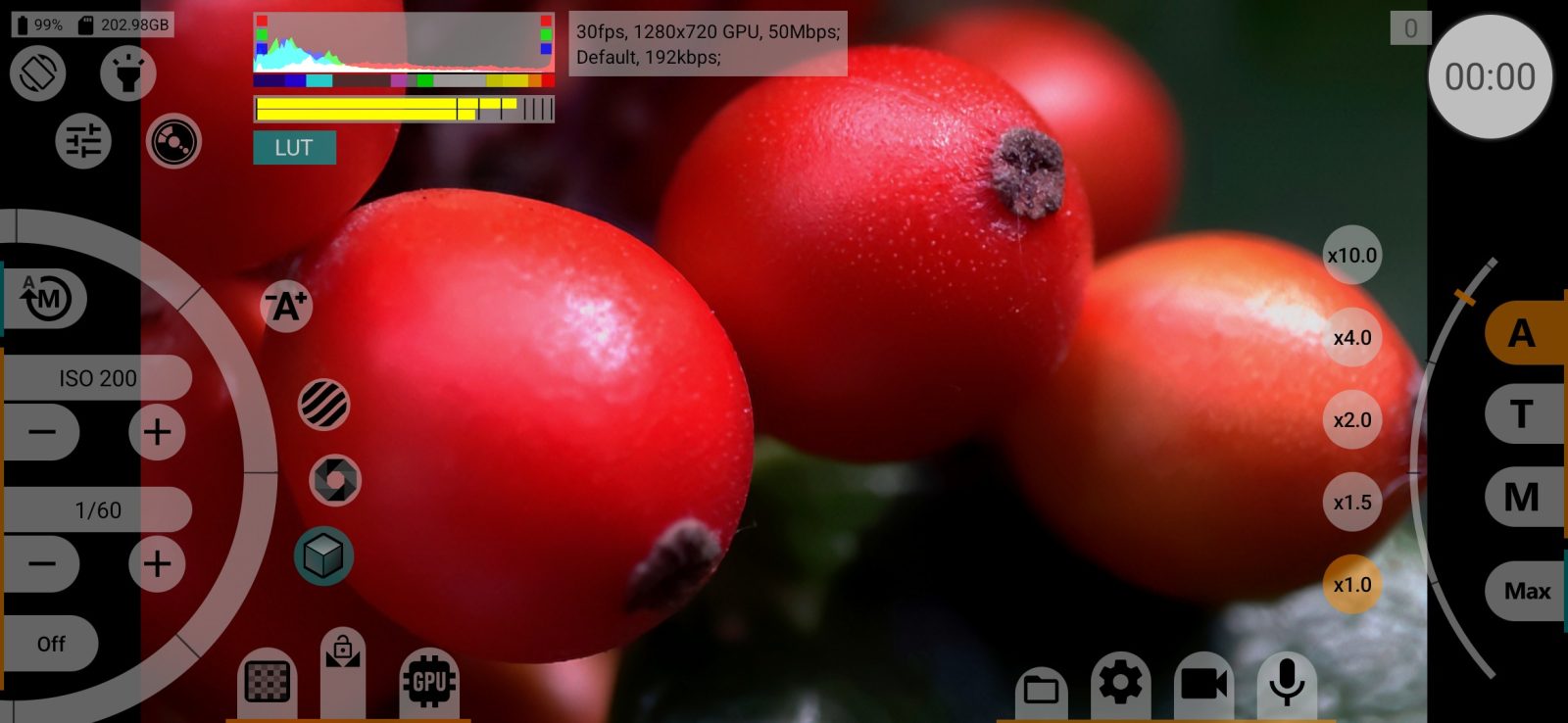
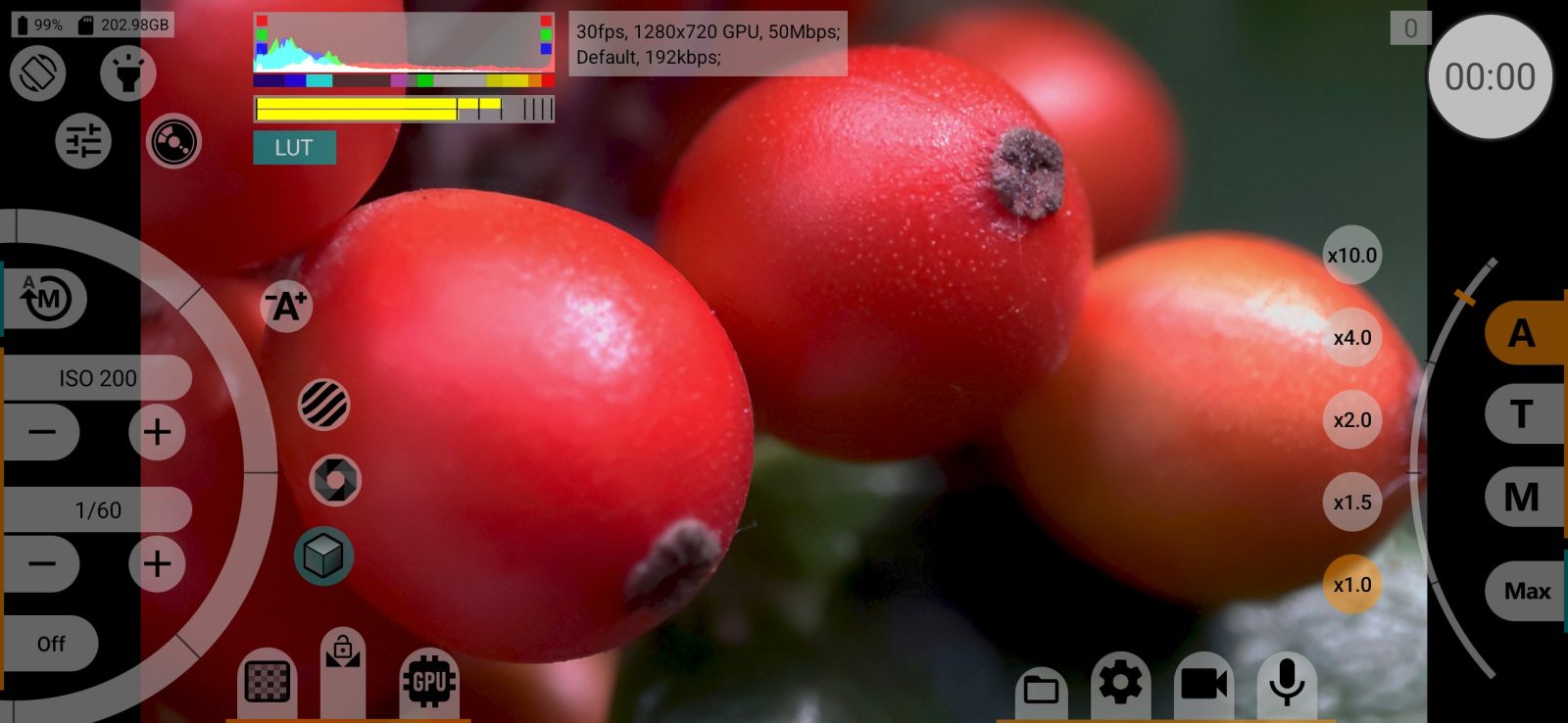
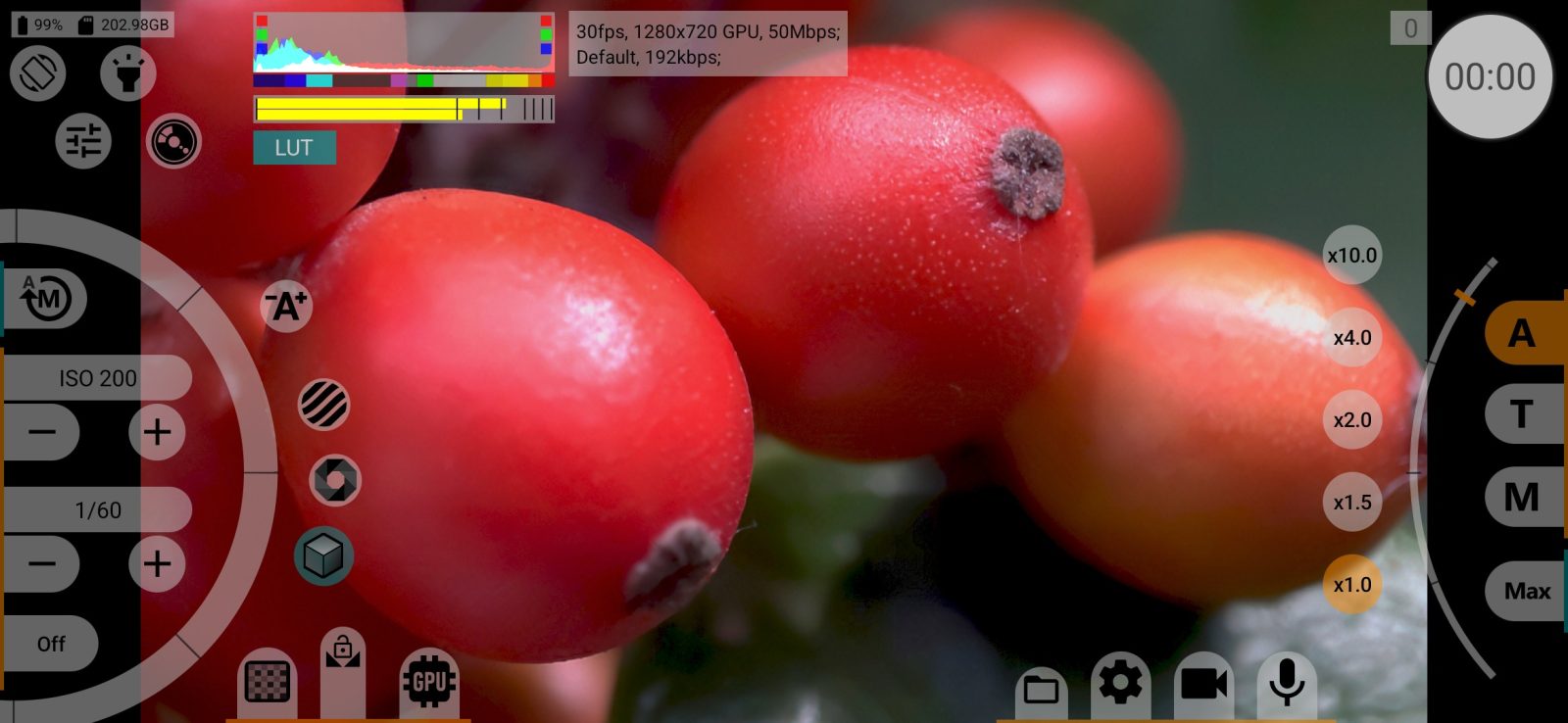
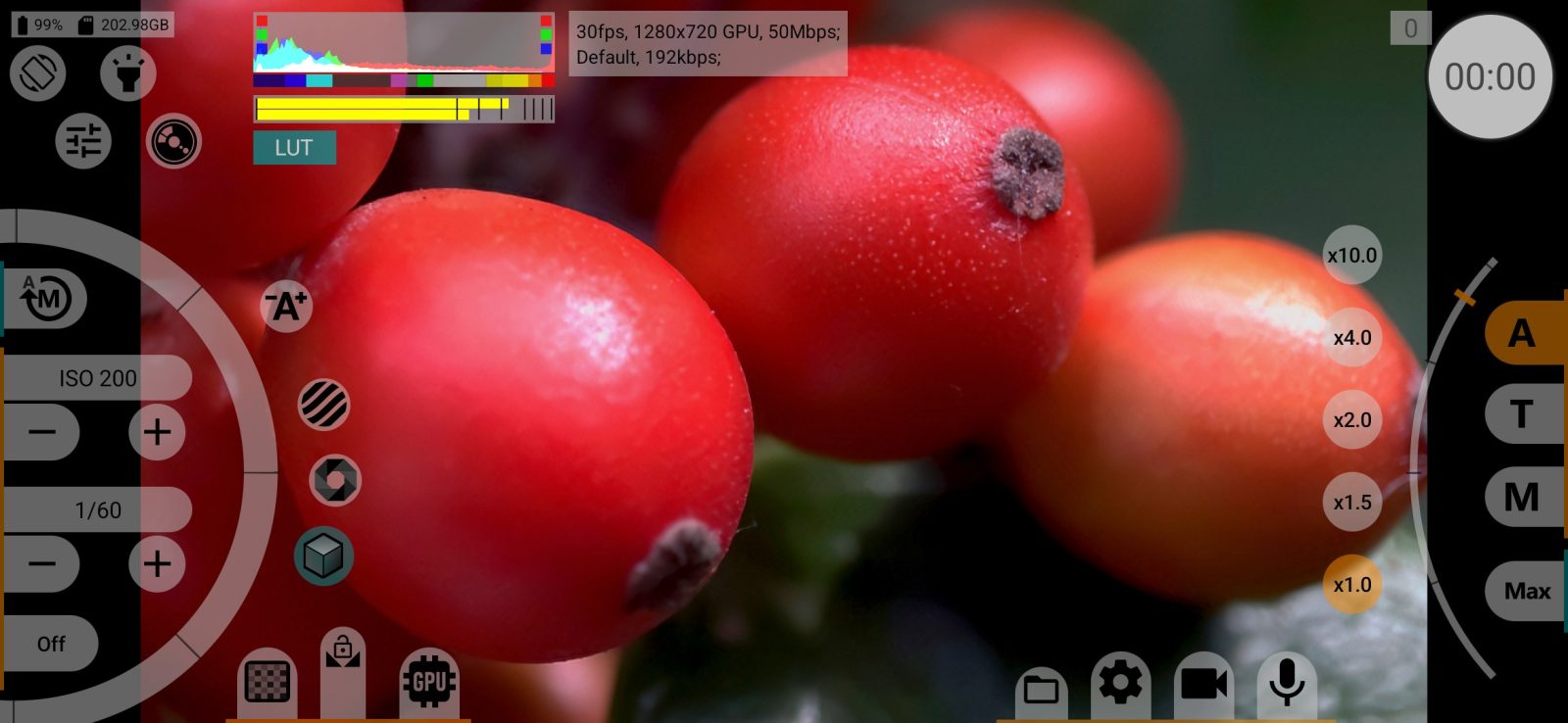
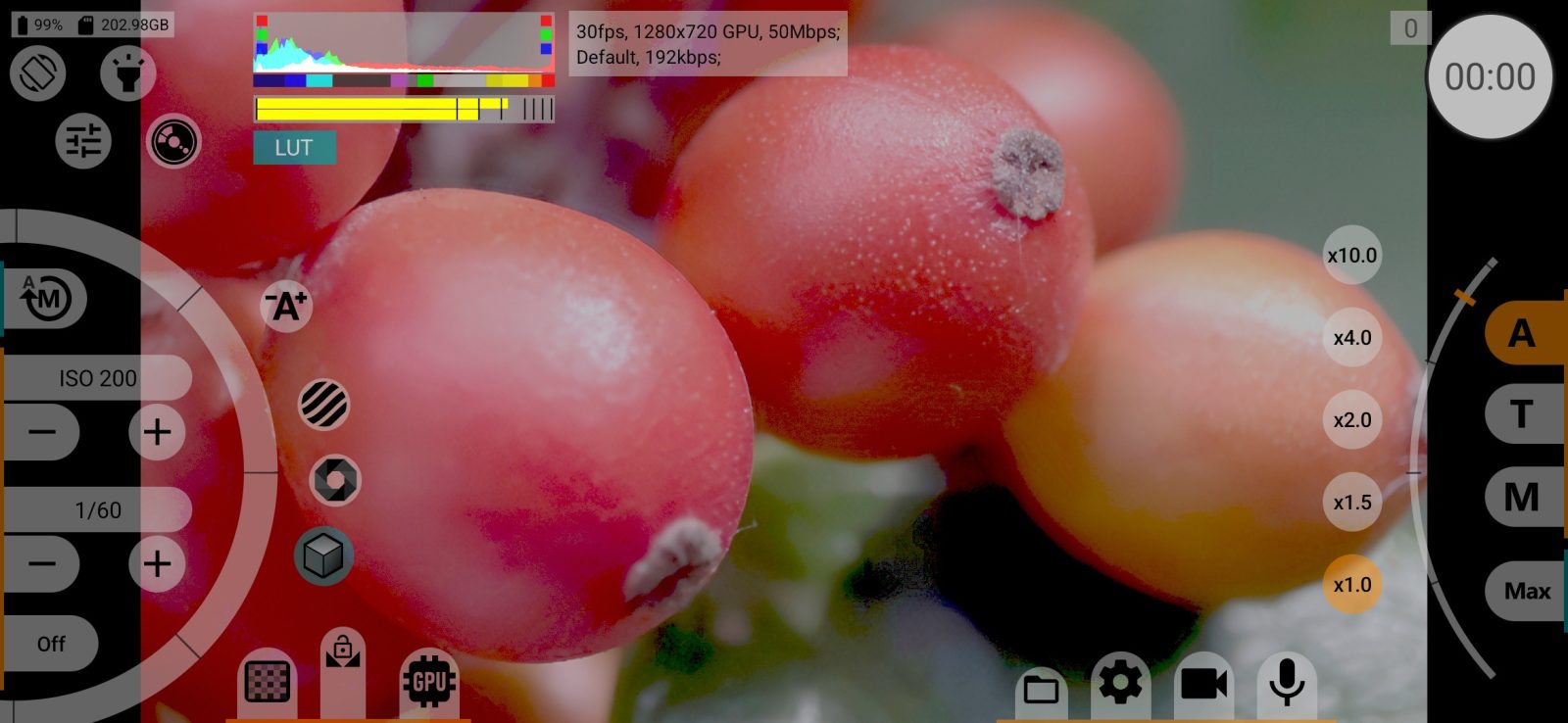
A monitoring LUT: shows a log, flat or linear picture in a display standard so that you can judge the image while recording log. Values: Off, Rec.709, Gamma 2.2, Gamma 2.4, sRGB, PQ, HLG. Stored separately for each camera. Default: Off.
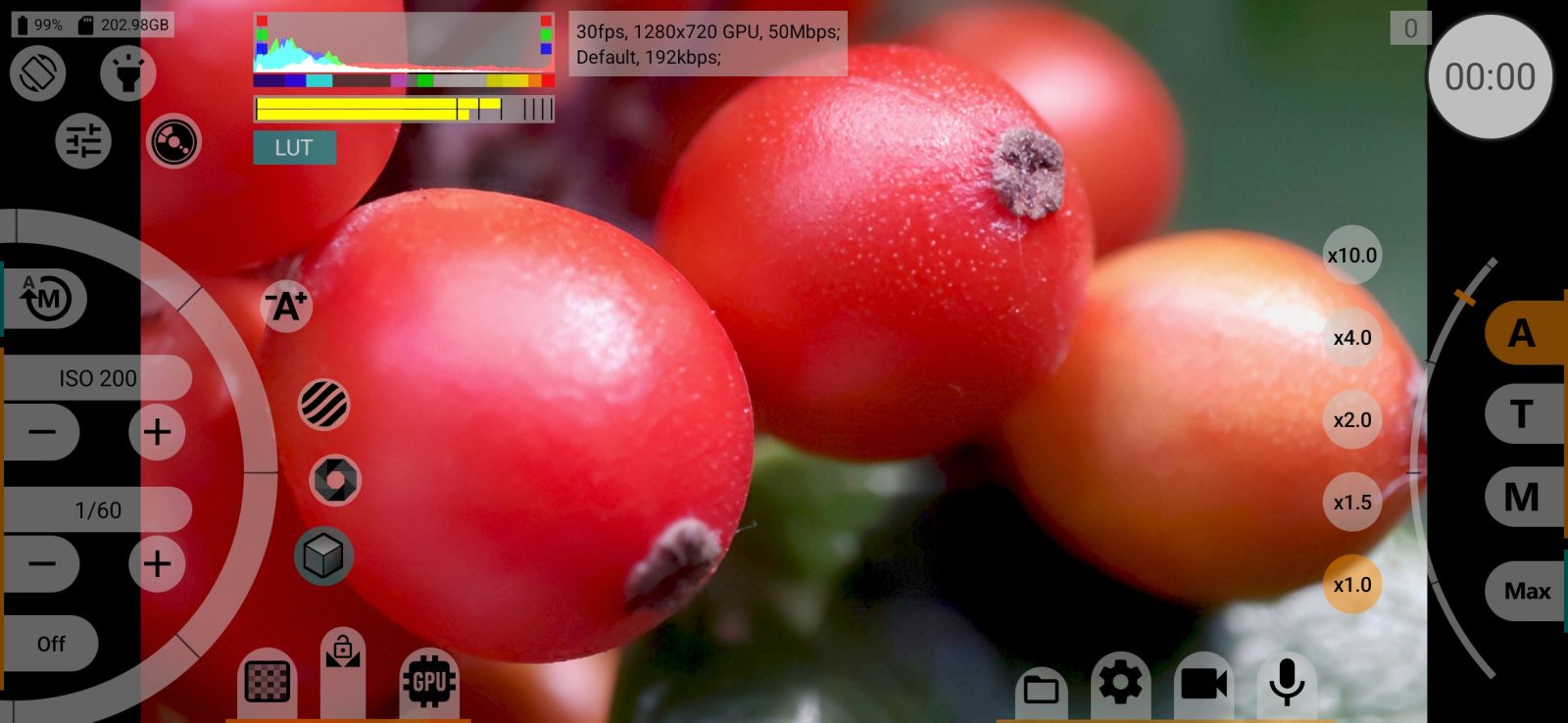
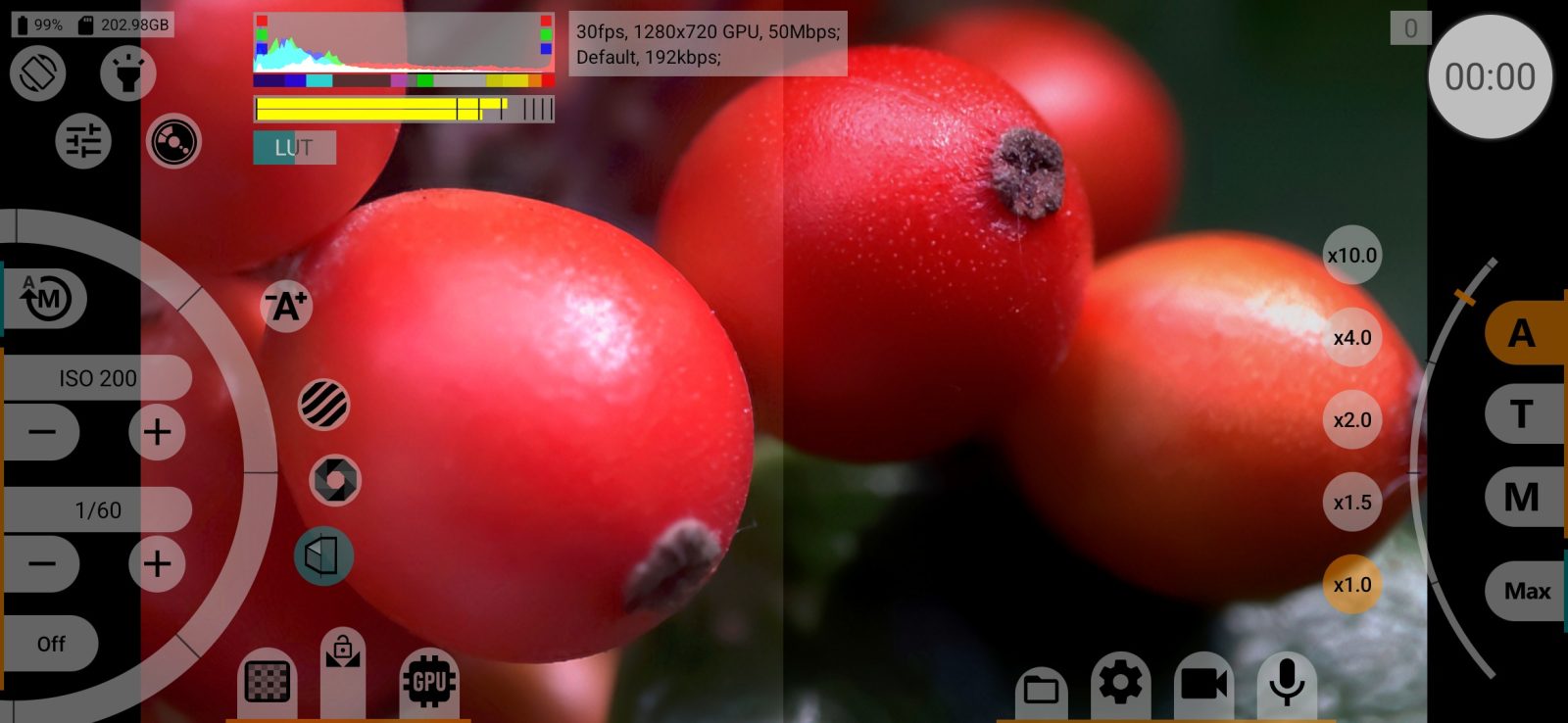
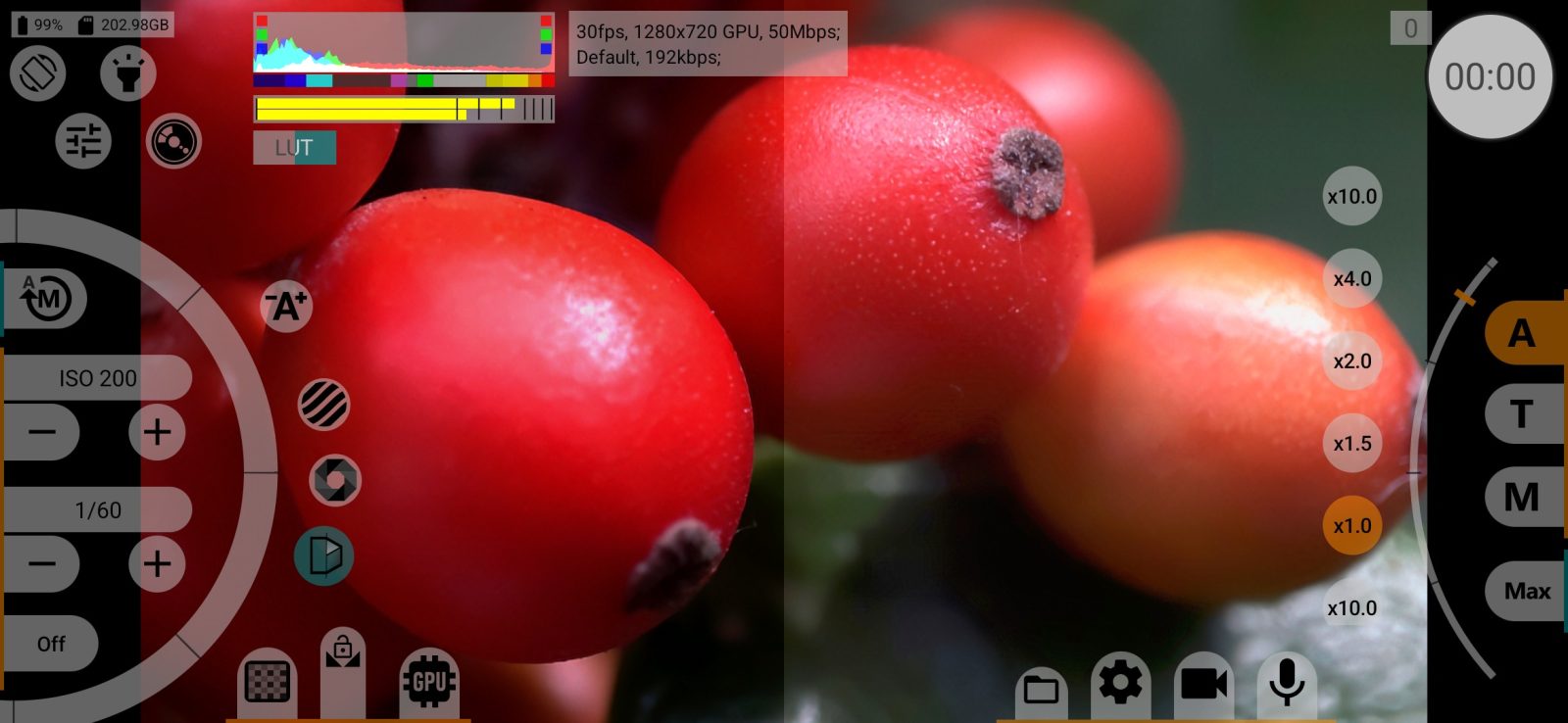
The LUT is applied only when a log, flat or linear profile (or HLG/PQ) is selected and the viewfinder goes through the GPU. That is what When possible under the name means. When the LUT is active, a LUT button appears on the screen:
- tap it to switch the LUT off and on;
- long-press it to add the half-frame views: the LUT on the left or the right half only, to compare with the original.
The download button next to the row saves the LUT as a .cube file for your editing software: choose the input and output profiles, the cube size (17, 33 or 64) and where to save it.
Unavailable without the GPU, when recording RAW, and when Screen Mode is HLG on Android 13 and earlier.
Resolution limit in preview mode
The maximum resolution of the viewfinder image while you are not recording. Values: Off, Screen size, 180p, 360p, 540p, 720p, 1080p, 1440p, 2160p, Video size, Maximum.
A lower resolution means less load on the phone; the recording is not affected. With the GPU, Off turns the viewfinder image off completely. Default: 1080p, or Screen size if the screen is smaller.
Resolution limit when recording
The same limit, applied during recording. Worth lowering in heavy modes (high frame rates, high bitrates), where the viewfinder competes with the recording for the phone's resources.
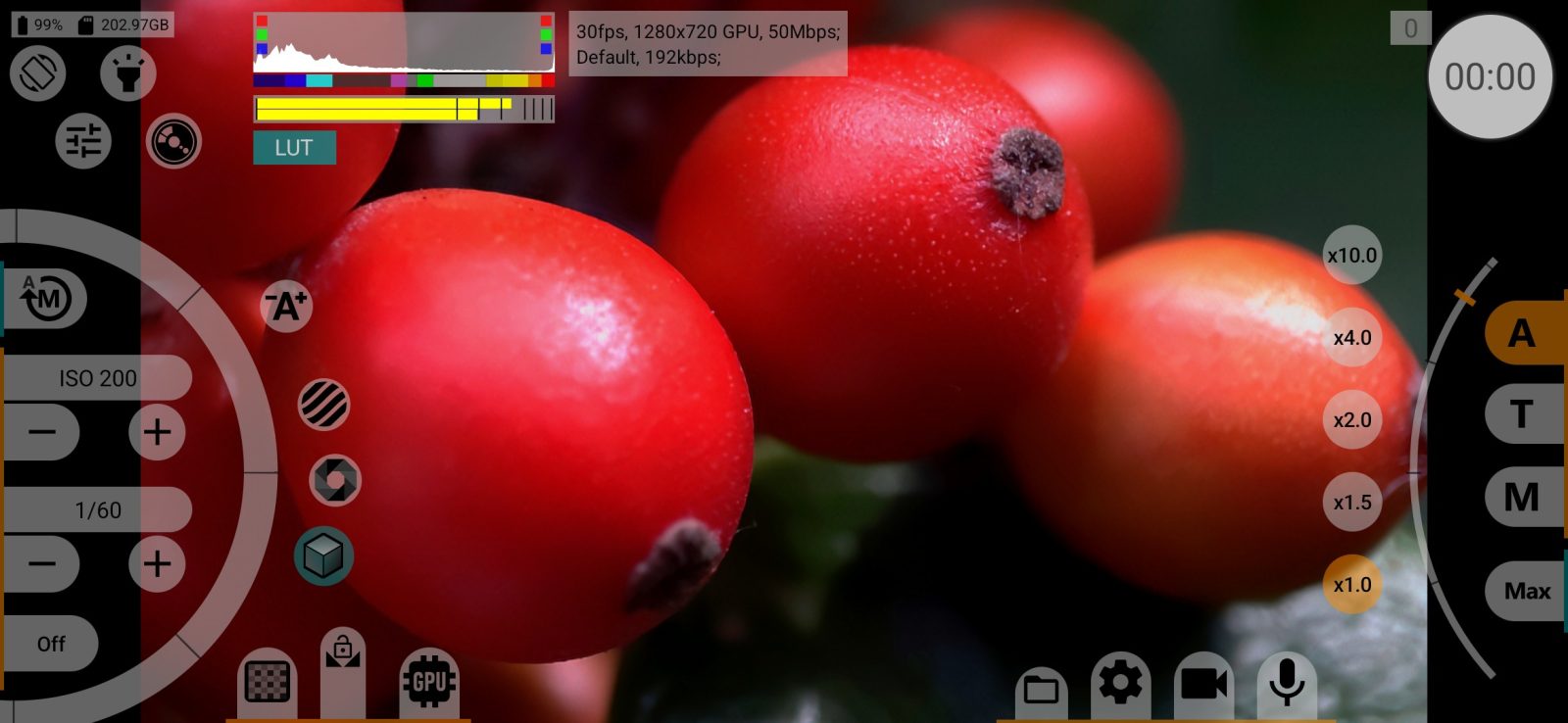
Histogram
The histogram of the image, measured before the viewfinder LUT (Before viewfinder LUT).
- Luminance: brightness only;
- RGB: red, green and blue separately;
- Luminance Max: every brightness level present in the frame is drawn at full height: shows which levels exist at all, regardless of how many pixels they have;
- Off.
Tap the histogram on the screen to cycle through the types. The expo-peaking limits are marked on it. Default: RGB on Android 11 and later.
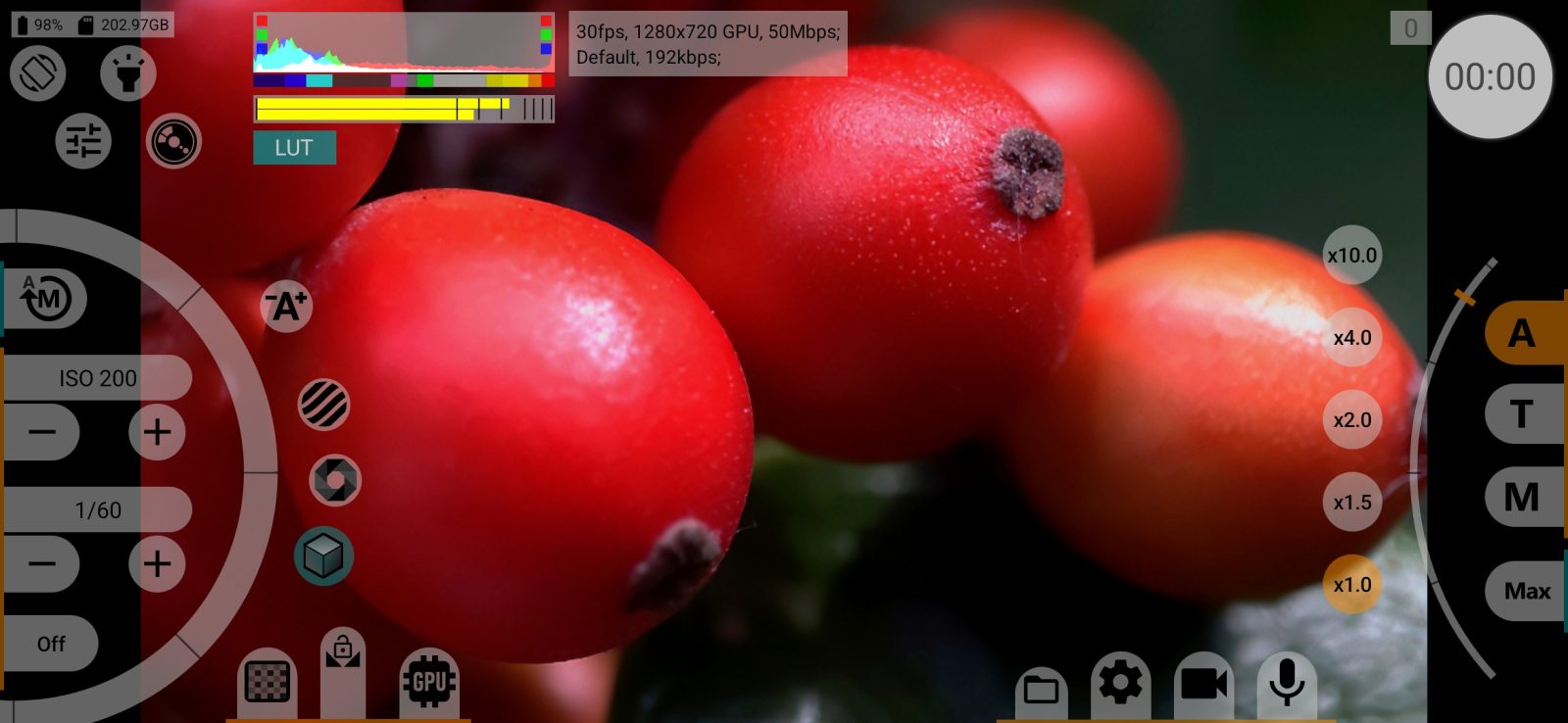
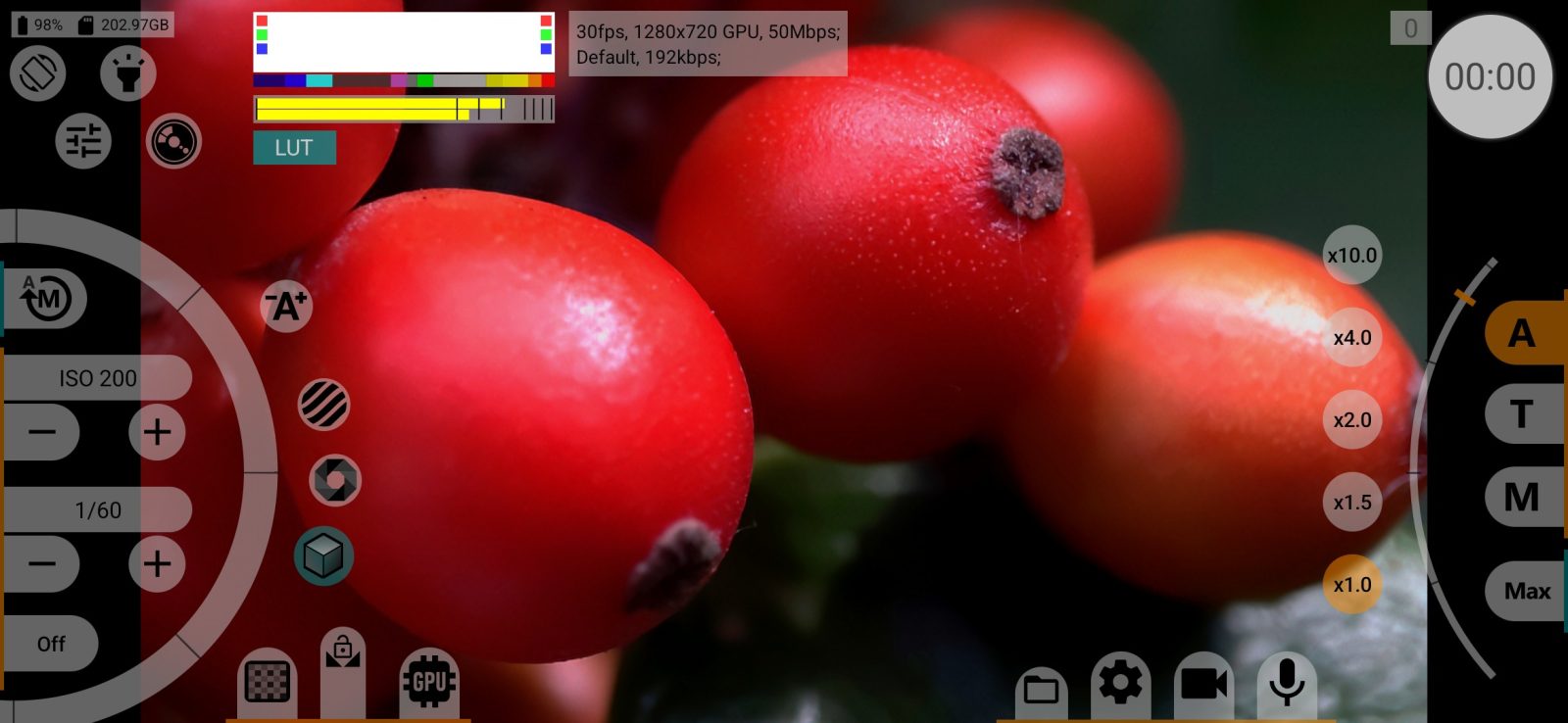
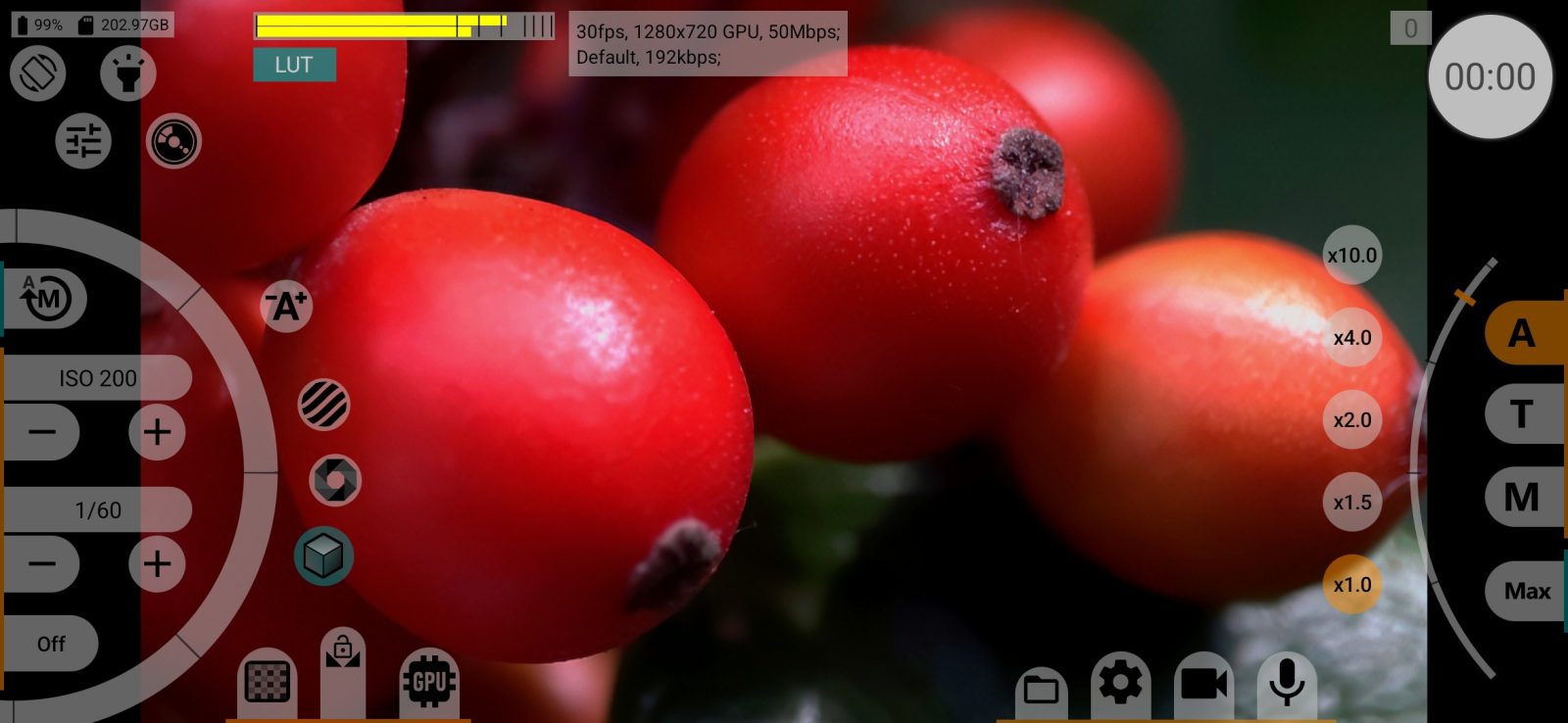
Turn off when recording
The row under the histogram: Yes hides the histogram for the time of recording, No keeps it on screen. Default: No.
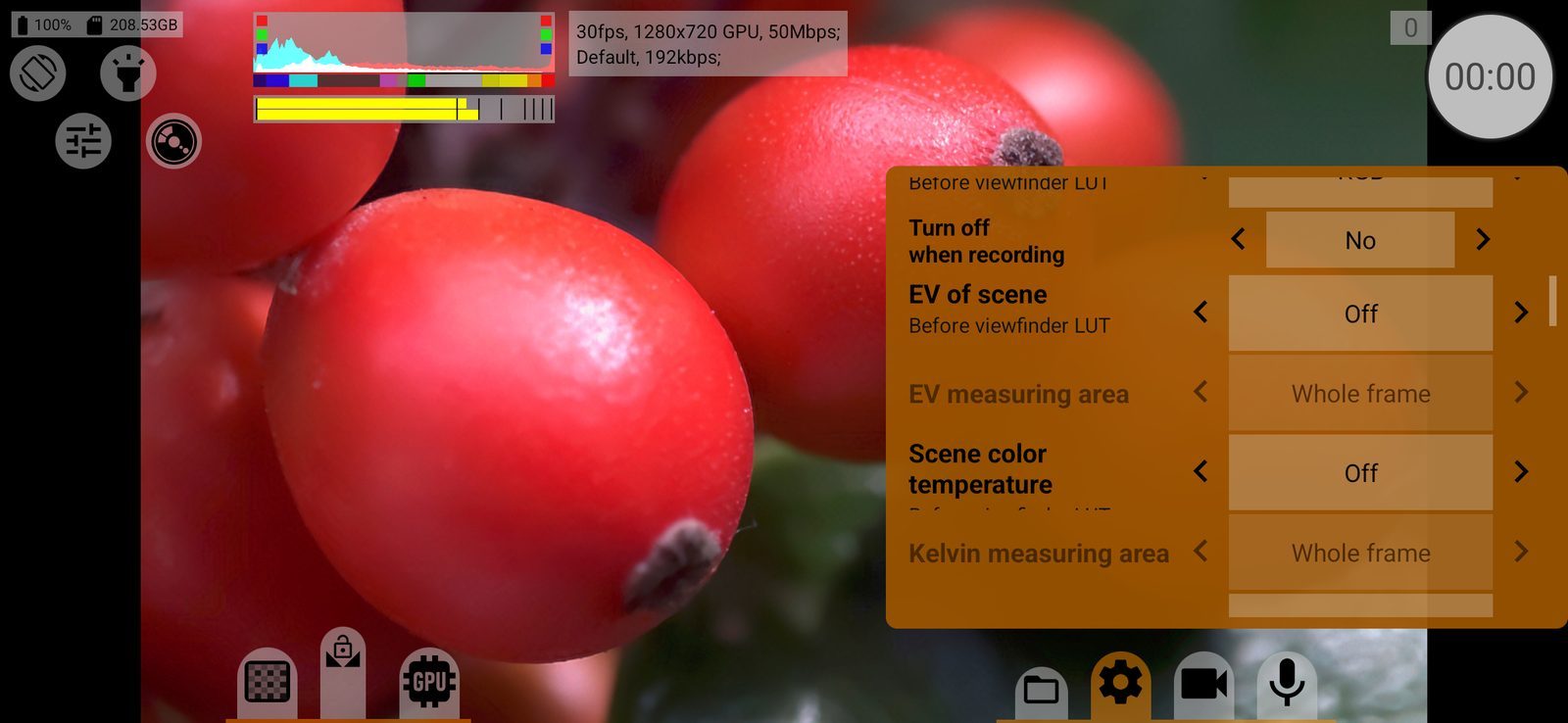
EV of scene
An indicator of how bright the scene is relative to middle grey, in EV stops (from −4 to about +2.5 EV), measured before the viewfinder LUT. Off / On / Turn off when recording. Default: Off.
EV measuring area
Which part of the frame the EV indicator measures: Whole frame, the central 2/3 or the central 1/3.
Scene color temperature
An estimate of the scene's colour temperature in kelvins, from the average colour of the measured area, before the viewfinder LUT. Off / On / Turn off when recording. Default: Off.
Kelvin measuring area
Which part of the frame the colour temperature is measured in: Whole frame, 2/3 or 1/3, as for EV.
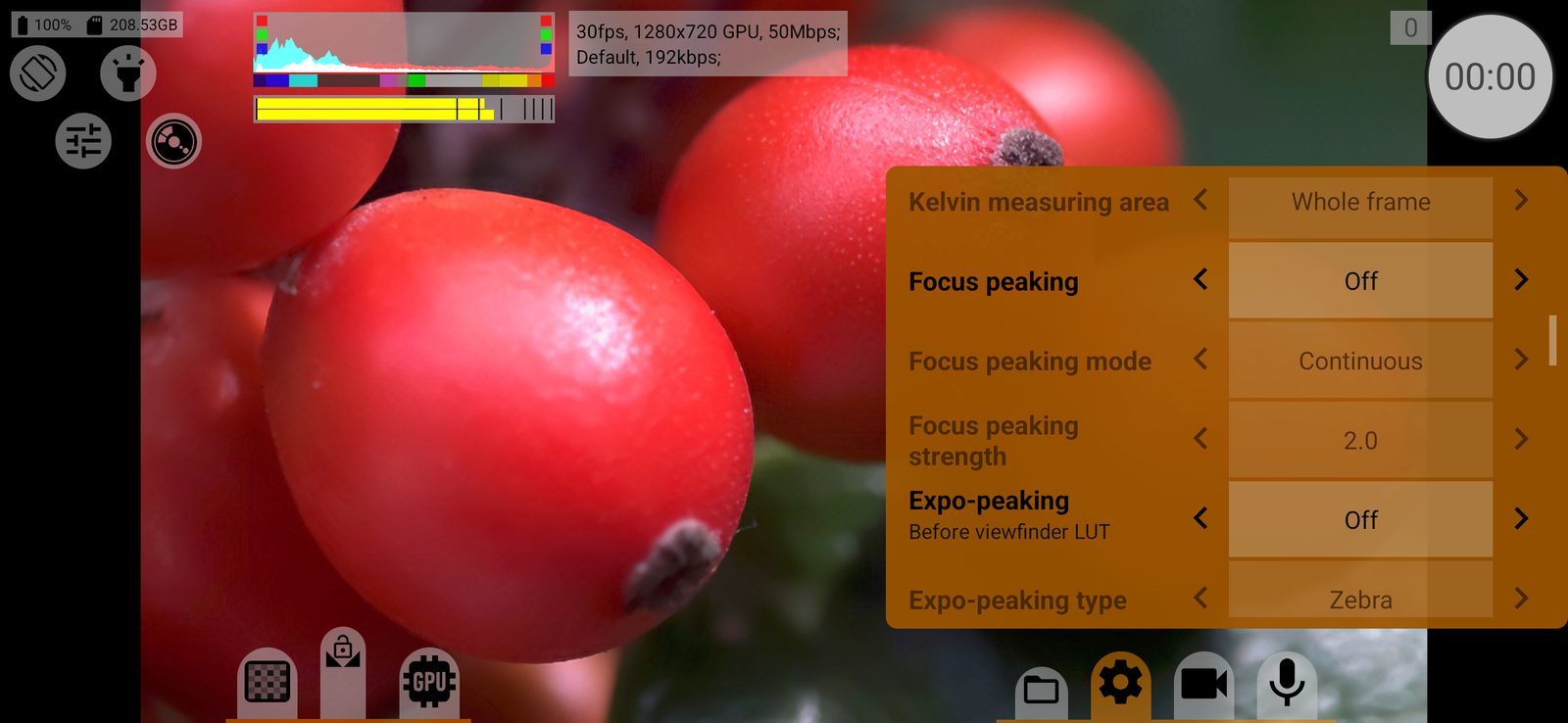
Focus peaking
Highlights sharp edges in the viewfinder, to help with manual focus. Off / On / Turn off when recording. Default: Off. The highlight is shown only in the viewfinder, never in the recording.
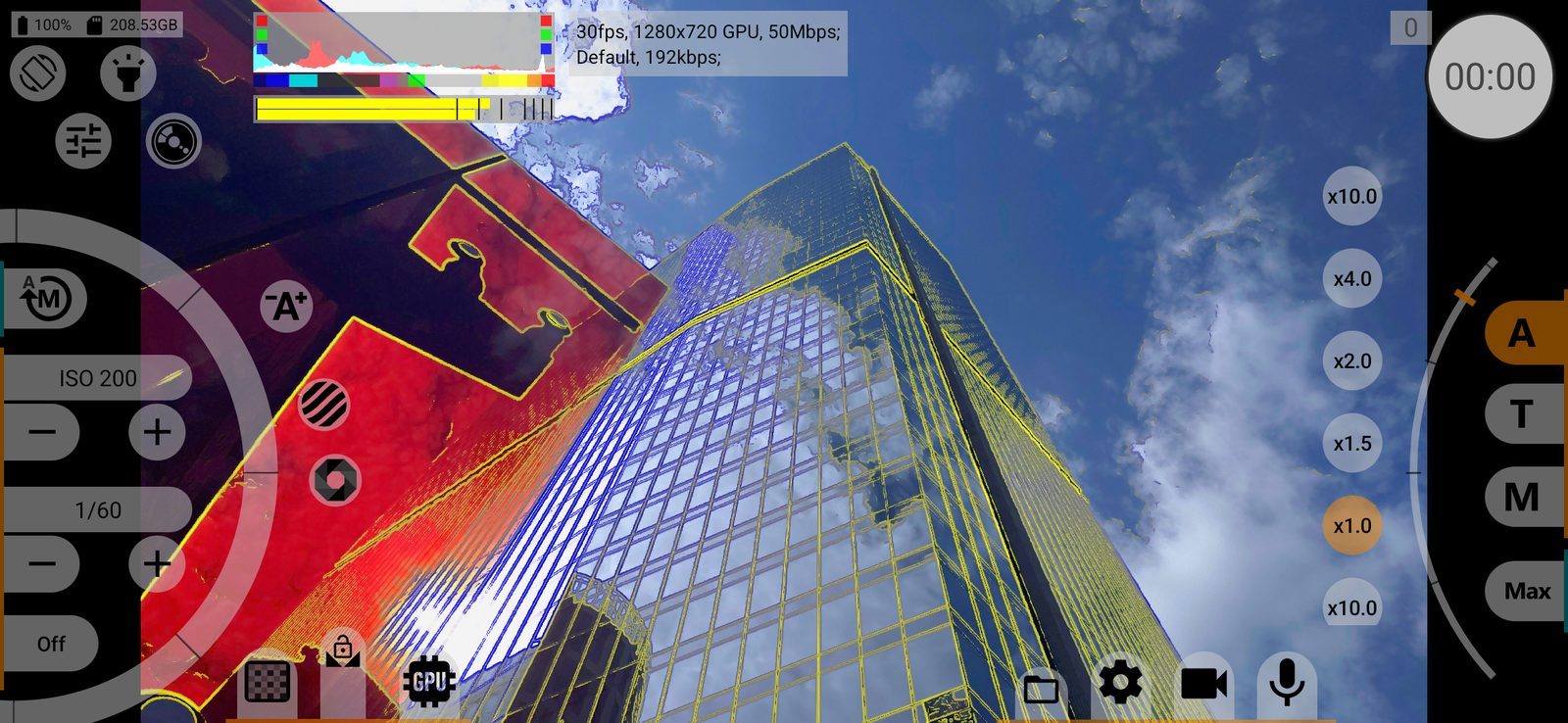
Focus peaking mode
When peaking is shown:
- By touching focus wheel: only while your finger is on the focus wheel (or a hardware focus key is pressed);
- Continuous: all the time.
Default: By touching focus wheel.
Focus peaking strength
How strongly edges are highlighted: from 0.75 to 10. Higher values highlight more of the image. Default: 2.0.
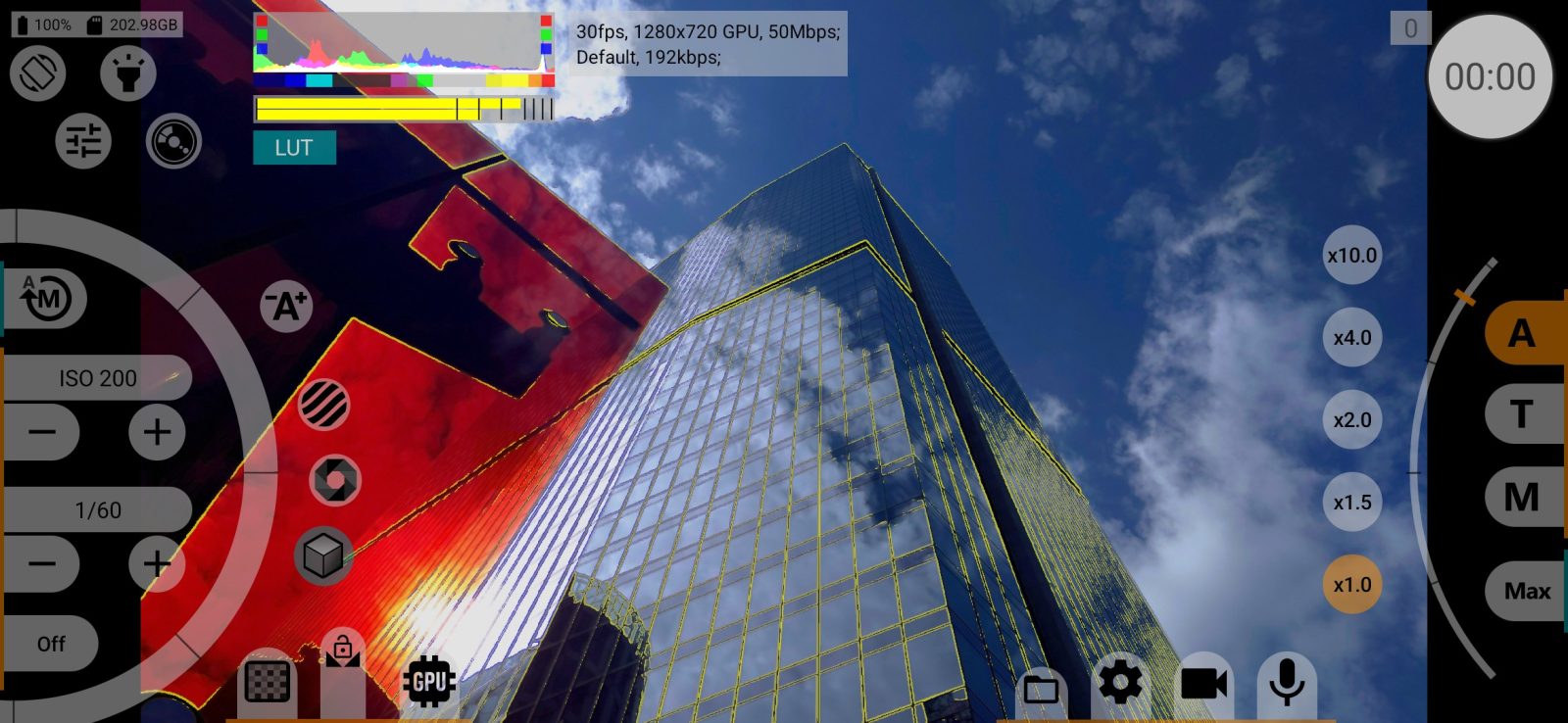
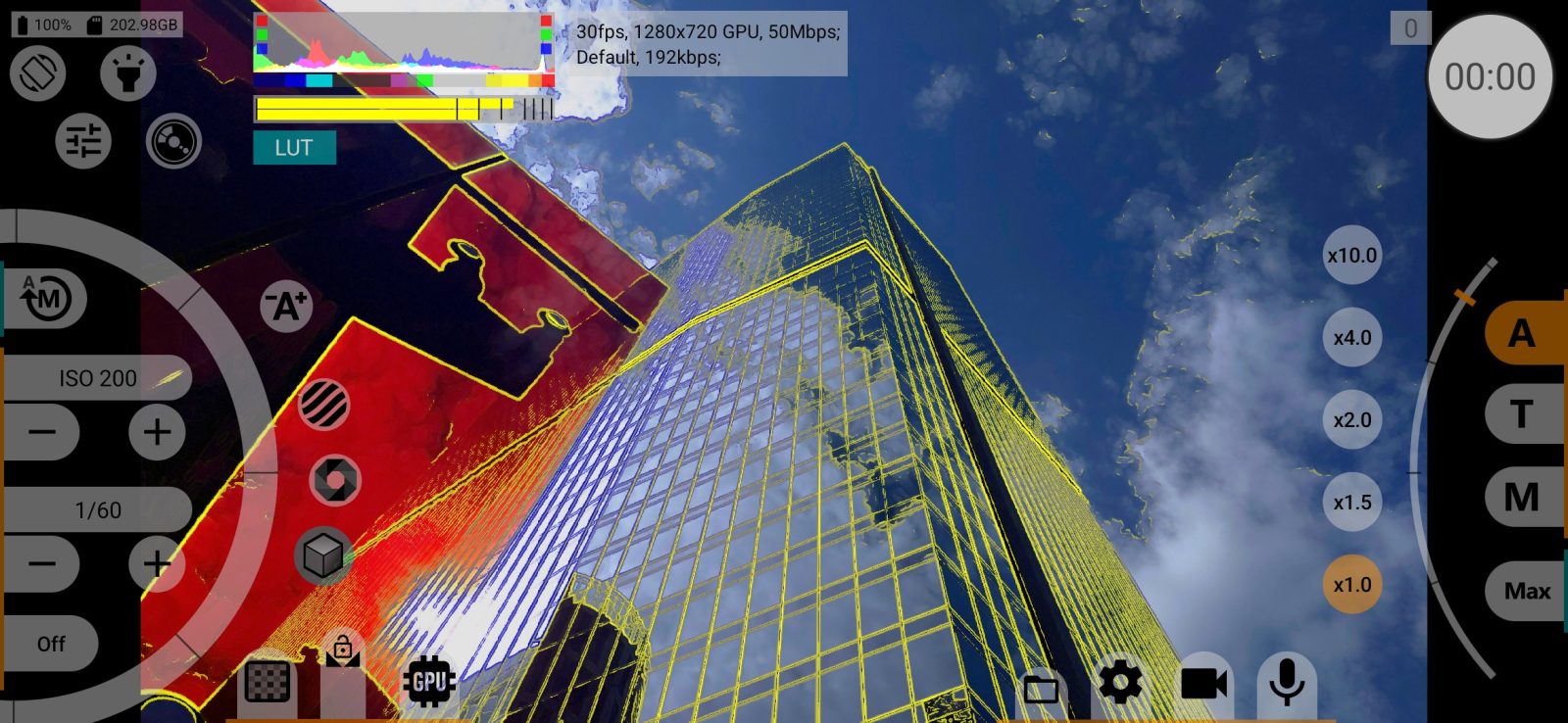
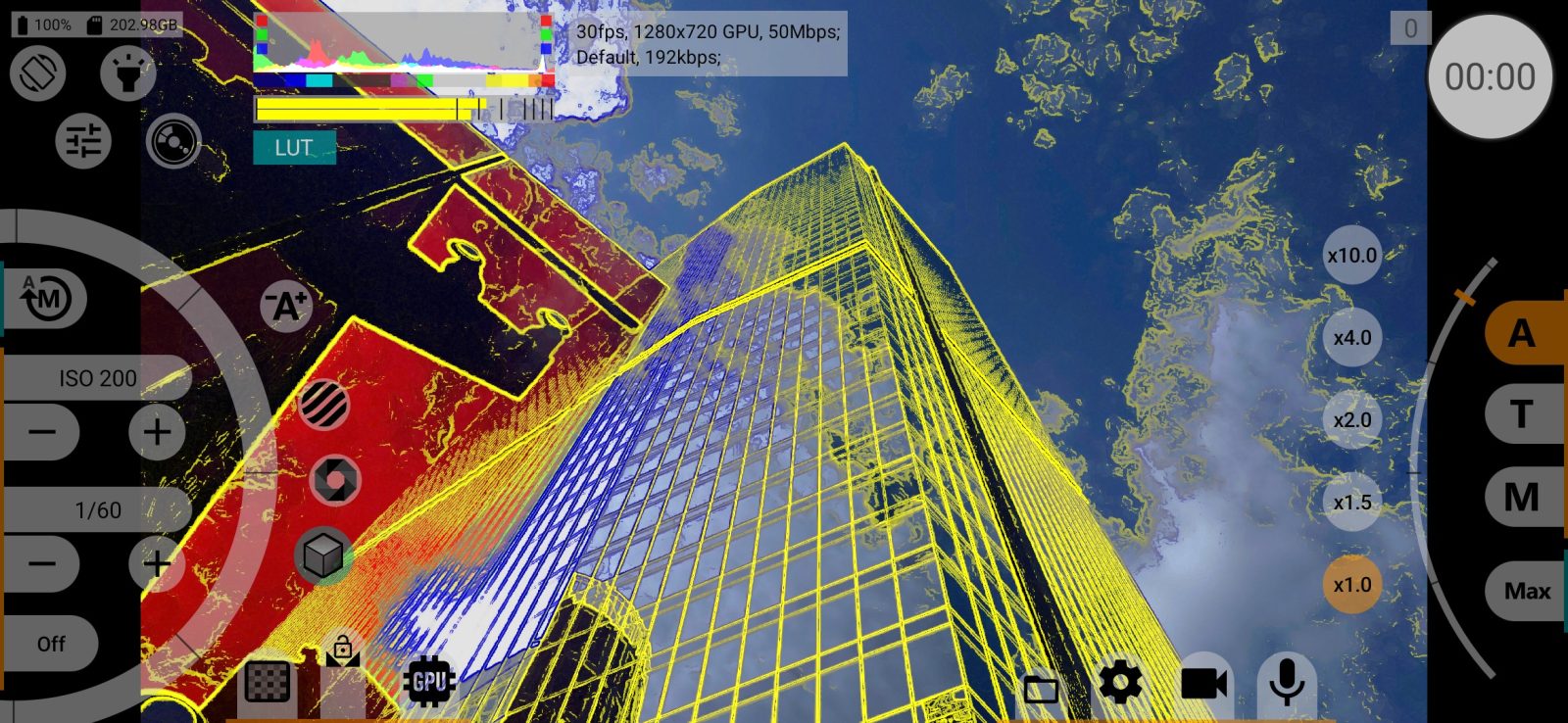
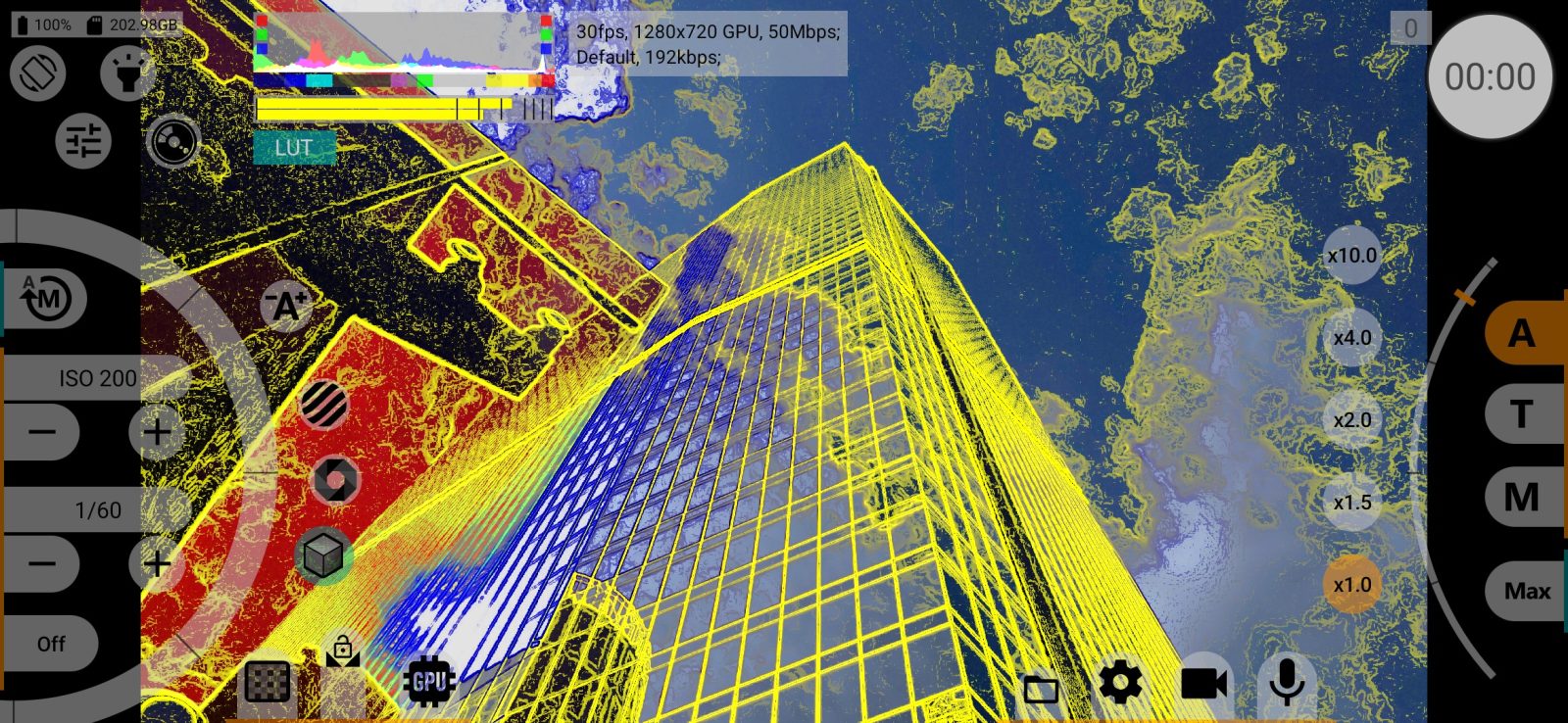
Expo-peaking
Expo-peaking marks over- and underexposed areas (as zebra or false colour) while your finger is on the ISO wheel, and hides them when you let go: Off / By touching ISO wheel. Default: Off.
To keep the zebra or false colour on the screen permanently, use the zebra and false colour buttons in the exposure controls. They work regardless of this row.
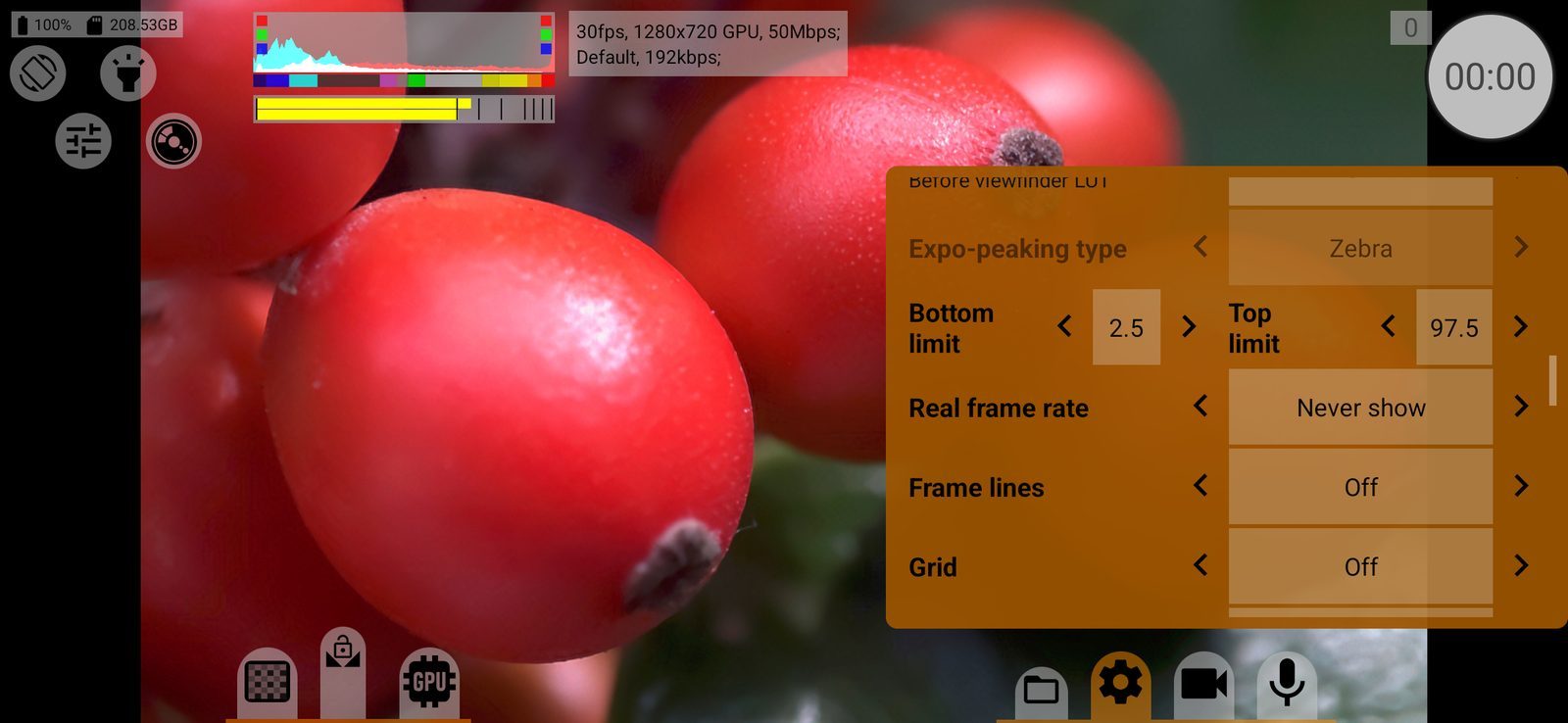
Expo-peaking type
- Zebra: diagonal stripes: dark red above the top limit, light blue below the bottom limit;
- False Color: brightness between the limits is painted with a scale of colours: from dark blue in the shadows through grey and green around the middle to yellow, orange and red near the top limit.
Default: Zebra.
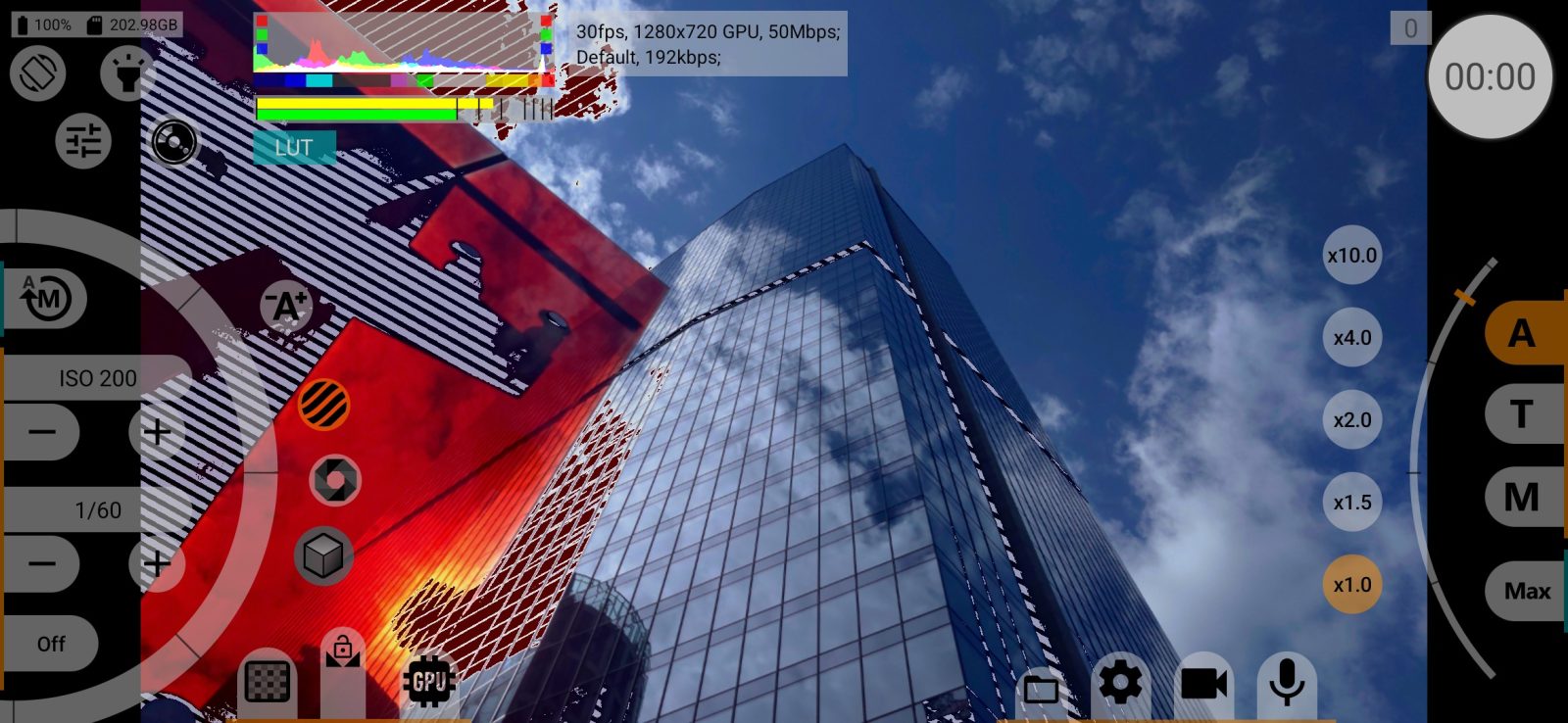
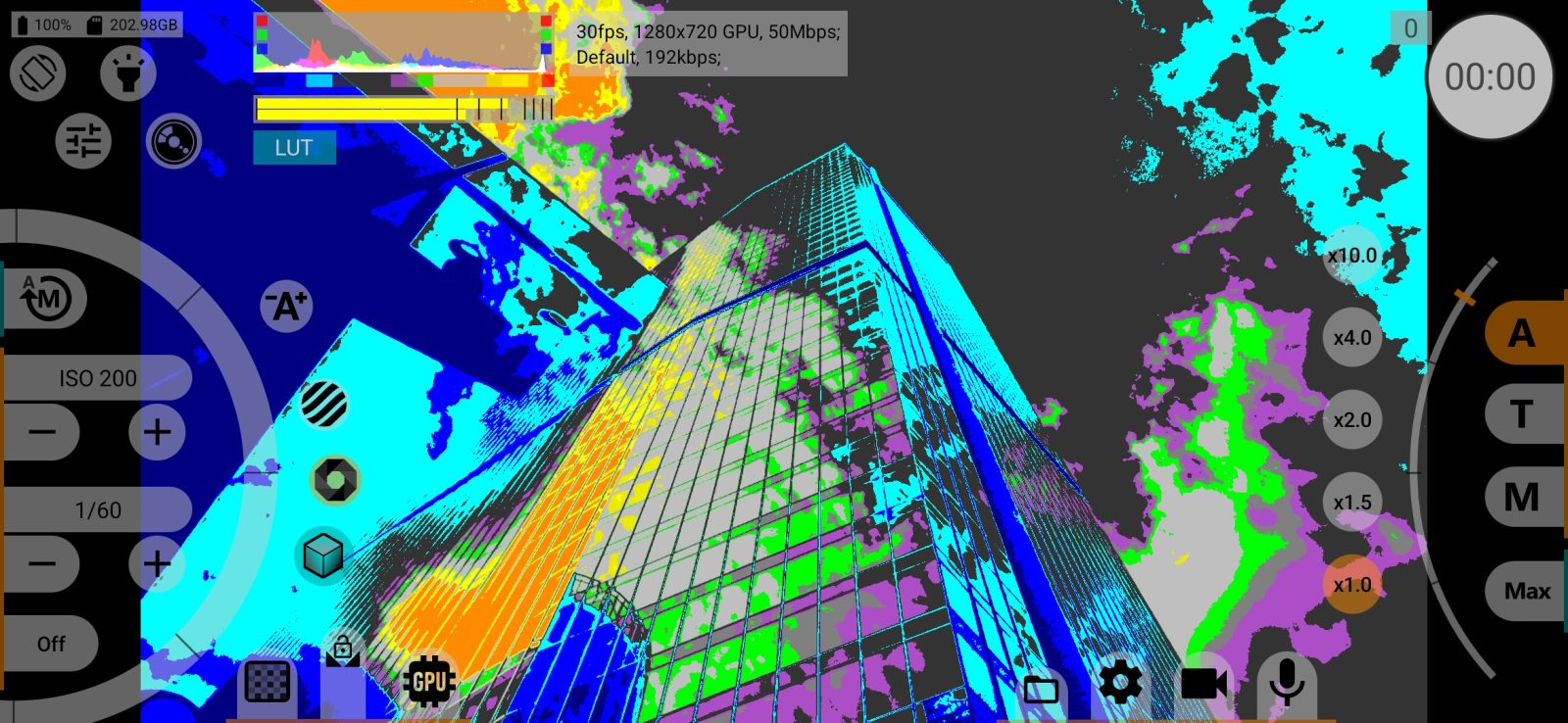
Bottom limit
The lower limit, in percent of the signal level: areas darker than this are marked as underexposed. From −7 to 49.5 in steps of 0.5. Default: 2.5.
Top limit
The upper limit: areas brighter than this are marked as overexposed. From 50 to 109 in steps of 0.5. Default: 97.5.
Both limits apply to the zebra and to false colour, and are marked on the histogram.
Real frame rate
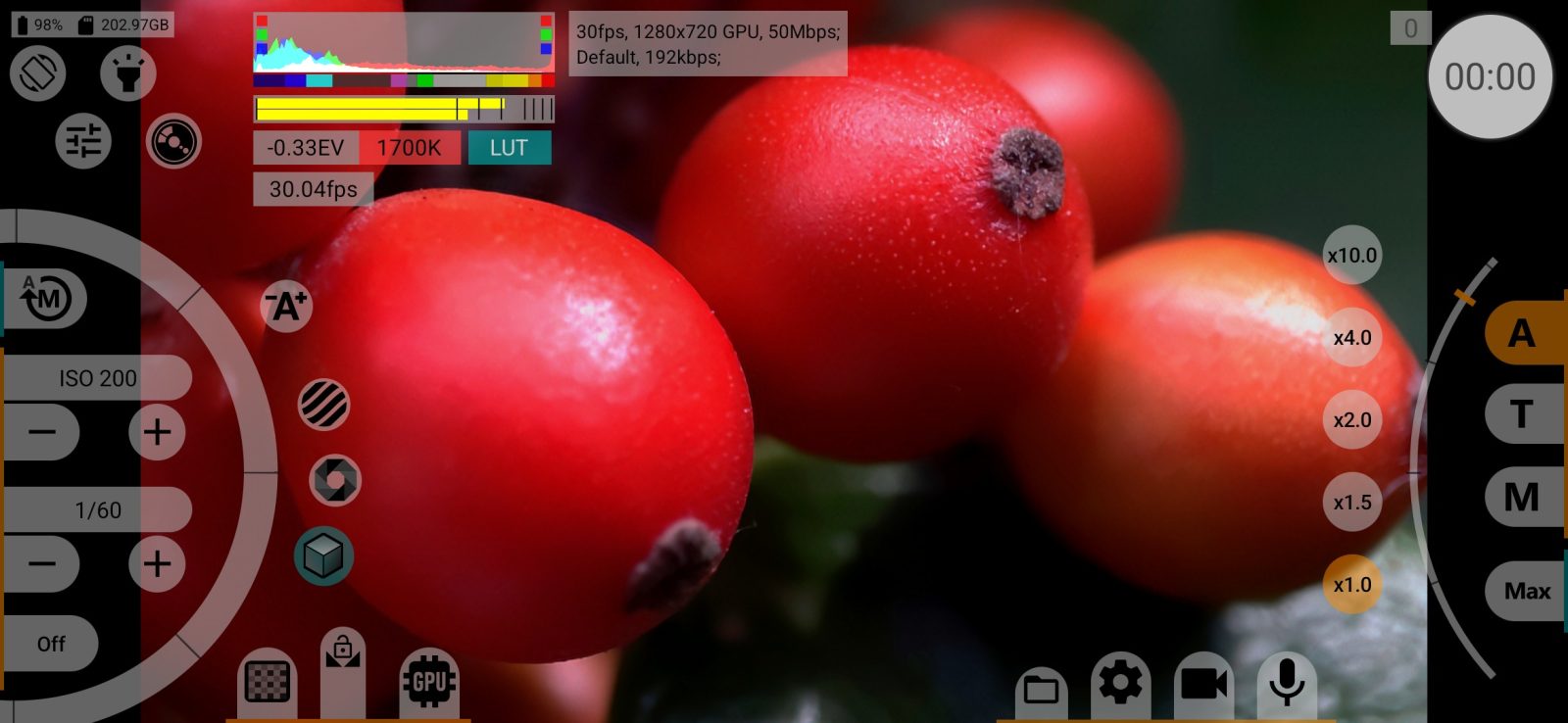
Shows the frame rate the camera actually delivers, measured from the camera's own frame timestamps: Show / Never show. Use it to check that the phone keeps up with the selected frame rate. Works without the GPU too.
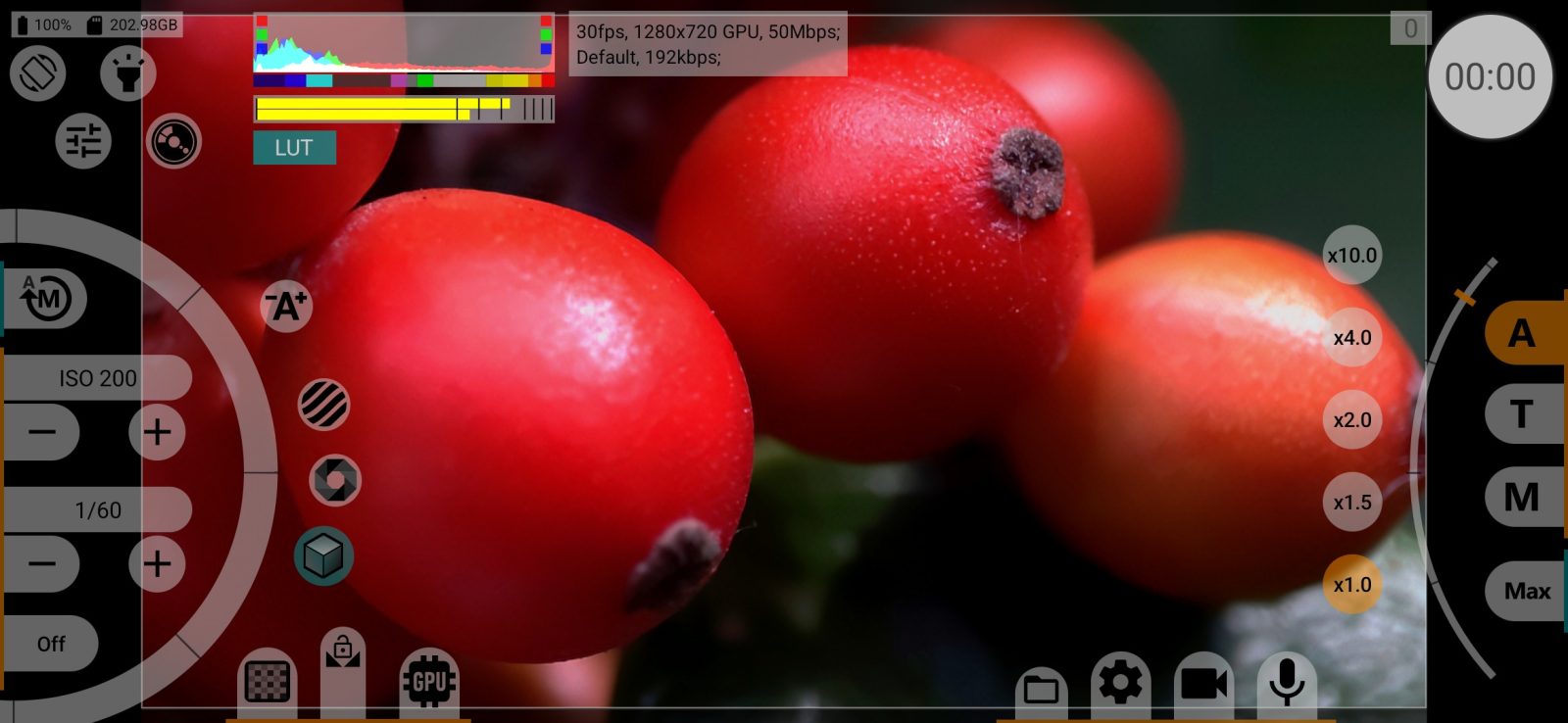
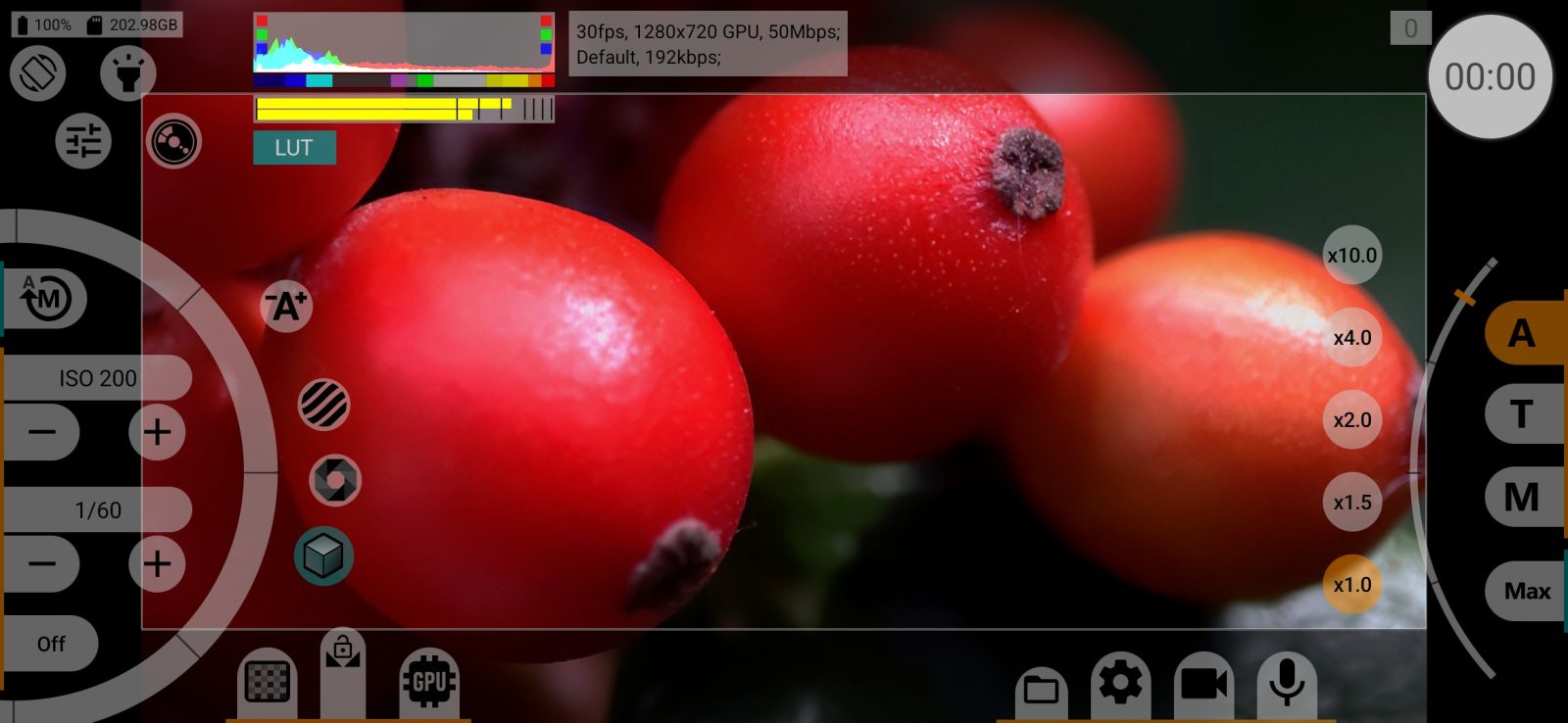
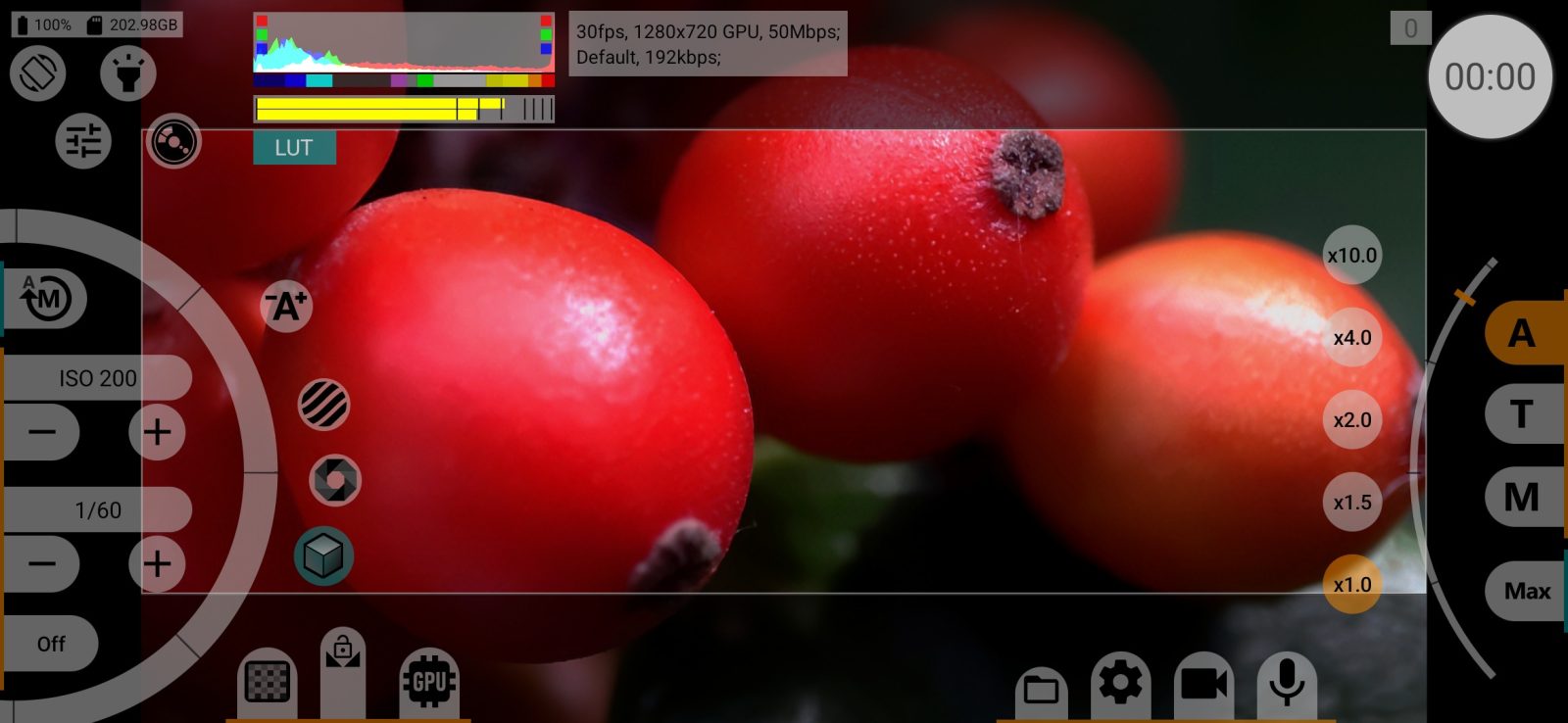
Frame lines
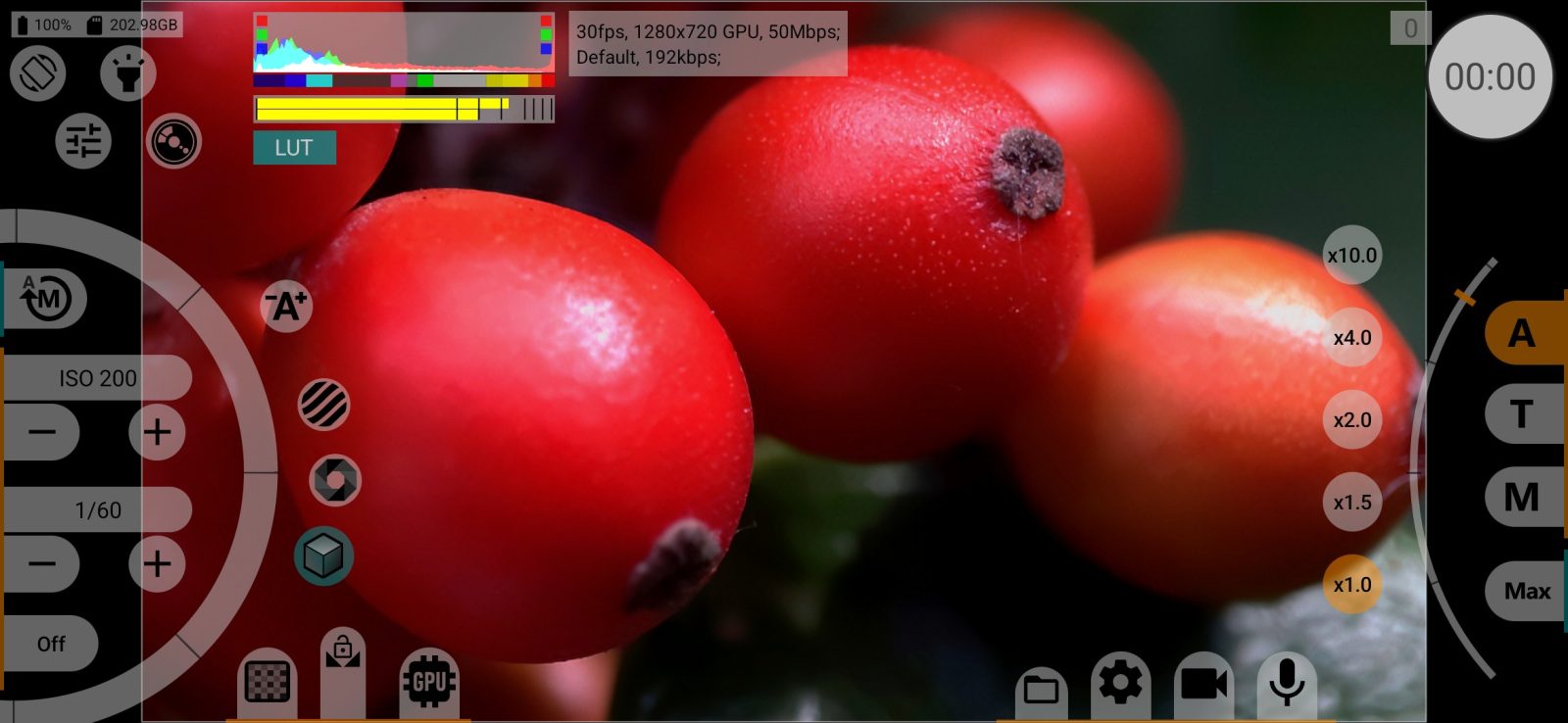
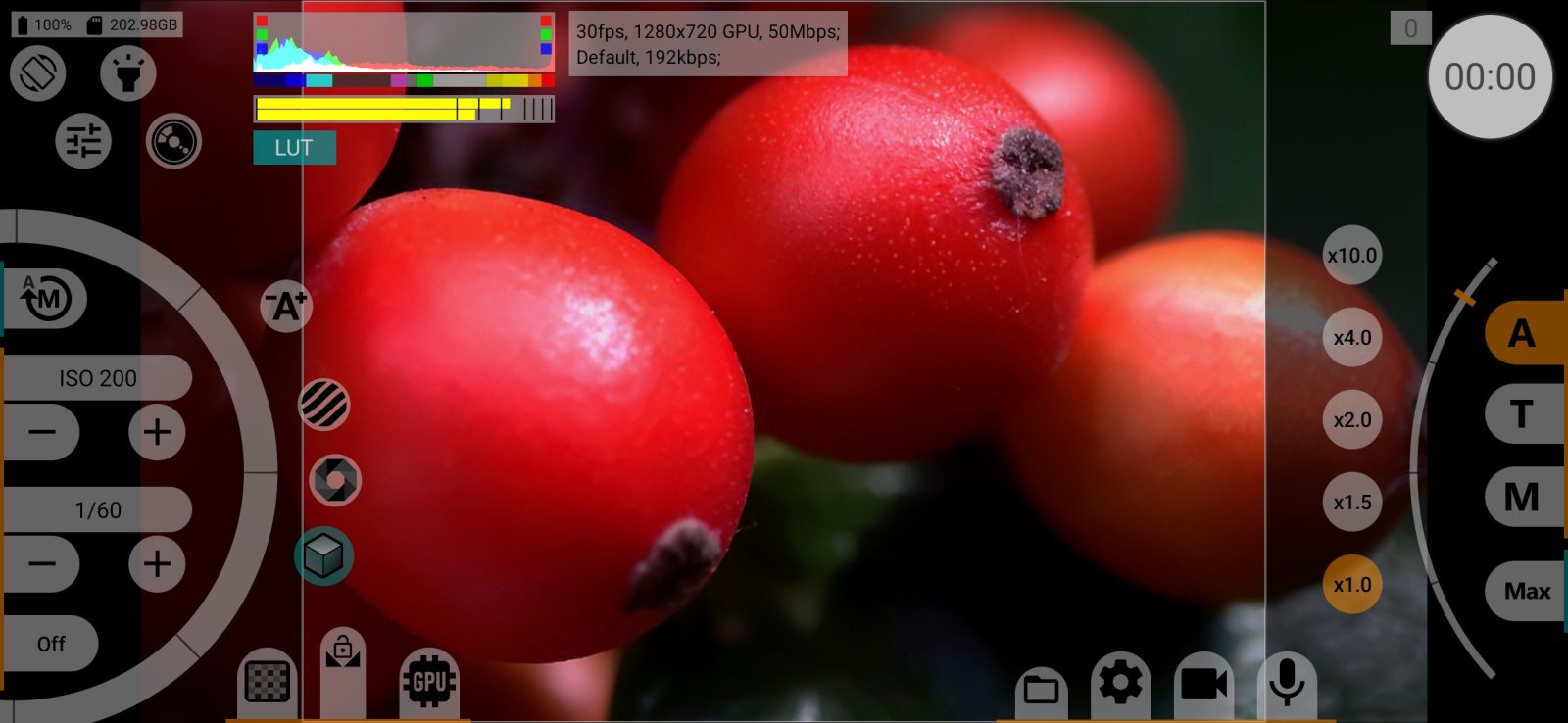
Frame lines over the viewfinder (and on the HDMI monitor):
- Off;
- Viewfinder size: the proportions of the video frame;
- fixed aspect ratios from 1.00:1 to 2.76:1, including 4:3, 16:9, 1.85:1, 2.39:1.
Stored separately for each camera. Desqueeze of the viewfinder is taken into account.
If recording through the GPU crops the frame or desqueezes it (video menu), this row is locked and shows the resulting proportions.
Grid
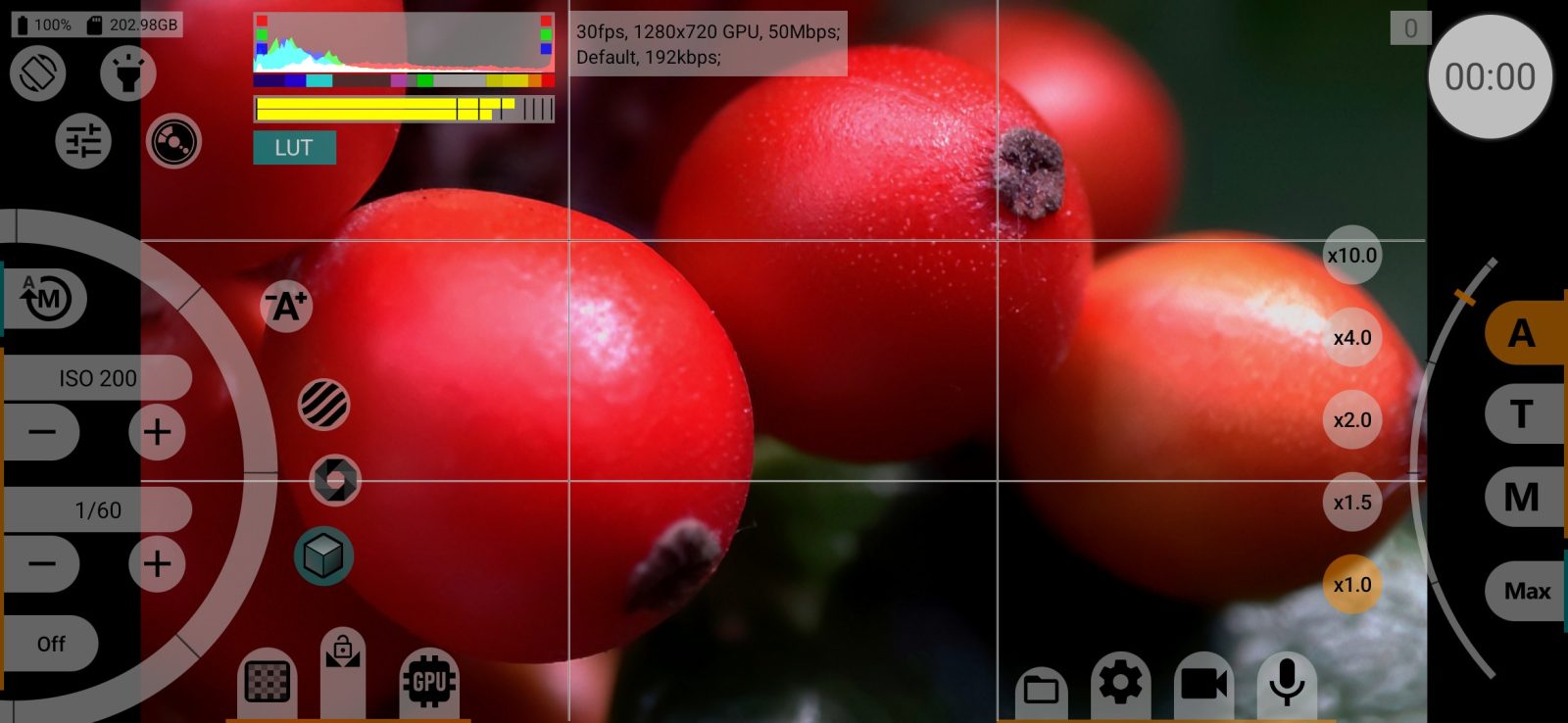
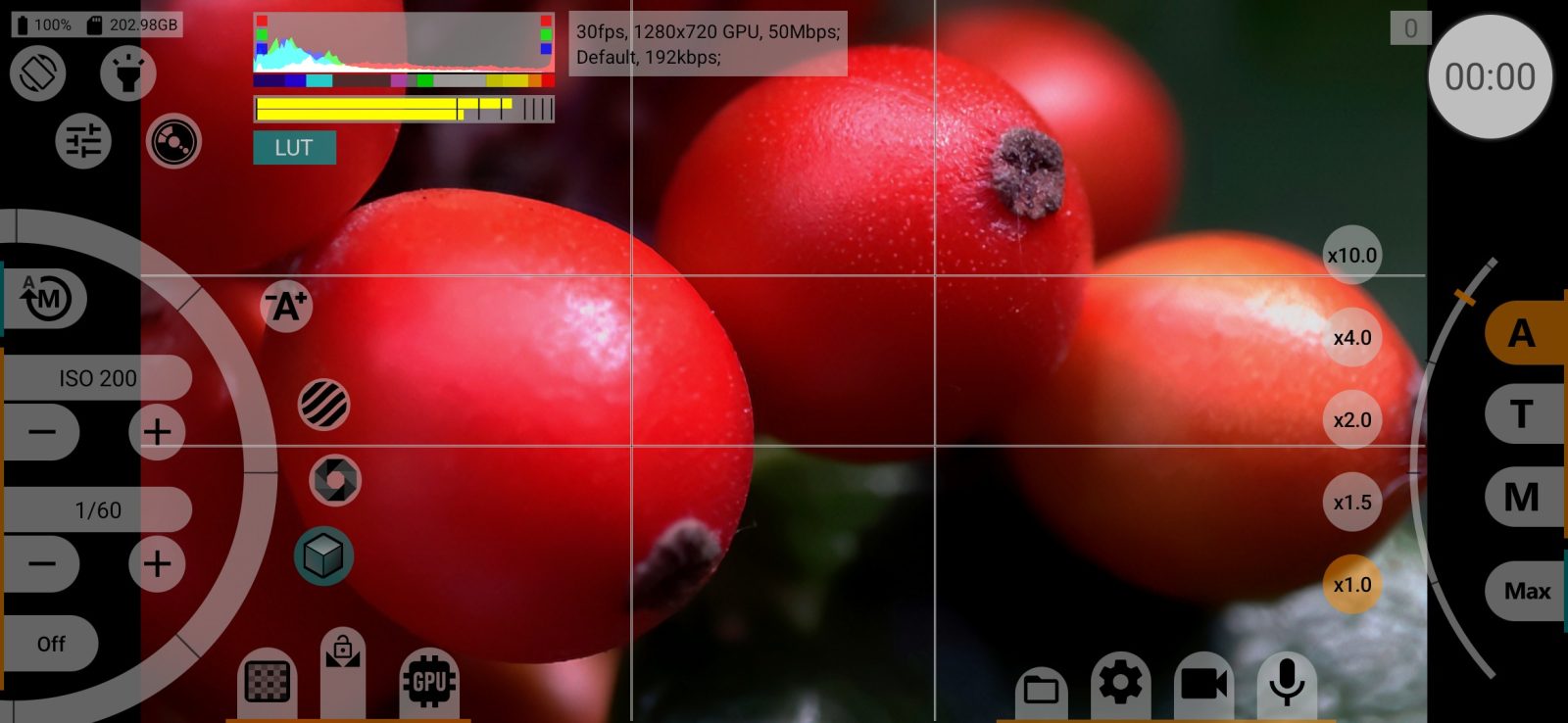
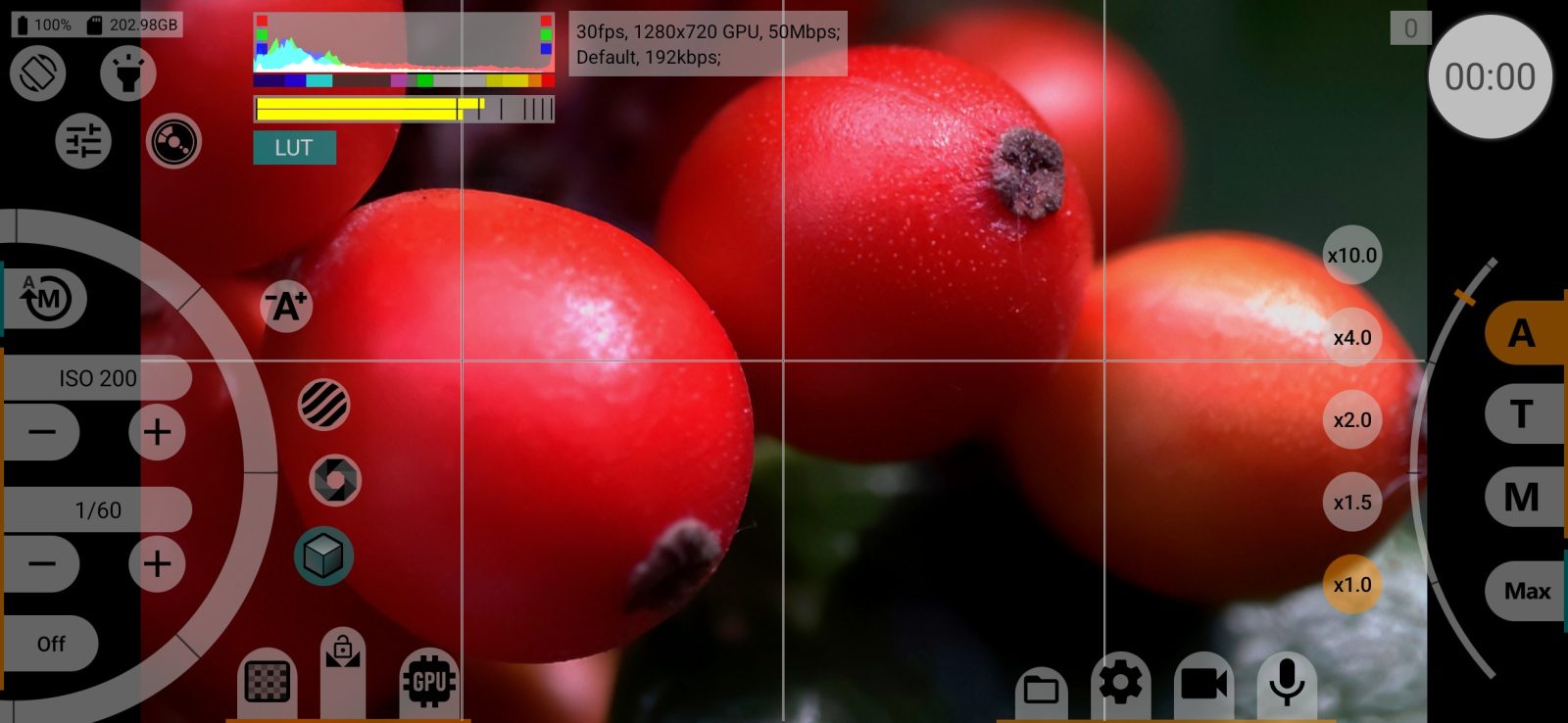
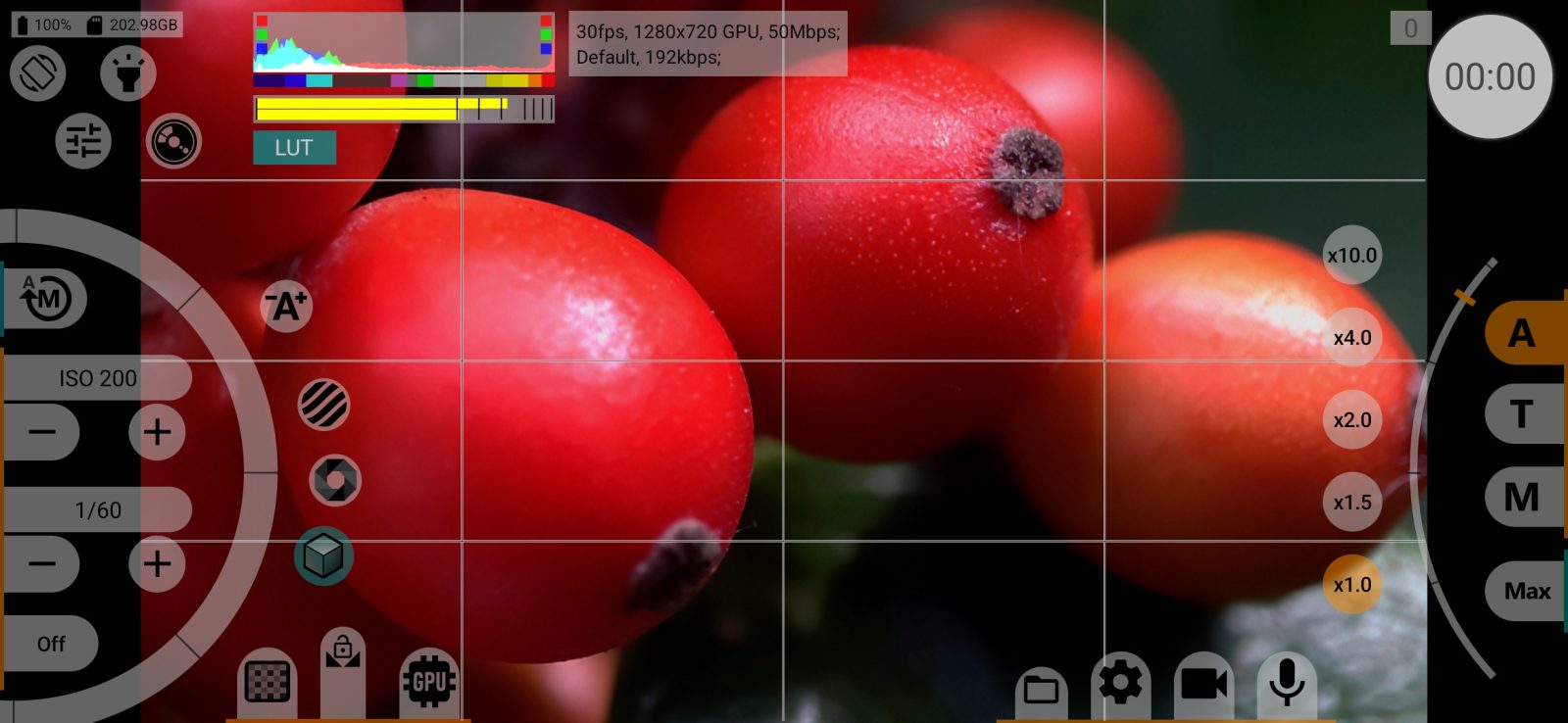
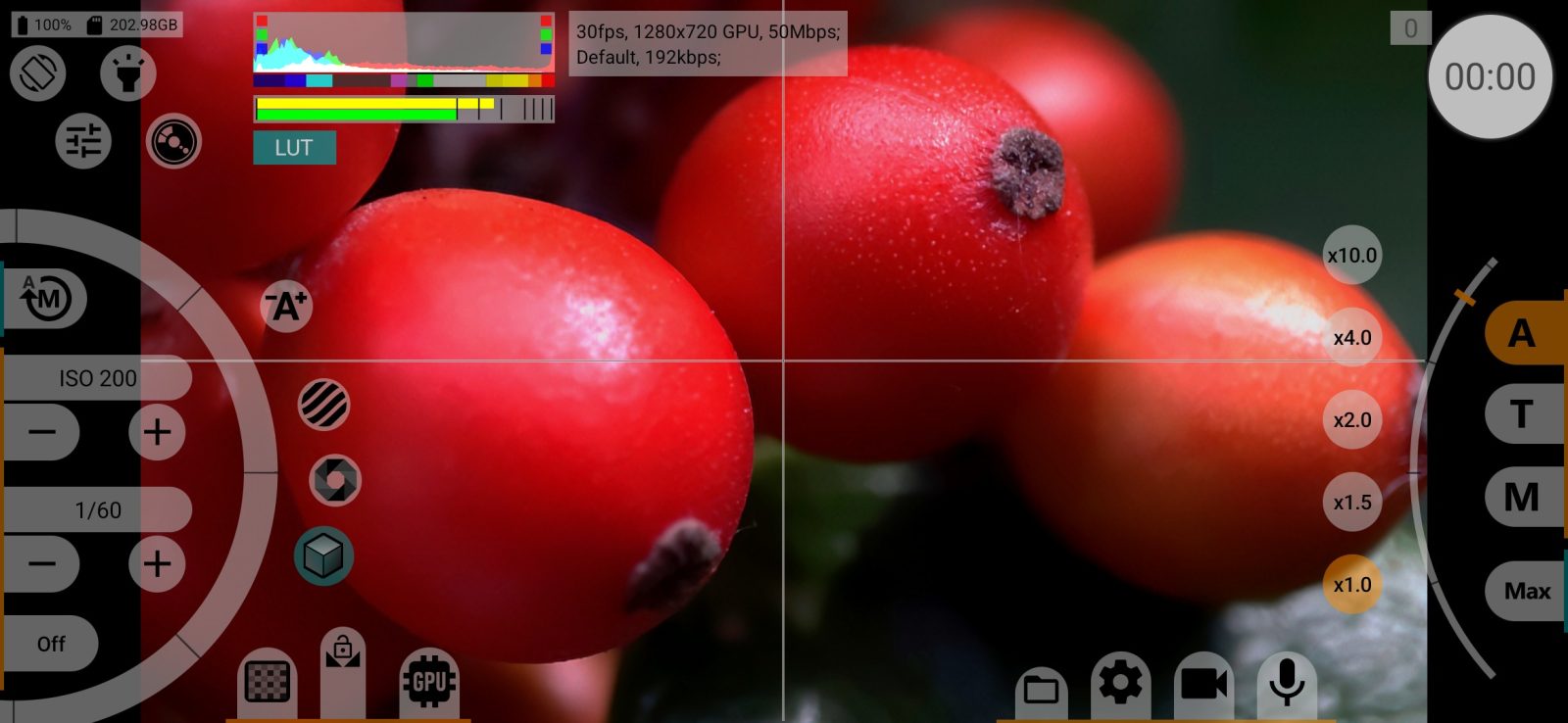
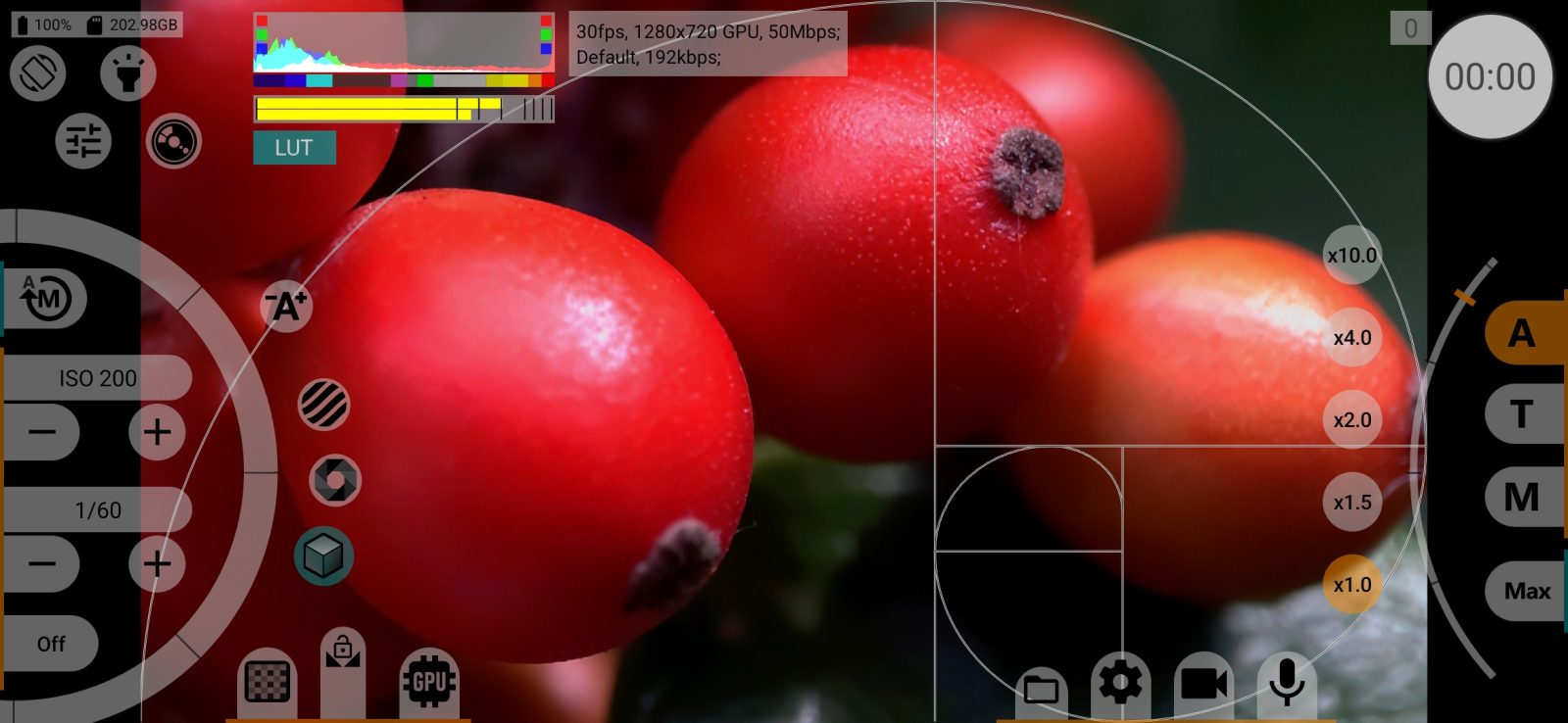
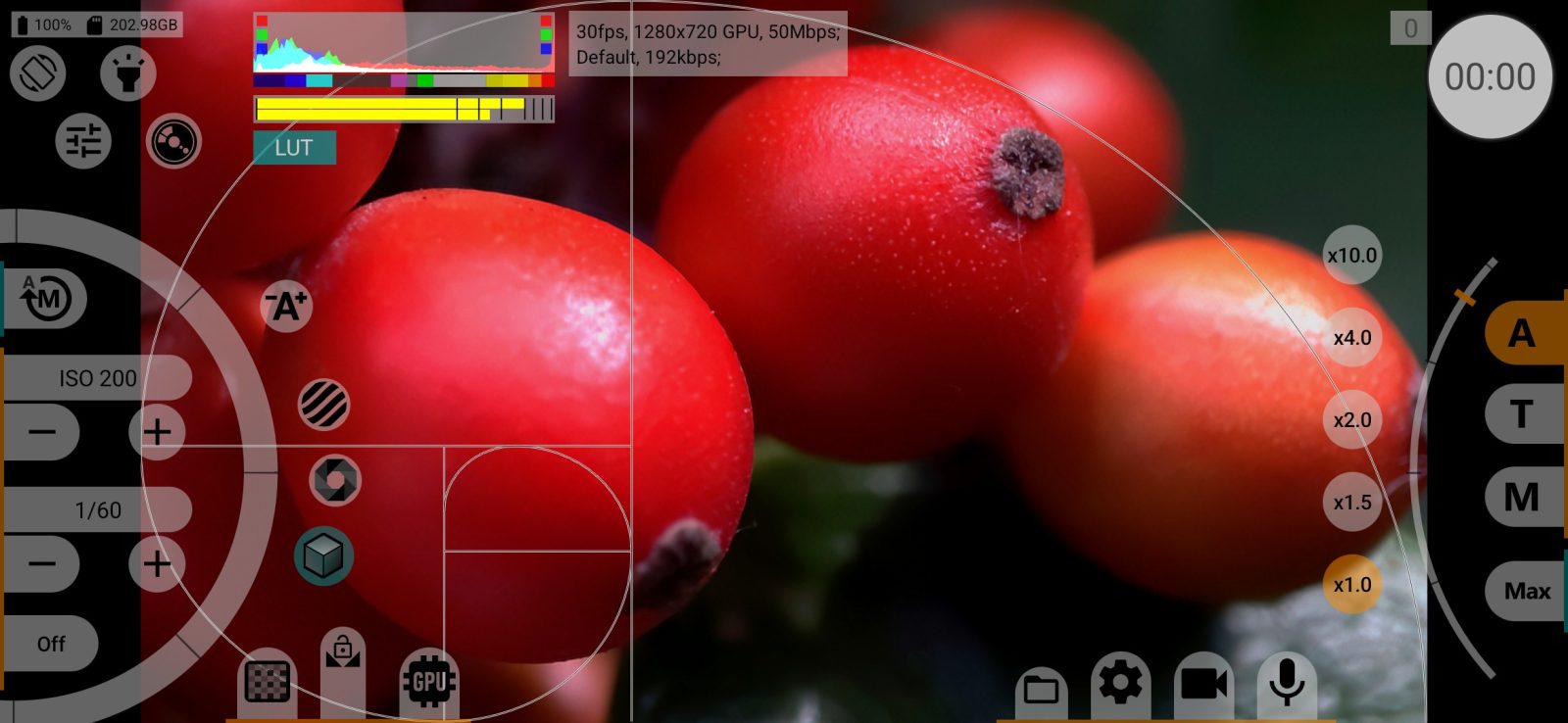
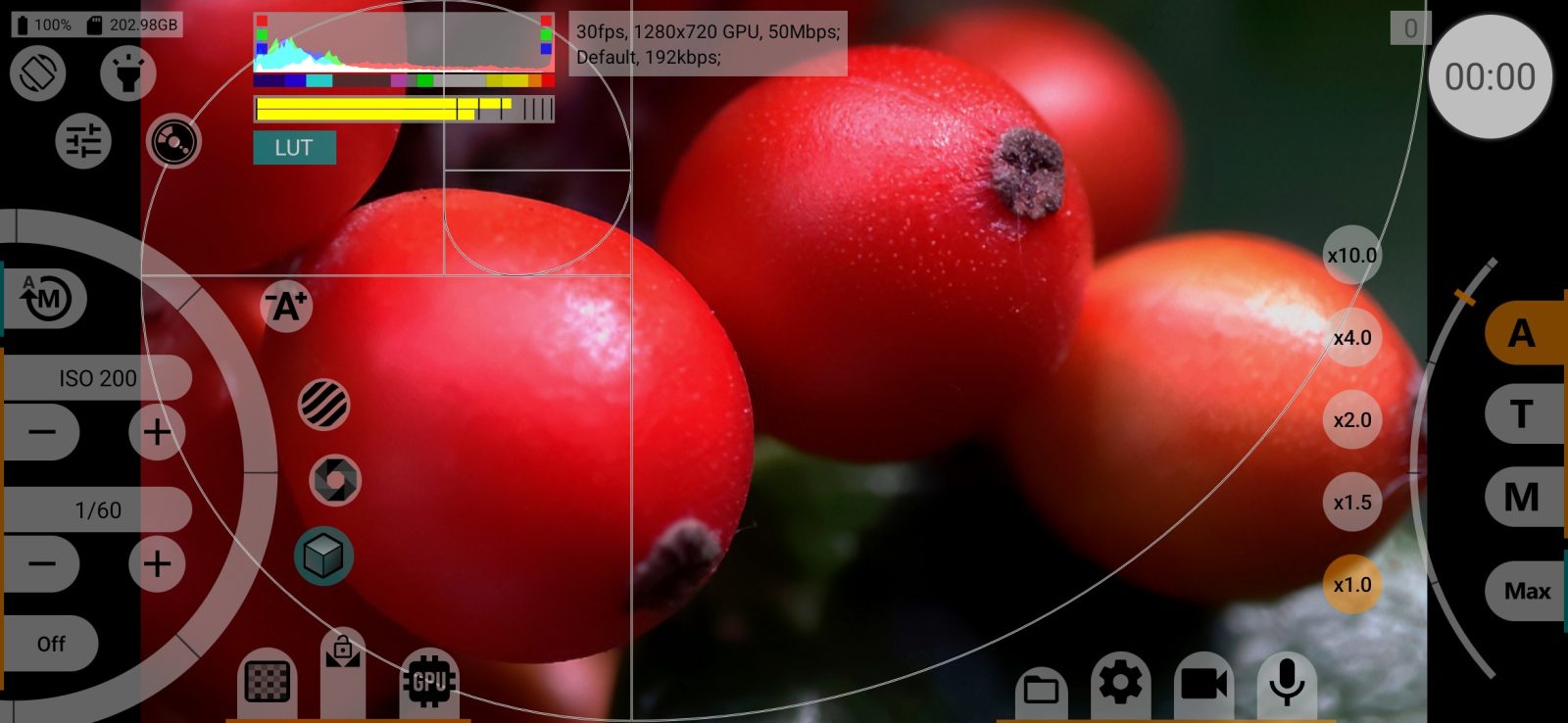
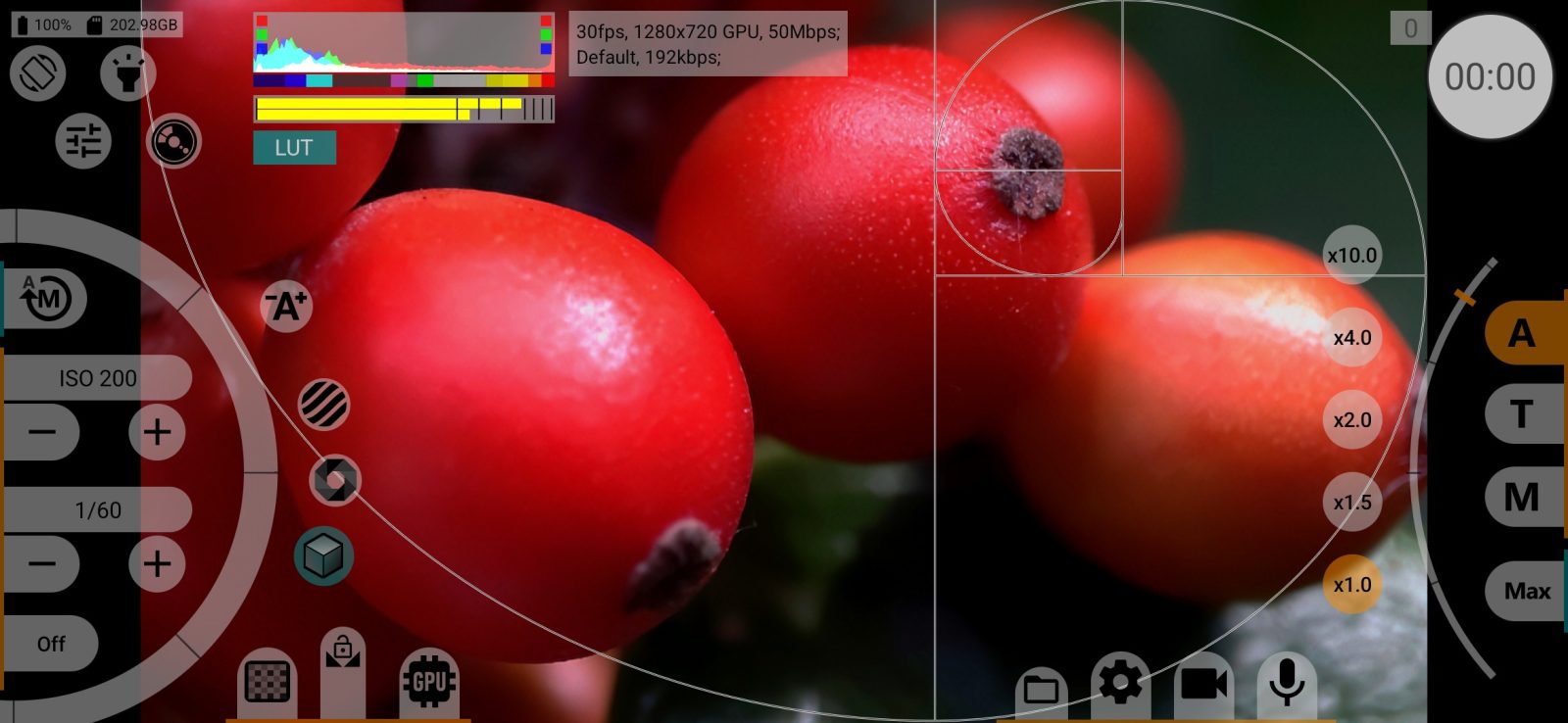
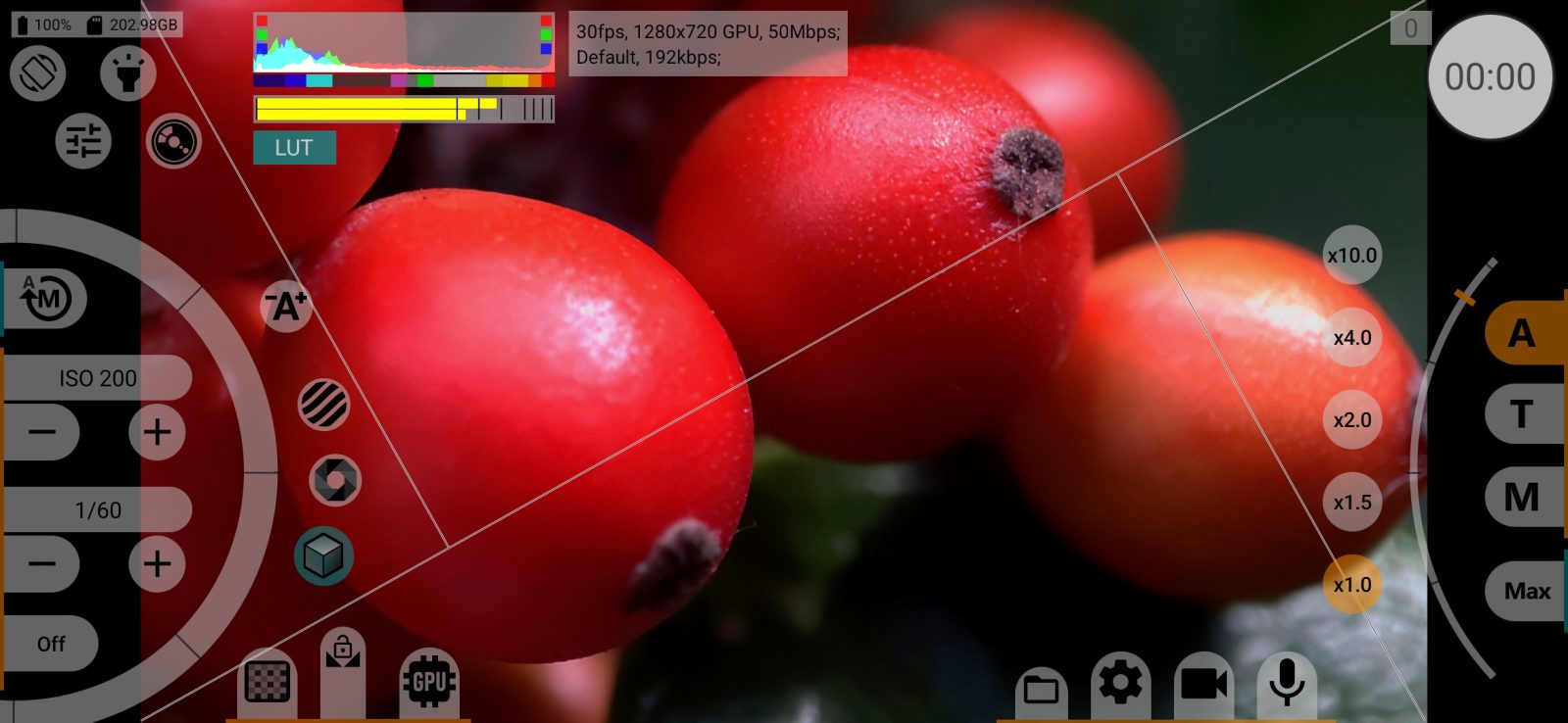
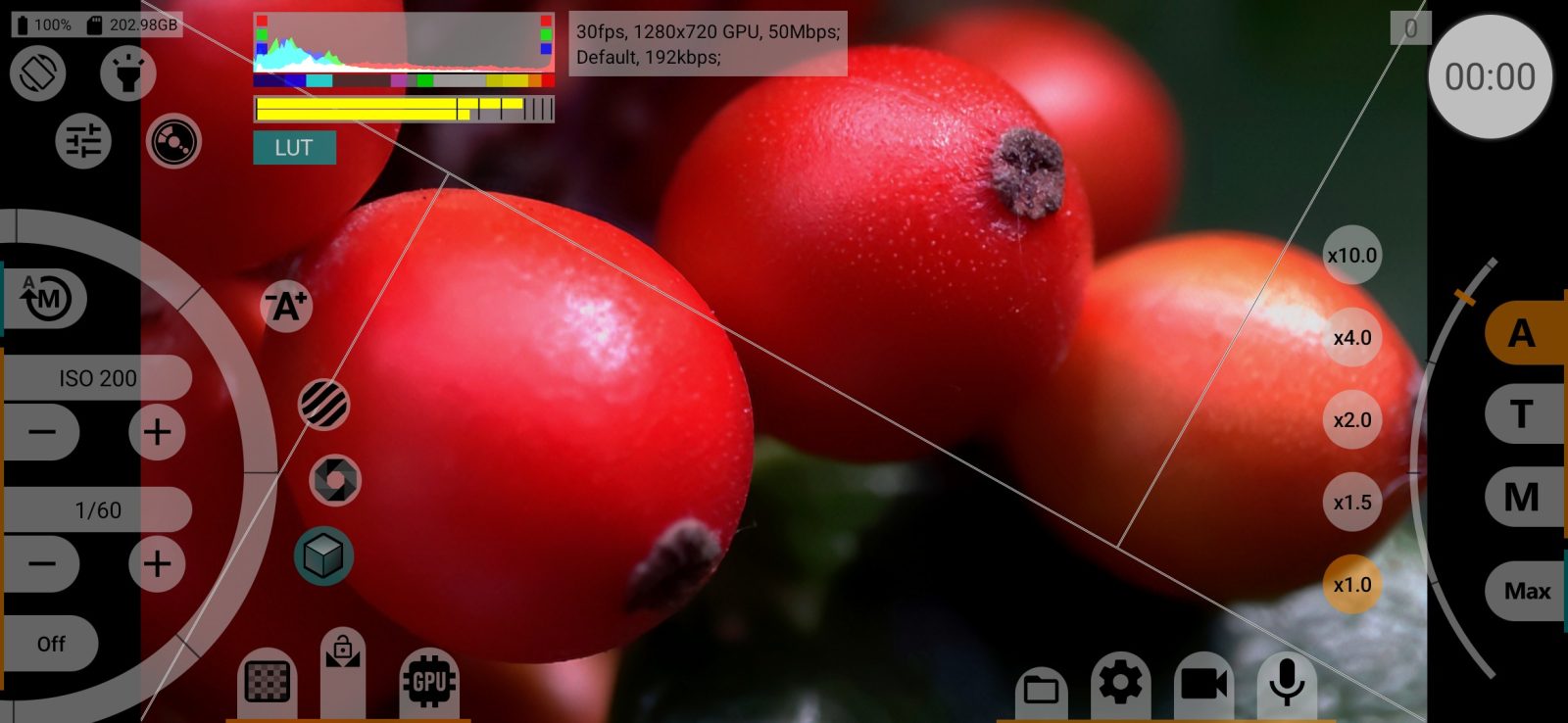
Composition guides over the viewfinder and on the HDMI monitor: 3×3, Fibonacci 3×3, 4×2, 4×4, 2×2, four golden spirals and two golden triangles, or Off. Stored separately for each camera.
Desqueeze viewfinder
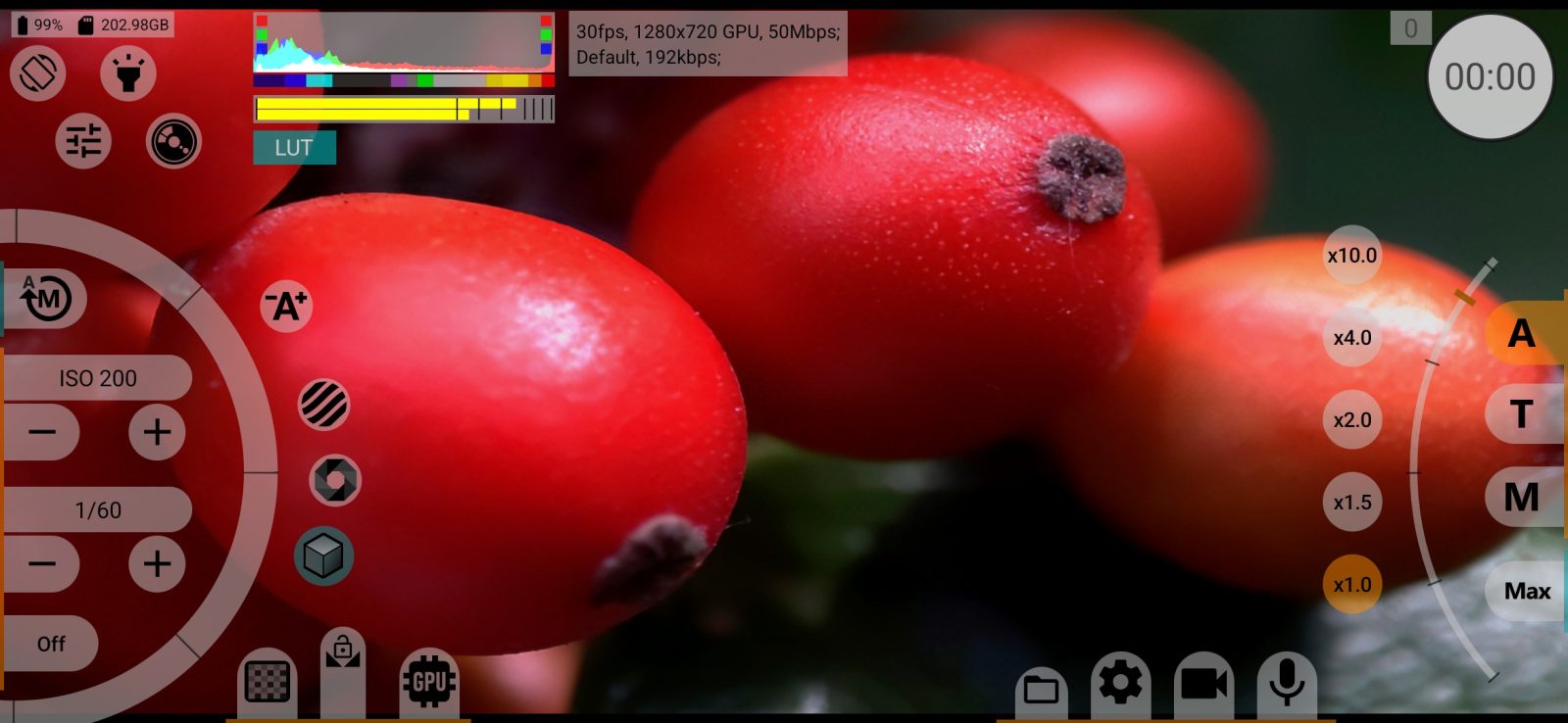
Stretches the viewfinder image horizontally for anamorphic lenses, so that you see the picture in its true proportions: No, 1.25x, 1.33x, 1.43x, 1.55x. The recording is not changed. Stored separately for each camera.
Locked when the video itself is desqueezed through the GPU (video menu).
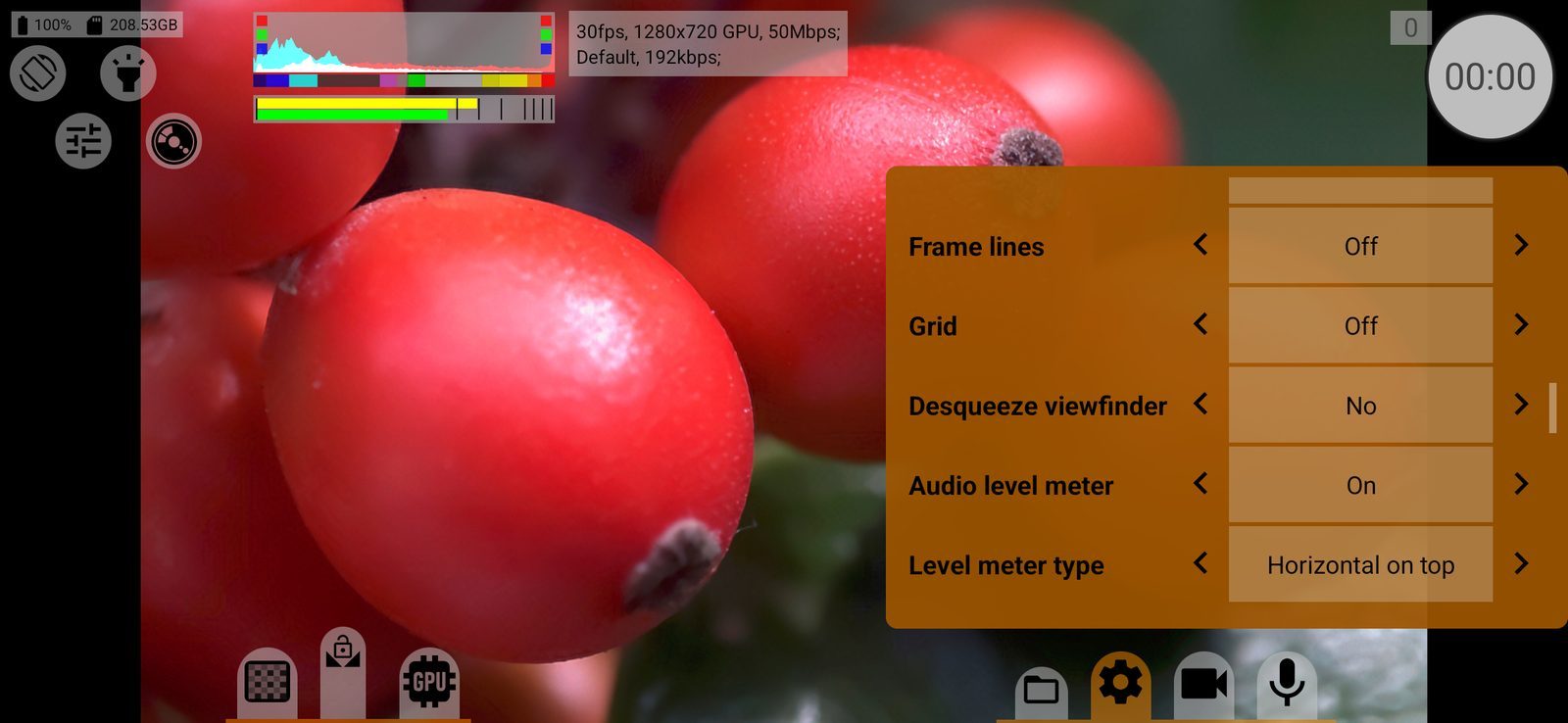
Audio level meter
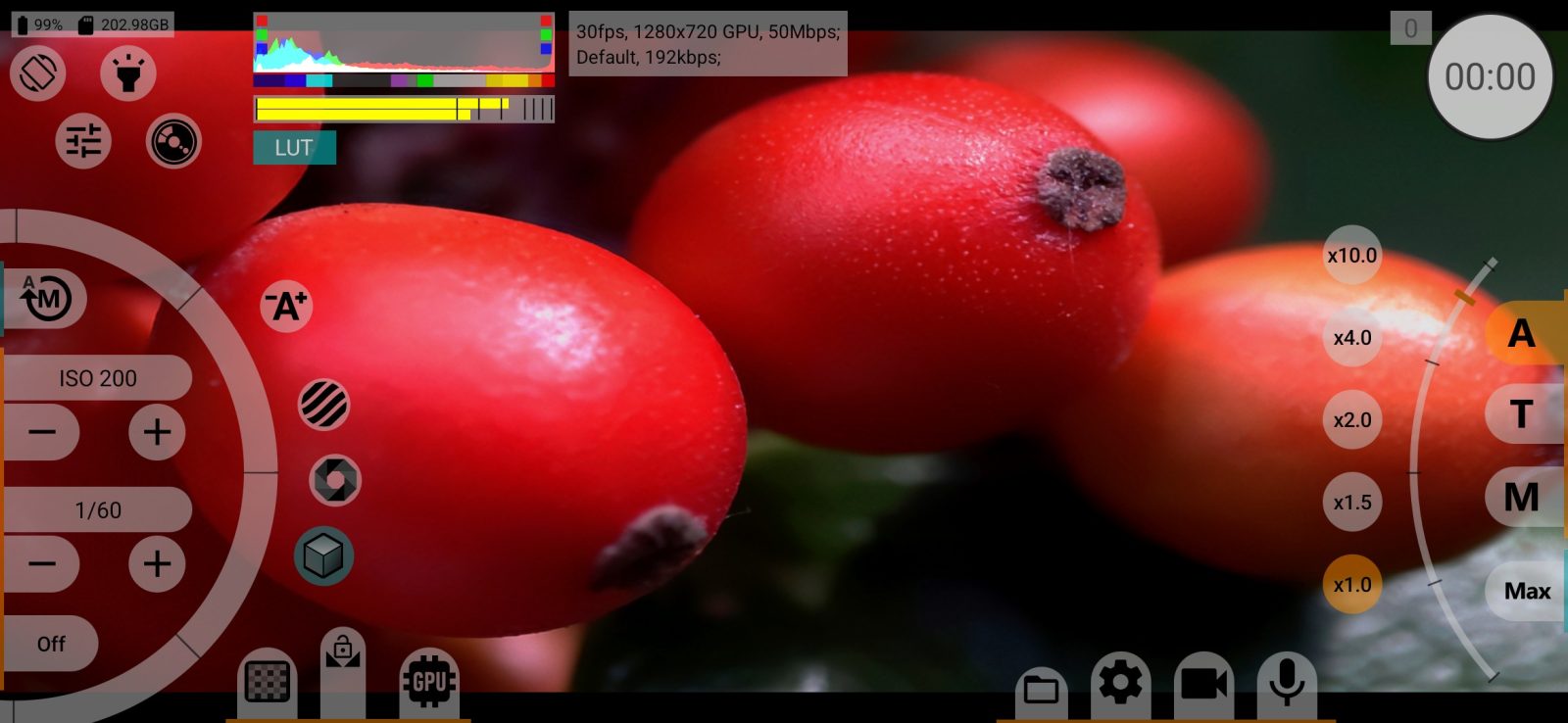
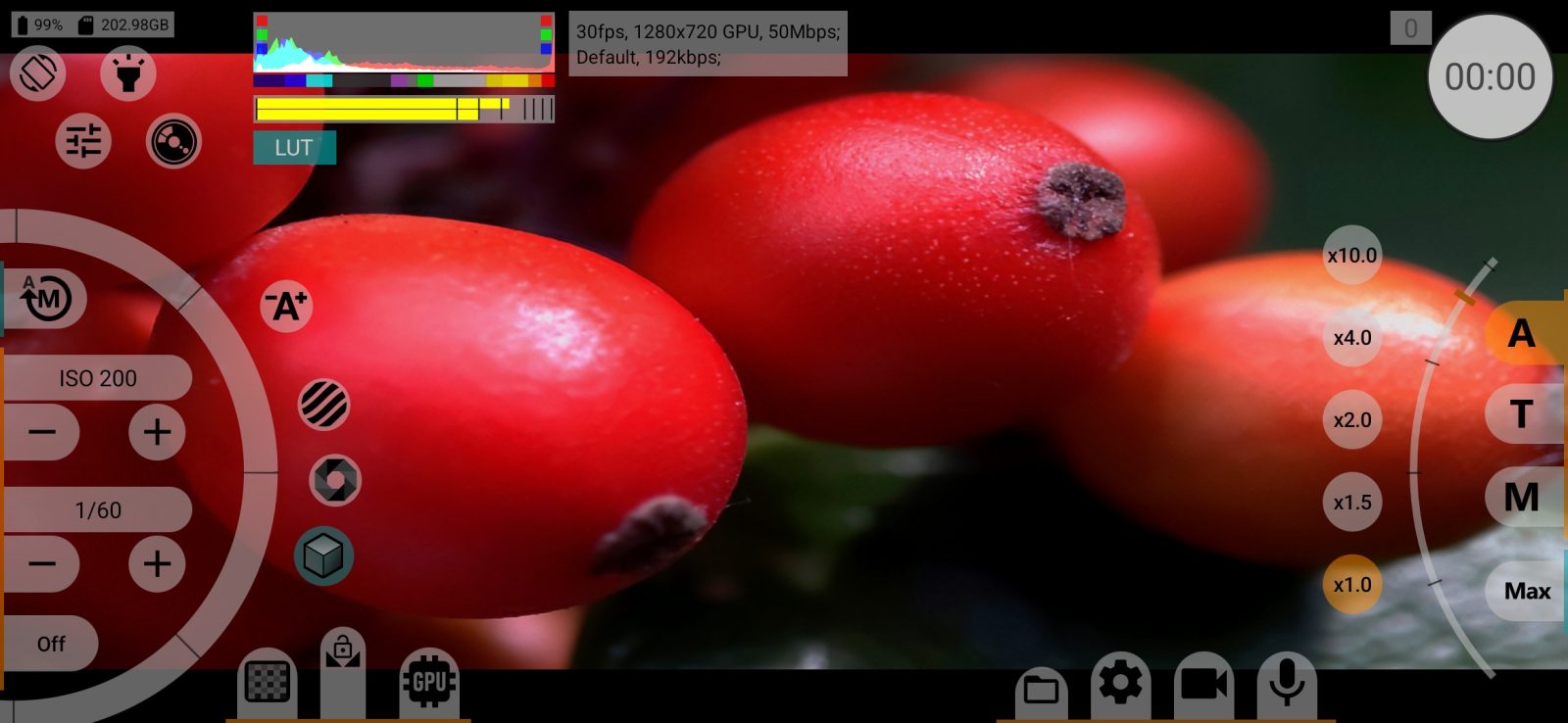
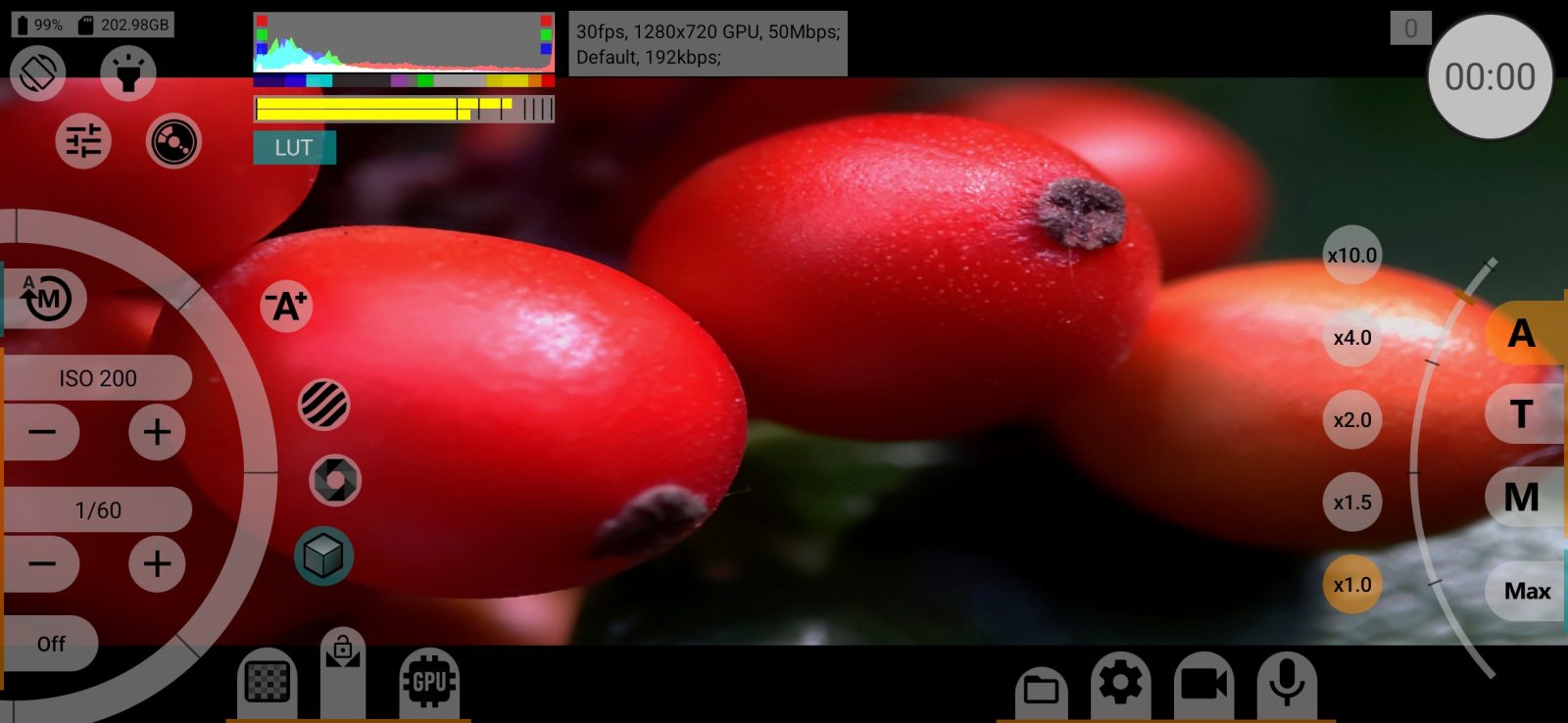
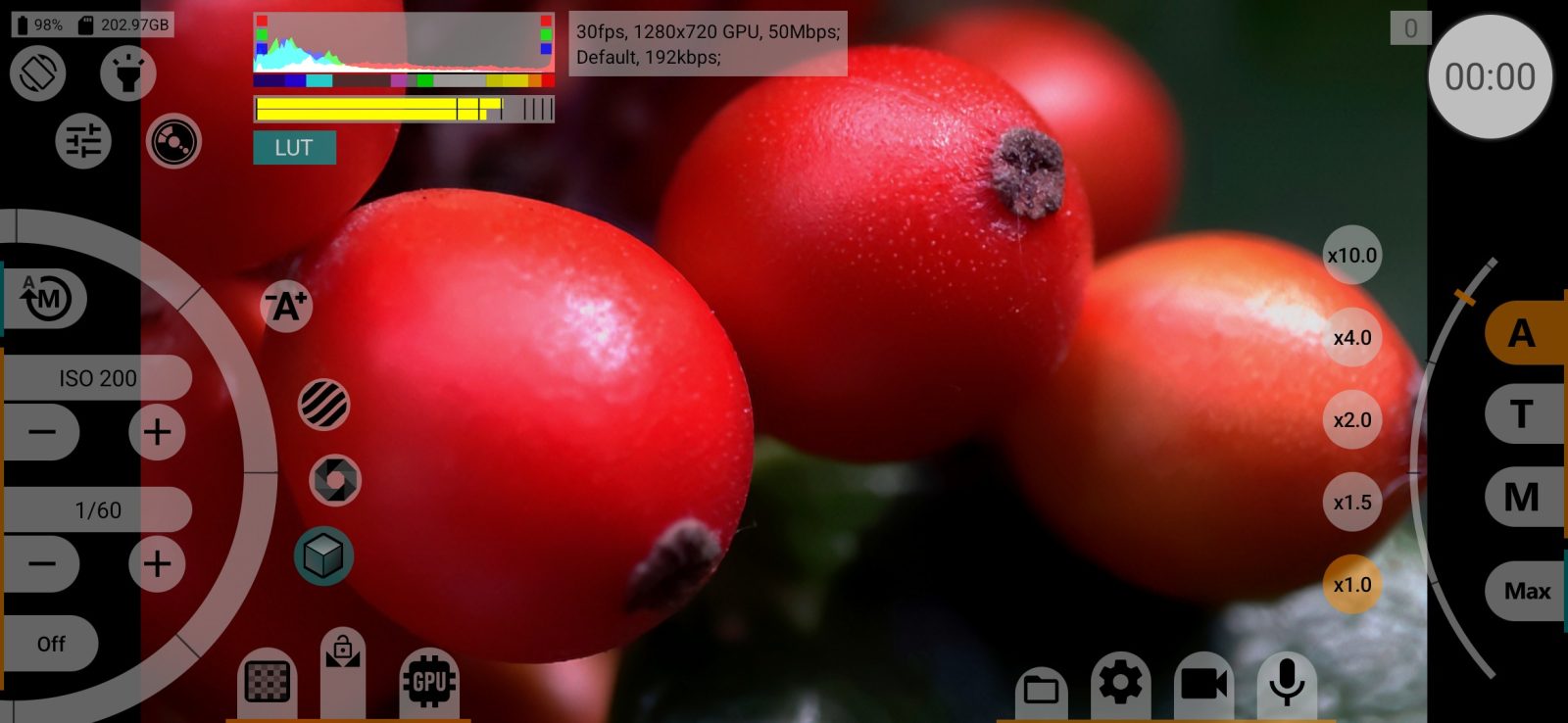
The audio level meter on the shooting screen: Off / On / Turn off when recording. Requires an audio source to be selected. Default: On. The sound in the recording is not affected.
Level meter type
Vertical at the side of the screen or Horizontal on top. Default: Horizontal on top.