
In the app: video camera (video menu) GPU settings
GPU settings change the recorded frame itself: its proportions and resolution. They work only when recording goes through the GPU (GPU in Resolution and FPS); otherwise the rows are greyed out and show Off. Unavailable for RAW. All three are stored separately for each camera.
The frame is processed in this order: desqueeze, then crop, then scale.
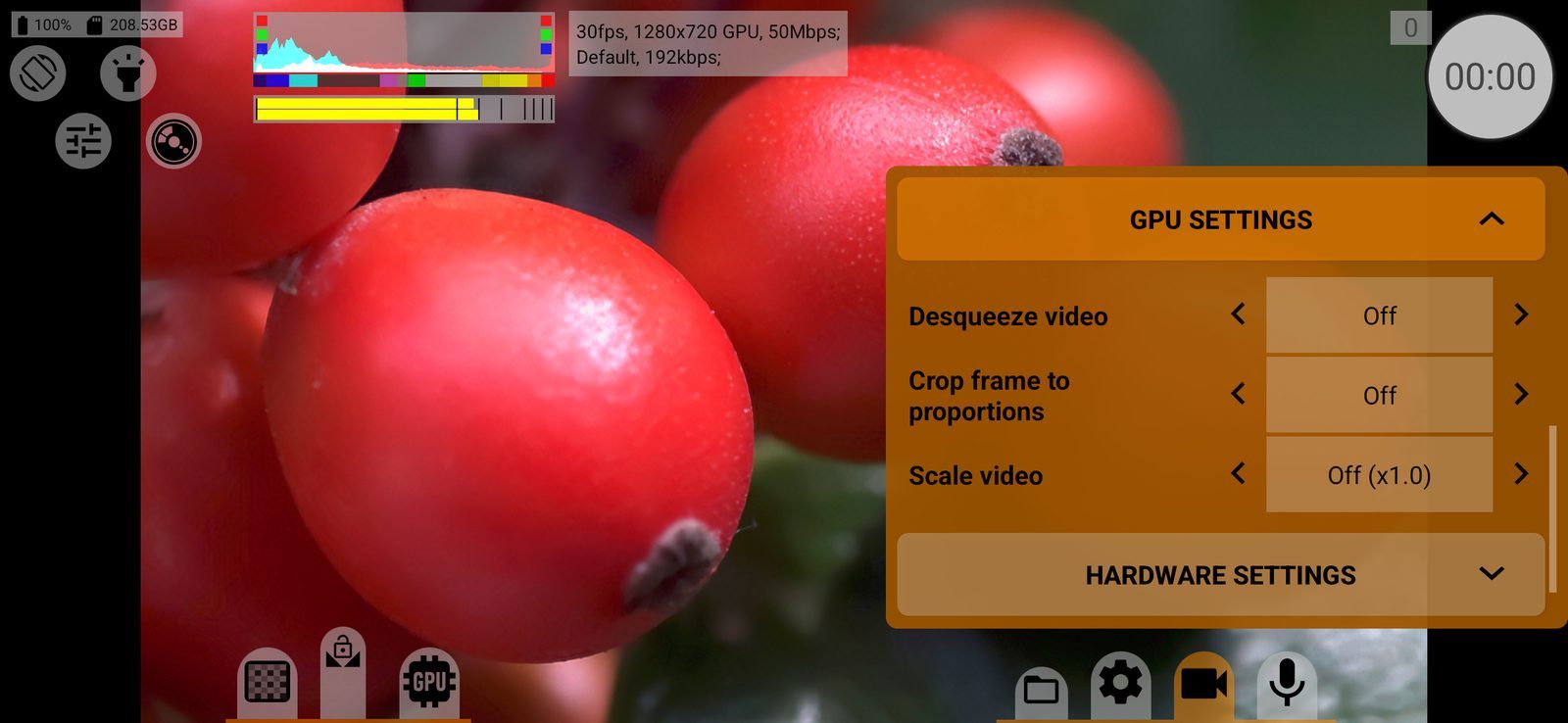
Desqueeze video
Stretches anamorphic footage to its true proportions in the file: Off, or 1.25x, 1.33x, 1.43x, 1.55x, each Horizontally or Vertically.
- Horizontally: the width is multiplied, the height stays. 1920×1080 at 1.33x becomes 2552×1080.
- Vertically: the height is divided, the width stays. The file gets lower.
The pixels are stretched, so no pixel aspect ratio is written to the file. Zoom is reset. While desqueeze is on, Pixel aspect ratio is unavailable, and if no crop is set, the viewfinder frame lines show the resulting proportions (1.25x → 2.20:1, 1.33x → 2.35:1, 1.43x → 2.55:1, 1.55x → 2.76:1). Default: Off.
Crop frame to proportions
Crops the frame in the centre to the selected aspect ratio: Off or from 1.00:1 to 2.76:1 (4:3, 16:9, 1.85:1, 2.39:1 and others). The result is the actual resolution of the file. The viewfinder and HDMI frame lines show the same proportions. Default: Off.
Scale video
Scales the frame after desqueeze and crop: each side from 0.5 to 2.0 times. The value shows how the number of pixels changes: x0.25 at half size, x4.00 at double. Off (x1.0) keeps the size. The result is the actual resolution of the file. Default: Off.
Large frames (for example, 4K scaled up, or a wide horizontal desqueeze) may exceed what the phone's encoder can record.