
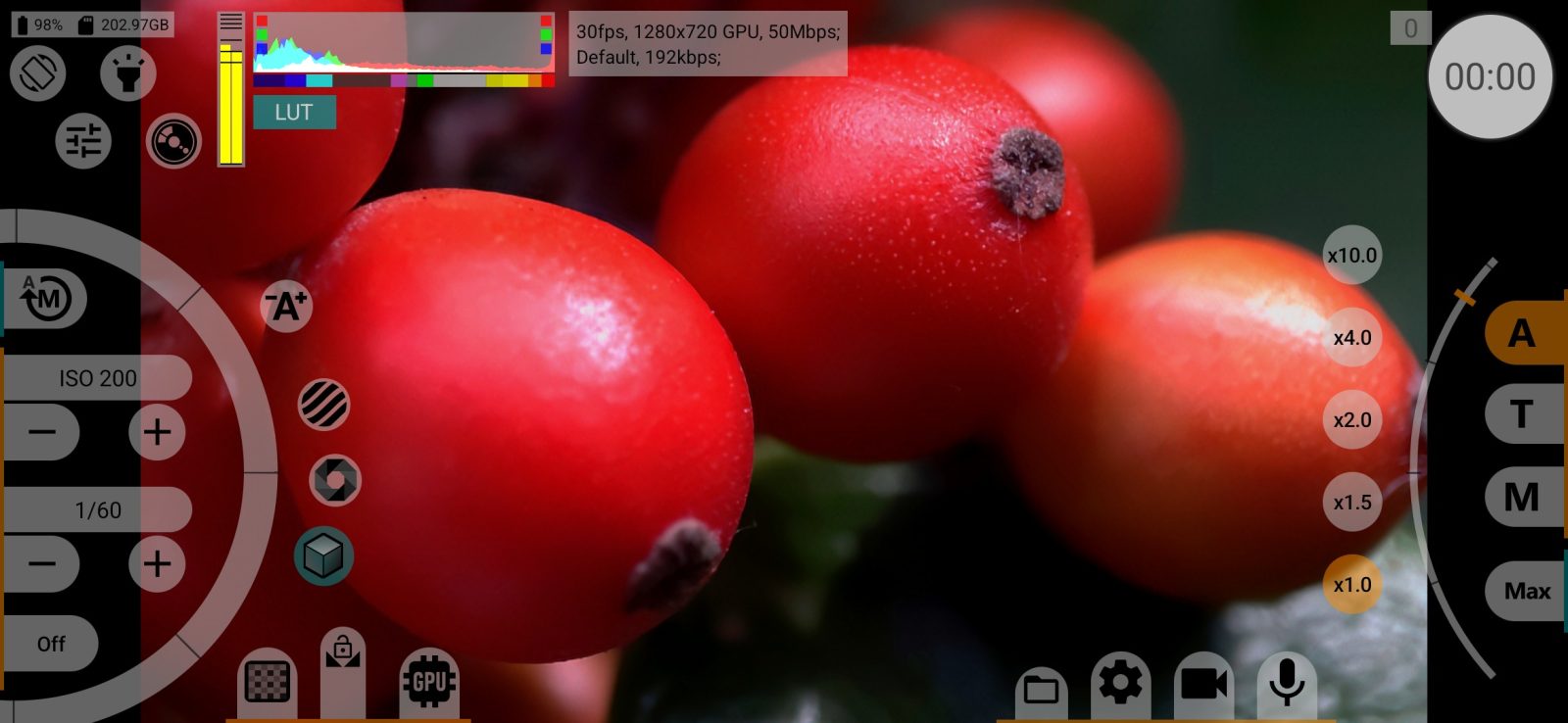
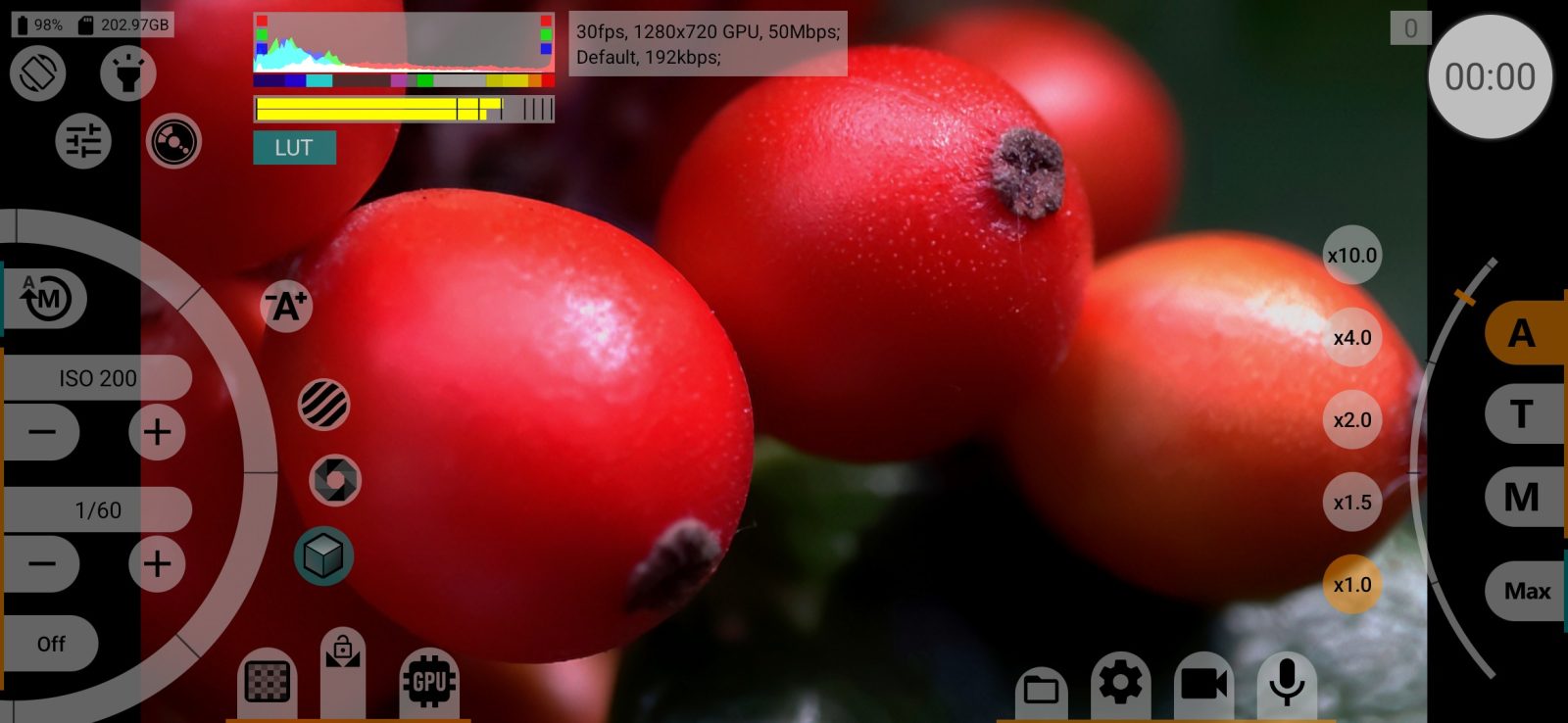
Indicators & information area are at the top of the screen: the audio level meter, histogram, exposure and colour temperature readings, status labels, battery and free space. The information panel at the bottom left belongs to the same group. The whole group can be hidden or shown on a swipe in Interface.
Which indicators appear is set in Viewfinder settings. The histogram, EV and Kelvin readings need the viewfinder to go through the GPU.
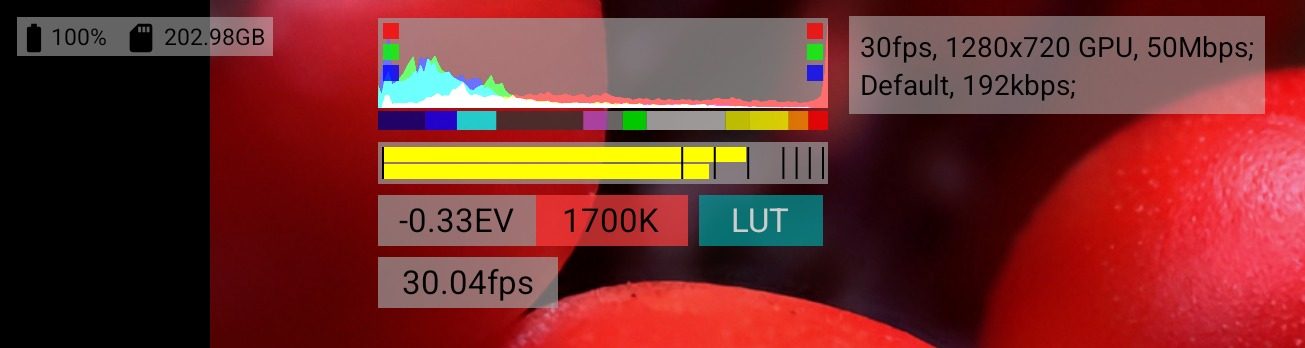
1Battery
The battery level, in the top left corner.
2Free space
The free space on the selected storage. During recording it is updated once a minute (every 10 seconds for RAW).
3Histogram
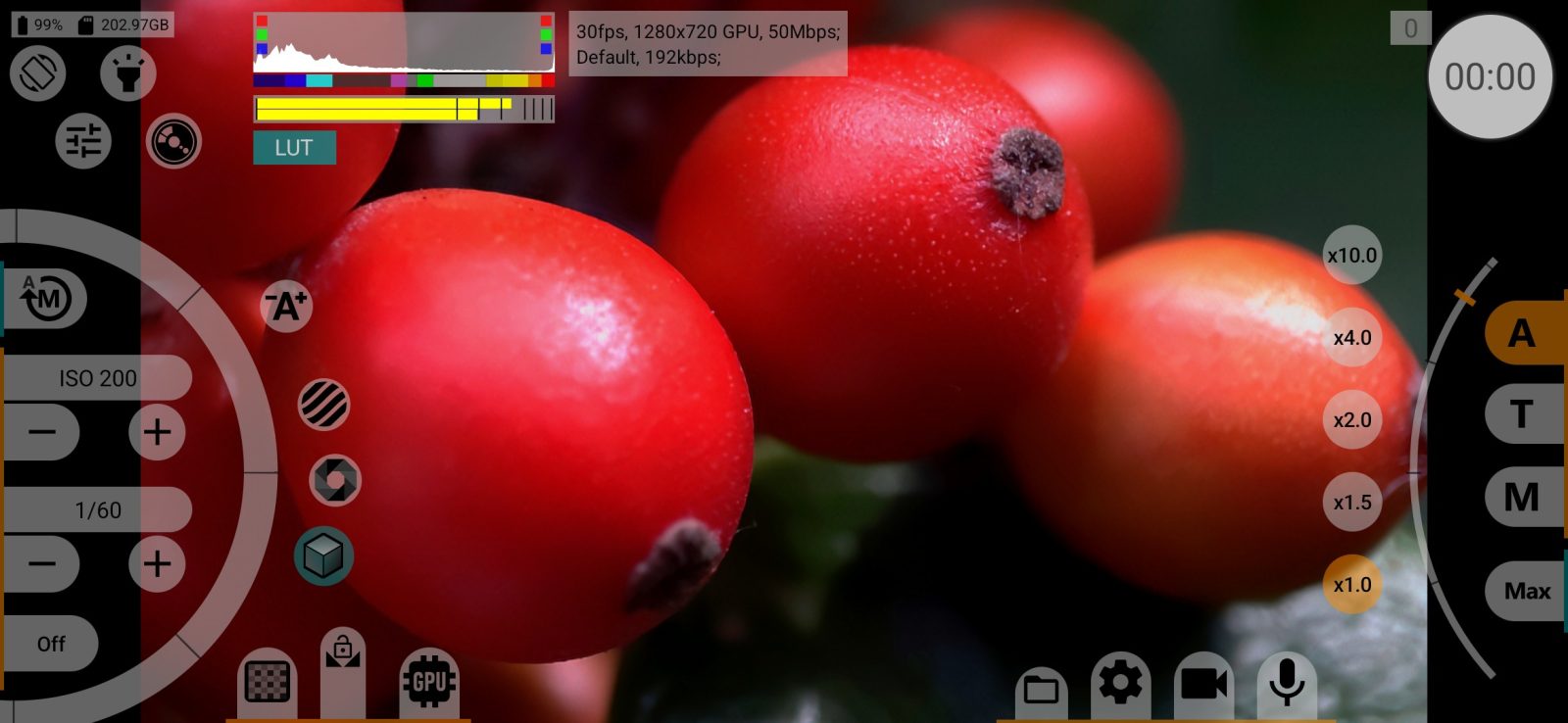
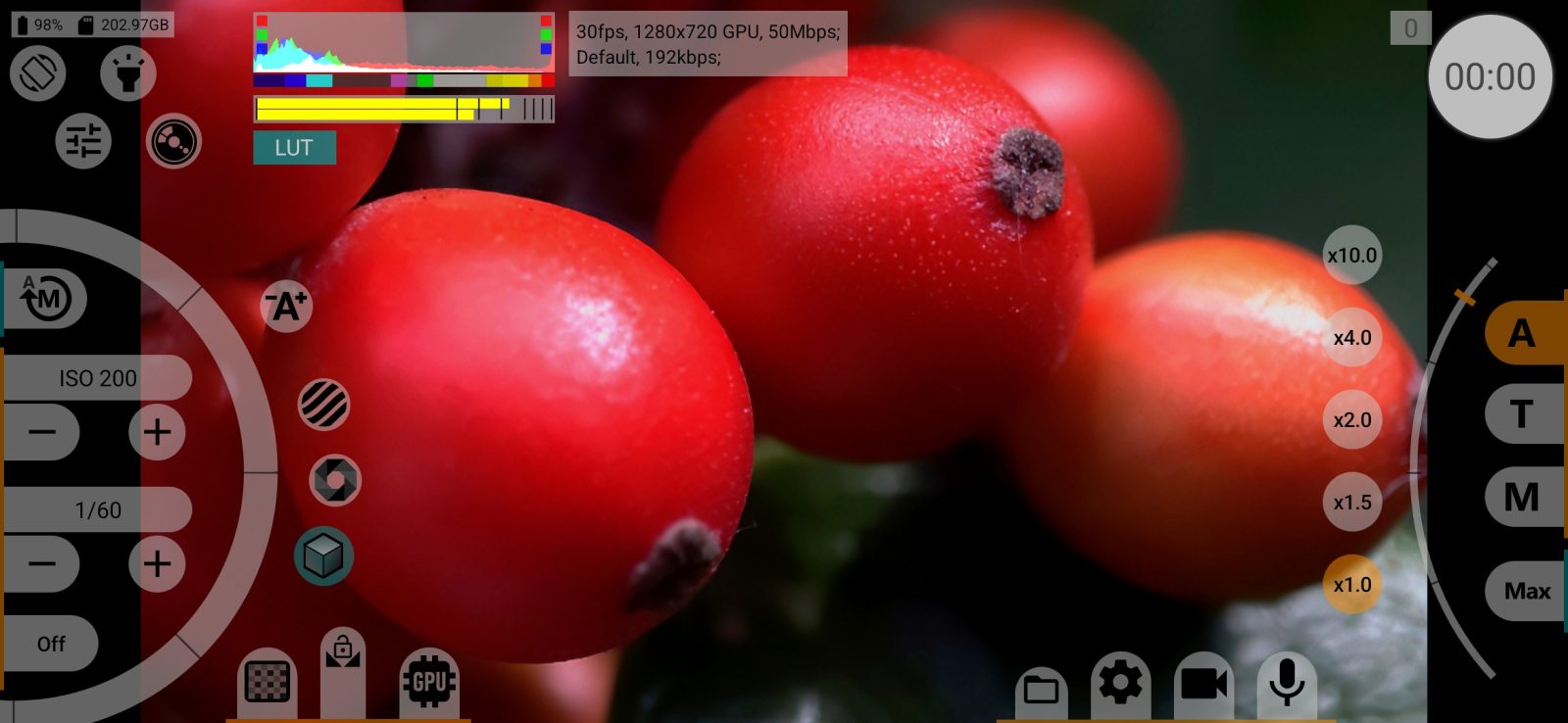
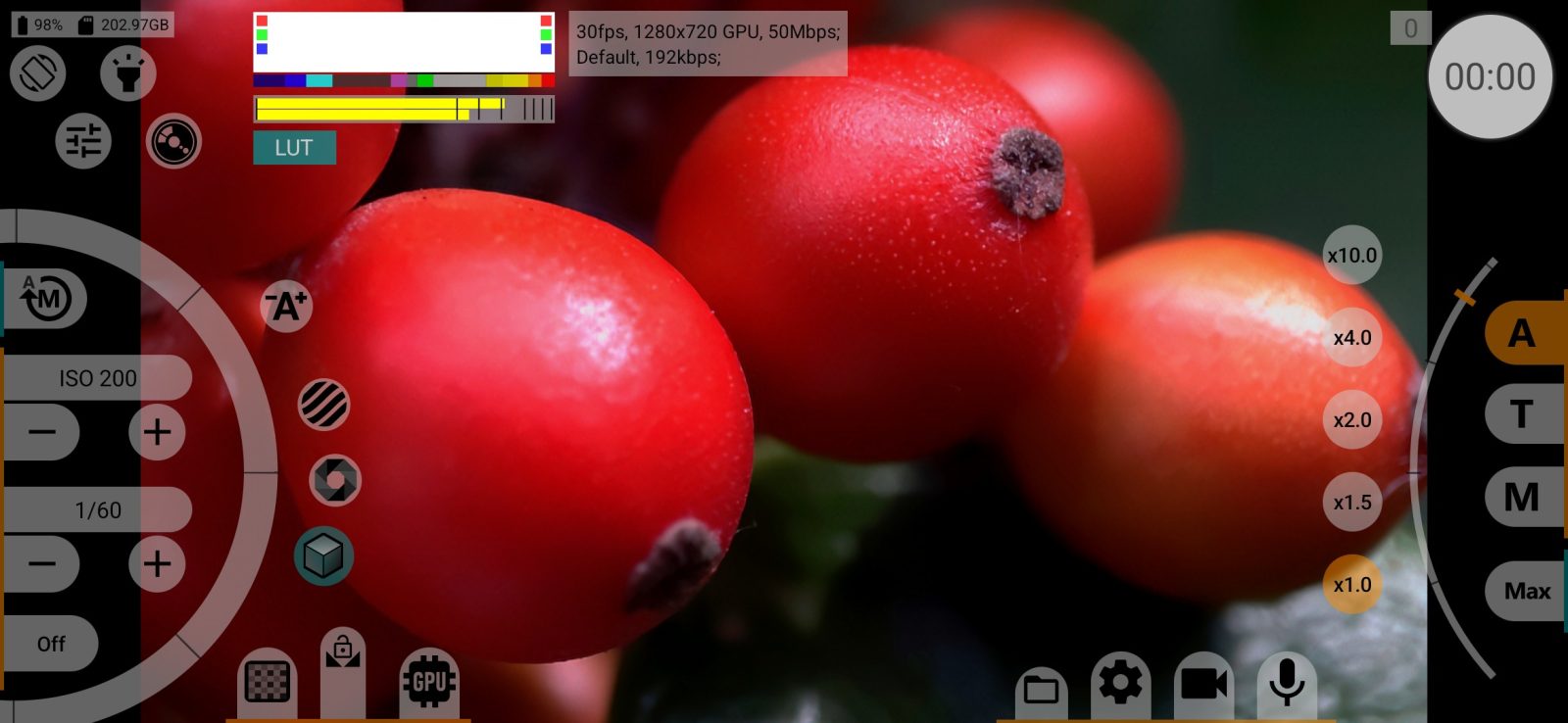
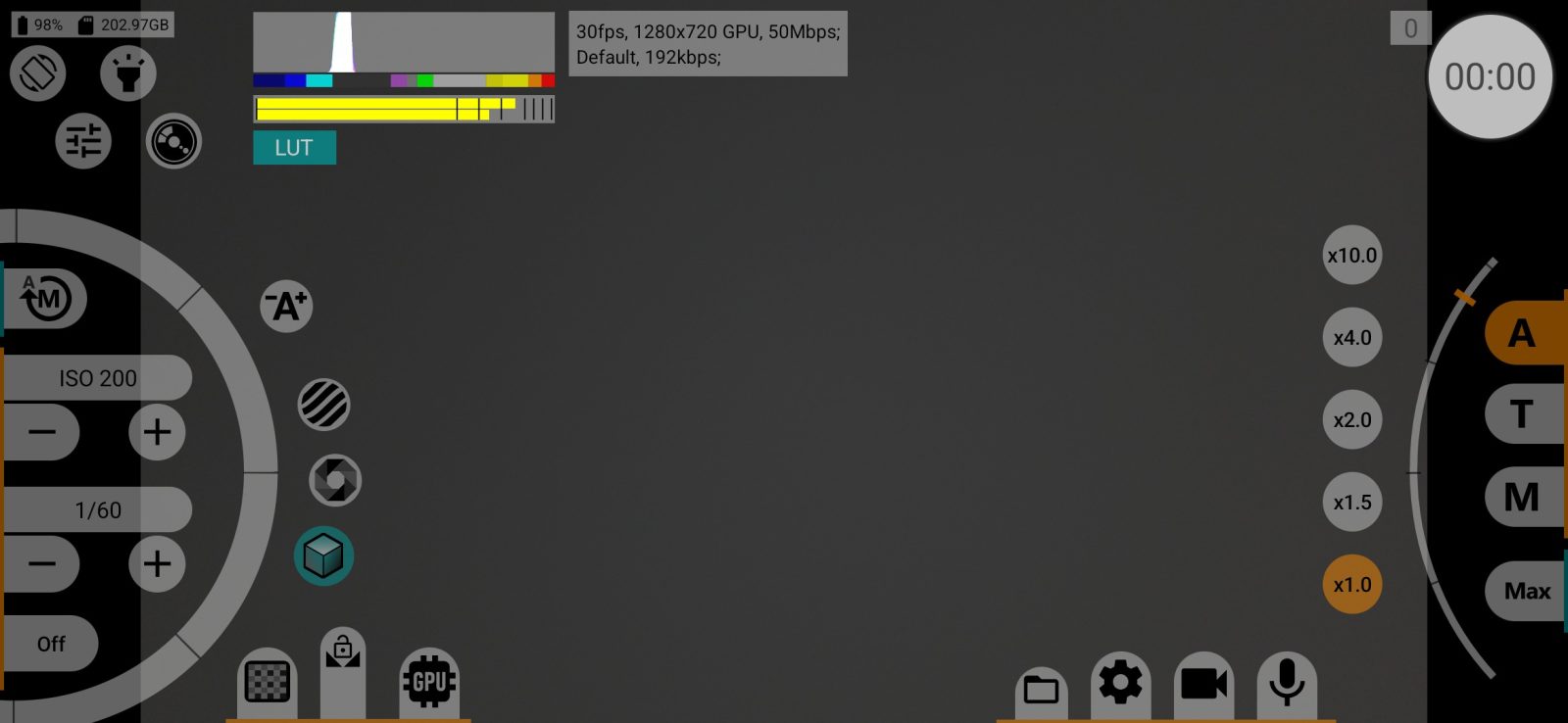
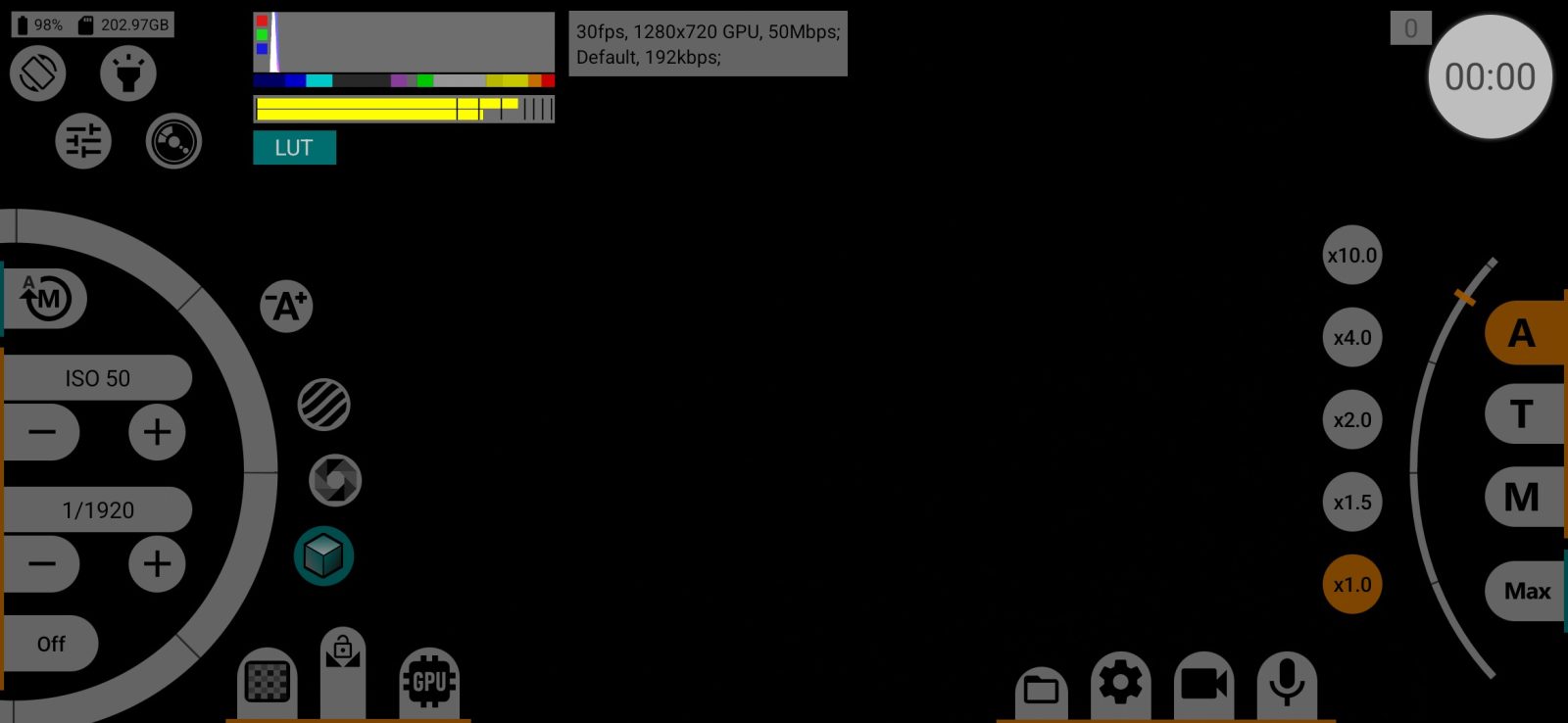
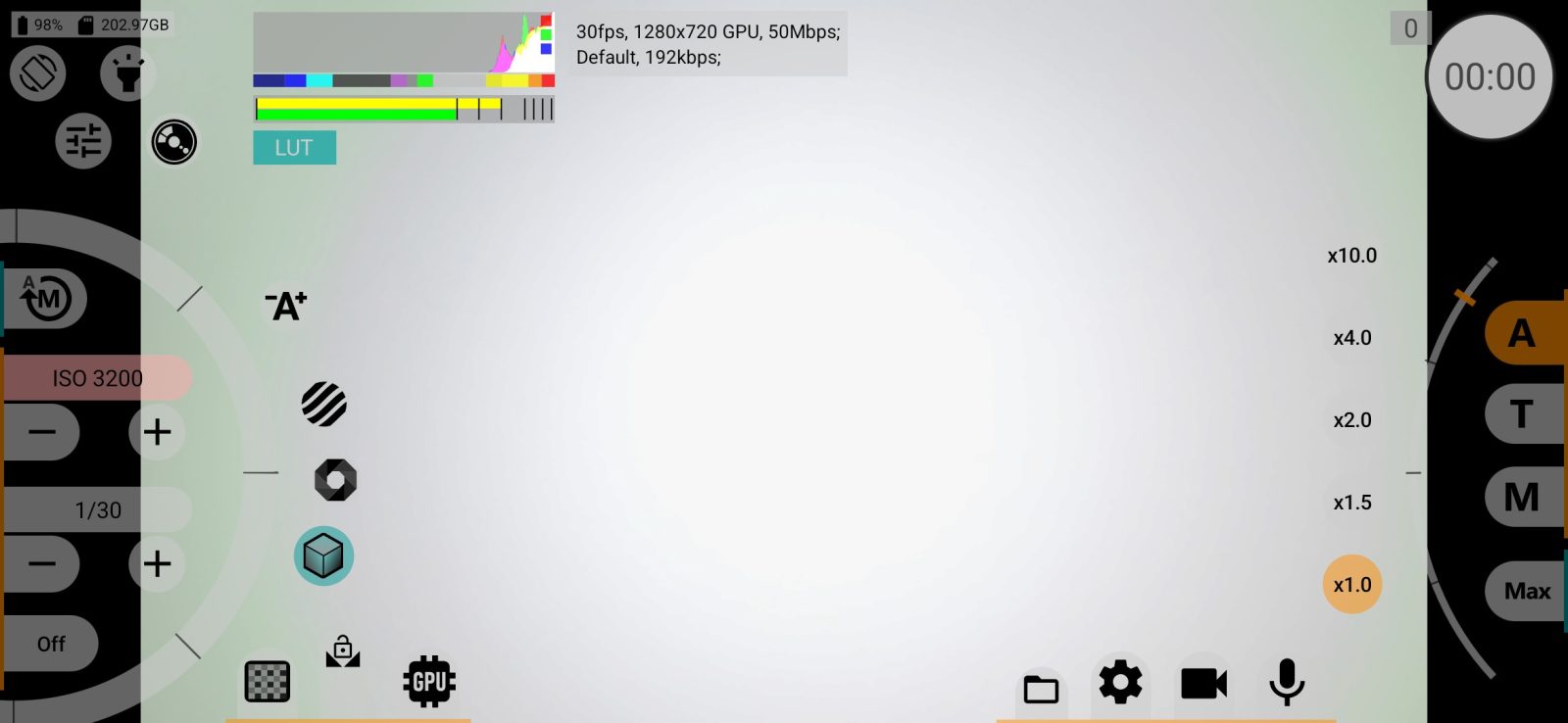
The histogram of the viewfinder image. Tap it to switch the type:
- Luminance: brightness;
- RGB: three colour channels;
- Luminance Max: brightness where any filled level is drawn at full height, so even a few clipped pixels are visible.
The squares at the edges belong to the red, green and blue channels. A square on the left lights up when that channel has pixels below the bottom expo-peaking limit, a square on the right when it has pixels above the top limit. Lit squares on the left mean lost shadow detail: add light or exposure. Lit squares on the right mean clipped highlights: reduce exposure. The marks on the histogram show the two limits, and the false colour scale under it is drawn between the same limits.
4Information panel
The panel at the bottom left lists the current settings, selected in Show information: frame rate, frame size, codec, bit depth, bitrate, audio source and bitrate, white balance, curves. Some marks need explaining:
- "120>24fps": shot at 120, played back at 24;
- "~" before the bitrate: recalculated for slow motion;
- "*²", "*³": Bitrate hack is working, the bitrate shown is what the codec is set to;
- "GPU" after the size: recording goes through the GPU;
- "(1.33)": desqueeze; "ˣ0.56": scaling;
- for RAW, "ᵈˢ": reduced debayer, "≈": estimated bitrate for .mcpro.
5Audio level meter
Two bars, left and right channel, show the peak sound level from −75 dBFS to 0. The bar is green below −12 dB, yellow from −12 to −3 dB and red above −3 dB. Level meter type puts it as a vertical column next to the histogram or as a horizontal bar on top. The meter is hidden when sound is off.
6EV of scene
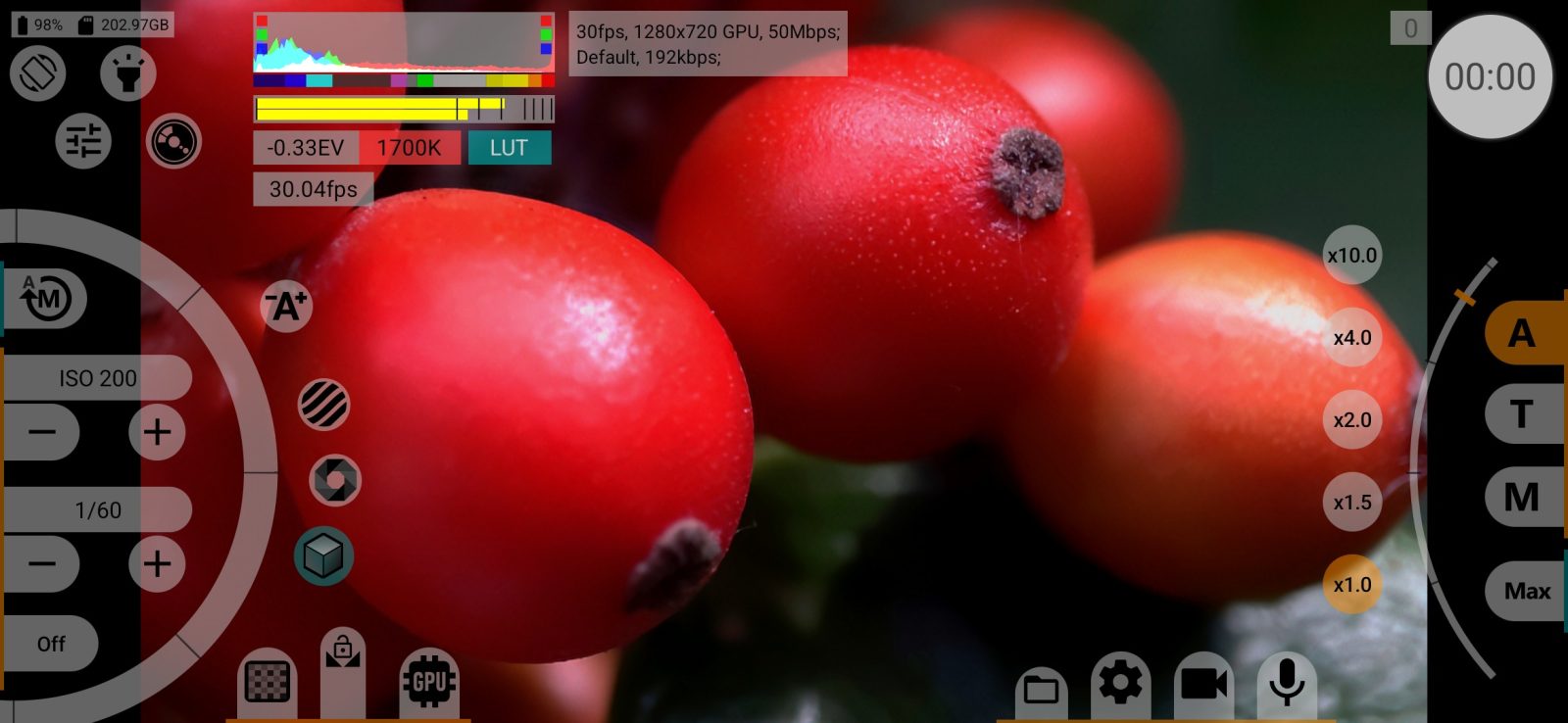
The average brightness of the frame relative to 18% grey, in stops with a step of 1/6, for example "+0.33EV". The label is grey normally, dark red beyond ±2 EV, and yellow when the reading is not reliable because the curve or GPU processing is not neutral. The measuring area can be the whole frame or its centre.
7Scene color temperature
The colour temperature of the scene, rounded to 100 K, for example "5600K". The label is filled with the scene's average colour.
8LUT
Shown when a viewfinder LUT is active. Its colour shows the mode: grey for off, turquoise or dark red for the two LUT modes, full frame or half frame. Tap to switch the LUT mode, long-press to turn half-frame LUT on and off (Half-frame LUT: on).
9Real frame rate
The frame rate the camera actually delivers, measured over about half a second, for example "23.98 fps". Useful to check that the camera keeps the chosen rate in low light.
Slow motion
The playback frame rate, such as "24fps", shown when slow or fast motion is on.
Screen Mode
"HDR10", "HLG" or "Linear" when the screen works in that mode. "HLG*" on Android before 14 means that HLG is shown through PQ conversion.
Bluetooth microphone
Shown when the sound comes from a Bluetooth microphone.
REC
A blinking red dot while recording.
Save progress
A thin line at the top of the block during recording: how full the memory buffer is between writes to the file. It fills up and drops to zero each time a portion is written.
Background work
at the bottom of the screen: the app is finishing work on the last file in the background (metadata, LUT file).
Warnings
Red messages above the bottom edge stay until the cause goes away; double-tap or Back closes them. Overheating messages come from Android 10 and later: High heat and Overheat. What happens to the recording then is set in Other settings.