
Quick access buttons sit in the top left corner: orientation and flashlight in the upper row, presets and camera choice in the lower one. You can hide the group or show it on a swipe in Interface, and centre it with Top block position.
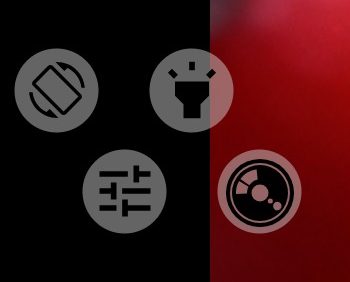
1Screen orientation
Controls how the interface turns with the phone. Double-tap the button to open the orientation menu; long-press it to fix the current orientation, or to return to automatic if it is fixed. A single tap does nothing, so the button cannot be changed by accident. During recording the orientation is always fixed as it was at the start. The same setting is in Other settings.
- automatic: the interface turns with the phone;
- fixed landscape;
- fixed portrait;
- fixed reverse landscape;
- fixed reverse portrait.
2Flashlight
Turns the light on and off; the button is highlighted while the light is on. It works during recording too. Shown when the camera has a flash. The state is stored separately for each camera.
3Camera module presets
Opens the list of presets. A preset saves the camera setup so that you can return to it in one tap: the camera, frame size and rate, codec, bitrate, colour profile and curves, white balance preset, LUT, GPU processing, sound, metadata and many other settings. ISO, shutter speed, focus and exposure compensation are not saved.
- The + button creates a preset from the current settings; give it a short description (up to 100 characters).
- Each card shows what the preset contains: camera, frame rate and size, codec, bit depth, bitrate, curves, white balance, LUT, sound.
- The card buttons rename the preset, overwrite it with the current settings, or delete it.
- Tap a card to apply the preset. After confirmation the app restarts the screen with the preset's settings and switches to its camera.
The list does not open during recording.
4Cameras
Opens the list of the phone's cameras. Each is shown as its number, the equivalent focal length, the aperture and the side: for example "0. 24mm, f/1.8 (Back-facing)". USB cameras are listed as External. Cameras that duplicate others are hidden. The list does not open during recording.
Most settings are stored separately for each camera: frame size and rate, exposure, focus, zoom, white balance, curves, LUT, hardware settings and more. When you switch cameras, each one returns to its own settings.
Long-press the app icon on the home screen for shortcuts that open the app straight on a chosen camera (Main, Selfie).