
Image controls are in the bottom left corner: the white balance button, the white balance lock (or the "A" button in manual mode) and the GPU menu button. Menus from these buttons do not open during recording.

1White balance
Opens the white balance menu, described below. Tap again to close it.
2White balance lock
Shown in Auto white balance mode. It holds the current automatic white balance until you tap it again and works during recording. The lock is not saved. To lock white balance for every recording automatically, use AWB autolock in Control.
- white balance follows the scene;
- white balance is locked.
Auto white balance once
Shown instead of the lock in Manual white balance mode. Hold it: while it is pressed the camera uses automatic white balance; when you release it, the result becomes the manual setting. It works during recording.
- manual white balance without a saved preset;
- a saved white balance preset is selected; double-tap to go back to plain manual mode.
3GPU menu
Opens the GPU processing menu: GPU curve, image and noise reduction. Shown when recording goes through the GPU.
White balance menu
The white balance button opens a menu with tabs on the left: the white balance mode, manual white balance, and the camera curve (described separately). Tap the button again to close the menu. Everything on these tabs is applied by the camera, so it goes into the recording, and it is stored separately for each camera.
The current white balance can be shown in the information panel at the bottom left: tick WB under Show information in Interface.
White balance modes
The list shows the modes the camera supports, usually: Auto, Manual, Incandescent, Fluorescent, Warm fluorescent, Daylight, Cloudy, Twilight, Shade. Default: Auto.
Switching between manual and any other mode restarts the viewfinder briefly. In RAW the white balance does not change the pixels: it is written to the DNG as a tag, and you set the final balance during development.
Manual white balance
The manual tab works only in Manual mode. In other modes it shows This tab only works in manual WB mode and a Turn on button that switches to manual mode.
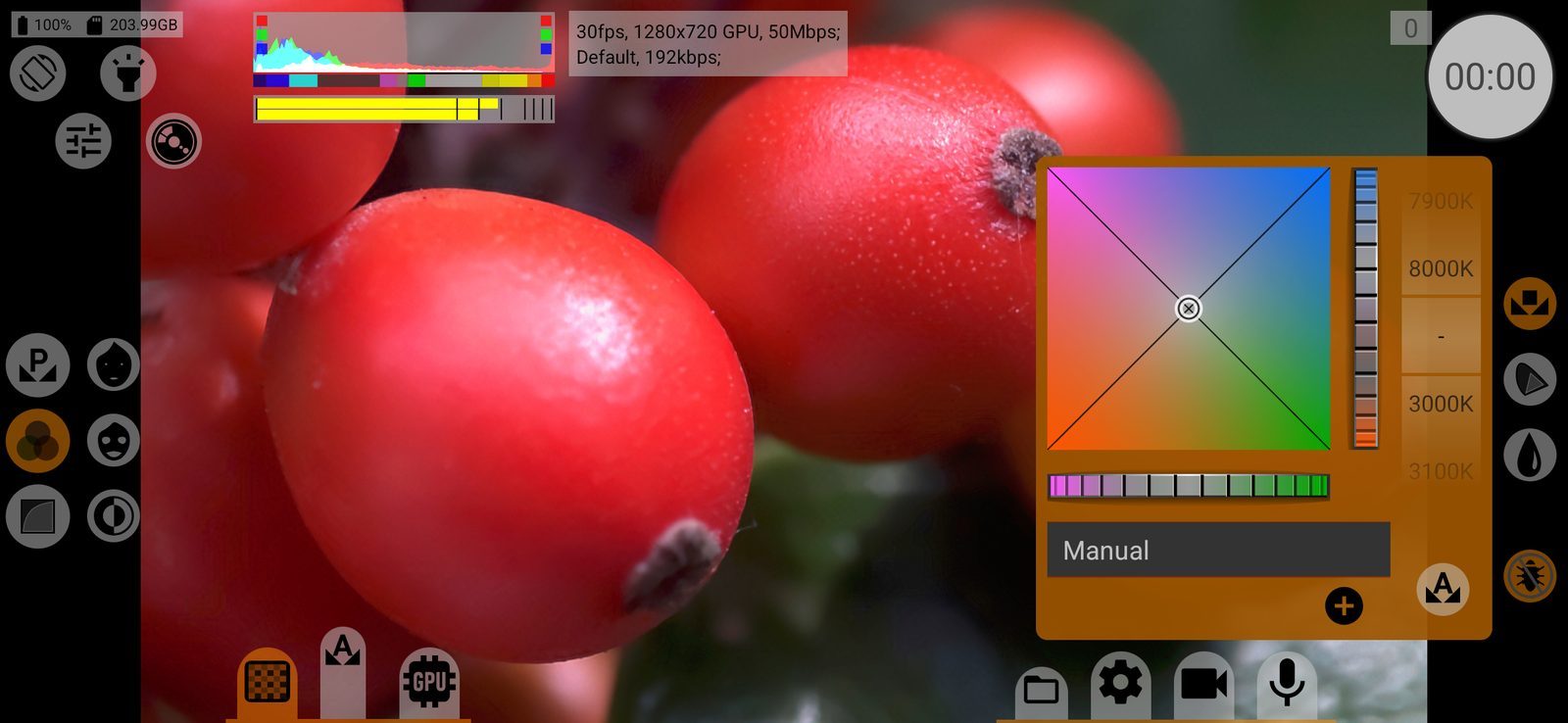
The buttons on the right side of the tab switch between three panels: the white balance itself, the colour gamut and the colour matrix. The last two are not available in RAW and on cameras without manual colour processing.
Manual
- The vertical wheel shifts the balance between blue and yellow (colour temperature), the horizontal one between green and magenta (tint). The square plate moves both at once. Double-tap a wheel to reset it.
- The Kelvin wheel sets the temperature from 3000 K to 8000 K in steps of 100 K and keeps the tint. "-" means no Kelvin value.
- The "A" button sets the balance automatically once. Hold it: while it is pressed the camera uses automatic white balance; when you release it, the result becomes the manual setting. The same "A" button is next to the white balance button on the main screen. It works during recording.
You can save the current balance as a preset with a name of up to 30 characters and pick it later from the list. The undo button returns to the saved preset values, and the delete button removes the preset. A preset stores only the two wheels. Double-tap the "A" button on the main screen to go from a preset back to plain manual mode.
Colour gamut
The target colour space of the camera's colour matrix: sRGB/Rec.709, P3-D65, P3-DCI, Rec.2020, A Wide Gamut, C Cinema Gamut, P V-Gamut, R Wide Gamut, S-Gamut/-3, S-Gamut3.Cine, D-Gamut, Davinci Wide Gamut, ACES AP1, ACES AP0, XYZ. Pick the gamut that matches the log curve and the conversion you use in post. Default: sRGB/Rec.709.
Colour matrix
Three blocks of sliders, each with a common slider and separate R, G and B sliders:
- Saturation;
- Gain: the common slider only lowers the level, the channel sliders raise or lower;
- Hue: the common slider turns hue by up to ±180°, channel sliders by up to ±30°.
Double-tap a slider to reset it. A button in this panel switches how saturation is calculated: weighted by the gamut's luminance or by equal thirds.
The bug button in the column on the right fixes artefacts in highlights with steep curves in manual white balance: it slightly lowers the gain and recalculates the curve. It is on by default on most phones.
Viewfinder colour checks
The buttons in the left column of the tab show saturation control and two skin tone controls on top of the viewfinder. They are only on the screen, not in the recording, and need the viewfinder to go through the GPU.