
In the app: white balance button Curve
The third tab of the white balance menu sets the camera's tone curve. The camera applies it before the encoder, so the curve goes into the recording, unlike a viewfinder LUT. The tab is not available in RAW and on phones whose camera does not accept a custom curve. The curve, its slider values and range are stored separately for each camera.
The graph above the list shows the selected curve.
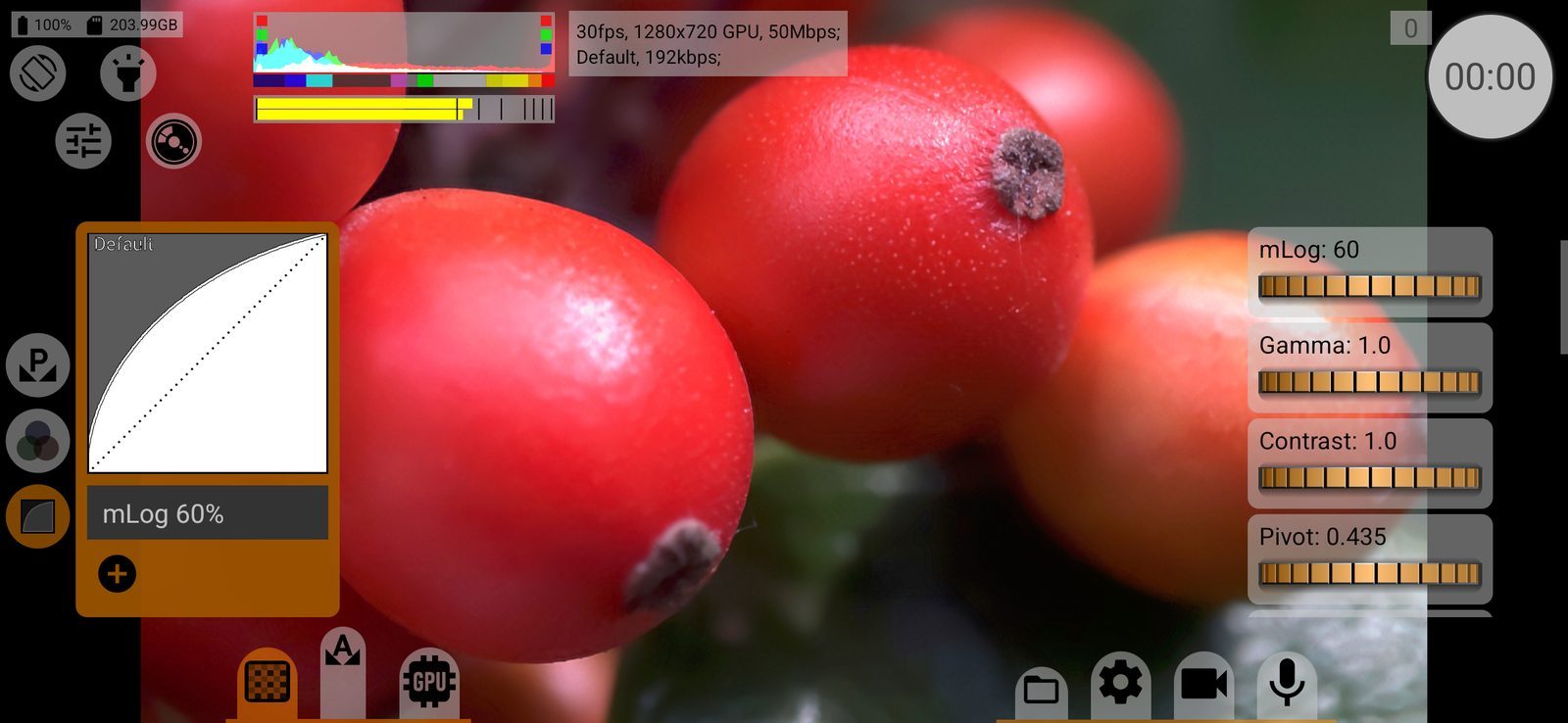
Curves
- Auto: the phone's own processing. The app adds a guess of what it resembles, such as "~Rec.709" or "~HLG".
- Linear and Standard: a linear curve and a normal video look, both adjustable.
- mLog 60%, mLog 80%, mLog 100%: the app's own log curves with full set of sliders.
- Rec.709, sRGB: standard display curves.
- HLG1, HLG2, HLG/-3, PQ: HDR curves.
- mStopsLog, mCineLog: the app's log curves with a set dynamic range.
- AppleLog, ACEScct, SamsungLog, Davinci, Cineon Film and versions of known camera log curves (mLog-C, mC-Log3, mF-Log, mD-Log, mN-Log, mV-Log, mLog3G10, mS-Log, mS-Log2, mS-Log3). The "m" prefix means the app's own approximation of the curve; use the matching conversion LUT in post.
- Your saved curves, listed as "Name (number)".
Default: Auto.
Some log and HDR curves lift shadows strongly, and on many phones that shows up as artefacts. When you pick such a curve, the app shows Aggressive curve problem with advice, and marks these curves in the list with a warning sign. In manual white balance with the bug button on, the problem is handled and the window is not shown.
Sliders
What sliders a curve has depends on the curve:
- Rec.709, sRGB, mCineLog: HOMG and Balance;
- HLG curves: Balance;
- mStopsLog: the number of stops, width, level and Balance;
- camera log curves and PQ: the white point in stops (labelled HOMG, "Nit" for PQ, "EI" for mLog-C) and Balance;
- Linear, Standard, mLog and saved curves: mLog, Gamma, Contrast, Pivot, Shadows, Midtones, Highlights, White, Black, and R, G, B.
Balance changes how the curve's points are spread; only some phones (Sony) actually use it. Double-tap a slider to reset it to the curve's default (not during recording).
Double-tap the graph to switch the curve's range: Default, Limited or Full.
Saving
The save button below the list stores the current curve with its slider values under a name. For a saved curve it asks whether to update it or create a new one. The undo button returns the sliders to the saved values, the delete button removes a saved curve. The same three buttons work on the GPU menu tabs.