In the program: Output
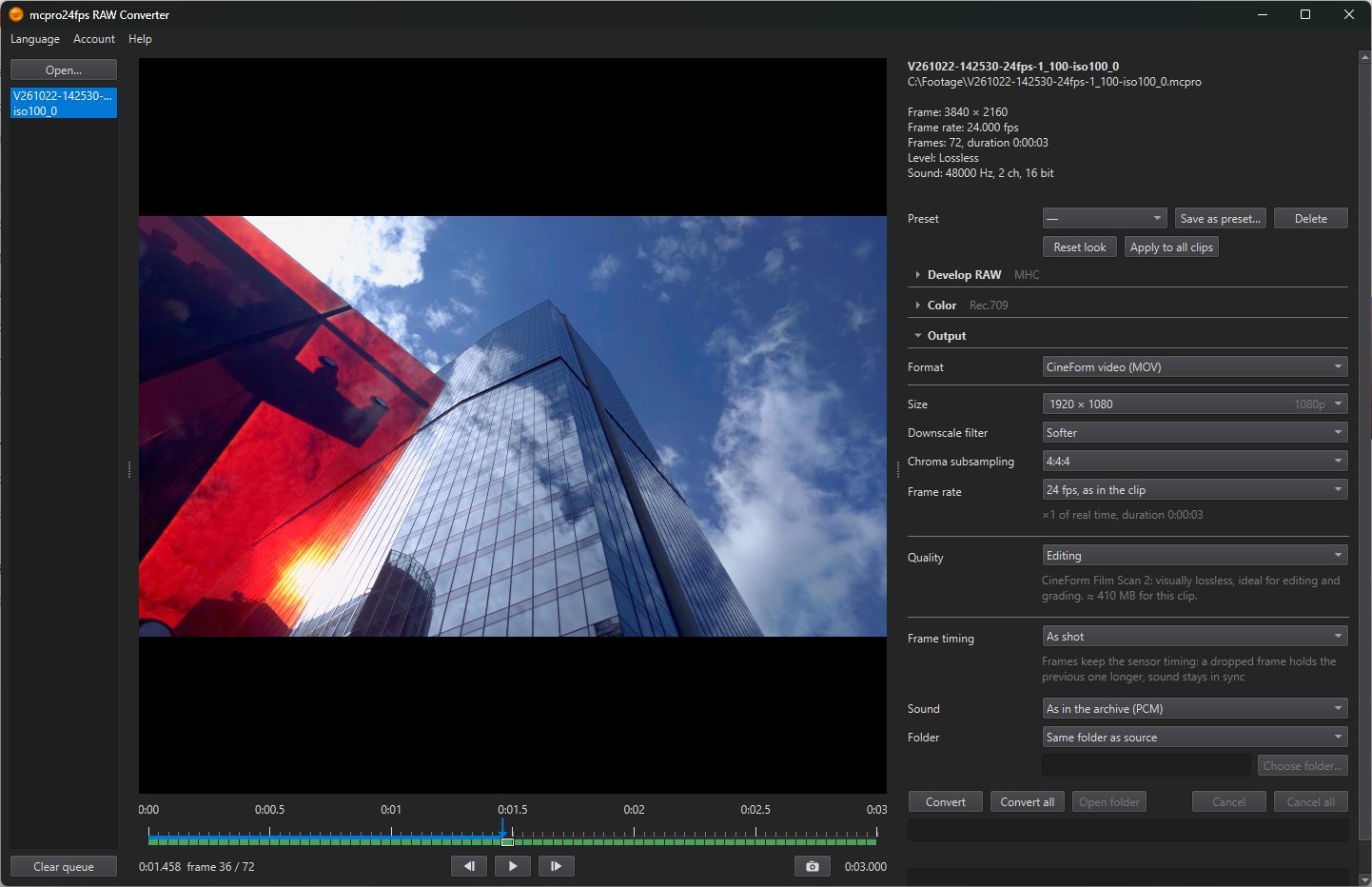
1Size
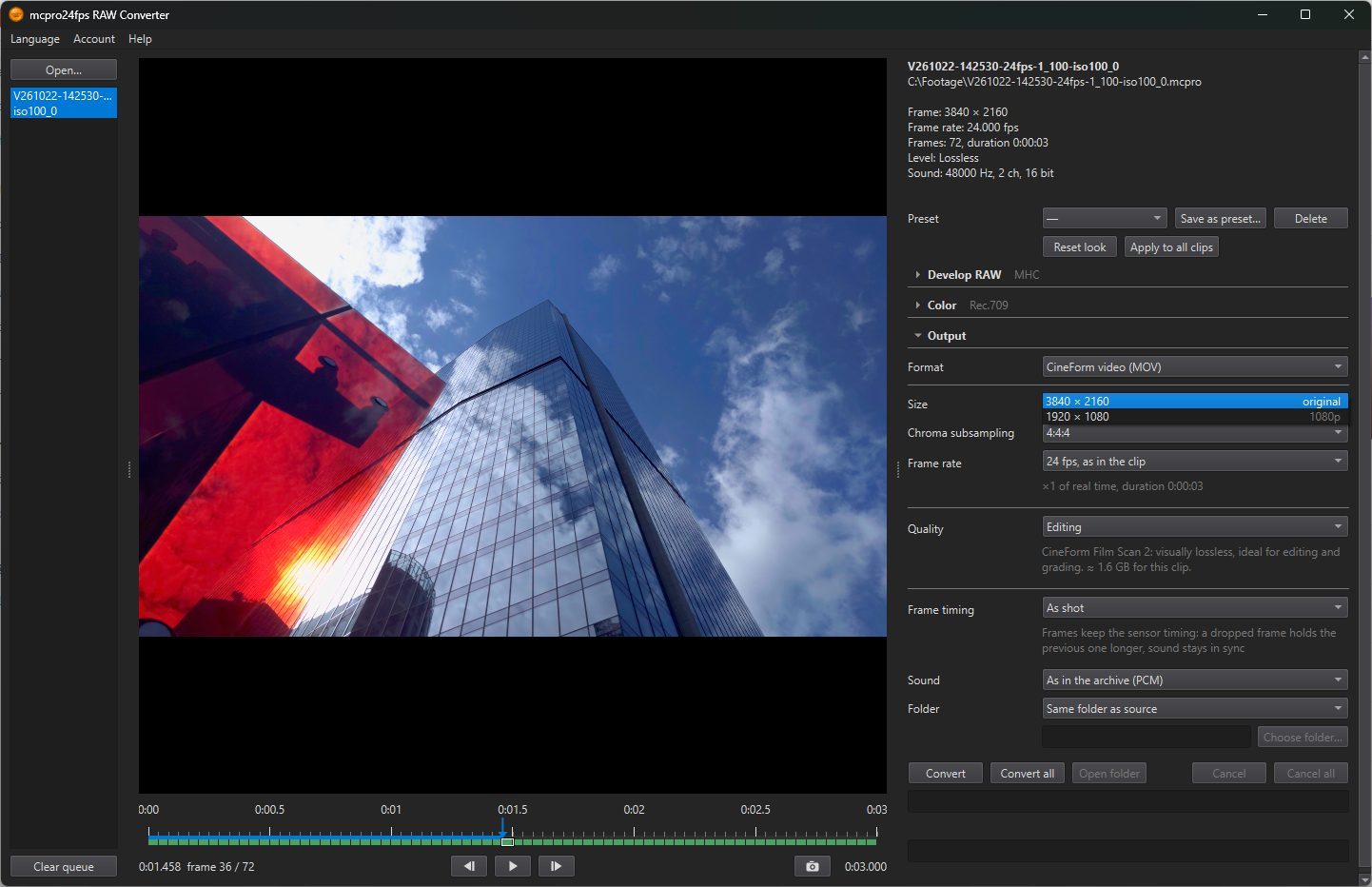
The frame size of the file. The list shows the actual sizes for the selected clip:
- the clip's own size, marked original. Default;
- 2160p: fitted into 3840 × 2160;
- 1080p: fitted into 1920 × 1080.
The proportions of the frame are kept. A size that would not make the frame smaller is not offered. When you convert several clips together, each one is reduced only if it is larger than the chosen size.
2Downscale filter
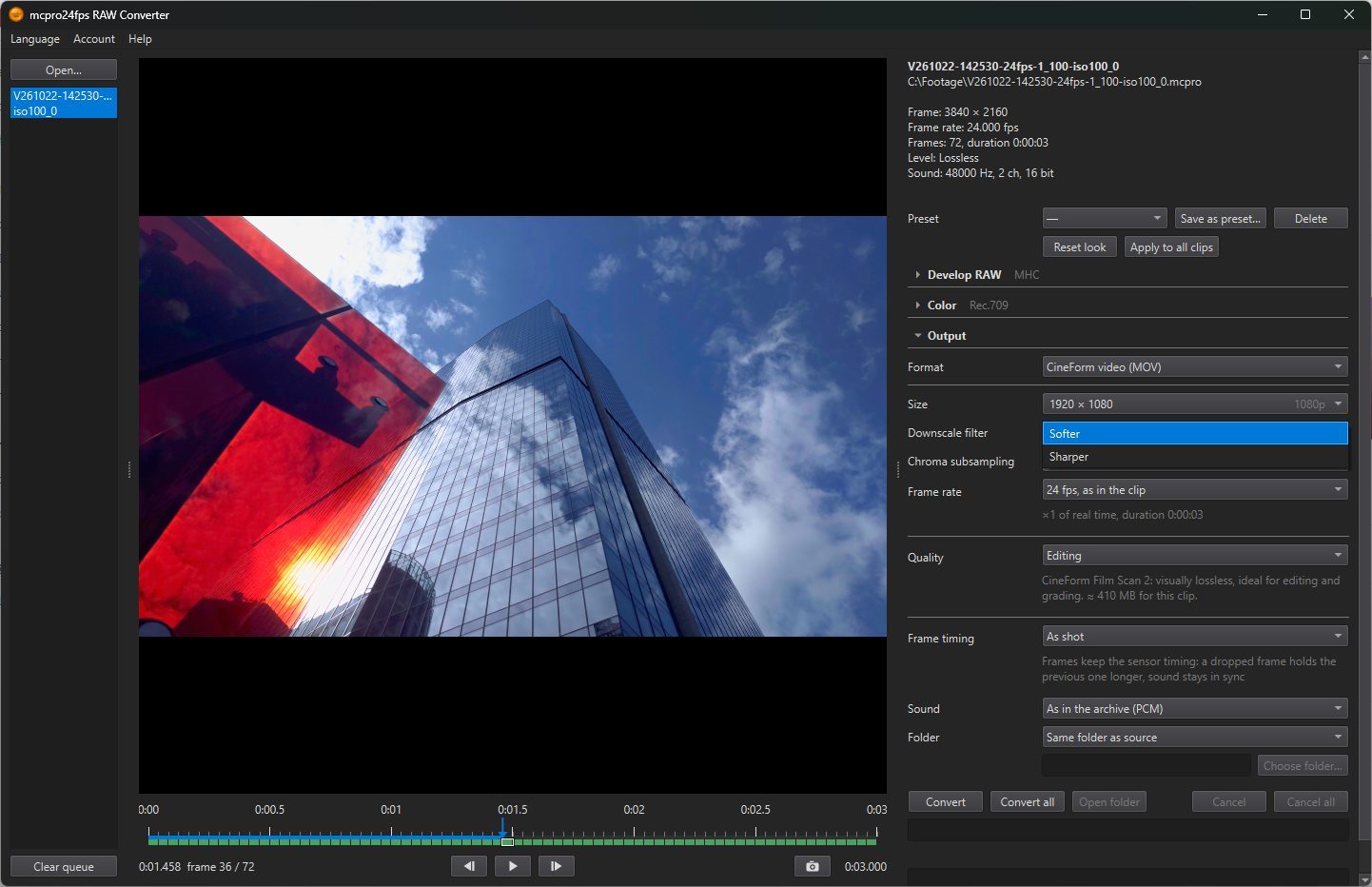
Shown only when the frame is being made smaller.
- Softer: averages neighbouring pixels (a box filter). Soft, without bright or dark outlines along edges.
- Sharper: the Catmull-Rom filter, keeps more fine detail.
3Chroma subsampling
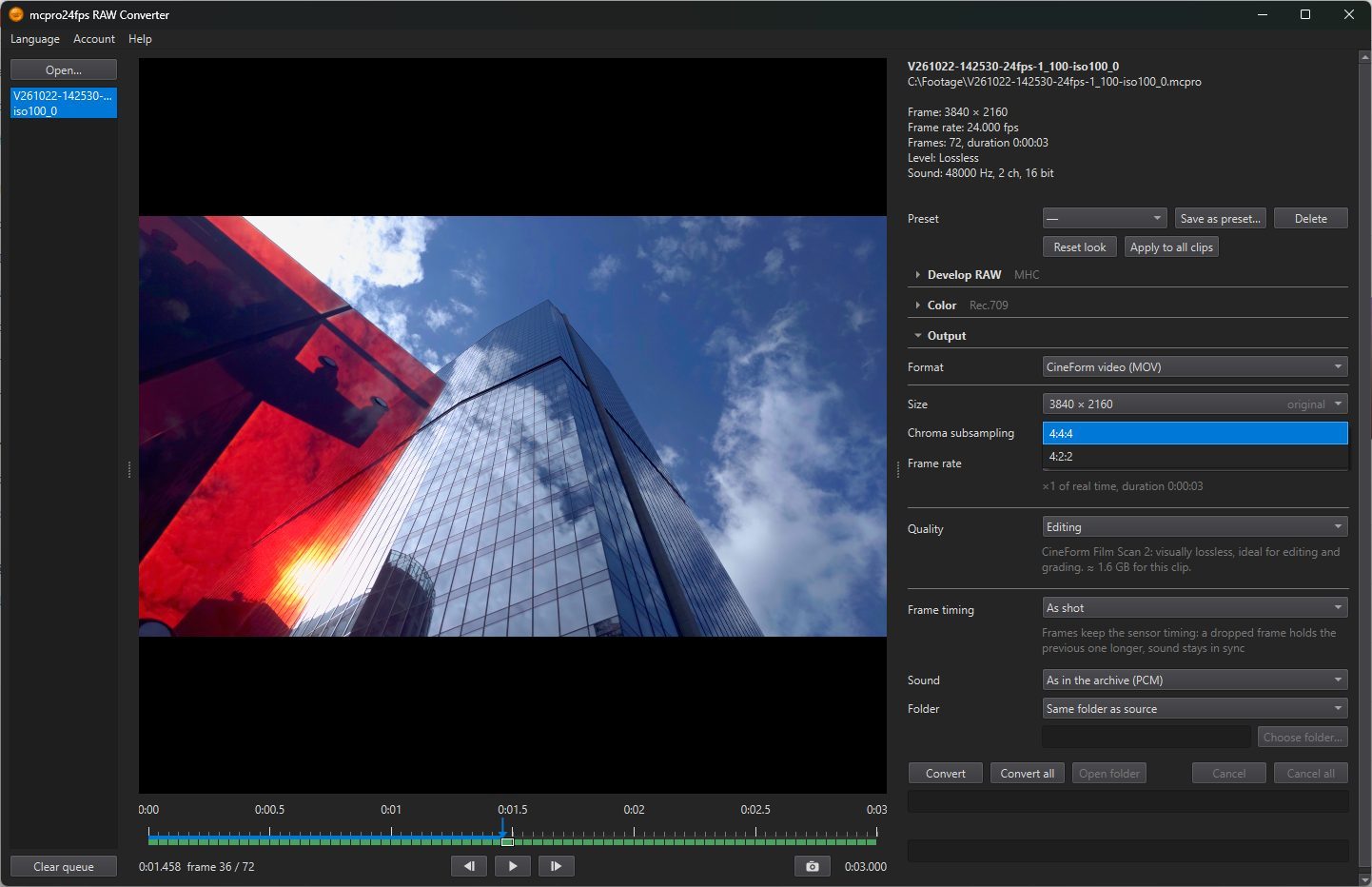
For CineForm video (MOV) only. Brightness is always stored for every pixel; this row sets how much color detail is kept. 4:4:4 keeps color for every pixel. 4:2:2 keeps half the color detail across the frame and gives a smaller file. H.264 and HEVC always use 4:2:0, with color at half detail both across and down.
4Frame rate
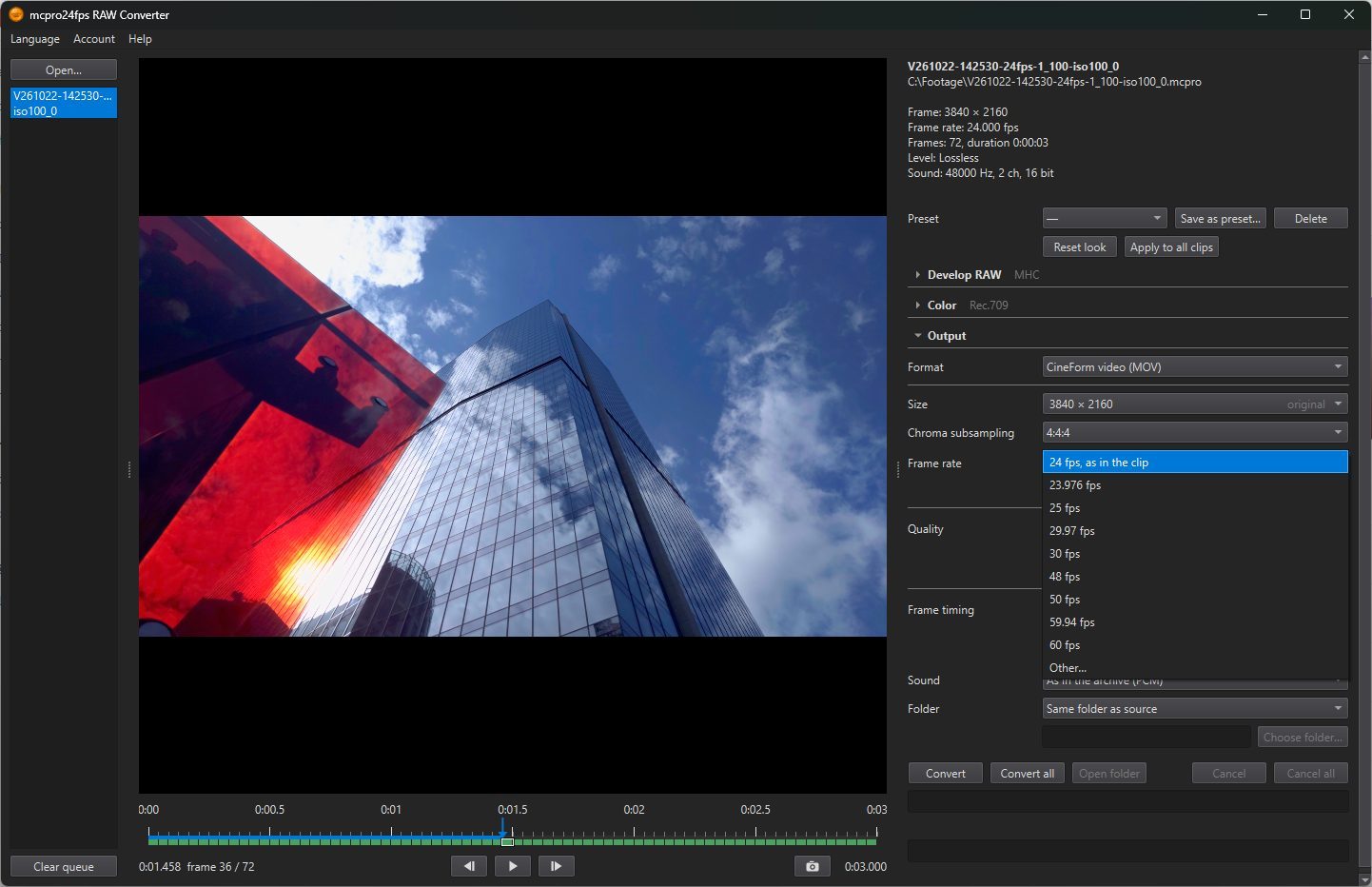
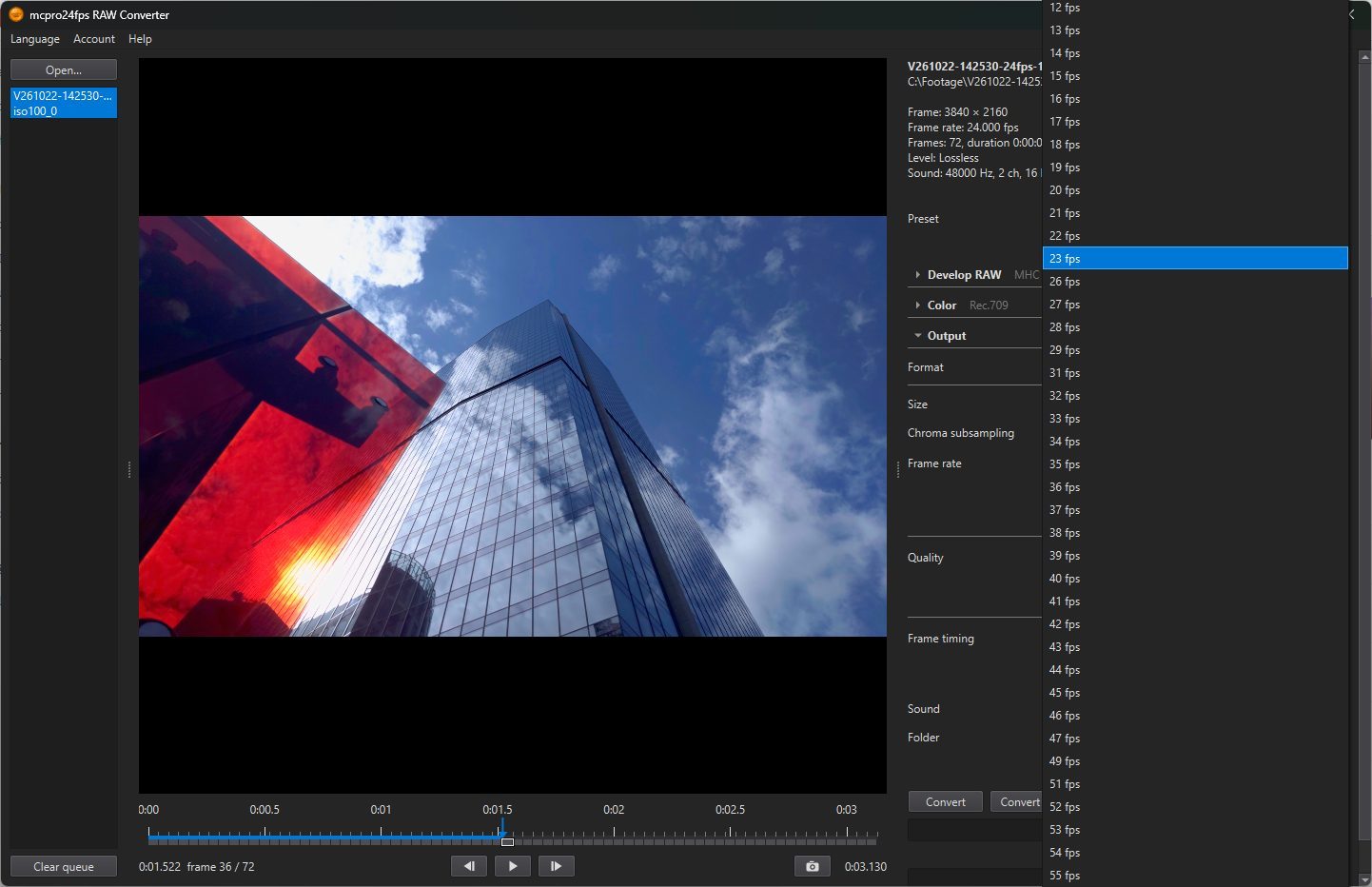
The frame rate of the file. The first item, … fps, as in the clip, keeps the clip's own rate. Default. Then come 23.976, 24, 25, 29.97, 30, 48, 50, 59.94 and 60 fps, and Other…, which opens a second list with every other whole number from 1 to 60.
A different rate does not drop or add frames. Every frame of the clip goes into the file and plays faster or slower, and the sound changes speed with it. The line under the row says what you get: ×… of real time, duration …. A clip shot at 120 fps and written at 30 fps plays at ×0.25, four times slower.
To get more than 60 fps, keep the clip's own rate.