The converter opens clips in the .mcpro format recorded by the mcpro24fps app. Copy them from the phone to the computer first: the program reads files from a disk, not from a connected phone.
There are two ways to add clips:
- Open… above the list: choose one or more .mcpro files;
- drag files or whole folders from File Explorer into the window: Drop .mcpro files or folders here. A folder adds every .mcpro clip in it, subfolders included.
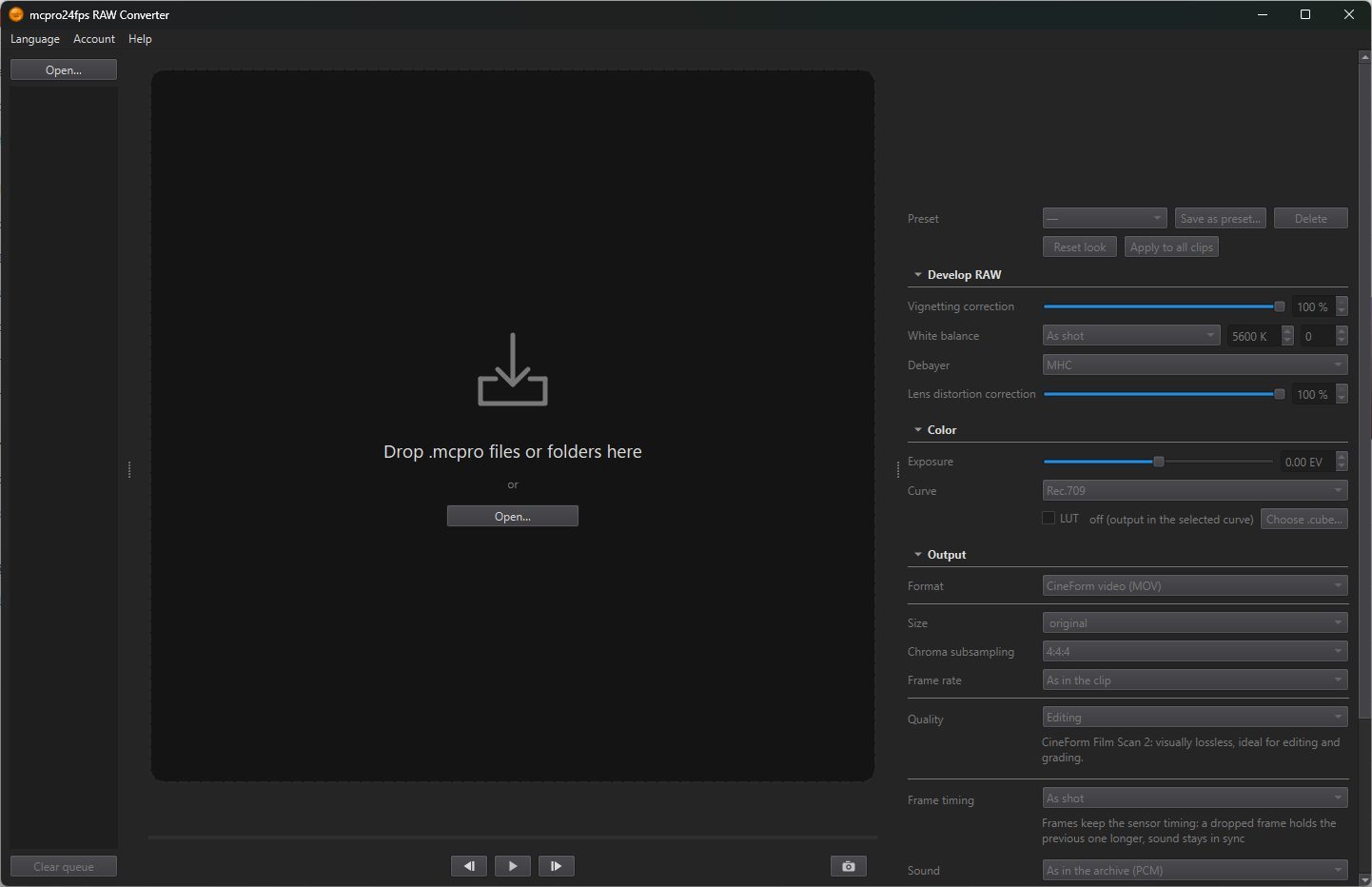
Until you select a clip, the settings under the preview are greyed out.
1Menus
- Language: the language of the window. It changes at once. By default it is the language of Windows.
- Help → Open log folder: opens the folder with the program's log,
log.txt. If something goes wrong, attach it to your message.
2The clip list
The list shows the name of every clip and, while converting, its state: queued, converting with a percentage, done, cancelled or an error. A damaged file, or one that is not an .mcpro clip, is marked not readable.
- Remove from queue (right-click a clip, or press Delete) takes one clip off the list. The file on disk stays.
- Clear queue under the list empties it. It is unavailable while a clip is being converted: Stop the conversion first.
Clip details
On the right, above the settings, you see the details of the selected clip:
- Frame: … × …: the frame size;
- the frame rate, and for slow motion or time-lapse also the rate it was shot at: … fps (shot at … fps);
- Frames: …, duration …;
- Level: …: the compression level of the .mcpro file (LL, HQ, SQ or LT, as chosen in the app);
- Sound: … Hz, … ch, … bit, or Sound: none.
The look is saved next to the clip
Everything you set in Develop RAW and Color makes up the look of that clip. The program saves it automatically in a small file next to the clip, with the same name ending in .look.json. Open the clip again and the look comes back. Copy the clip together with this file, and the look comes back on another computer too. If the folder is read-only (a write-protected card, a network folder you cannot write to), the program tells you: Look not saved next to the clip: ….