
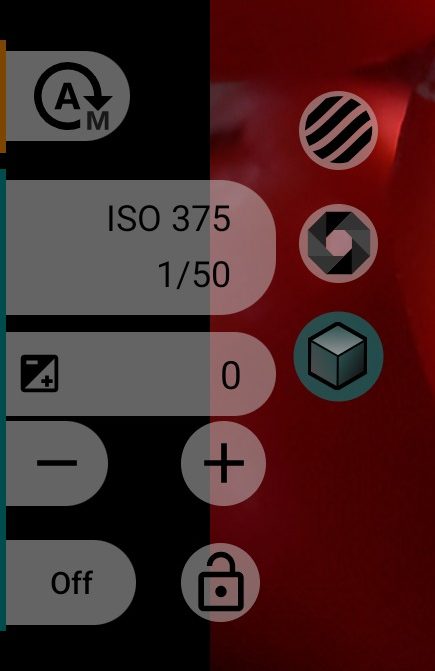
1Exposure mode
Automatic exposure is on; tap to switch to manual exposure. The switch works during recording too and is hidden if the camera does not support manual exposure.
2Zebra
The same zebra as in the manual column: stripes over areas that are too bright or too dark. See Zebra.
35ISO and shutter speed
In automatic mode the column shows the ISO and shutter speed the camera has chosen. Above 60 fps these readings are not shown.
4False Color
The same false colour as in the manual column: the picture coloured by brightness. See False Color.
6Exposure compensation
Shows the exposure compensation in EV, for example "+1/3". Double-tap the value to reset it to 0. The step and the range come from the camera, usually 1/3 or 1/2 EV. If the camera does not support exposure compensation, the buttons are hidden. The value is written to DNG metadata.
7Viewfinder LUT
The same LUT button as in the manual column: turns the viewfinder LUT on and off. See Viewfinder LUT.
89Darker and brighter
- lower exposure compensation by one step;
- raise exposure compensation by one step.
10Anti-banding (AE)
Cycles through the anti-banding modes the camera supports; the button shows the mode as text: Off, Auto, ⋮50Hz, ⋮60Hz. It adjusts automatic exposure so that mains-powered lights do not cause dark bands across the frame. The same setting is in the hardware settings of the video menu.
11AE lock
Holds the current automatic exposure until you tap it again. It works only in automatic mode and is not saved: switching cameras or restarting the app releases it.
- exposure follows the scene;
- exposure is locked.
To lock exposure for every recording automatically, use AE autolock in Control.