
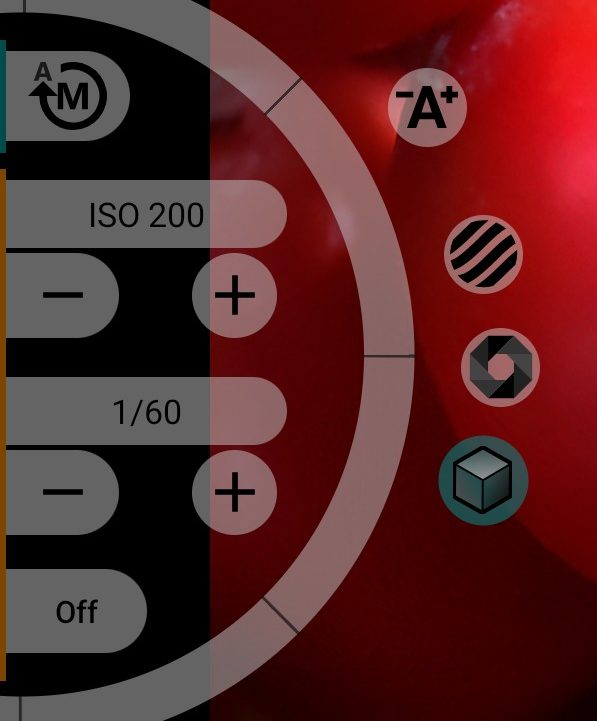
1Exposure mode
Manual exposure is on; tap to switch to automatic exposure. The switch works during recording too and is hidden if the camera does not support manual exposure.
2ISO
The half wheel on the left sets ISO. Turn it by dragging a finger along the arc; the value is shown above the wheel while your finger is on it. The scale is stretched at the low end: ISO 0 to 200 takes a full turn, and after that each doubling (200 to 400, 400 to 800 and so on) takes half a turn. The range comes from the camera.
3Auto assist
Sets exposure for you once. Hold the button: the camera switches to automatic exposure while it is pressed. Release it, and the app takes the shutter speed and ISO the camera chose and turns them into manual settings. It keeps the shutter at 1/(2·fps) where possible and adjusts ISO; if ISO runs out of the camera's range, the shutter moves instead. This works during recording too.
4ISO value
Shows the current ISO, for example "ISO 200". The reading is highlighted when ISO goes above the sensor's analogue maximum. Above that point the camera adds digital gain, which raises noise.
5Zebra
Shows stripes over areas that are too bright or too dark; the button is highlighted while zebra is on. Tap again to hide them. The thresholds are set in Viewfinder settings. Turning zebra on turns False Color off.
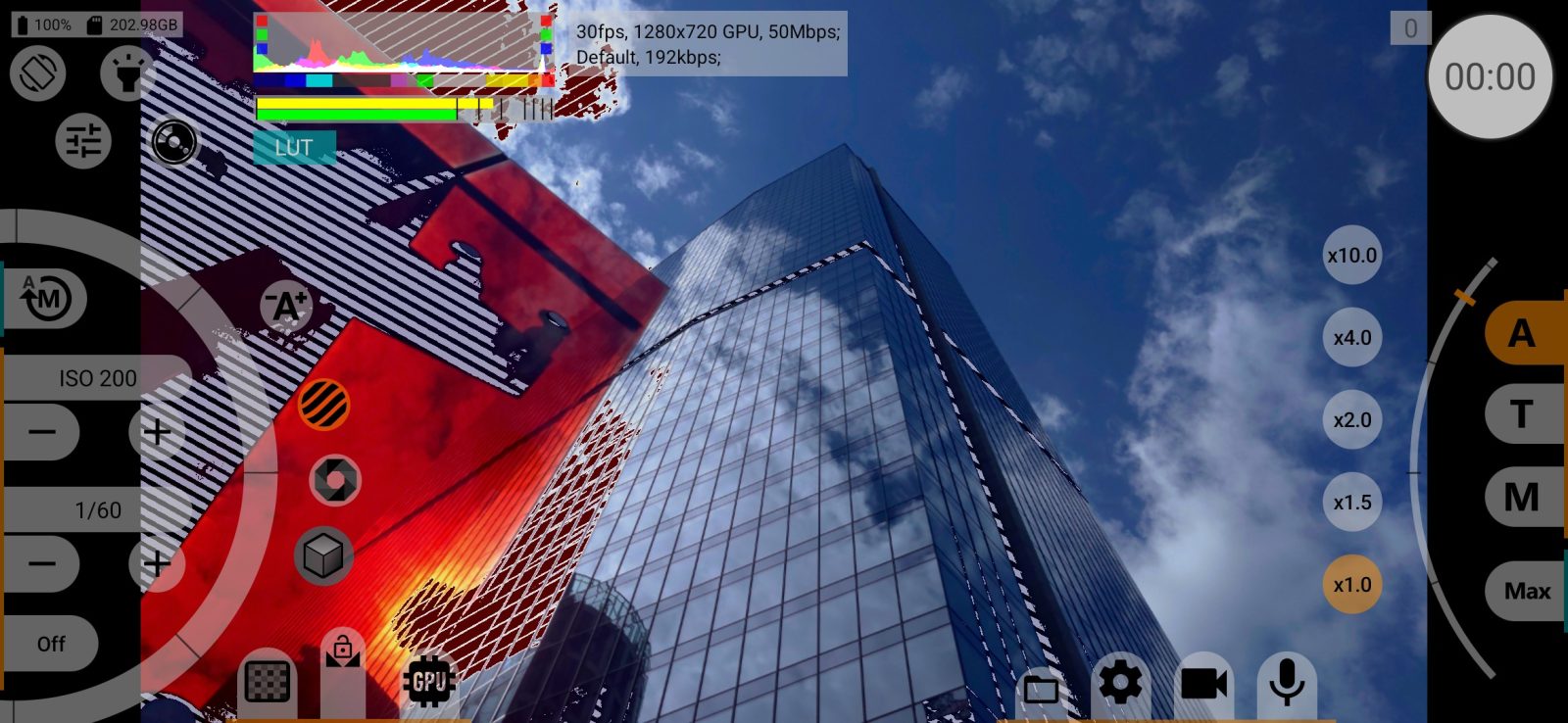
67ISO down and up
- lower ISO by one step;
- raise ISO by one step.
The steps are 25, 40, 50, 75, 100, 150, 200, 300, 400, 600, 800, 1200, 1600, 2400, 3200, 4800, 6400, 9600, 12800, 25600 and 51200, within the camera's range.
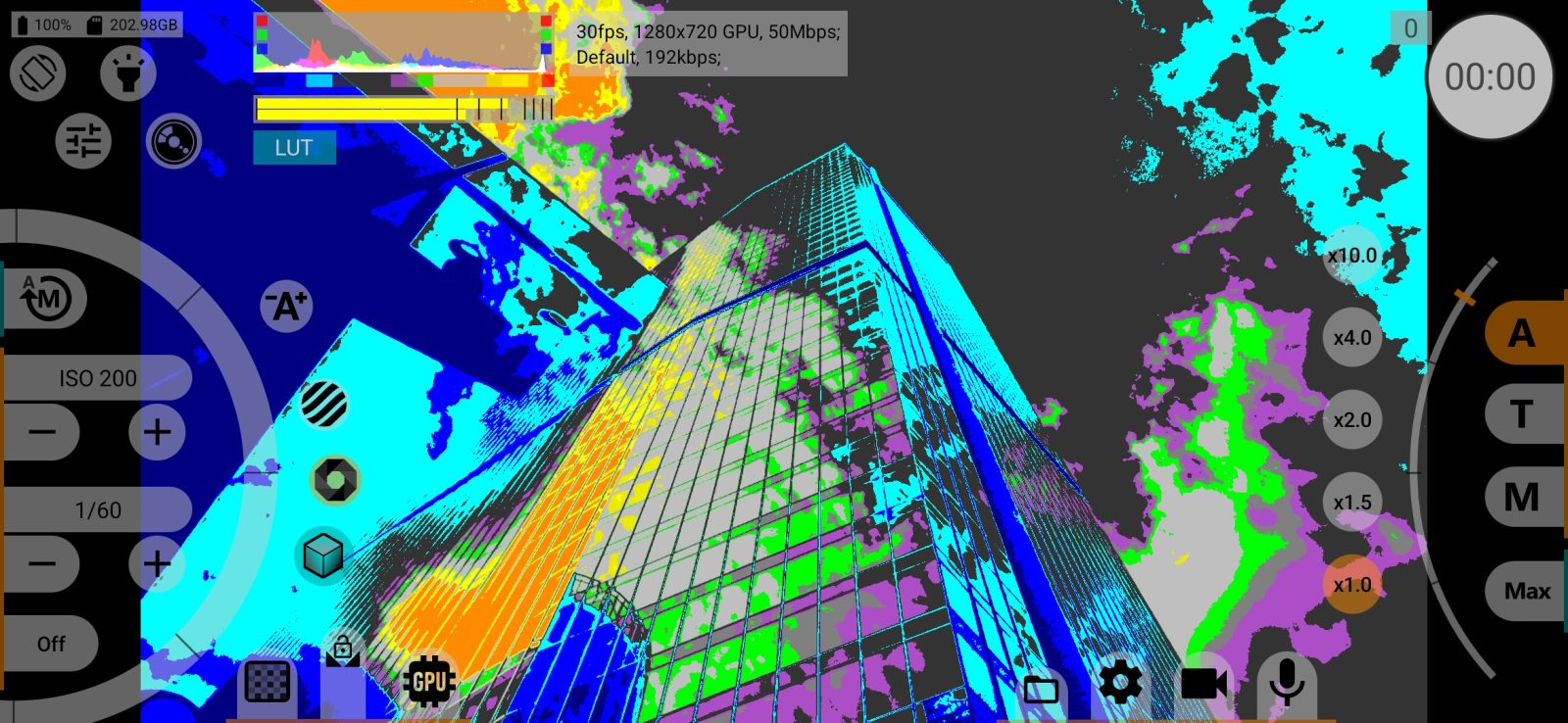
8False Color
Colours the picture by brightness, so that you can judge exposure across the whole frame at a glance; the button is highlighted while it is on. Tap again to turn it off.
9Shutter speed
Shows the shutter speed as 1/N. The shutter is tied to the frame rate: the steps are fractions of the frame time, 1/fps, 1/(1.5·fps), 1/(2·fps), 1/(3·fps), 1/(4·fps) and so on. At 24 fps that gives 1/24, 1/36, 1/48, 1/72, 1/96, 1/144, 1/192. The default is 1/(2·fps), the 180° rule: 1/48 at 24 fps, 1/60 at 30 fps. The shutter can't be longer than one frame. The reading is highlighted while the mains-frequency multiple is on.
1011Shorter and longer shutter
- one step shorter: the frame gets darker;
- one step longer: the frame gets brighter.
12Viewfinder LUT
The LUT button appears when a viewfinder LUT is selected and the current colour profile allows it. Tap it to turn the LUT on and off; the button is highlighted while the LUT is on. Long-press it to open the menu for exporting LUTs. The LUT itself is chosen in Viewfinder settings.
- the LUT covers the whole frame (or is off, if the button is not highlighted);
- the LUT covers the left half of the frame, the right half shows the picture without it;
- the LUT covers the right half.
The half-frame views are available when half-frame LUT mode is on: long-press the LUT label among the indicators to switch it.
13Mains-frequency multiple
Makes shutter speeds multiples of the mains frequency instead of the frame rate. This removes flicker from lamps on 50 Hz or 60 Hz mains. The button shows its state as text:
- Off: the steps follow the frame rate;
- "⋮" and a base, for example ⋮25 or ⋮50: the steps follow the mains; the shutter reading is highlighted.
What the button cycles through depends on the frame rate:
- at 24, 48, 72 and 96 fps: off, the 50 Hz base, the 60 Hz base;
- at 25, 50, 75 and 100 fps: off and the 60 Hz base;
- at 30, 60 and 90 fps: off and the 50 Hz base.
For example, at 24 fps with the 50 Hz base the steps become 1/25, 1/37, 1/50, 1/75, 1/100. At 120 fps and above the button has no effect.