
In the app: folder (media manager)
The folder button opens the list of your recordings. The camera keeps running underneath; close the list with the cross in the top right corner or the Back button. The list does not open during recording.
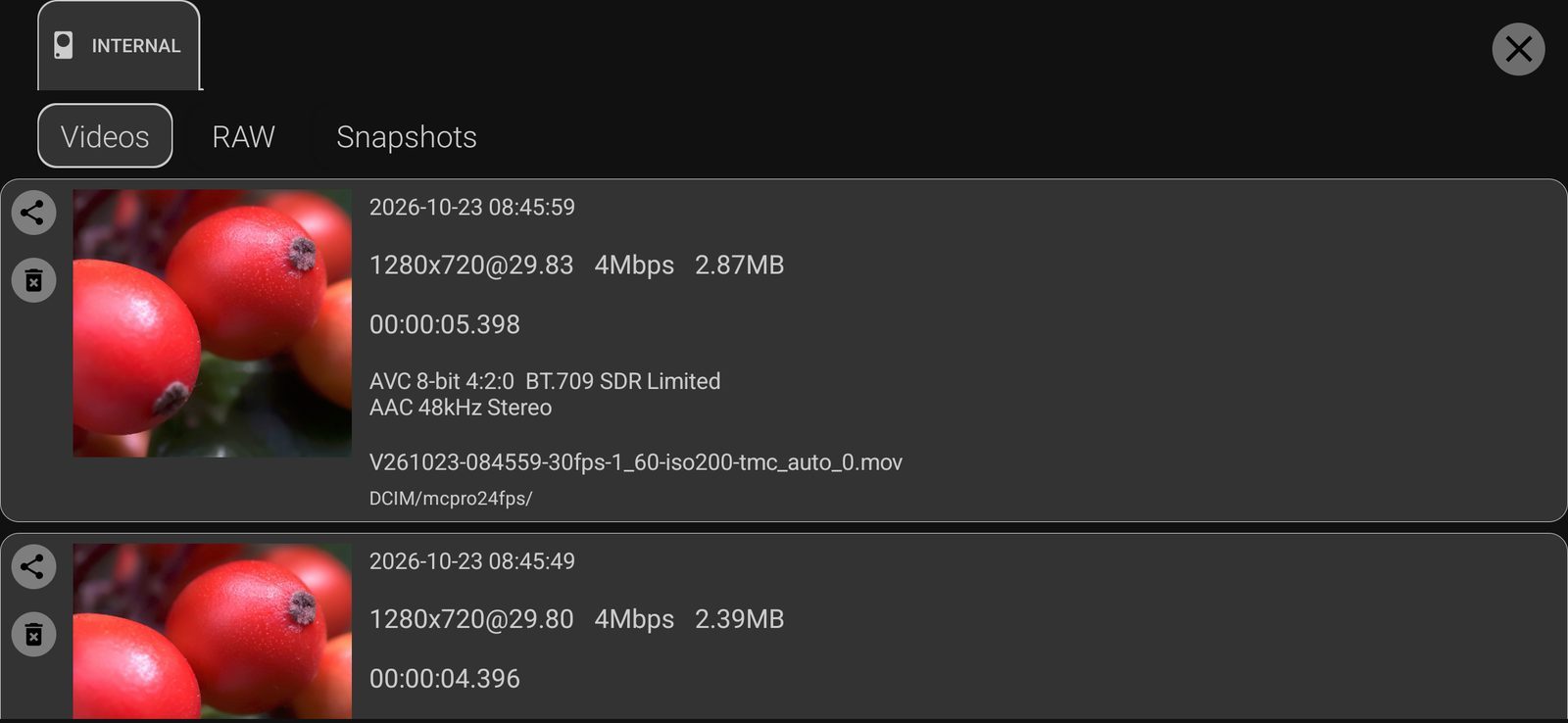
Storage and file type
The tabs at the top are the storages: Internal, an SD card, a USB drive. The tab of the current recording location opens first. Switching tabs does not change where new recordings go.
Below the tabs choose what to show: Videos, RAW (RAW ZIP and .mcpro recordings) or Snapshots. Newest files are at the top.
What each file shows
Next to the thumbnail: date and time, frame size and rate, data rate and file size, duration, and a line with technical details. For videos the details include the codec, bit depth, chroma subsampling, colour primaries, transfer, range, pixel aspect ratio, audio and the starting timecode. For RAW: the RAW type, compression and sound format; for slow or fast motion the frame rate is shown as shooting rate and playback rate.
Actions
- Tap a video or snapshot to open it in another app for viewing.
- Tap a RAW recording to play it in the built-in RAW player (on Android 9 and later, 64-bit phones). Next to it are buttons to open the file in another app and to convert it; conversion is part of RAW Bundle.
- The share button sends the file to another app.
- The delete button deletes the file for good, there is no recycle bin. Gyro data files saved next to a video are deleted with it.
- Long-press a file to select several. Tap more files to add them, then delete them together or, for RAW recordings, convert them. The bar at the bottom shows Selected files: and the number.
There is no renaming, sorting or search in the media manager; for that, open the files in another app on the phone, such as Files or My Files.