
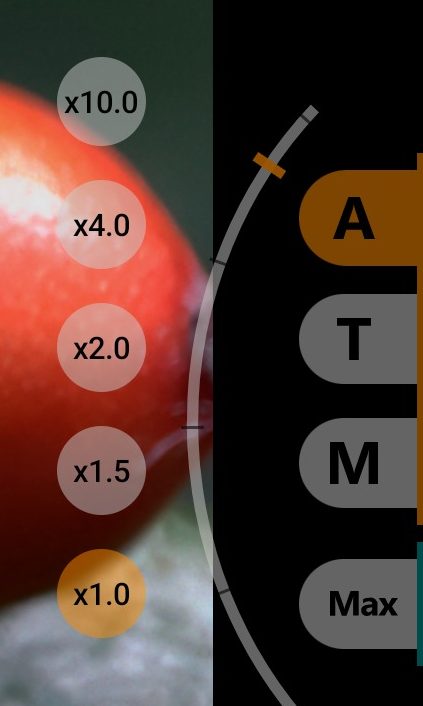
1The wheel
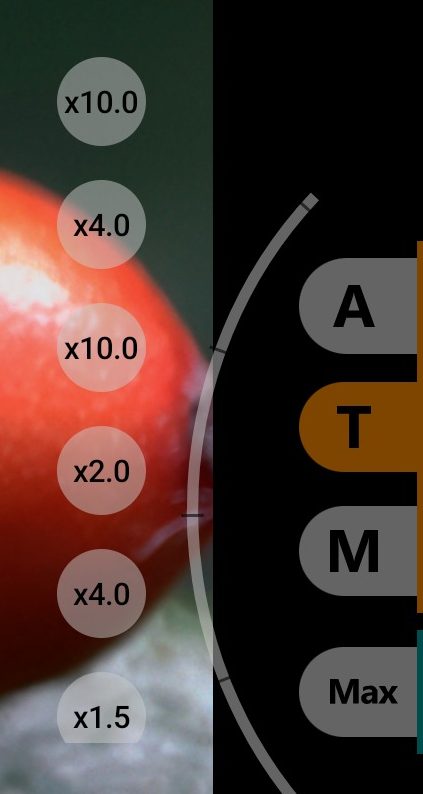
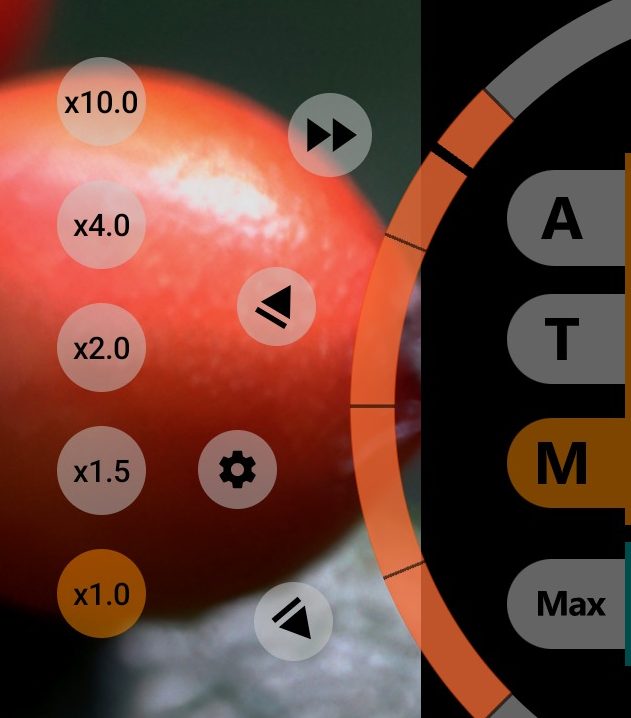
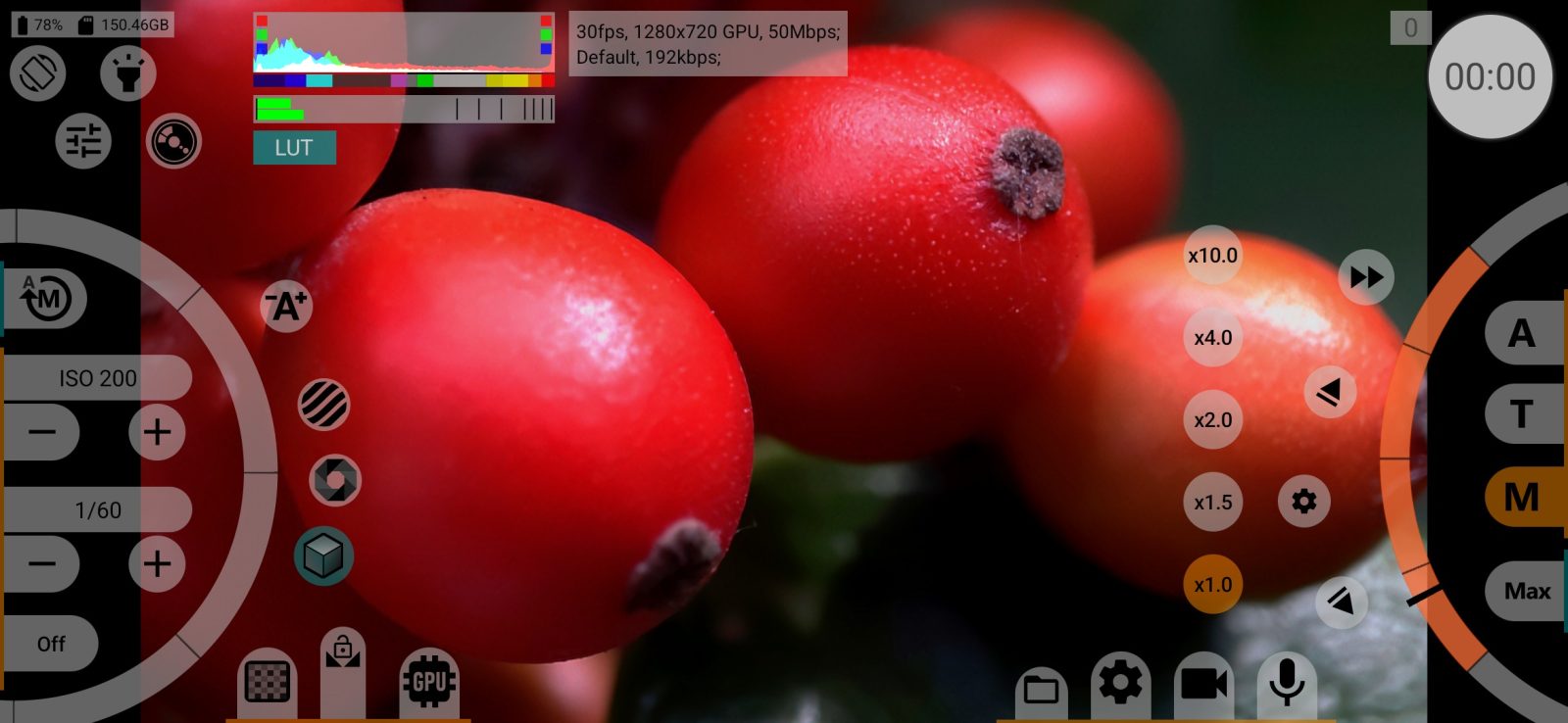
The arc on the right shows where the lens is focused and, in manual focus, sets the distance:
- orange arc and pointer: manual focus (M). Turn the wheel by moving a finger around its centre to set the distance;
- thin grey arc with a brown marker: autofocus indicator in modes A and T. The wheel does not take touches; the marker shows where the lens is focused now and moves along the arc when the camera refocuses.
The whole arc covers the full focus range, or the range between the limits if limits are set. While your finger is on the wheel, the frame shows an approximate distance, such as "~50 cm", "~2.30 m" or "∞". Touching the wheel closes open menus and stops a running pull. The position is saved when you lift your finger, except during recording.
2Continuous autofocus
The camera keeps focusing on its own; the button is highlighted while this mode is on. Tapping A again sends a single focus command to the camera. Above 30 fps some phones switch to a different autofocus mode suited to high frame rates. In this mode no focus frame is shown. The button is hidden if the camera has no continuous autofocus.
3Tap to focus
Tap the viewfinder to focus on that point; the app focuses once and holds. Tap T again to refocus on the same point. Only focus is set from the point, exposure is not.
A tap on the viewfinder first closes an open menu. A swipe across the viewfinder hides or shows the interface instead of focusing.
In tap-to-focus mode a square marks the point the camera focuses on. Its colour shows the camera's autofocus state:
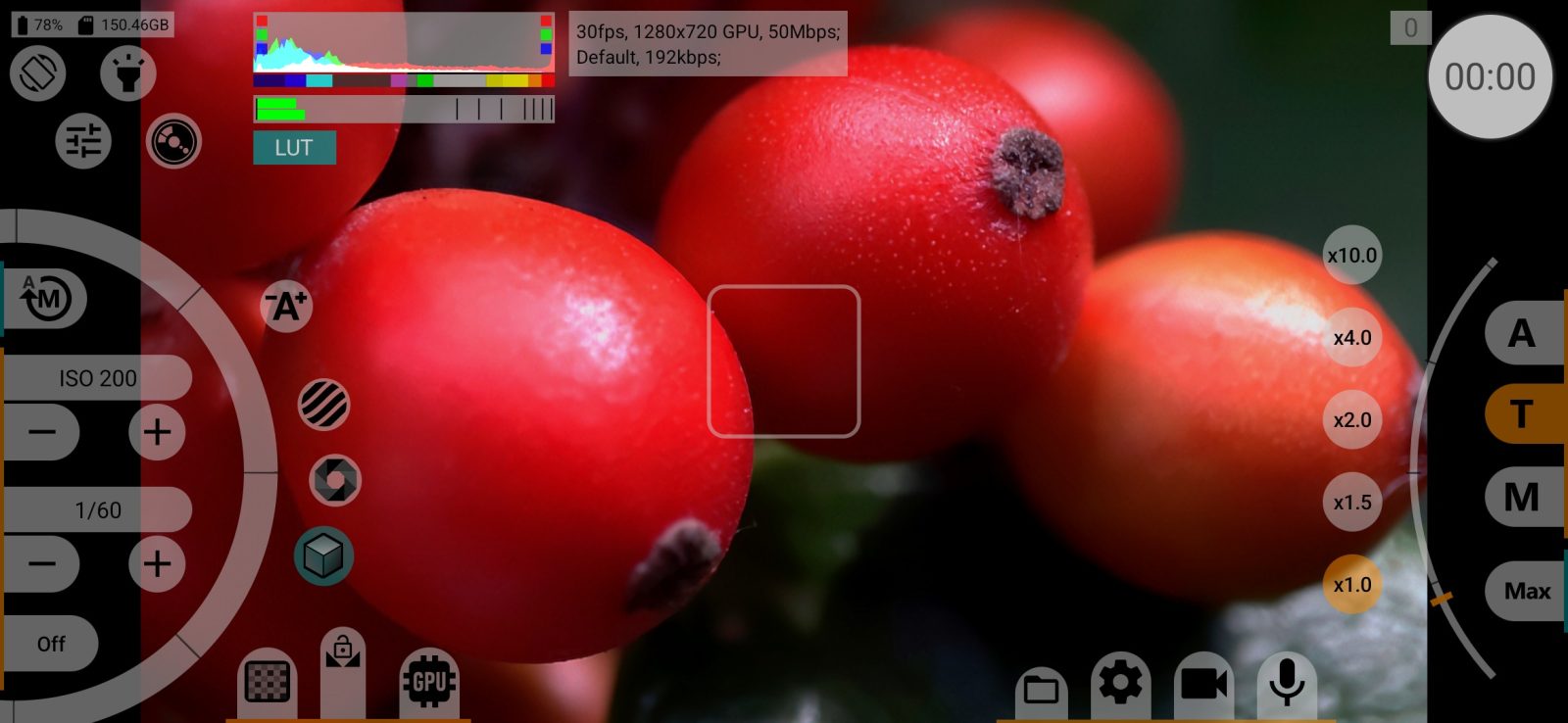
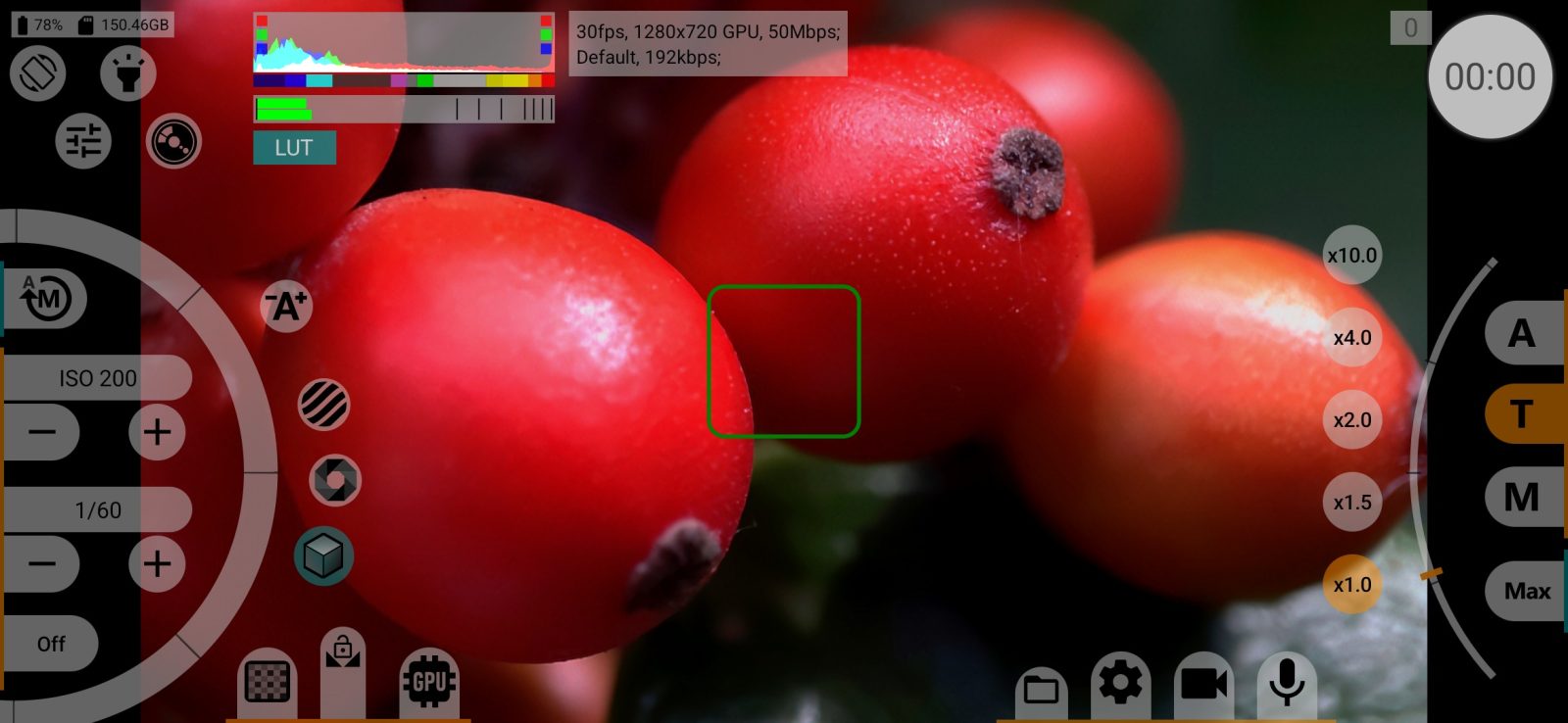
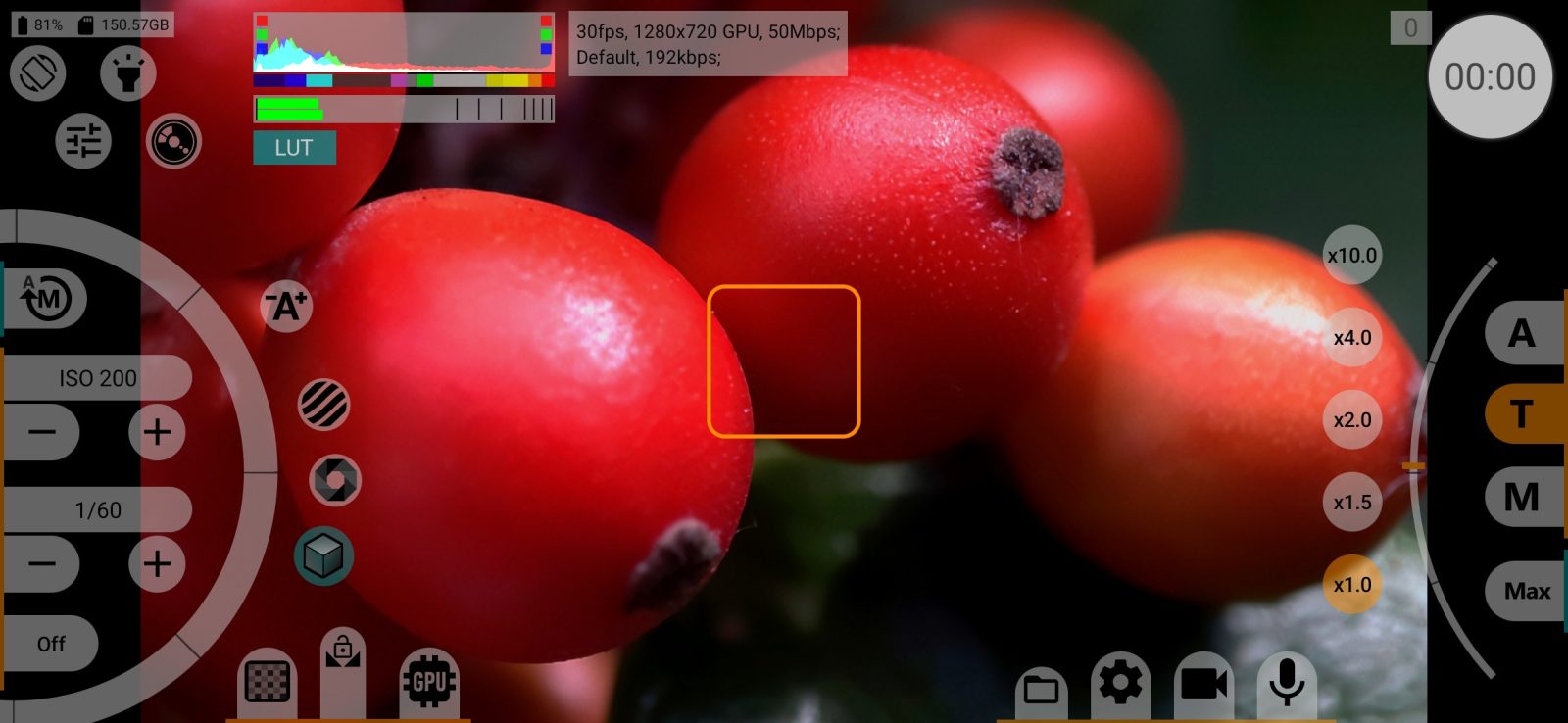
The size of the square depends on the zoom. At the widest view it is about a tenth of the long side of the screen, and it grows as you zoom in, up to three times that size at the camera's maximum zoom. The area the camera measures focus in grows with it, so at strong zoom the focus point stays large enough to find detail.
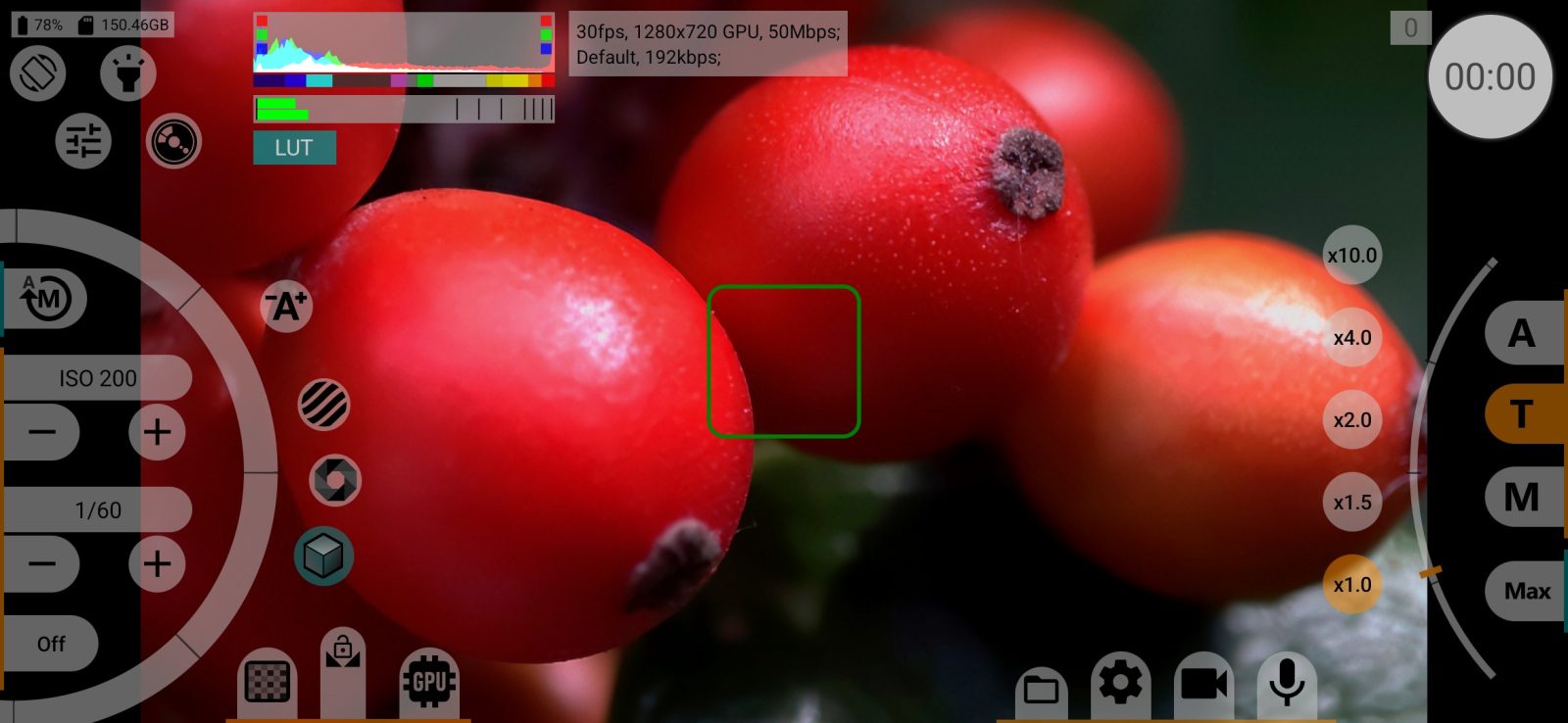
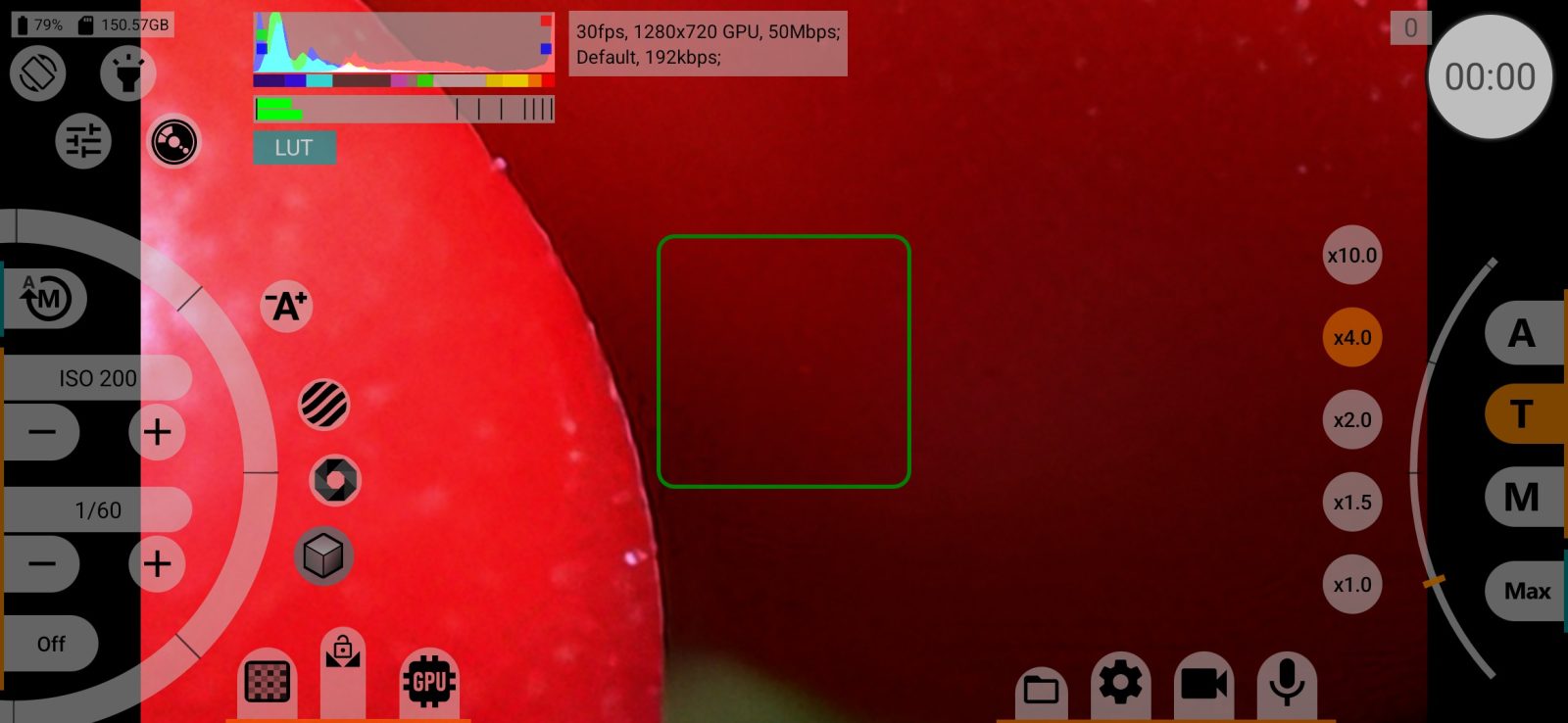
In RAW the square is a little smaller. The frame stays on the screen in tap-to-focus mode and disappears when you switch to A, M or zoom.
4Manual focus
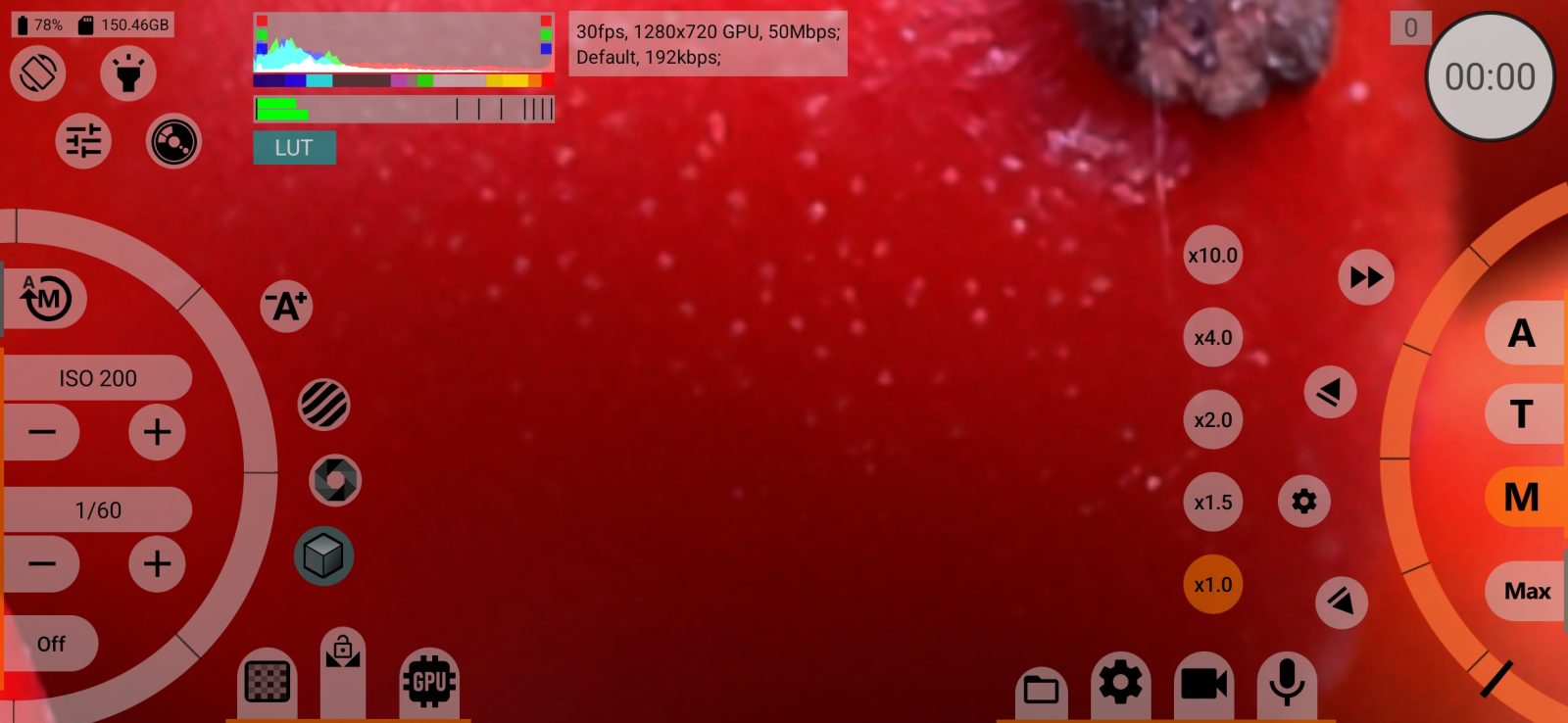
Autofocus is off and the wheel sets the focus distance. Manual focus starts from the point autofocus reached, within the set limits. In this mode the pull and focus limit buttons appear.
- manual focus;
- manual focus with Infinity focus mode on: long-press M to switch it on or off. The far end of the wheel is then your own saved infinity point (see Infinity focus value below).
Double-tap any point of the viewfinder to magnify it 4×. The wheel becomes finer at the same time. The magnifier is shown only on the screen and an external monitor and does not go into the recording. Double-tap again to turn it off; switching to A, T or zoom also turns it off.
The button is hidden if the camera has no manual focus.
Limits and programmed pulls
A pull moves focus or zoom smoothly between two set points. Set the points with the limit buttons, then start the move with a limit button or with the play button.
7Programmed pull
- starts focus and zoom together: focus goes to whichever of its limits is further from the current position, and so does zoom. Without zoom limits, zoom goes to the end of its range.
- a pull is running; tap to stop.
This is the main way to do a focus pull or a zoom-in on camera. It can also be assigned to the volume, zoom or camera keys in Control.
8Focus top limit
- tap to move focus smoothly to the top limit, or to infinity if no limit is set. Long-press to set the current position as the limit, long-press again to clear it. A button with a set limit is highlighted.
- focus is moving; tap to stop.
Limits also narrow the wheel: the whole arc then covers only the range between them. You can set and clear limits during recording.
9Focus pull settings
Opens the pull settings (not during recording).
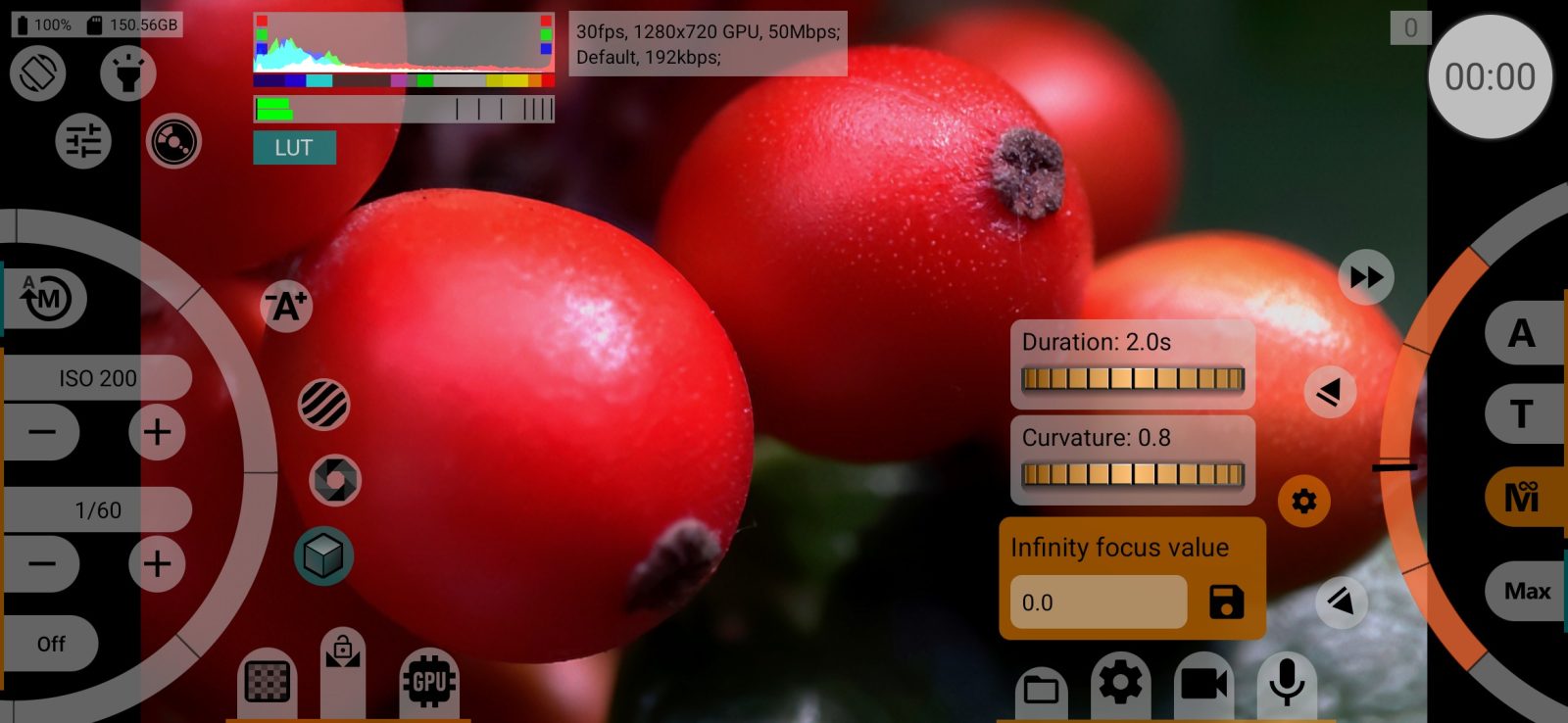
Duration
How long the pull takes from one limit to the other, from 0 to 30 seconds; a shorter distance takes proportionally less time. Default: 2.0 seconds. At 0.1 seconds or less the value jumps straight to the limit. Double-tap to reset.
Curvature
How the pull speed changes along the way. Values below 1 make the steps finer near the far end of the range, values above 1 near the close (wide) end. Default: 0.8 for focus and 1.2 for zoom. Changing it keeps the current focus distance and zoom where they are. Double-tap to reset.
Infinity focus value
Shown when Infinity focus mode is on. Use it with adapted lenses whose infinity is beyond the phone's normal focus range: focus at a distant object, then tap the save button to make that point the end of the scale. Double-tap the value to reset it to 0.0 (true infinity). To save a point further than the current one, reset first.
10Focus bottom limit
- the same as the top limit, towards the near end of the focus range.
- focus is moving; tap to stop.
Related settings
In Control: Infinity focus mode: Off: the far end of the focus scale is the camera's hyperfocal distance; On: the saved Infinity focus value, which is true infinity by default.