
Beneath this button are the settings for working with color at the sensor or RAW signal level.
1.4.1.1. Selecting the white balance mode
This menu contains the white balance modes preset by the manufacturer. Almost always the "Daylight" and "Incandescent" modes are available. The availability of the "Manual" mode is highly dependent on what the manufacturer has specified in the Camera2 API. In all modes except Manual, the device can engage in automatic micro-corrections.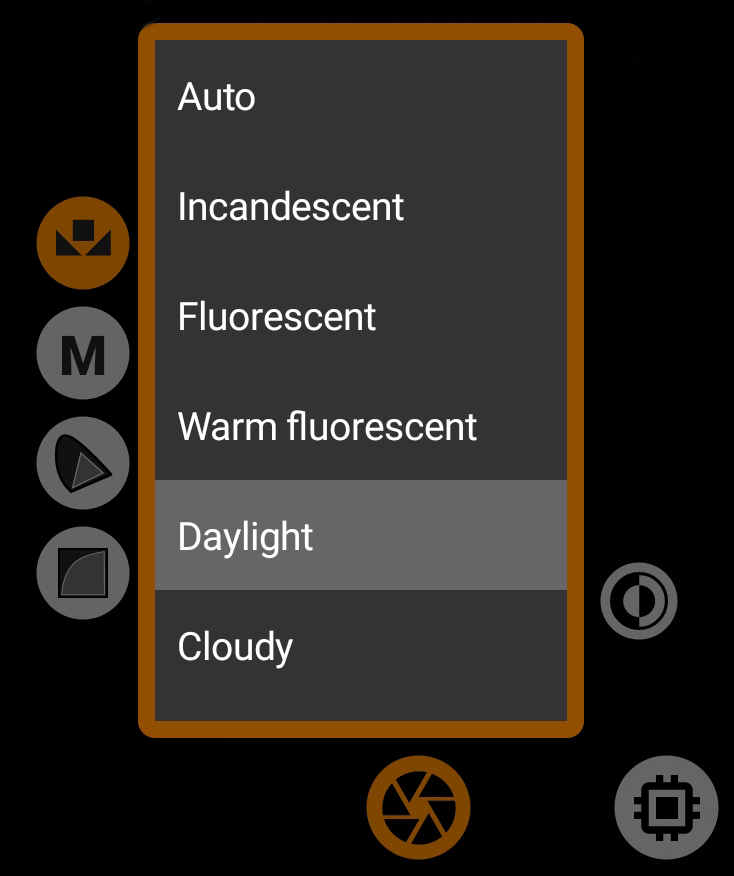
The white balance mode is saved for each sensor separately.
When selecting the Manual mode, the second and third buttons are activated.
1.4.1.2. Manual white balance settings
In order to activate this menu you will need to select "Manual" in the white balance mode settings.
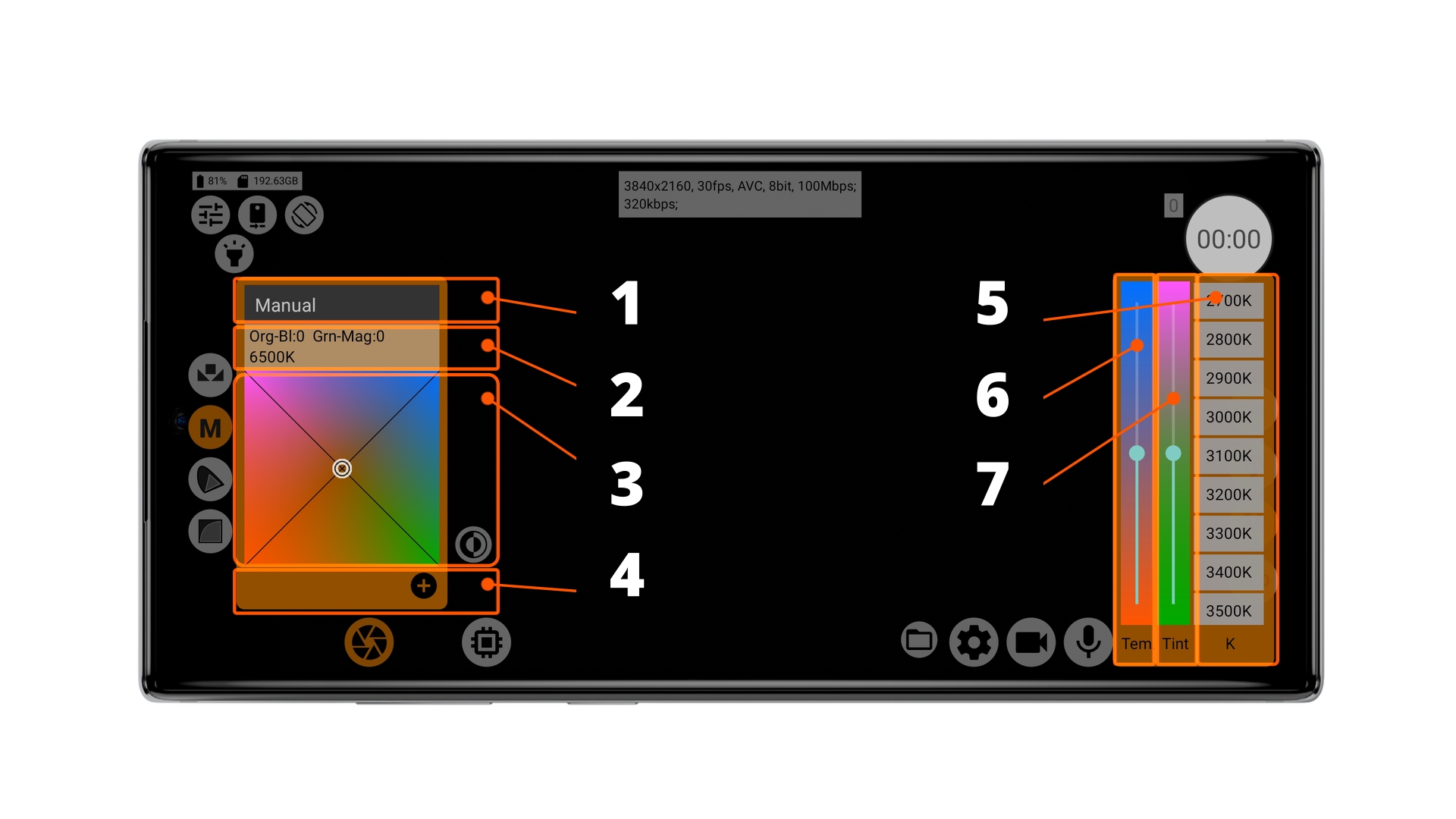
1 - drop-down menu of saved manual white balance settings; 2 - coordinate information on the touchpad and approximate conversion to light source temperature; 3 - white balance touchpad; 4 - button for saving manual white balance settings; 5 - preset light source temperatures; 6 - auxiliary temperature control (orange to blue axis); 7 - auxiliary tint control (green to purple axis).
The first thing to agree on is that everything about temperature in the manual white balance menu refers to the light source. Selecting a temperature causes the application to try to compensate for the selected temperature. That is, the user does not select the temperature he or she wants, but the temperature of the environment that is currently illuminating the subject.
The drop-down menu (1) of the saved settings contains the presets saved by the user.
The window with information (2) contains three parameters for better orientation, for whom it is more pleasant to see the figures: orange-blue axis coordinates (Org-Blue), green-violet axis coordinates (Gr-Flt) and the approximate temperature of the light source (which you should choose in the right menu to get approximately the same orange-blue axis coordinates, i.e. without taking into account the hue).
The color touchpad (3) is for quick and precise correction of the white balance.
The save button (4), logically, brings up the preset save window. In the same row the buttons for deleting a preset and returning to the default settings may also appear.
The preset temperature list (5) is for quickly selecting a specific light source temperature.
The temperature control (6) is for adjusting the color on the orange-blue axis.
The tint control (7) is for adjusting the color on the green-purple axis.
That is, the right side of the manual white balance menu helps you adjust some controls more precisely.
In Manual White Balance mode, all micro-corrections are most often turned off and a hardware-like preset may be slightly different from a hardware preset. It therefore makes sense to abstract away from hardware presets when using manual white balance mode, and not even try to compare it to any other mode.
We are often struck by the desire of users to achieve such perfect white balance that they can calibrate the monitor with a smartphone. This seems to us to be too demanding, and hence the striving itself is seen as pointless.
Warning! If the selected settings have not been saved to a preset, there is no guarantee that they will remain in the next session of using the app. The application tries to save the last selected settings, but more often than not, the selected preset, if it has been changed but the changes have not been saved, resets the settings to its saved settings. For example, you selected 5600K, saved that to preset01, changed the settings to 5000K and quit the app. When you return back, you are likely to find the settings at 5600K because the selected and saved preset has applied them, ignoring the last temporary changes.
1.4.1.3 Selecting gamut
This is where the topic of "Big" logarithmic profiles begins. The first video-devices with the ability to select log profiles did not split this concept into two parts: gamma curve and gamut. The user simply chose what he was given to choose and used it. And in post-processing used the LUTs prepared by the device manufacturer.
Over time, it became necessary to separate the selection of gamut (color space) and gamma curve. The reason was the increase in the number of combinations of these two parameters, and it became easier to select them separately, than to combine ready log-profiles with all possible combinations. In our case, it can lead to chaos.
And so, a gamut is almost the same as a color space, with the only difference being that a gamut is a conditional color space with the same CIE coordinates, but not limited by anything. Most often the concept of gamut is found in video recording, and color space in digital content broadcasting. The camera sensor does not have such hard limitations as a monitor, the information from the sensor, relying on its color depth, can be stretched to any color space. In principle, each color space has some conditional color depth requirement. For example, Rec.709 is enough 8 bits, Rec.2020 requires at least 10 bits, so that the color does not have "holes" and banding. And if you take some Red Wide Gamut, the color depth requirement may increase to 14 bits.
In any case, it is not an axiom, and you are free to choose any gamut. But all of the above is worth taking into account.
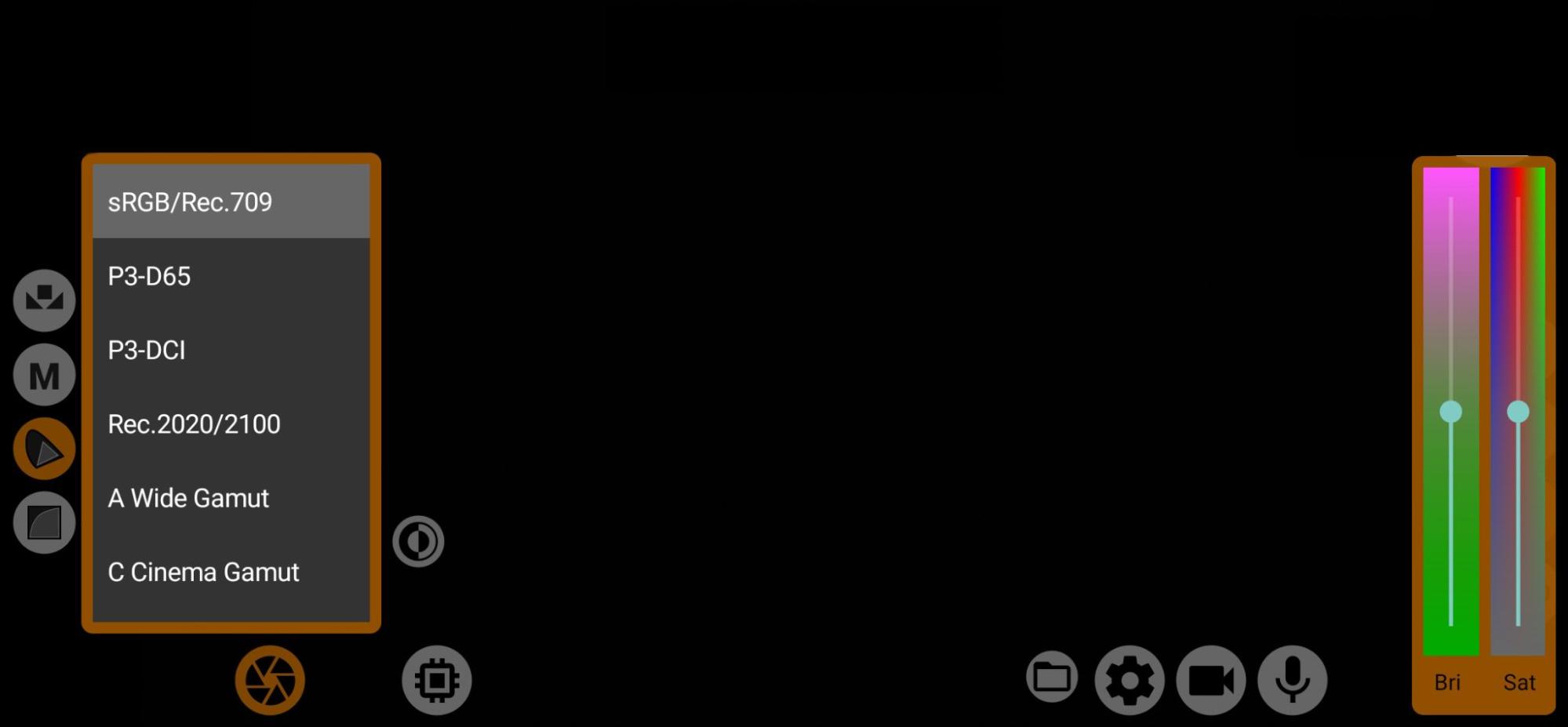
To the left is the list of gamuts; to the right are the brightness and saturation controls.
On some devices, brightness may not work depending on the situation. The fact is that most Android devices suffer from clipping in the lights when the sensor settings go beyond a certain level. Sony smartphones and a few models from Samsung have no problem with this. Saturation has the same limitations as brightness, but that still doesn't prevent it from having a larger working range than brightness. Brightness defaults to 1, saturation to 1. To reset one of the settings, you have to double tap on the acronym of the setting. Brightness and saturation are saved automatically for each gamut separately.
Gamut selection is possible only in the manual white balance mode, because it is in this mode that the necessary sensor control becomes available.
Almost all Huawei (Honor) devices do not have a manual white balance mode, so they do not have gamut selection available.
1.4.1.3.1. sRGB/Rec.709 | |
| The standard gamut used by default on almost all mobile devices. Doesn't change anything in the color of the image. D65 white point. Good match with gamma curves: Standard, Rec.709 and sRGB. |
1.4.1.3.2. P3-D65 | |
| A color space which is now a receiver of Rec.709. Almost all modern HDR video content is created within this color space. If you have plans to work further with HDR, it makes sense to look at P3. D65 white point. Good match with gamma curves from HDR-video standards: HLG and PQ 1000. |
1.4.1.3.3. Rec.2020/2100. | |
| Gamut, which contains colors only available to lasers. No monitor, projector or TV today can display this color space. In most cases, Rec.2020, which we see in the metadata of 10-bit video files, is the container for the smaller P3 gamut. But no one is stopping us from shooting video in this gamut. Its advantage is that it is wide, clear and easy to interpret. D65 White Point. Goes well with gamma curves from HDR-video standards: HLG and PQ 1000. |
1.4.1.3.4. A Wide Gamut | |
| The first gamut of the technical series. It is as close as possible to the famous gamut from Arri - Alexa Wide Gamut. When interpreting, for example, in Blackmagic Davinci Resolve, it is recommended to choose the gamut from Arri. D65 white point. Good match with gamma curve: mLog-C. |
1.4.1.3.5. C Cinema Gamut | |
| A gamut very close to Canon's famous Cinema Gamut. Accordingly, it is recommended to use it when interpreting. D65 white point. Good match with gamma curve: mC-Log3. |
1.4.1.3.6. P V-Gamut. | |
| Gamut, as close as possible to the well-known Panasonic gamut - V-Gamut. It is the one we recommend to use when interpreting. D65 white point. Good match with gamma curve: mV-Log. |
1.4.1.3.7. R Wide Gamut | |
| Gamut, as close as possible to the famous gamut from RED - Red Wide Gamut. It is recommended to use it for interpretation. Very wide gamut, not recommended to use in 8 bit mode. D65 white point. Good match with gamma curve: mLog3G10. |
1.4.1.3.8. S-Gamut/-3 | |
| Gamut as close as possible to the one of the same name from Sony. You can use the gamut from Sony for interpretation. D65 white point. Good match with gamma curve: mS-Log2. |
1.4.1.3.9. S-Gamut3.Cine. | |
| Gamut as close as possible to the one of the same name from Sony. You can use the gamut from Sony for interpretation. D65 white point. Good match with gamma curve: mS-Log3. |
1.4.1.3.10. ACES AP1 | |
| Gamut of the ACES standard. It is very rarely used for recording nowadays. But trends in video production hint that the day when this gammut may become the standard for all camcorders is not far off. It differs from the others in that its white point is D60. And that means that adjusting the white balance will be a little more difficult. Good match with gamma curve: ACEScct. |
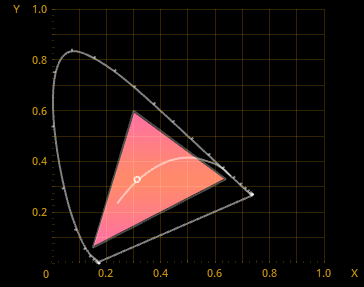
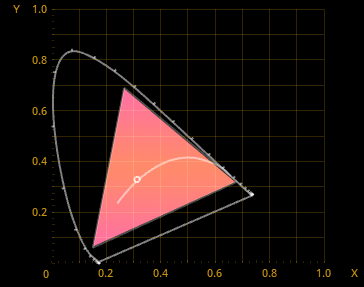
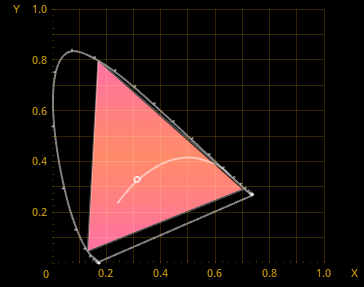
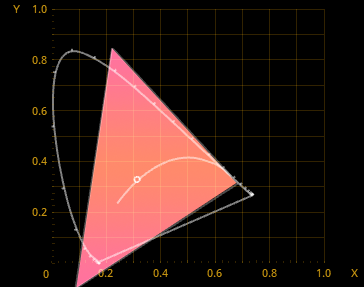
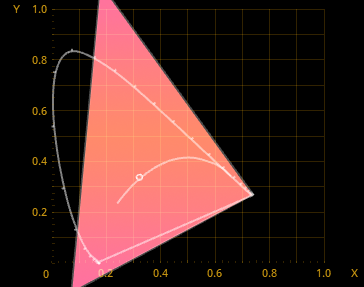
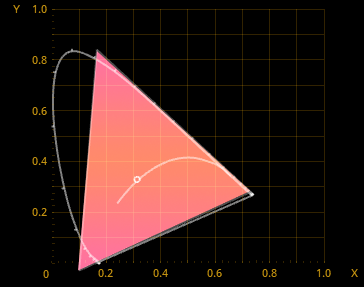
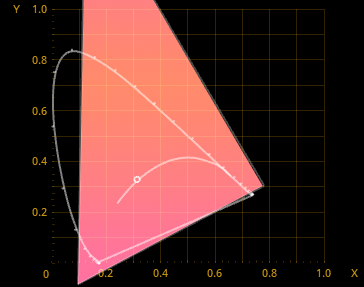
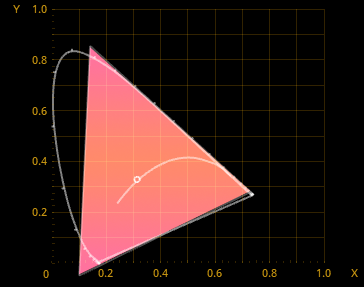
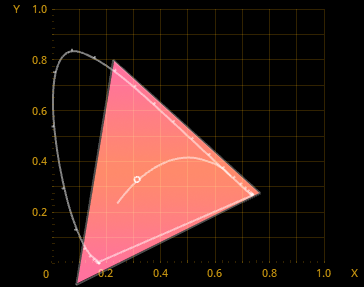
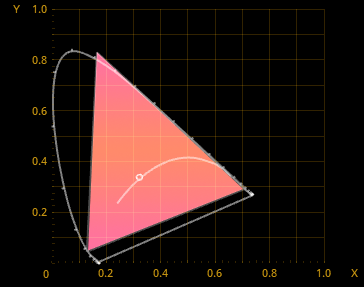
If you are using Premiere Pro for editing, which does not have a choice of gamut separately from gamma curves, then it makes sense for you to follow the recommendations for compatibility, because you will most likely have to use LUTs from "big" camera manufacturers.
Davinci Resolve has a functionality that allows you to select gamut and gamma curve separately when interpreting. In this case, you can combine any gamut with any gamma curves.
1.4.1.4. Selecting and adjusting the gamma curve
The mcpro24fps application stands out strongly for its approach to gamma curves. The first difference is the application of gamma curve at the RAW-signal level, the second is the huge selection of preset curves, and the third is the possibility to "draw" your own gamma curve.
Gamma curve is a graph of the change in brightness of the image from "was" to "became".
All users who have at least once encountered RAW photos should be well aware of the difference in plasticity and flexibility for processing between RAW and JPG. This menu item contains a lot of gamma curve settings at the RAW signal level. This means that we are not editing a finished picture, much less a compressed one, but the raw material taken from the sensor. We have the opportunity to enhance a signal which, after conversion to RGB, may no longer be available (cut off). This is most often the case with shadows.
Here it is worth noting that RAW is what the sensor was able to get, and it is impossible to pull from it what the sensor is not able to capture. If you overexpose the image, you will be dealing with an overexposed image in the gamma curves, where the information in the lights may be lost. The same goes for shadows. If you have underexposed the image and there is no shadow information in the RAW signal, no gamma curves will bring it back.
Many users believe that the gamma curve of the Log Profile is designed to "extend" the dynamic range. But it is not. In video, the sensor is responsible for the dynamic range, and the gamma curve Log profile is responsible for what information and in what proportions of brightness gets into the video file encoded by the codec. If you are shooting pure uncompressed video-RAW, you do not need a Log profile (neither gamut nor gamma curve). Log profiles (Gamut and Gamma Curve) are used only where the signal from the sensor will be compressed before saving to a file. Compression can take place both already at the level of the codec and at the level of the RAW signal, when the RAW signal is compressed by color depth (to reduce the size), additional processing is applied, such as gamma coding (gamma curve is applied). As a result, we get quite flexible material, many people consider it a RAW, but it is still not the same RAW that would be without intermediate processing. Such a RAW is called a compressed RAW. Compressed RAW is available on many "big" cameras. On mobile devices, unfortunately, only the codec is available. So it makes no sense for us to distinguish between compressed and uncompressed RAW.
The same applies to compact cameras, which are popular with today's videographers. Such cameras can only record codec-compressed material. That is why they introduced the concept of a Log Profile. The manufacturers tried to find a way to prevent the codec from losing something that could be useful. The codec does not like too dark parts of the frame and too light. It has trouble distinguishing neighboring pixels in these parts, so it tends to average the pixels and compress them into squares, large single-color patches. The gamma curve on semi-professional cameras shifts most of the brightness of the image to the middle, where the codec is most accurate.
- So? - You ask. - Can we get the same thing on the phone as videographers with semi-professional cameras?
Absolutely not. Mobile sensors do not reach the sensitivity or dynamic range of "big" cameras. But that doesn't change the fact that a non-standard gamma curve can help save more than what the device's default system offers.
1.4.1.4.0. Parameters of gamma curves
1.4.1.4.0.1. Point density
This parameter can be found in all gamma curves except automatic.
Even though the gamma curve may look smooth on the graph, it really is not. The user gamma curve, which are all gamma curves presented here, except automatic, in Android consists of points connected to each other by straight segments. Each device is limited to its number of points. This is a technical parameter that is assigned by the manufacturer and cannot be changed, with few exceptions. The ideal number of points is equal to the brightness levels of the bit used. For 8 bits it is 256, for 10 bits it is 1024. But it is worth noting here that mobile sensors are almost always 10-bit, so the ideal is 1024 points. We have seen 128, 256 and 512 points on different devices, but 1024 nowhere and never.
In this case, unpleasantly surprised by Samsung devices on Exynos processors. Since the S6 family devices, all Samsung Exynos devices have only 32 points of the gamma curve at their disposal.
Why is the number of points so important? The more points, the smoother the gamma curve, the smoother the transition from color to color, the less artifacts like posterization.
Considering all of the above, we decided to let users decide where to send more points, where to add more smoothness. This is what the parameter "Point Density" is responsible for. Shifting this parameter sideways changes the brightness pattern of the scene, some parts of it can become lighter or darker.
Let us have a look at the example with 8 points. Note that the same formula is used for drawing the gamma curves.
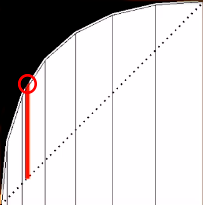
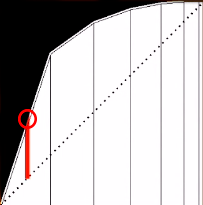
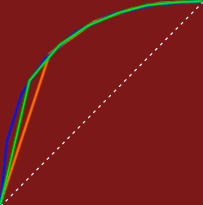
The first figure with a value of -100, the second is 0, the third is 100, and the fourth is the difference between the three gamma curves. Note the red bar. It is a segment showing the change in incoming brightness to outgoing brightness. And it is different in each case. The fourth figure shows that if for the highlights (right part) these changes are not so critical, then for the shadows (left part) at each of the values you get a completely different curve. It may seem that at 128 points and above the changes will probably not be noticeable, but no, even the smallest shift can give a very noticeable difference in the brightness of the frame. Changes become imperceptible at the available 512 points.
This parameter is saved automatically for each gamma curve separately.
The positions of the points on the X axis are shown by the black bars below the graph.
1.4.1.4.0.2. Brightness
Curves the gamma curve into an arc along its entire length. The peculiarity is that the arc is symmetrically shaped, being part of a circle. Affects the midtones the most, shadows and highlights the least. The black and white points remain in place.
1.4.1.4.0.3. Gamma (γ).
Curves the gamma curve into a logarithmic arc. The standard formula is y=x/γ. Affects the area of brightness that is considered most important to our vision. This is somewhere between the shadows and the midtones. The black and white points remain in place.
1.4.1.4.0.4. Contrast and pivot
Two parameters that are inseparable from each other.
Contrast is an S-curve. When it is positive, it curves shadows downwards and highlights upwards, i.e. it darkens shadows and brightens highlights. And vice versa when it is negative.
At 1.0 it looks like a linear straight line.
The contrast pivot determines the boundary where shadows end and highlights begin.
The contrast divides the curve into two parts, so there is no notion of averages.
When you adjust the contrast through the S-curve, the black and white points remain in place.
1.4.1.4.0.5. Shadows
The parameter affects the lower third (shadows) of the gamma curve, slightly affecting the midtones. A positive value raises the shadows without changing the black point. A negative value darkens the shadows, but push down the black point at the same time.
1.4.1.4.0.6. Midtones
The parameter affects the middle third (midtones) of the gamma curve, slightly overlapping both the shadows and the highlights. A positive value raises the midtones. A negative value darkens the midtones. Does not affect the black and white point in any way.
1.4.1.4.0.7. Highlights
The parameter affects the upper third (highlights) of the gamma curve, slightly affecting the midtones. A positive value brightens the highlights, but push up the white point at the same time. A negative value darkens the highlights, but has no effect on the white point.
1.4.1.4.0.8. B(lack), black point
The default black point is at [0,0], i.e. bottom left.
The control is limited to the bottom because negative values don't make sense because we are always trying to pull more out of shadows. The positive value raises the black point up, and the black becomes gray. The higher the value, the grayer the black. Affects the entire brightness range.
1.4.1.4.0.9. W(hite), white point
The default white point is [1,1], i.e. top right.
The positive value push up the white point, also raising the overall brightness of the frame. The negative value push down the white point, also lowering the overall frame brightness. It affects the whole range of brightness. It is worth noting here that the gamma curve in the application always tries to soften the over highlights (apply a soft-clip) if such are formed when adjusting the user curve.
1.4.1.4.0.10. R(ed), G(reen), B(lue)
These controls allow you to change the brightness of each channel individually. Like the overall brightness, the parameters do not affect the white and black points of the individual channels. There is a smooth effect from shadows to highlights with a peak in the midtones.
1.4.1.4.0.11. Upper bound
This control is displayed at several gamma curves close to gamma curves from "big" cameras. Since mobile devices are capable of much less than "big" cameras, gamma curves have to be adjusted to their capabilities. All "big" Log-profiles have very aggressive gamma curves, designed for very wide dynamic ranges. For this reason, they may not be suitable for mobile devices.
We decided to give users the ability to influence the aggressiveness of the gamma curve.
The upper boundary adjusts the white point. The higher the white point, the brighter the frame.
The changed value is saved automatically for the selected gamma curve.
1.4.1.4.0.12. Lower bound
The lower boundary, like the upper boundary, is displayed for several gamma curves approximating the gamma curves from "big" cameras.
Adjusts the black point. The higher the black point, the brighter the frame.
You can use these two controls to shift the entire brightness range to the middle or upper part of the brightness range.
The changed value is saved automatically for the selected gamma curve.
1.4.1.4.1. Auto
This is the gamma curve that the device system draws by default. On devices with only 8-bit recording, most often it is the Rec.709 gamma curve.
Until recently, almost all devices had Rec.709, even in 10-bit recording mode. But with the arrival of version 11 of the Android operating system, everything began to change.
Samsung devices in 10-bit recording mode use the PQ gamma curve.
LG devices in 10-bit recording mode use gamma curve PQ, and modify as they get depending on the selected HDR mode and frame rate.
Sony devices compare favorably to others in this case in that they always have Rec.709 at 8 bit, always HLG at 10 bit.
The other devices have not been seen to apply any particular gamma curve. So the application keeps it as Rec.709 for all sorts of conversions.
The main advantage of the automatic gamma curve is that the number of points available tends to infinity.
The automatic gamma curve is that gamma curve, which at any time can change to whatever seemed right to the manufacturer. This is the case when we put the responsibility for the use of the function on the user.
1.4.1.4.2. Linear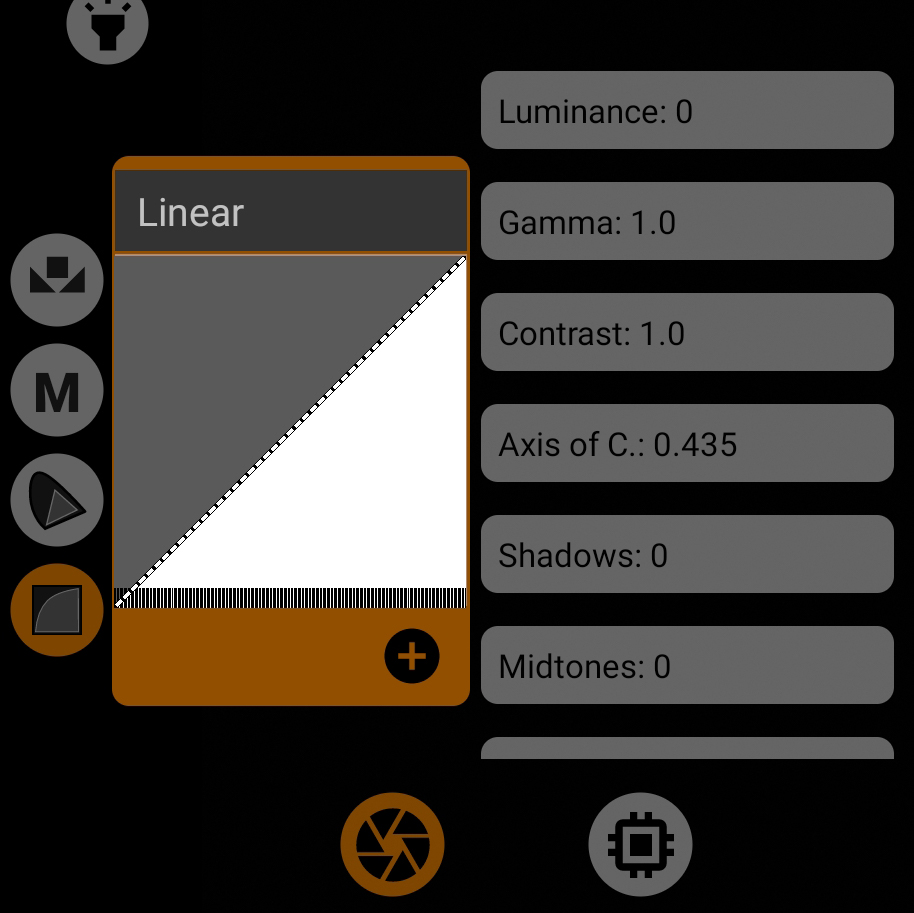
Gamma curve displaying the frame as the sensor sees it. A starting point for implementing your own gamma curve. All parameters are reset to default values. The graph simply shows a straight line from the lower left corner to the upper right corner (i.e., from [0,0] to [1,1]).
It is logical not to use this curve for capturing material.
This gamma curve contains all parameters in default values for custom gamma curve setting: brightness, gamma, contrast and contrast axis, shadows, averages, lights, black point, white point, RGB, point density.
1.4.1.4.3. Standard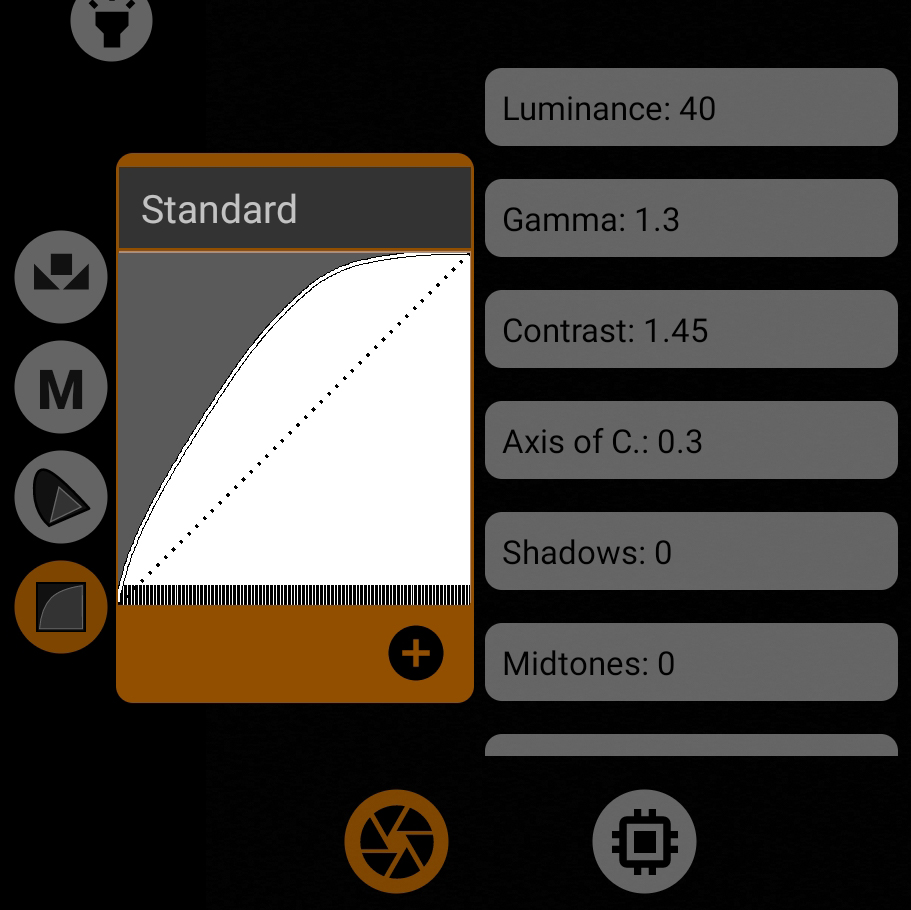
Was developed as a replacement for the commonly used Rec.709. The modern user likes good contrast, but does not like sagged shadows. The purpose of this curve is not to fail shadows, leaving the overall contrast good.
The curve is "drawn" with standard controls, so it can be used as a starting point.
Used parameters: brightness 40, gamma 1.3, contrast 1.45, contrast axis 0.3. Does not change the black and white points.
Works best with the Rec.709 gamut.
1.4.1.4.4. mLog 60%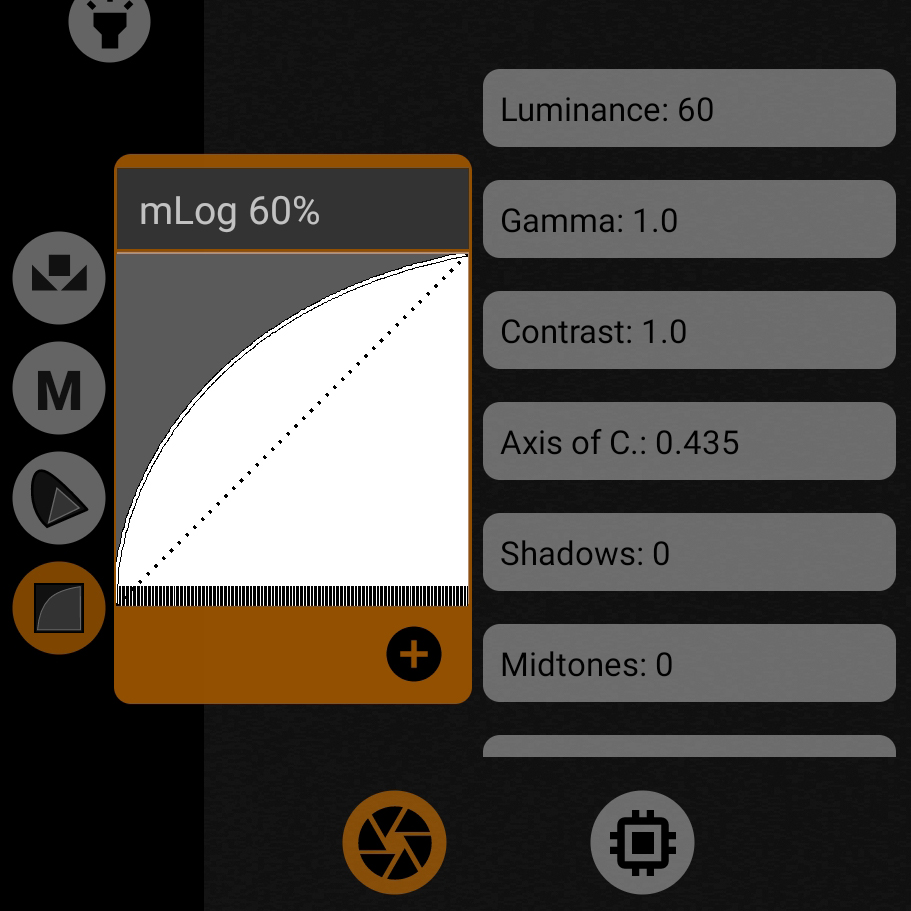
This curve takes advantage of the brightness slider: the intervals between points are about the same length, which reduces the chance of posterization. Also, as befits a logarithmic profile, the black point is slightly raised, it helps to get a little more detail in the shadows.
The curve is "drawn" using standard controls, so it can be used as a starting point.
The parameters used are brightness 60, black point 16. It doesn't change the white point.
1.4.1.4.5. mLog 80%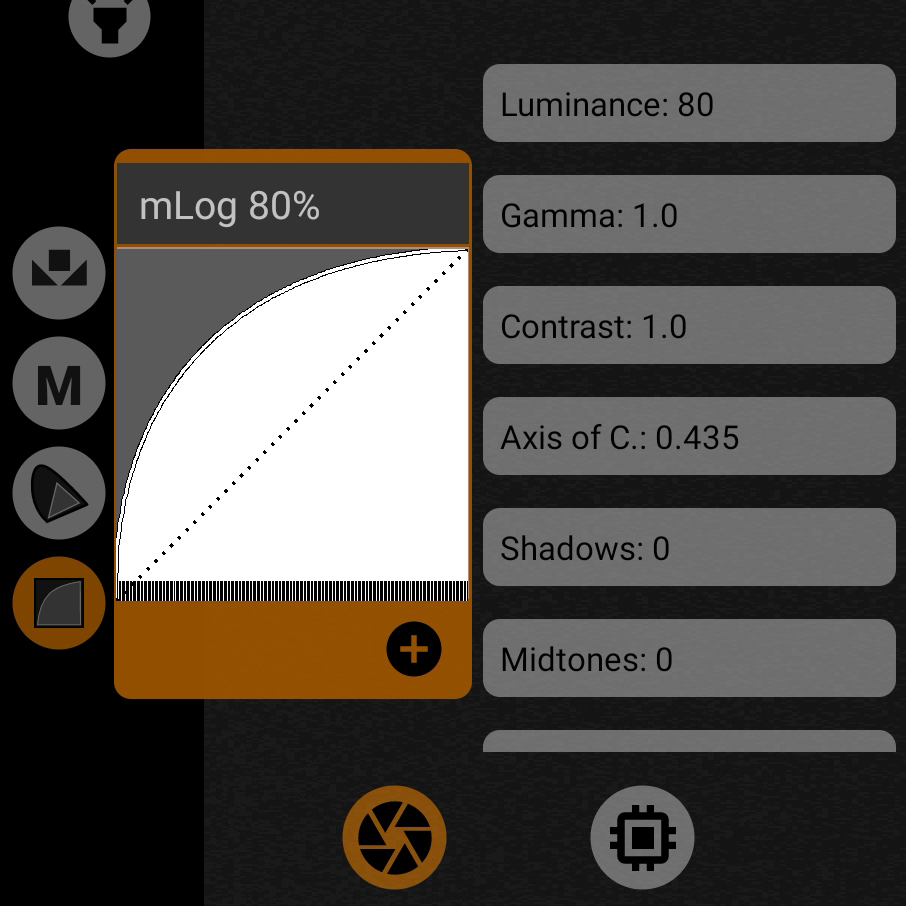
This curve differs from mLog 60% in the strength of the effect, but the working principle is the same.
The curve is "drawn" with the standard controls, so it can be used as a starting point.
Used parameters: brightness 80, black point 20. Does not change the white point.
1.4.1.4.6. mLog 100%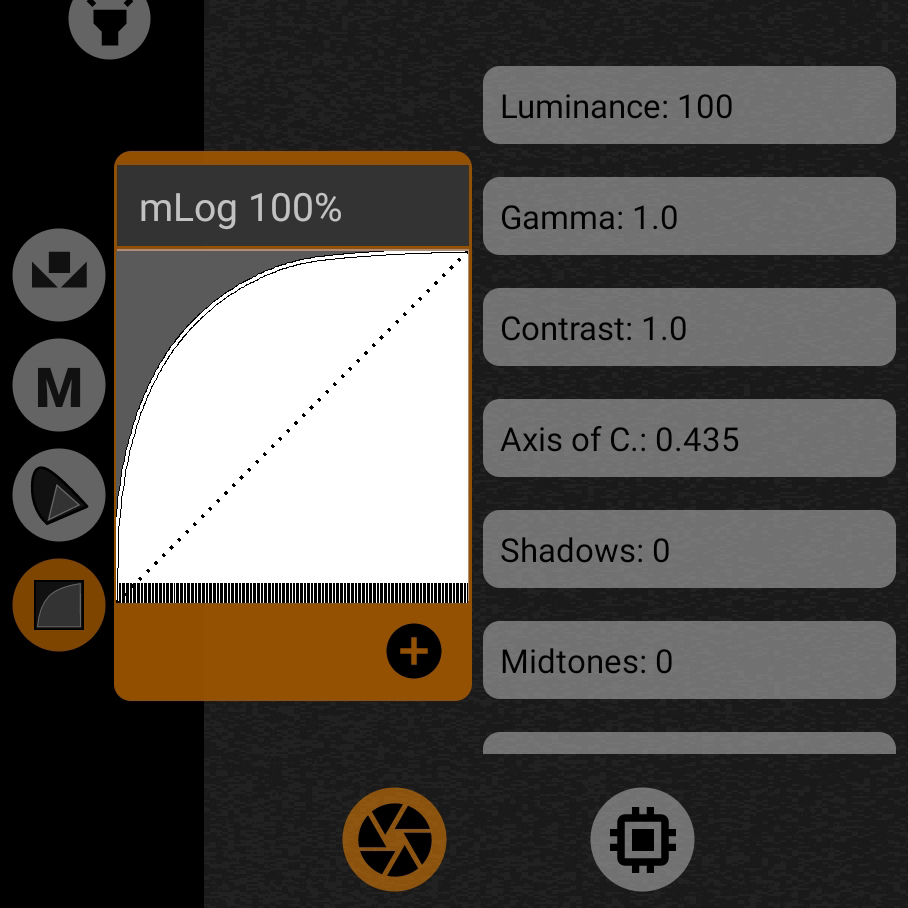
This curve has even more effect on the image than mLog 80%, but the principle is the same.
The curve is "drawn" using standard controls, so it can be used as a starting point.
Used parameters: brightness 100, black point 25.5. Does not change the white point.
1.4.1.4.7. Rec.709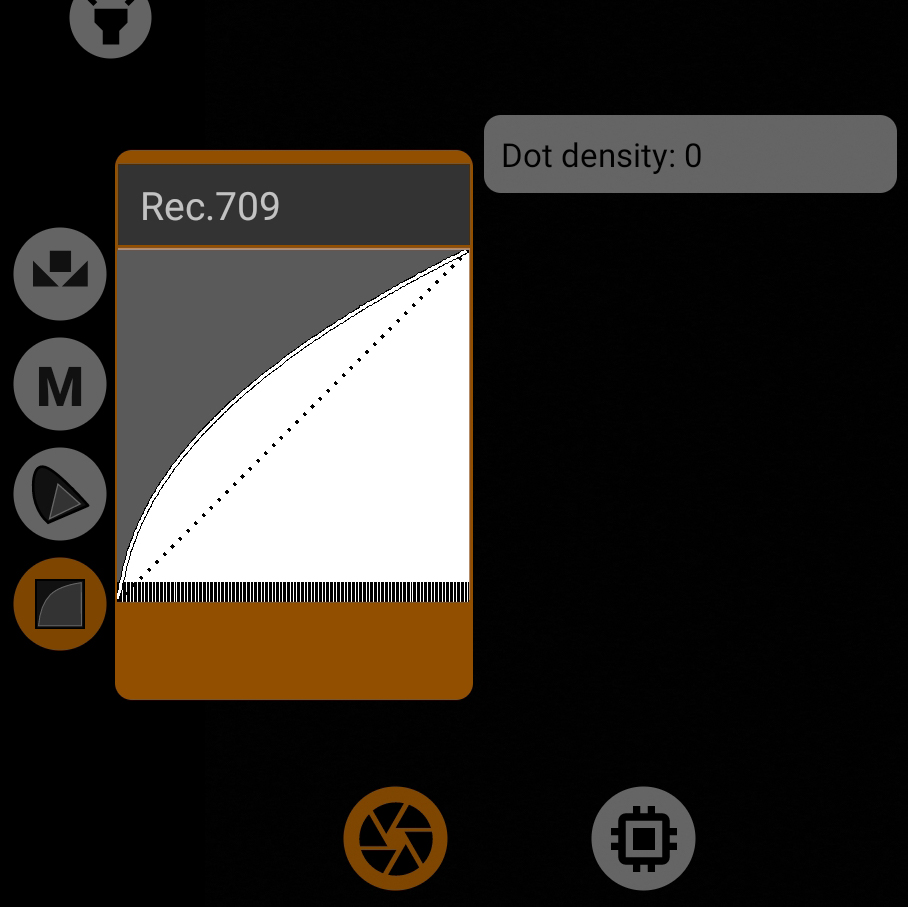
Standard curve from ITU-R BT.709 specifications. Commonly it is also called Rec.709 (Scene). This curve is used for recording video up to now. All other standards, in one way or another affecting Rec.709, relate exclusively to image transmission.
It goes well with the Rec.709 gamut.
Since the curve cannot be displayed with the standard controls, only the point density is available for adjustment. Does not change the black and white point.
1.4.1.4.8. sRGB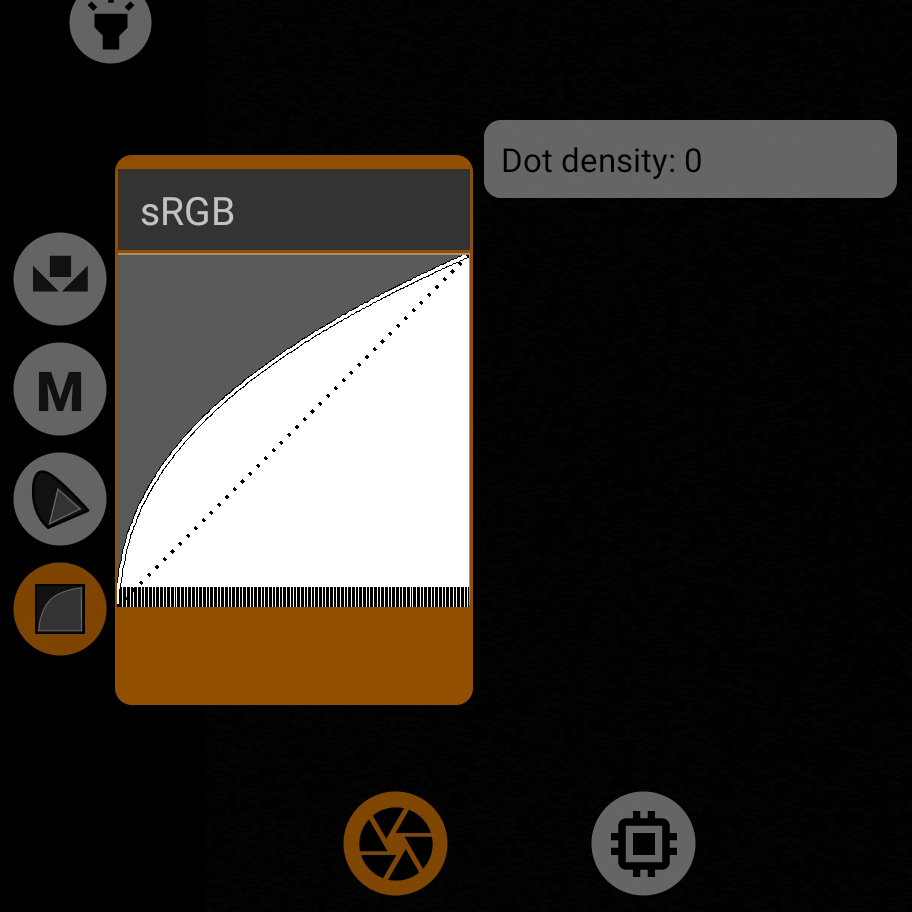
Another curve from the common standards. Typically used as a gamma curve for images (single frames, not video) and as an image translation curve.
It is not usually used for video recording. But no one is stopping you from starting if you know what you are doing.
Combines well with the Rec.709 gamut.
Since the curve cannot be displayed with the standard controls, only point density is available for adjustment. Does not change the black and white point.
1.4.1.4.9. HLG 87%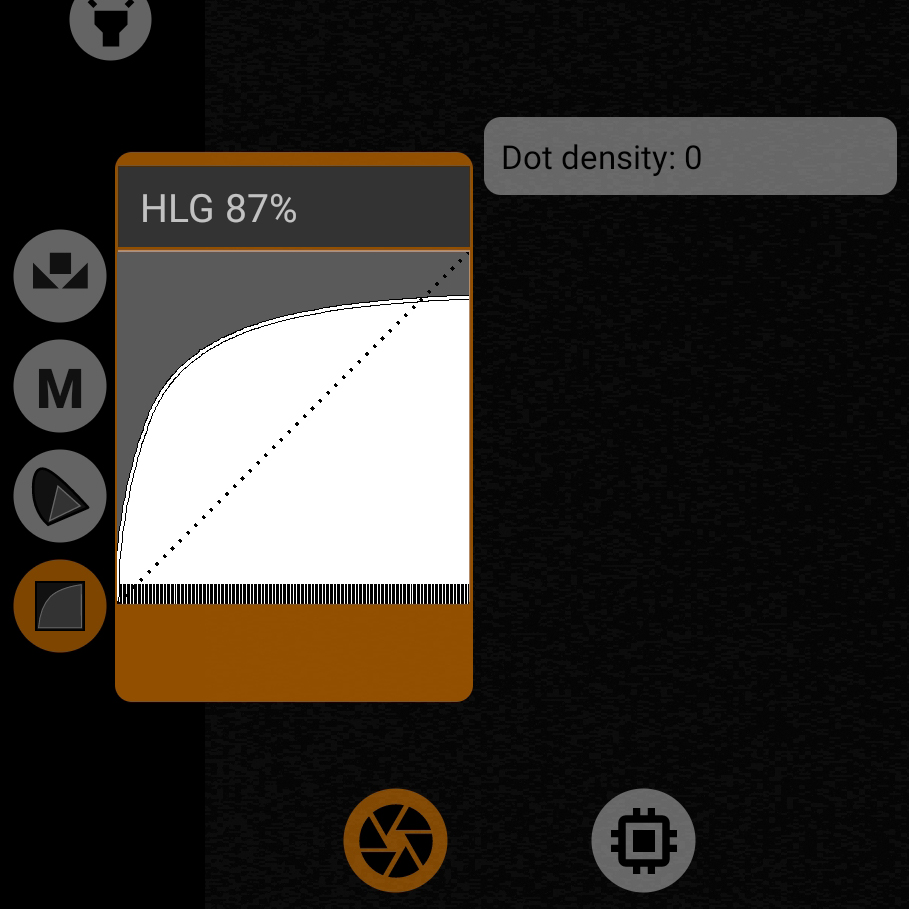
The curve is based on the commonly available gamma curve formula of the HLG standard. The black point is raised to 20 (in 10-bit), the white point is lowered to 890.
Since the curve cannot be displayed with the standard controls, only the point density is available for adjustment.
The shape is similar to the gamma curve of the HLG 1 from Sony.
Due to the lowering of the white point, it can lead to clipping artifacts on most mobile devices. Therefore may be marked with a warning sign. The problem goes away when manual white balance is selected, it is possible to stop clipping. In this case, there will be no warning sign.
1.4.1.4.10. HLG 95%.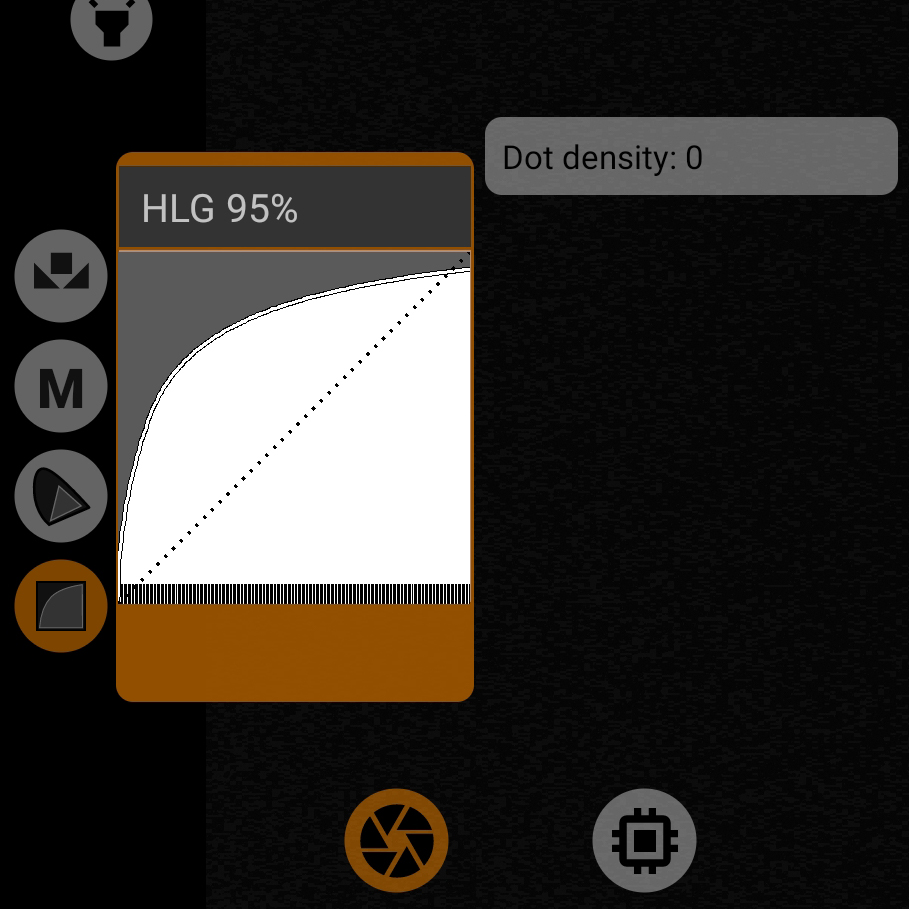
The curve is based on the publicly available gamma curve formula of the HLG standard. The black point is raised to 20 (in 10-bit), the white point is lowered to 972.
Since the curve cannot be displayed with the standard controls, only the point density is available for adjustment.
The shape is similar to the gamma curve of the HLG 2 from Sony.
1.4.1.4.11. HLG 100%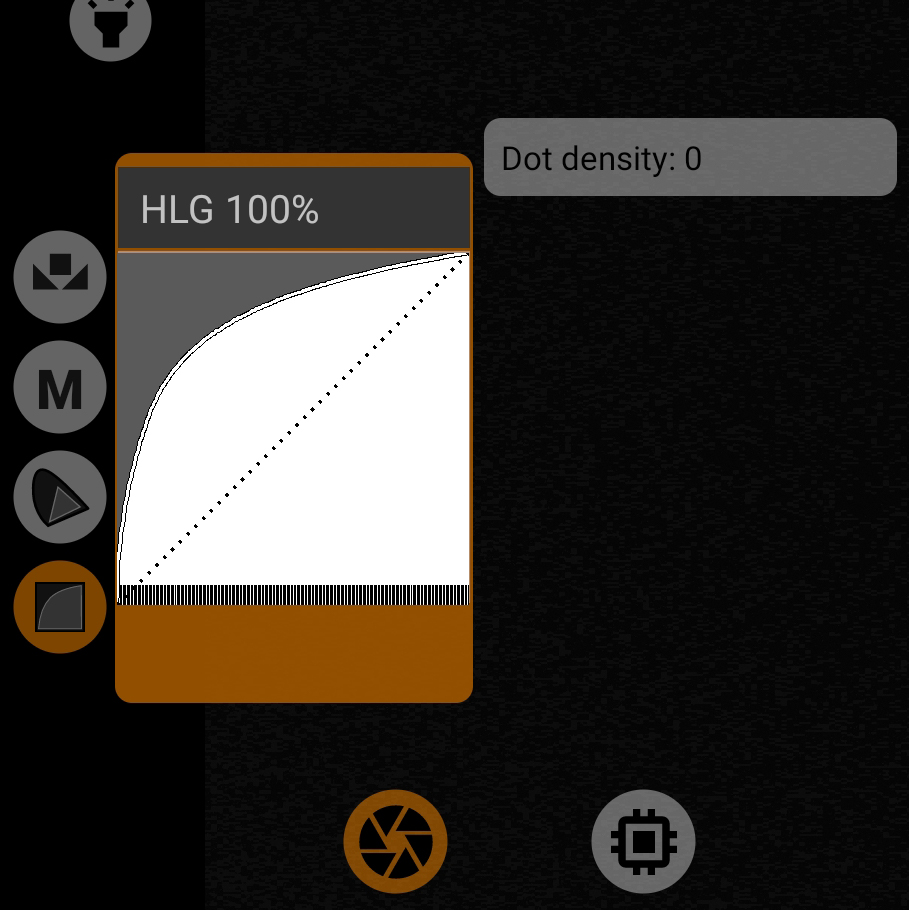
The curve is based on the commonly available gamma curve formula of the HLG standard. The black point is raised to 20 (in 10-bit), the white point does not change.
Since the curve cannot be displayed with the standard controls, only the point density is available for adjustment.
The shape is similar to the gamma curve of the HLG 3 from Sony.
1.4.1.4.12. HLG.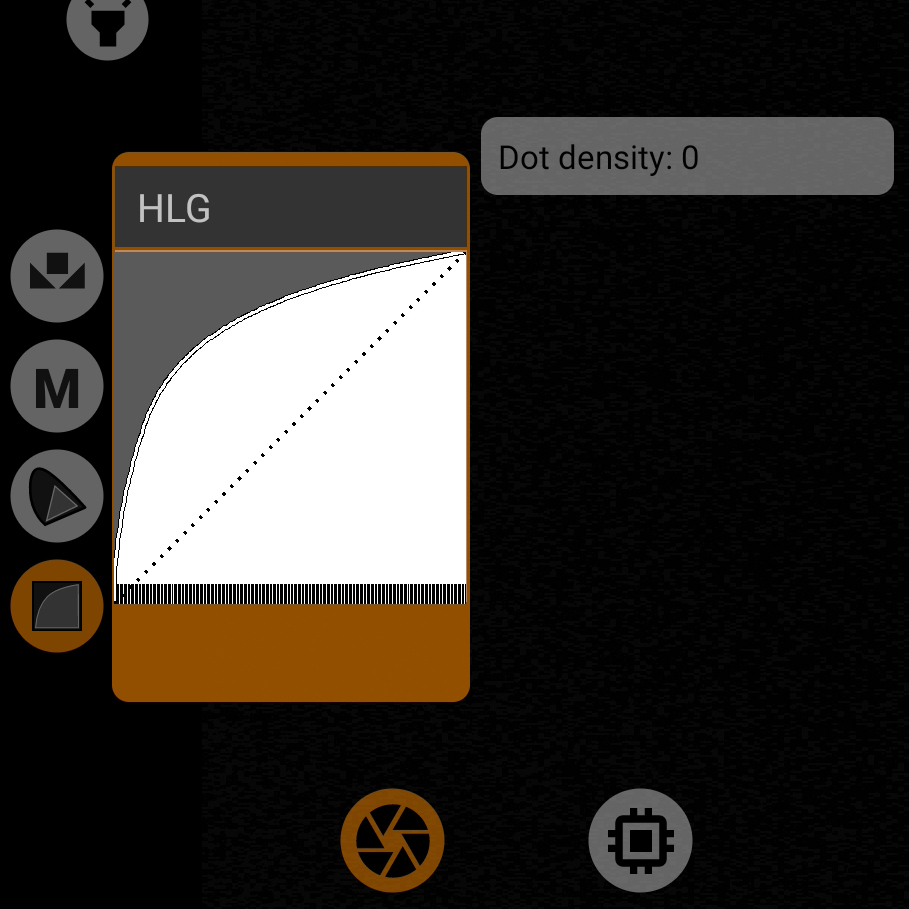
HLG gamma curve from Rec.2100 specification, which contains recommendations for working with HDR-video signal.
This curve should be used to record HDR-video. It is this curve that is used in the acclaimed DolbyVision standard used in Apple iPhone video recording devices. It goes well with the P3-D65 and Rec.2020 gamut.
Since the curve cannot be displayed with the standard controls, only the point density is available for adjustment.
1.4.1.4.13. mCineLog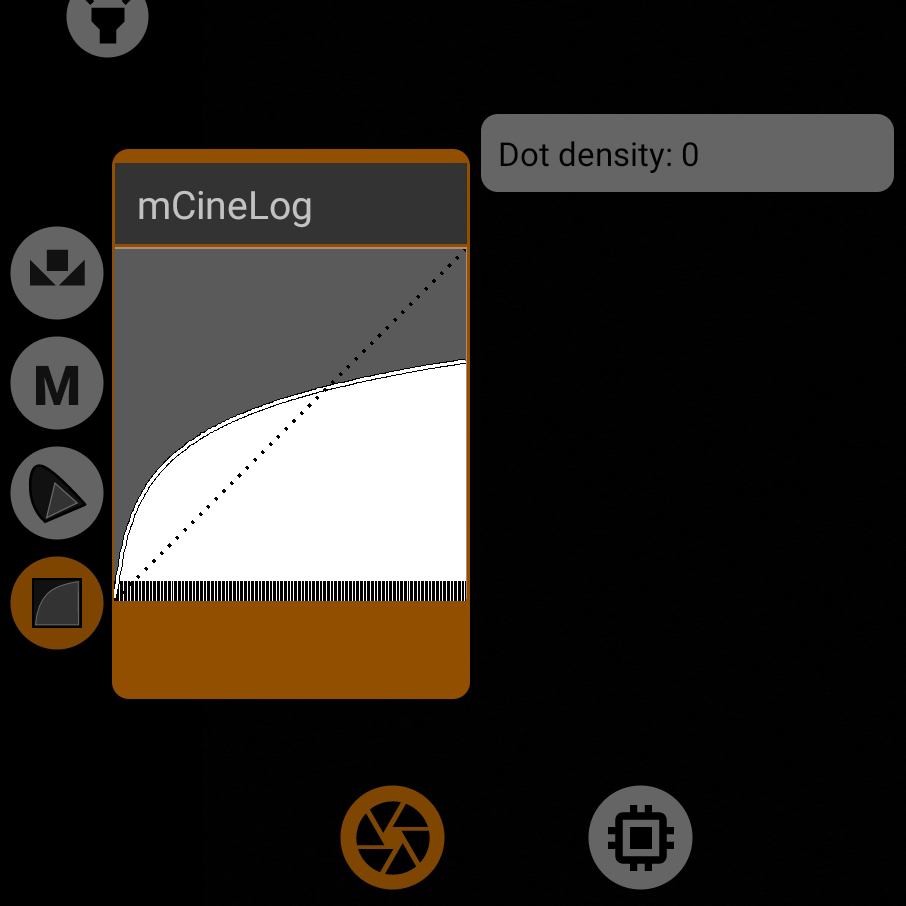
A curve, very similar to LG's CineLog curve. Works well with the P3-D65 and Rec.2020 gamut.
Since the curve cannot be displayed with the standard controls, only the point density is available for adjustment.
Due lowering of the white point can lead to clipping artifacts on most mobile devices. Therefore may be marked with a warning sign. The problem goes away when you select manual white balance, it becomes possible to remove clipping artifacts. In this case, there will be no warning sign.
1.4.1.4.14. PQ 1000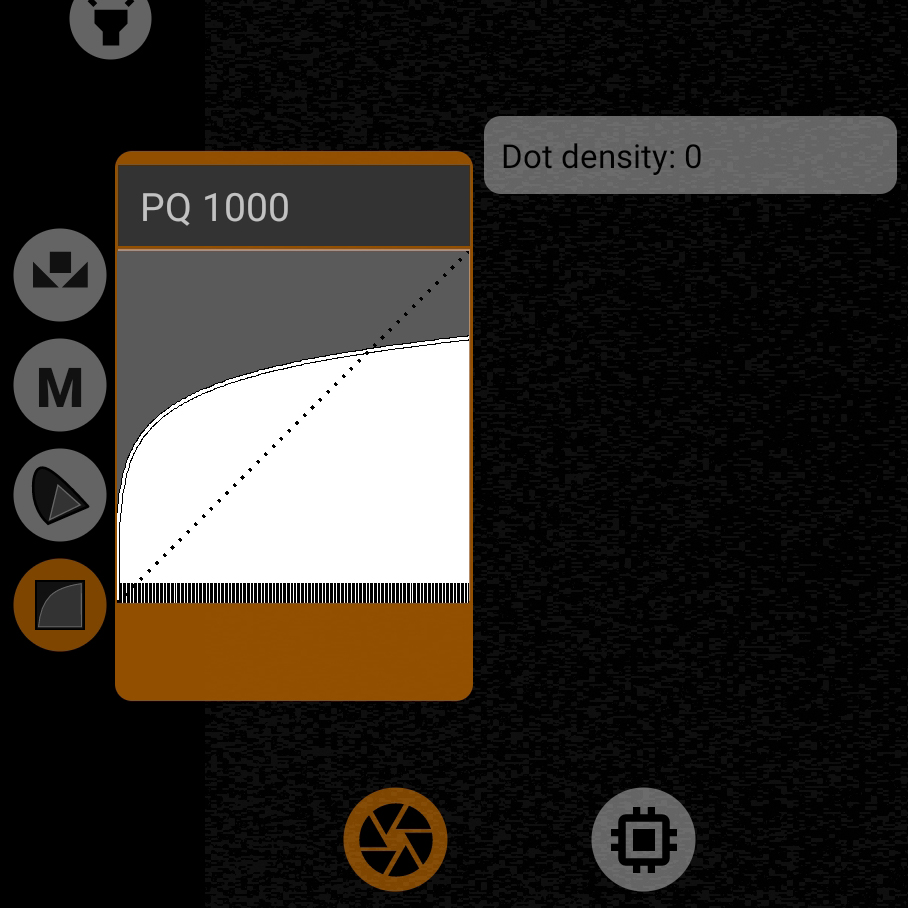
The second gamma curve used in HDR video standards such as HDR10 and DolbyVision (real). The vast majority of devices specify exactly this curve in their 10-bit file metadata. The only exception is Sony devices that use HLG for 10-bit HDR video.
Works well with the P3-D65 and Rec.2020 gamut.
Since the curve cannot be displayed with the standard controls, only point density is available for adjustment.
Due lowering of the white point can lead to clipping artifacts on most mobile devices. Therefore may be marked with a warning sign. The problem goes away when you select manual white balance, it becomes possible to remove clipping artifacts. In this case, there will be no warning sign.
1.4.1.4.15. mSLog 82%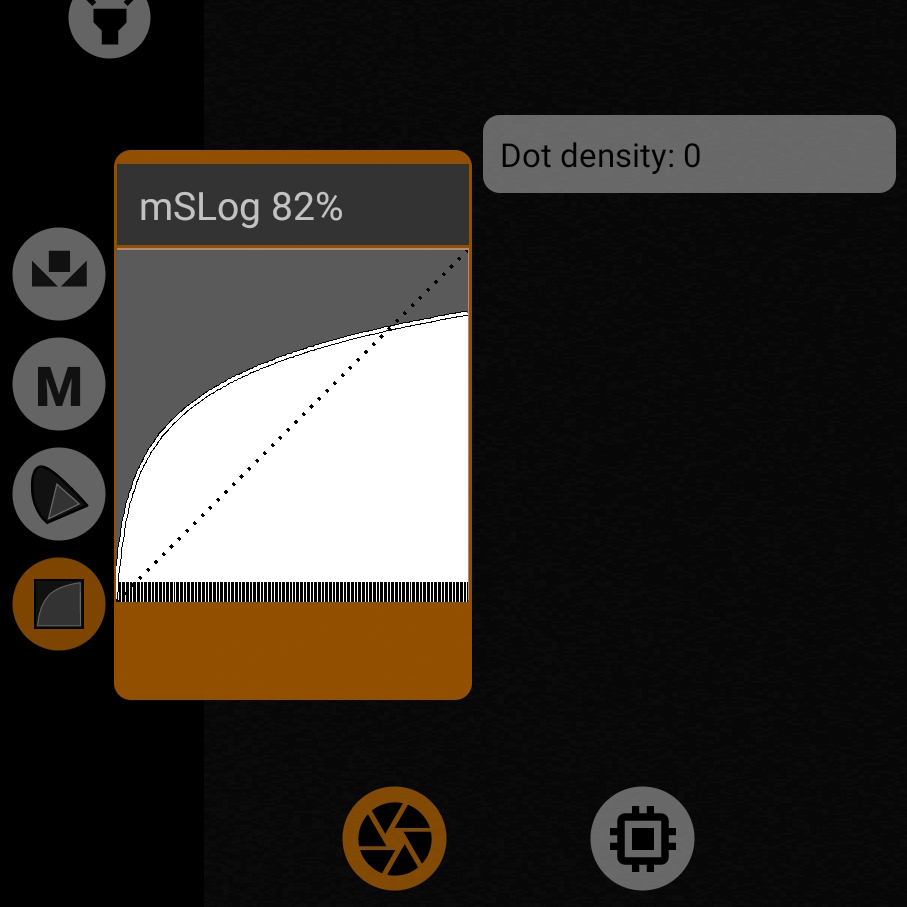
A gamma curve approximating Sony's S-Log1 curve and adapted for mobile devices. The 87% in the name means that the white point is lowered to 890 (in 10-bit).
Since the curve cannot be displayed with the standard controls, only the point density is available for adjustment.
Due lowering of the white point can lead to clipping artifacts on most mobile devices. Therefore may be marked with a warning sign. The problem goes away when you select manual white balance, it becomes possible to remove clipping artifacts. In this case, there will be no warning sign.
1.4.1.4.16. mSLog 92%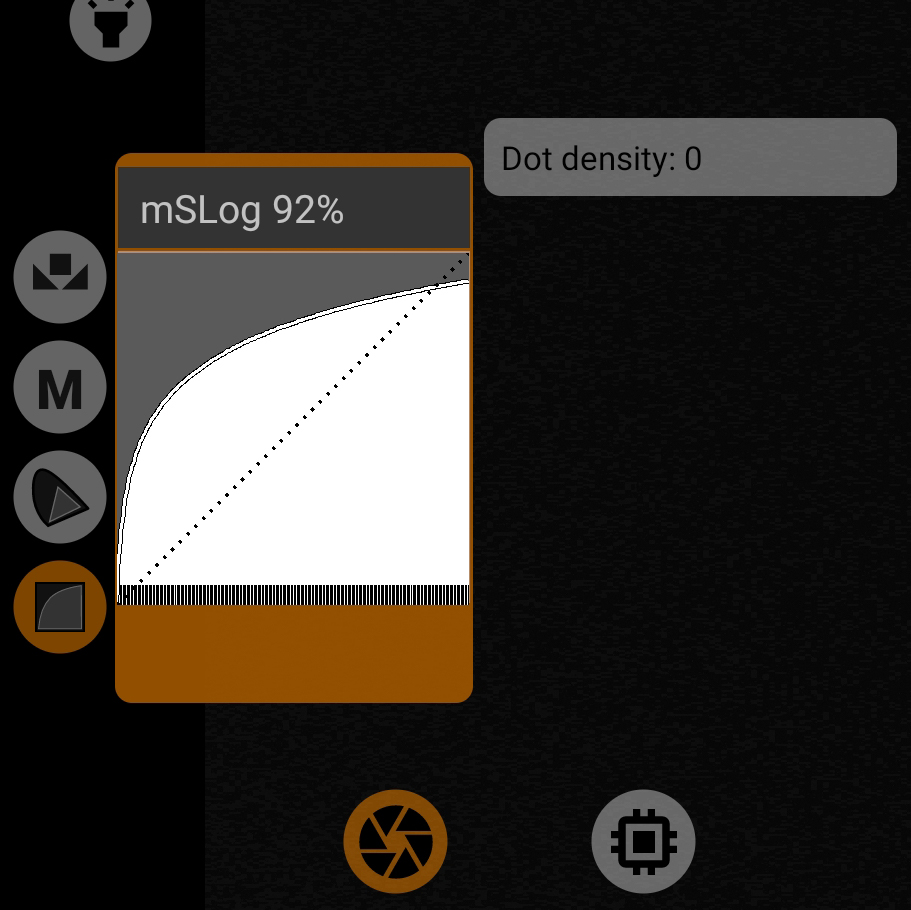
Gamma curve close to the S-Log2 curve from Sony and adapted for mobile devices. The 92% in the name means that the white point is reduced to 942 (in 10-bit).
Since the curve cannot be displayed with the standard controls, only the point density is available for adjustment.
1.4.1.4.17. mSLog 100%
Gamma curve close to the S-Log3 curve from Sony, and adapted for mobile devices. The white point does not change.
Since the curve cannot be displayed with the standard controls, only the point density can be adjusted.
1.4.1.4.18. mSLog Extreme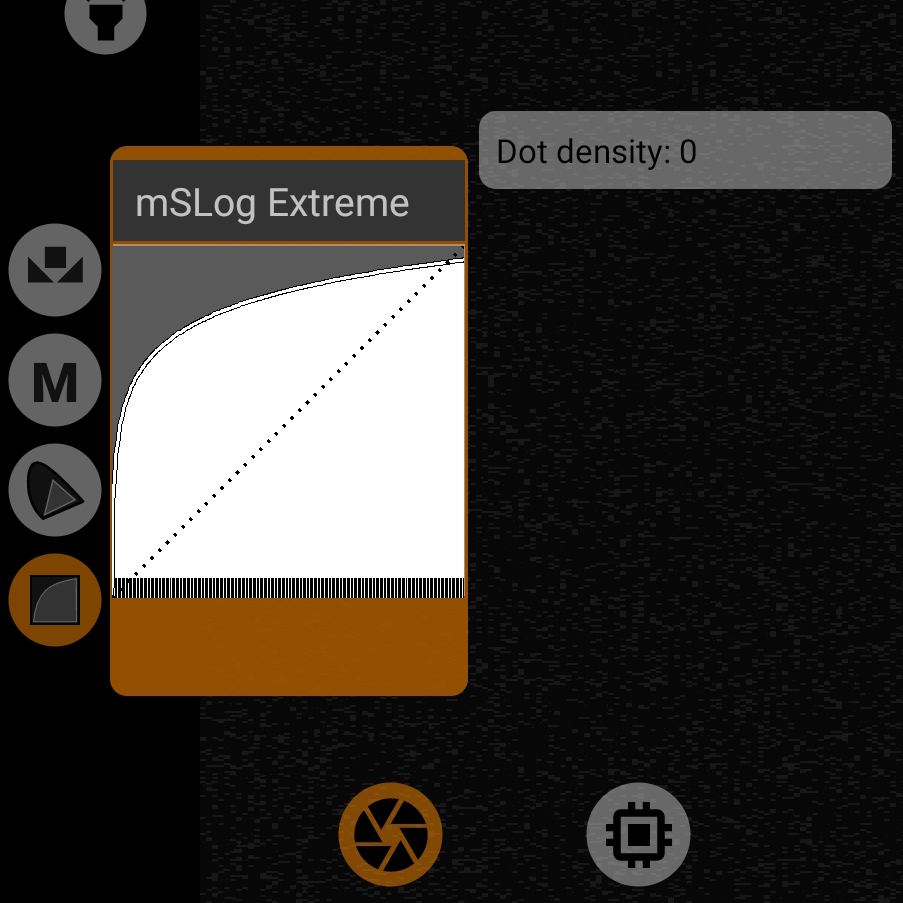
Gamma curve based on the mSLog 100% gamma curve formula. The difference is the aggressive convexity of the curve for extreme shadow elevation. Lighter shadows mean more noise, you have to keep that in mind.
The white point is at 983 (in 10-bit). The black point is raised to 28.
Since the curve cannot be displayed with the standard controls, only the point density is available for adjustment.
1.4.1.4.19. ACEScct.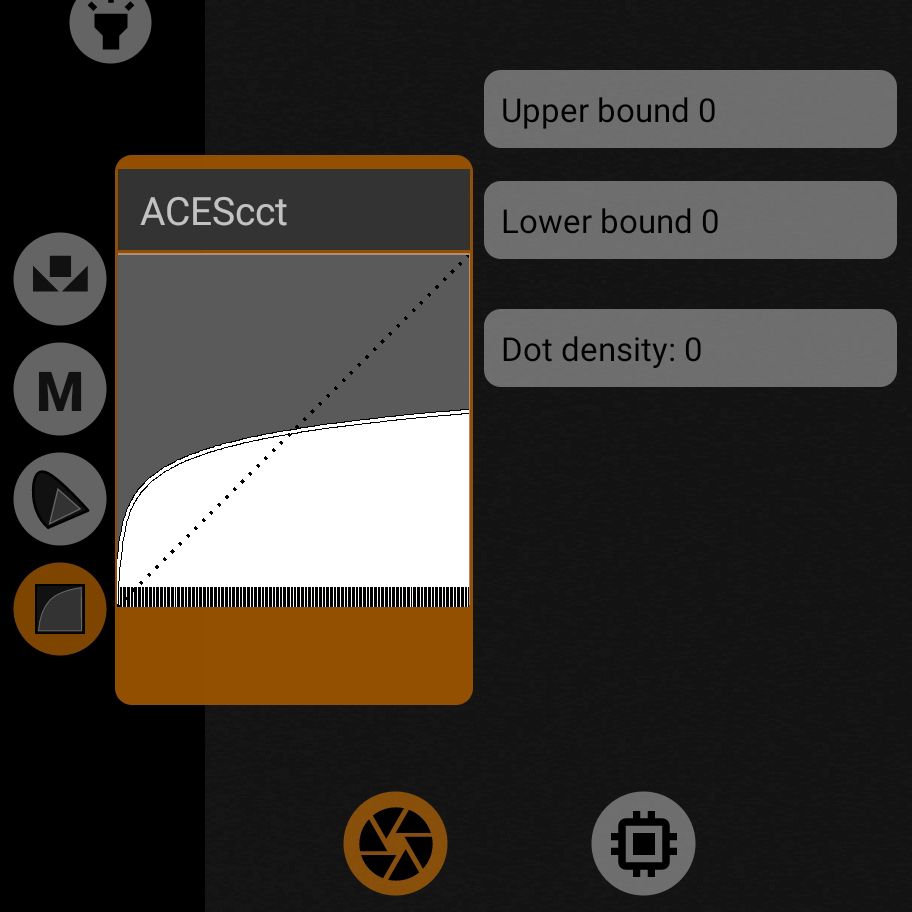
Gamma curve of the ACES standard. Very rarely used today for video recording, but in the future we are promised that this standard will be used for recording video intended for post-processing.
For better adaptation for mobile devices, two parameters were introduced: upper and lower bounds.
It fits well with the ACES AP1 gamut.
Since the curve cannot be displayed with the standard controls, only the border and point density settings are available for adjustment.
Due lowering of the white point can lead to clipping artifacts on most mobile devices. Therefore may be marked with a warning sign. The problem goes away when you select manual white balance, it becomes possible to remove clipping artifacts. In this case, there will be no warning sign.
1.4.1.4.20. mLog-C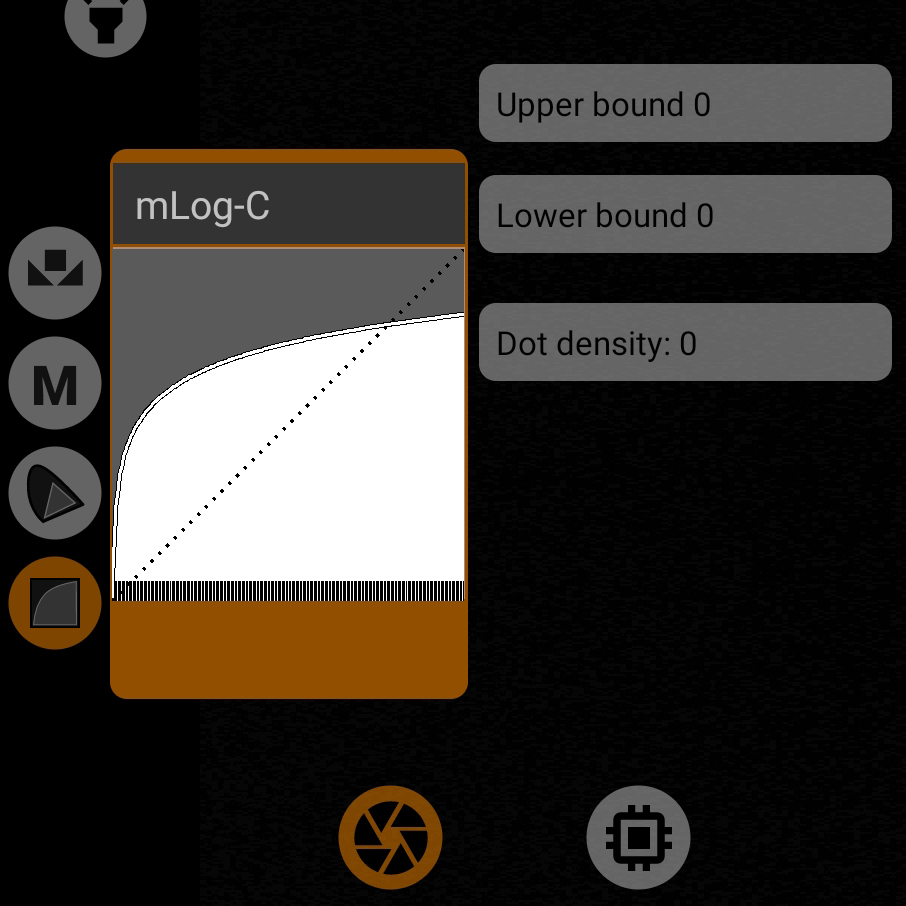
A gamma curve close to the Log-C gamma curve from Arri. It is Log-C that is recommended for interpretation in non-linear video editing programs.
For better adaptation for mobile devices, two parameters were introduced: upper and lower bounds.
Combines well with A Wide Gamut.
Since the curve cannot be displayed with the standard controls, only the border and point density settings are available for adjustment.
Due lowering of the white point can lead to clipping artifacts on most mobile devices. Therefore may be marked with a warning sign. The problem goes away when you select manual white balance, it becomes possible to remove clipping artifacts. In this case, there will be no warning sign.
1.4.1.4.21. mC-Log3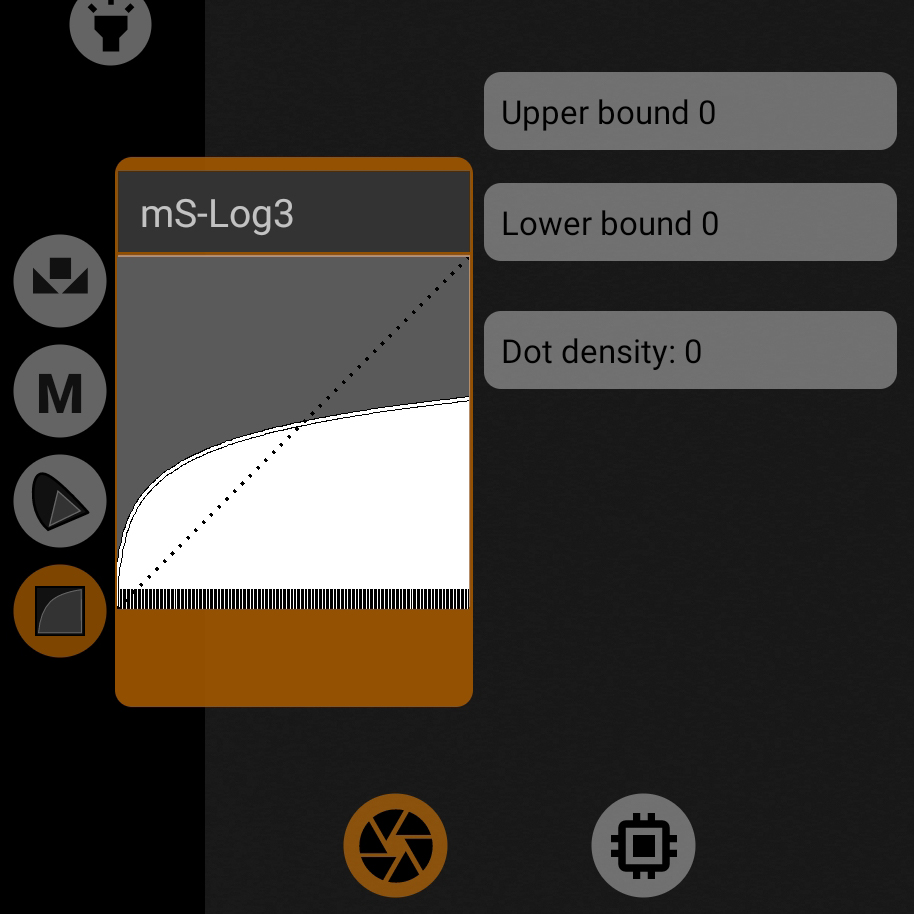
A gamma curve close to Canon's C-Log3 gamma curve. It is C-Log3 that is recommended for interpretation in non-linear video editing programs.
For better adaptation for mobile devices, two parameters were introduced: upper and lower bounds.
Combines well with the C Cinema Gamut.
Since the curve cannot be displayed with the standard controls, only the border and point density settings are available for adjustment.
Due lowering of the white point can lead to clipping artifacts on most mobile devices. Therefore may be marked with a warning sign. The problem goes away when you select manual white balance, it becomes possible to remove clipping artifacts. In this case, there will be no warning sign.
1.4.1.4.22. Cineon Film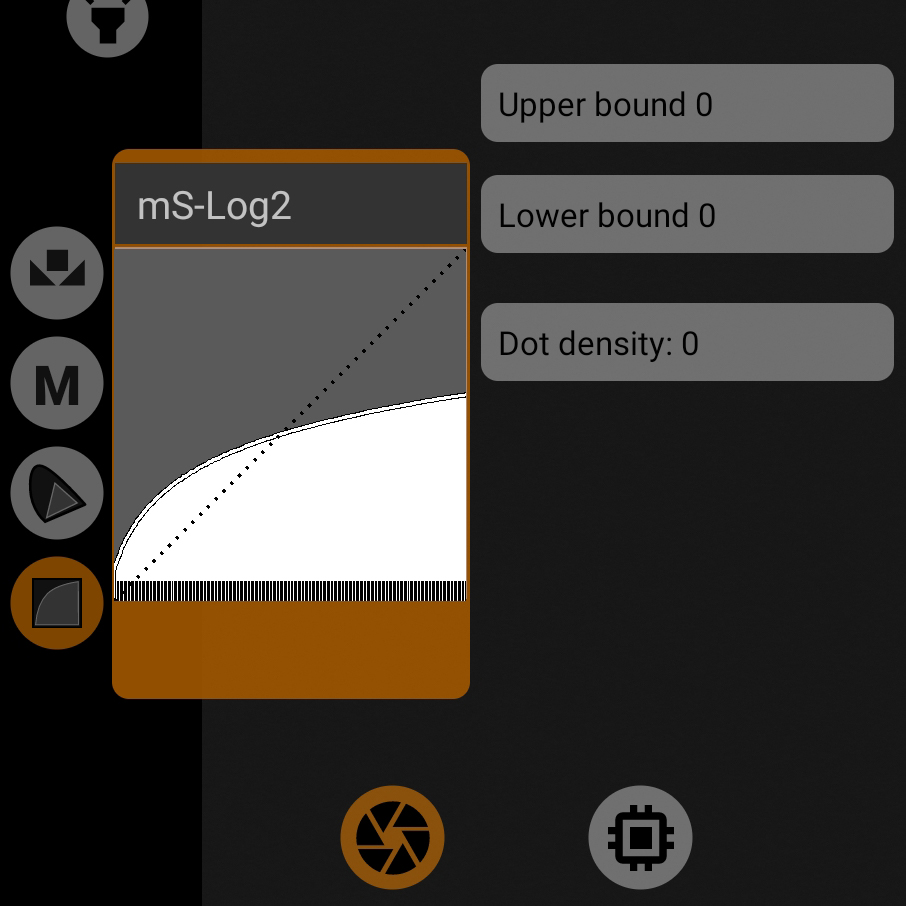
Gamma curve by the Cineon Film formula. Cineon Film is recommended for interpretation in non-linear video editing programs.
For better adaptation for mobile devices, two parameters were introduced: upper and lower bounds.
Since the curve cannot be displayed with the standard controls, only the border and point density settings are available for adjustment.
Due lowering of the white point can lead to clipping artifacts on most mobile devices. Therefore may be marked with a warning sign. The problem goes away when you select manual white balance, it becomes possible to remove clipping artifacts. In this case, there will be no warning sign..
1.4.1.4.23. mF-Log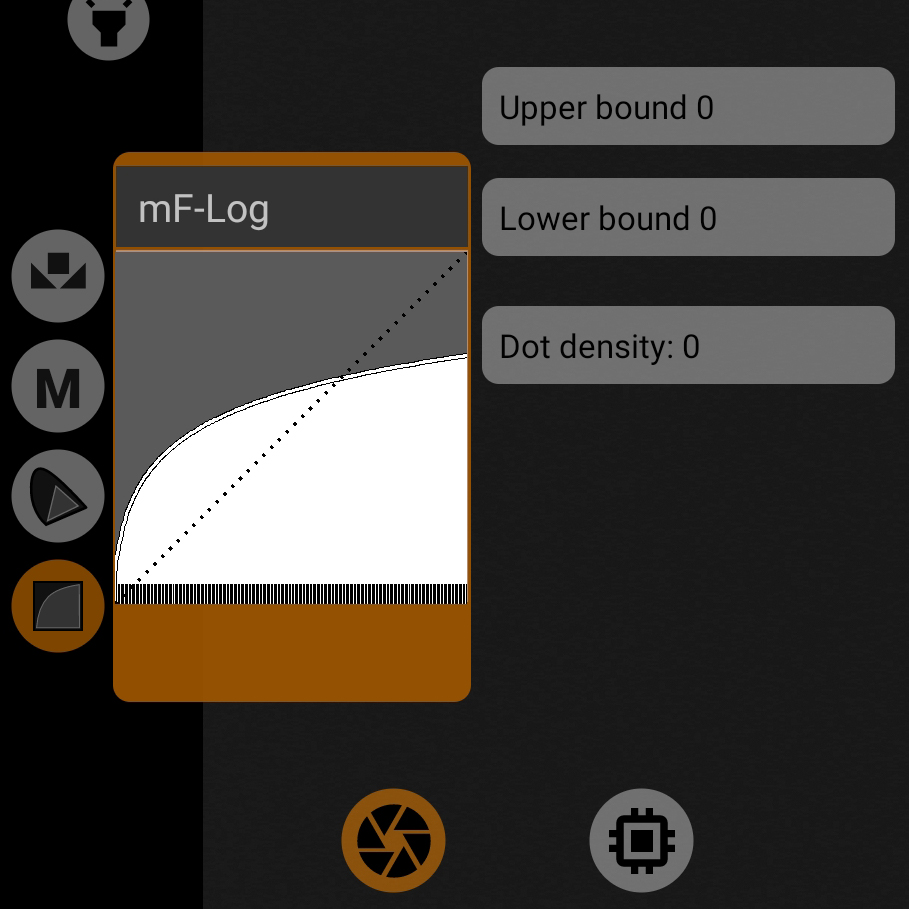
Gamma curve close to the F-Log gamma curve from Fuji. It is F-Log that is recommended for interpretation in non-linear video editing programs.
For better adaptation for mobile devices, two parameters were introduced: upper and lower bounds.
Combines well with gamut Rec.2020, aka F-Gamut.
Since the curve cannot be displayed with the standard controls, only the border and point density settings are available for adjustment.
Due lowering of the white point can lead to clipping artifacts on most mobile devices. Therefore may be marked with a warning sign. The problem goes away when you select manual white balance, it becomes possible to remove clipping artifacts. In this case, there will be no warning sign.
1.4.1.4.24. mV-Log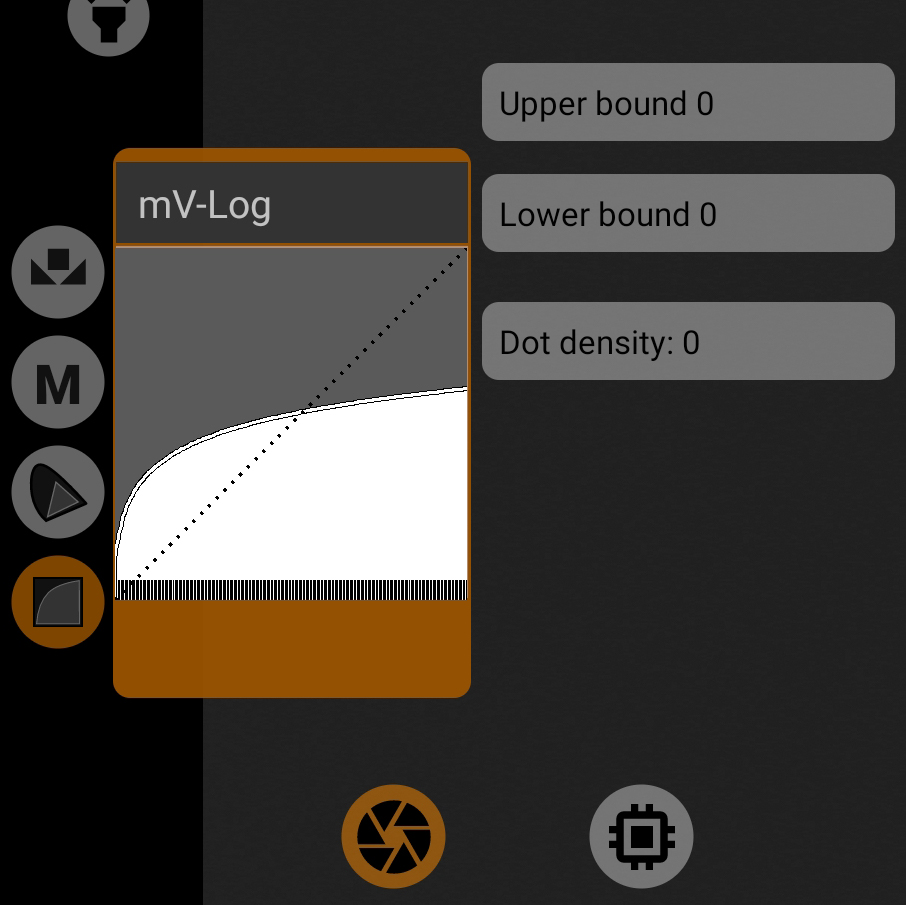
Gamma curve approximating to Panasonic's V-Log gamma curve. V-Log is recommended for interpretation in non-linear video editing programs.
For better adaptation for mobile devices, two parameters were introduced: upper and lower bounds.
Combines well with the P V-Gamut.
Since the curve cannot be displayed with the standard controls, only the border and point density settings are available for adjustment.
Due lowering of the white point can lead to clipping artifacts on most mobile devices. Therefore may be marked with a warning sign. The problem goes away when you select manual white balance, it becomes possible to remove clipping artifacts. In this case, there will be no warning sign.
1.4.1.4.25. mLog3G10
A gamma curve close to the Log3G10 gamma curve from RED. Log3G10 is recommended for interpretation in non-linear video editing programs. 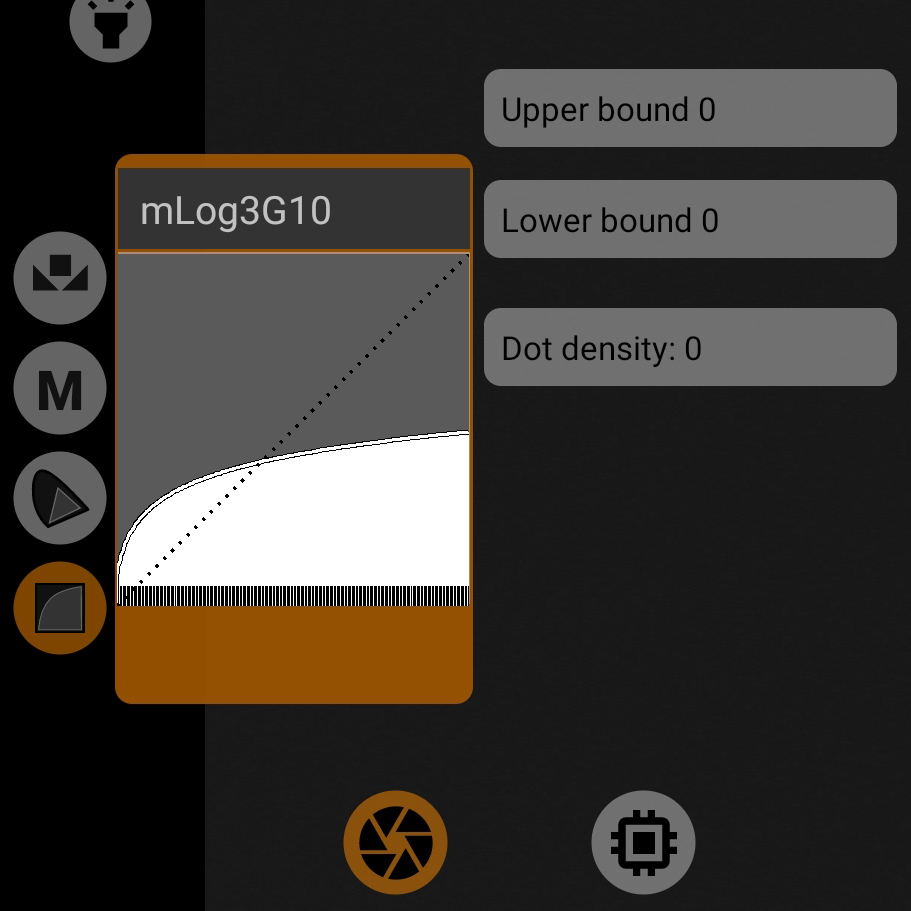
For better adaptation for mobile devices, two parameters were introduced: upper and lower bounds.
Combines well with the R Wide Gamut.
Since the curve cannot be displayed with the standard controls, only the border and point density settings are available for adjustment.
Due lowering of the white point can lead to clipping artifacts on most mobile devices. Therefore may be marked with a warning sign. The problem goes away when you select manual white balance, it becomes possible to remove clipping artifacts. In this case, there will be no warning sign.
1.4.1.4.26. mS-Log2
Gamma curve close to S-Log2 gamma curve from Sony. S-Log2 is recommended for interpretation in non-linear video editing programs.
For better adaptation for mobile devices, two parameters were introduced: upper and lower bounds.
Combines well with the S-Gamut/-3.
Since the curve cannot be displayed with the standard controls, only the border and point density settings are available for adjustment.
Due lowering of the white point can lead to clipping artifacts on most mobile devices. Therefore may be marked with a warning sign. The problem goes away when you select manual white balance, it becomes possible to remove clipping artifacts. In this case, there will be no warning sign.
1.4.1.4.27. mS-Log3
Gamma curve close to the S-Log3 gamma curve from Sony. It is S-Log3 that is recommended for interpretation in non-linear video editing programs.
For better adaptation for mobile devices, two parameters were introduced: upper and lower bounds.
Combines well with the S-Gamut3.Cine gamut.
Since the curve cannot be displayed with the standard controls, only the border and point density settings are available for adjustment.
Due lowering of the white point can lead to clipping artifacts on most mobile devices. Therefore may be marked with a warning sign. The problem goes away when you select manual white balance, it becomes possible to remove clipping artifacts. In this case, there will be no warning sign.
1.4.1.4.28. Saving user-defined gamma curve.
To save the user curve to the preset you must click on the button with the plus sign.