
The GPU is a rather powerful tool for image processing. Its only drawback is its voraciousness. It requires a lot of resources. But at the same time it allows you to do with the image everything the developer can think up and implement. In our case we are forced to observe the economy mode. Taking into account the current demand for UHD resolution, the number of possible processes is drastically reduced.
If you need to use everything possible, it makes sense to give up UHD in favor of FHD, even if you think your device is a rocket.
The GPU has the ability to handle the signal more neatly, but it is very dependent on what it gets from the sensor. It is the RAW signal from the sensor that is the foundation of the basics. If we lose information to the GPU, the GPU can't get it back. Below under "Reverse tonemaping" there is an exaggerated example of what we are talking about here.
1.4.3.1. Adjusting GPU noise reduction and GPU sharpness
This section of GPU filters contains a rather primitive noise modifier and primitive sharpening. Why are they primitive? Because it is impossible to make a proper blur or add sharpness in one pass. And no mobile GPU today is able to do more than one pass of 4K image processing. This feature was added for those cases where anything is better than nothing. We can't say this feature is completely useless. No. It is balanced as much as possible for mobile devices. We have tried to make sure that it performs its function, but the load remains within adequate limits.
The two presets don't change anything or offer anything. "OFF" tells the app that the function is disabled. "Blank" is an empty preset that is designed to be set from scratch. Both items do not add any load as long as no controls are shifted.
1.4.3.1.1. Radius of blur
The radius of the circle around the target pixel to calculate and replace it with the average pixel. If the blur strength is at 0, the blur radius has no effect on anything.
1.4.3.1.2. Strength of blur
Determines how much blur will be noticeable.
1.4.3.1.3. Radius of sharpness
The radius of the circle around the target pixel to calculate and replace it with a higher contrast pixel. Yes, sharpness is the contrast of neighboring pixels. With the radius you define how far apart the pixels defined as neighboring are from each other.
1.4.3.1.4. Strength of sharpness
Determines how much of the change in sharpness will be visible. Sharpness is applied after blurring.
1.4.3.2. Selecting and adjusting the GPU-gamma curve
This section does not differ much from the section of the same name. The only difference is the number of points of the gamma curve. Here they range from 1024 to 4096 depending on the unit. I.e. the curve itself works more accurately and smoothly. The exact same formulas are used for the curves.
Therefore, many of the items will refer to the same items from the gamma curve settings section of the sensor.
1.4.3.2.0. GPU gamma curve settings
1.4.3.2.0.1. Reverse tonemaping.
This setting was introduced on the principle of non-linear editing programs. The process of reducing a logarithmically encoded image to a standard form, such as the commonly used Rec.709, is called source material interpretation.
Reverse toning works only with the gamma curve selected in the sensor settings, i.e. it does not consider the gamut and interprets the signal into a linear one, i.e. it does not take a second step in applying the target gamma curve.
The choice of the target gamma curve is up to the user. The selection of the gamma curve from the list is the second step of interpretation.
Why would this be necessary? If a signal comes to the GPU with lost information, the flexibility of such material is lost and all further image processing can lead to artifacts. We have an opportunity to "ask" the sensor to deliver to us, before the image is converted into 8 bits, more information, more details in shadows. We, in turn, bring the image to 0 (linear) through reverse toning. From the linear signal we start to draw what we want with more information on the input.
That is, we are able to reproduce the whole image post-processing process on the fly before the codec compresses the image.
Here it is important to understand that the less information you get from the sensor through the sensor settings, the less possibilities you will have when working with the GPU.
Let's look at an exaggerated example.
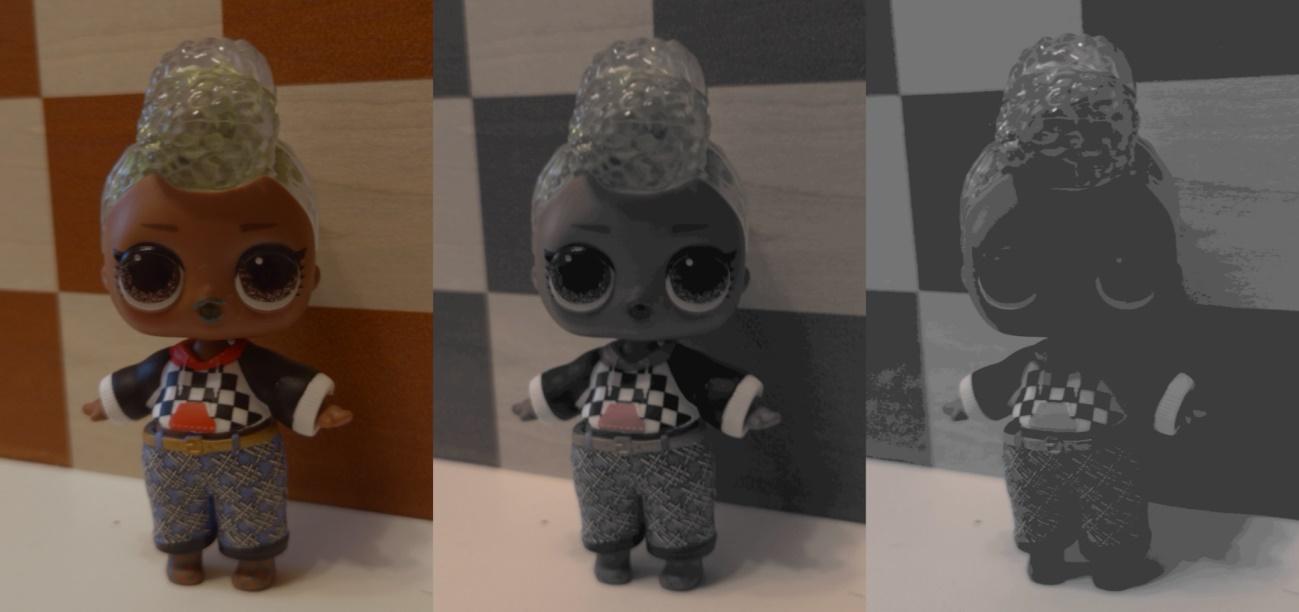
In the GPU-gamma-curve settings the reverse toning and gamma-curve Rec.709 are selected. And we do not change these settings from frame to frame. On the sensor the gamma curve mLog 100% is selected for the first frame, for the second - brightness -50, for the third - brightness -100. We are able to observe how the signal from the sensor affects what the GPU receives for processing. The lower the brightness of the RAW signal, the less detail and color the GPU receives. At the same time the same manipulations in the GPU-gamma curve do not lead to a loss of color and detail (brightness -100). Once again, it makes sense to get more from the sensor, then the GPU will have more opportunities to process the signal.
The second function of reverse tonemapping is to fight the problem of small number of gamma curve points on the sensor. If we have 128 points, reverse toning turns a broken curve of 128 points into a smooth gamma curve of 4096 points (in some cases 2048 or 1024, but not lower).
1.4.3.2.0.2. Brightness
See 1.4.1.4.0.2. Brightness
1.4.3.2.0.3. Gamma (γ)
See 1.4.1.4.0.3. Gamma (γ)
1.4.3.2.0.4. Contrast and pivot
See 1.4.1.4.0.4. Contrast and pivot
1.4.3.2.0.5. Shadows
See 1.4.1.4.0.5. Shadows
1.4.3.2.0.6. Midtones
See 1.4.1.4.0.6. Midtones
1.4.3.2.0.7. Highlights
See 1.4.1.4.0.7. Highlights
1.4.3.2.0.8. B(lack), black point
Unlike the control in the sensor settings section, there is no limitation from below, i.e. you can both push up the black point and push down it. See 1.4.1.4.0.8. B(lack), black point
1.4.3.2.0.9. W(hite),white point
See 1.4.1.4.0.9. W(hite), white point
1.4.3.2.0.10. R(ed), G(reen), B(lue)
See 1.4.1.4.0.10. R(ed), G(reen), B(lue)
1.4.3.2.1. OFF
This preset disables the GPU-gamma curve, taking the load off the device.
1.4.3.2.2. Linear
Does not change anything in the image. Can be used as a basis for a custom gamma curve. See 1.4.1.4.2. Linear
1.4.3.2.3. mLog 60%
See 1.4.1.4.4. mLog 60%
1.4.3.2.4. mLog 80%
See 1.4.1.4.5. mLog 80%
1.4.3.2.5. mLog 100%
See 1.4.1.4.6. mLog 100%
1.4.3.2.6. rec.709
See 1.4.1.4.7. Rec.709
1.4.3.2.7. sRGB
See 1.4.1.4.8. sRGB
1.4.3.2.8. HLG 87%
In contrast to the gamma curve in the sensor settings does not cause clipping artifacts. See 1.4.1.4.9. HLG 87%.
1.4.3.2.9. HLG 95%
In contrast to the gamma curve in the sensor settings, does not cause clipping artifacts. See 1.4.1.4.10. HLG 95%.
1.4.3.2.10. HLG 100%
See 1.4.1.4.11. HLG 100%.
1.4.3.2.11. HLG
See 1.4.1.4.12. HLG.
1.4.3.2.12. mCineLog
Unlike gamma curve in sensor settings does not cause clipping artifacts. See 1.4.1.4.13. mCineLog.
1.4.3.2.13. PQ 1000
Unlike gamma curve in sensor settings does not cause clipping artifacts. See 1.4.1.4.14. PQ 1000.
1.4.3.2.14. mSLog 82%.
Unlike gamma curve in sensor settings does not cause clipping artifacts. See 1.4.1.4.15. mSLog 82%.
1.4.3.2.15. mSLog 92%
Unlike gamma curve in sensor settings does not cause clipping artifacts. See 1.4.1.4.16. mSLog 92%.
1.4.3.2.16. mSLog 100%
See 1.4.1.4.17. mSLog 100%.
1.4.3.2.17. mSLog Extreme
See 1.4.1.4.18. mSLog Extreme
1.4.3.2.18. ACEScct.
Unlike the gamma curve in the sensor settings, it has no border controls and does not cause clipping artifacts. See 1.4.1.4.19. ACEScct
1.4.3.2.19. mLog-C.
Unlike the gamma curve in the sensor settings, it has no border controls and does not cause clipping artifacts. See 1.4.1.4.20. mLog-C
1.4.3.2.20. mC-Log3.
Unlike the gamma curve in the sensor settings, it has no border controls and does not cause clipping artifacts. See 1.4.1.4.21. mC-Log3
1.4.3.2.21. Cineon Film
Unlike the gamma curve in the sensor settings, it has no border controls and does not cause clipping artifacts. See 1.4.1.4.22. Cineon Film
1.4.3.2.22. mF-Log
Unlike the gamma curve in the sensor settings, it has no border controls and does not cause clipping artifacts. See 1.4.1.4.23. mF-Log
1.4.3.2.23. mV-Log.
Unlike the gamma curve in the sensor settings, it has no border controls and does not cause clipping artifacts. See 1.4.1.4.24. mV-Log
1.4.3.2.24. mLog3G10.
Unlike the gamma curve in the sensor settings, it has no border controls and does not cause clipping artifacts. See 1.4.1.4.25. mLog3G10
1.4.3.2.25. mS-Log2.
Unlike the gamma curve in the sensor settings, it has no border controls and does not cause clipping artifacts. See 1.4.1.4.26. mS-Log2
1.4.3.2.26. mS-Log3.
Unlike the gamma curve in the sensor settings, it has no border controls and does not cause clipping artifacts. See 1.4.1.4.27. mS-Log3
1.4.3.3 Additional GPU filters and controls
This section contains filters that have no mathematical formulas, as it works in gamma curves. All actions are performed through addition or subtraction of pixels, their brightness, or individual RGB values.
In the future, absolutely everything that doesn't fit into the concept of gamma curves and gamuts may appear here. All the way up to Instagram filters, as they are also called Look's.
The two presets change nothing and offer nothing. "OFF" tells the app that the feature is off. "Blank" is an empty preset that is meant to be customized from scratch. Both items do not add any load as long as no controls are shifted.
1.4.3.3.1. Saturation
This differs from the saturation in the gamut settings in that a purely mathematical approach is taken here. The same as in the nonlinear editing programs.
1.4.3.3.2. Chroma
Tries to bring up the saturation in the most unsaturated areas. Very similar to the Color Boost parameter in Davinci Resolve.
1.4.3.3.3. Contrast
Contrast with an approach through addition and subtraction of pixel brightnesses rather than applying an S-curve. You could say that it works less aggressively than the contrast in the gamma curve.
1.4.3.3.4. Shadows
Brightens or darkens shadows via pixel brightness addition. Works less aggressively than the gamma curve parameter of the same name.
1.4.3.3.5. Highlights
Brightens or darkens highlights via pixel brightness addition. Works less aggressively than the gamma curve parameter of the same name.
1.4.3.3.6. R(ed), G(reen), B(lue)
Adjusts the white point of each channel. The black point of each channel remains in place. Thus the channel brightness is compressed or stretched across the brightness range, affecting the lights more, shadows less.
1.4.3.3.7. ACES (deprecated)
A filter designed to bring the image into ACES AP1 colors. Since both gamut and gamma curve ACES appeared in the application, this weird filter is no longer needed. It will be removed in future versions.
1.4.3.3.8. Saturation of shadows and highlights
You can decrease the saturation of shadows and highlights. The lower the saturation, the closer the shadows are to pure black, and the closer the lights are to pure white. Can create the effect of correct white balance even where it is not correct at all. This trick is common in filmmaking.