
The general settings menu (2) opens a settings window which contains settings for the viewfinder, controls, interface and other settings not related to the camera, codec, microphone and sound.
Below we will look at each menu item separately.
1.3.2.1. Section ”Viewfinder Settings”
This section contains settings about what kind of image and what kind of indicators the user sees on the screen. Below you will find a description of the menu items in this section.
1.3.2.1.1. Use GPU
All display and image manipulation requires the use of the GPU. But at the same time the load on the phone increases. Therefore, this menu item has three values instead of two: No, Yes, Preview mode only.
The value "No" disables the viewfinder signal pass through the GPU. In this mode there is no possibility to use indicators and image modifiers.
“Yes” turns the viewfinder signal through the GPU on. In this mode, the viewfinder works through the GPU in both Preview and Record mode. If "Skip (video) through GPU" is selected in the video settings menu, this value is forced and cannot be changed.
The value "Only in preview mode" disables skipping the viewfinder signal through GPU at the start of recording, before recording the viewfinder works through GPU.
It should be note, that on all mobile devices with Android OS version 11 and above, this menu item is set to "Yes" by default. On Samsung devices it is hidden, and cannot be changed.
When you turn on the viewfinder signal skipping through the GPU, all the previously selected settings, which require the GPU for their work, are automatically enabled.
1.3.2.1.2. On-Screen LUT (if possible)
When you apply a Log Profile to an image, the image becomes gray and dim, making it more difficult to control. At this point you can choose which gamma curve to convert the viewfinder image to for easier control. It is worth noting that the LUT can be forcibly turned off if it is not possible to output the reverse curve for the selected Log-profile.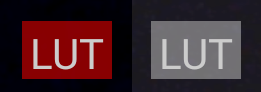
When the LUT is turned on, provided that it is currently working, a red indicator appears on the screen with the word "LUT". A single tap to this indicator disables the LUT, the indicator turns gray, a second tap enables the LUT, the indicator turns red again. Switching the LUT on and off through the indicator is possible only if the LUT can be superimposed at all at this moment. If overlay is not possible, the "LUT" indicator disappears from the screen. As about the color space, it converts the image to the Rec.709 color space at any gamma curve.
At the moment 4 gamma curves are possible: Rec.709 (scene), Gamma 2.2, Gamma 2.4, sRGB.
1.3.2.1.3. Resolution limit in Preview Mode
Specifies the maximum height resolution of the viewfinder (at horizontal position) when recording is not on. Available values: Screen Size (takes the horizontal screen height), 720p, 1080p, 1440p, 2160p, Video Size (takes the height selected in the video settings), Maximum (takes the maximum available height on the sensor in pixels). You should not abuse this setting because the higher the resolution, the harder it is for the device to process the signal, especially when the signal goes through the GPU. The most popular value is 1080p, which is the width (in the vertical position) that most mobile device screens have. You can leave the default "Screen Size" setting on such a device.
1.3.2.1.4. Resolution limit when Recording
Specifies the maximum height resolution of the viewfinder (in the horizontal position) when recording. Available values: Screen Size (takes the height of the screen horizontally), 720p, 1080p, 1440p, 2160p, Video Size (takes the height selected in the video settings), Maximum (takes the maximum available height on the sensor in pixels). This setting is even more insidious than the previous one, because during recording the device processes two images at the same time: the one that goes into the codec and other that is displayed on the screen. The most popular value is 1080p, which is the width (in the vertical position) most of the screens of mobile devices have. You can leave the default setting of "Screen Size" on such a device.
1.3.2.1.5. Histogram (before preview LUT)
This item allows you to turn on the histogram display on the screen to control exposure. It has three options: OFF, ON, and Preview only. The last option enables the histogram only for preview state, the histogram is turned off and disappears from the screen when you start recording. The histogram works until the on-screen LUT is superimposed, i.e. its superposition has no effect on the histogram, it continues to control the image that goes into the file.
To use the setting, the GPU for the viewfinder must be turned on.
1.3.2.1.6. Histogram type
There are two types of histogram: luminance and RGB.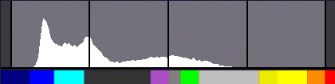
The luminance histogram uses a mechanism to calculate the brightness of each pixel and adds the values to a graph.
The RGB histogram calculates the luminance for each RGB channel separately and displays a different histogram for each individual channel. The histogram overlap locations are added together. Red with green gives yellow, blue with red gives pink, blue with green gives turquoise, and all together gives white.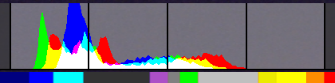
1.3.2.1.7. EV of scene (before preview LUT)
The setting is currently disabled, under development.
1.3.2.1.8. Temperature of scene (before preview LUT)
The setting includes a scene temperature indicator in Kelvin. The image transmitted to the viewfinder is used to estimate the scene temperature. The temperature estimate has nothing to do with the selected temperature compensation settings, nor does it display the selected settings in any way, but the white balance settings in the sensor settings affect the scene being captured, which means the indicator will respond to their change. This indicator acts as a thermometer and only that is, it shows the temperature of what it sees at the moment on the screen. A kind of frame temperature histogram. The indicator changes color depending on the displayed temperature.
This indicator can be used to set the image to match as closely as possible on two different devices. Also, this indicator can be used to determine what temperature the automatic white balance setting for a particular scene tends to reach. You can use this indicator to select the desired temperature for yourself and choose such white balance settings to get the scene at the desired temperature. 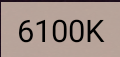
The setting has three values: OFF, ON, Preview mode only. The last setting disables scene temperature measurement during recording to reduce the load, i.e. scene temperature measurement requires GPU resources.
Scene temperature measurement works before the on-screen LUT is overlaid, i.e. its overlay has no effect on the measurement, the indicator continues to show the temperature of the image that goes into the file.
To use the setting, the GPU for the viewfinder must be turned on.
1.3.2.1.9 Focus peaking
This setting turns on an assistant for more precise focusing. Focus peaking is based on a method of searching for contrasting object boundaries, so be aware that it may not work accurately or at all in dark, low-contrast scenes. On the screen, focus peaking looks like a colored (often yellow in the darker parts of the frame and blue in the lighter) outline of the edges of objects. At the point of focus, you can usually see more small circles. By moving the focus control back and forth, you can see how the focus area moves.
You cannot change the color of the focus peaking. In normal mode, the backlight is yellow/blue, while in false color mode it has a complementary color to the color of false color.
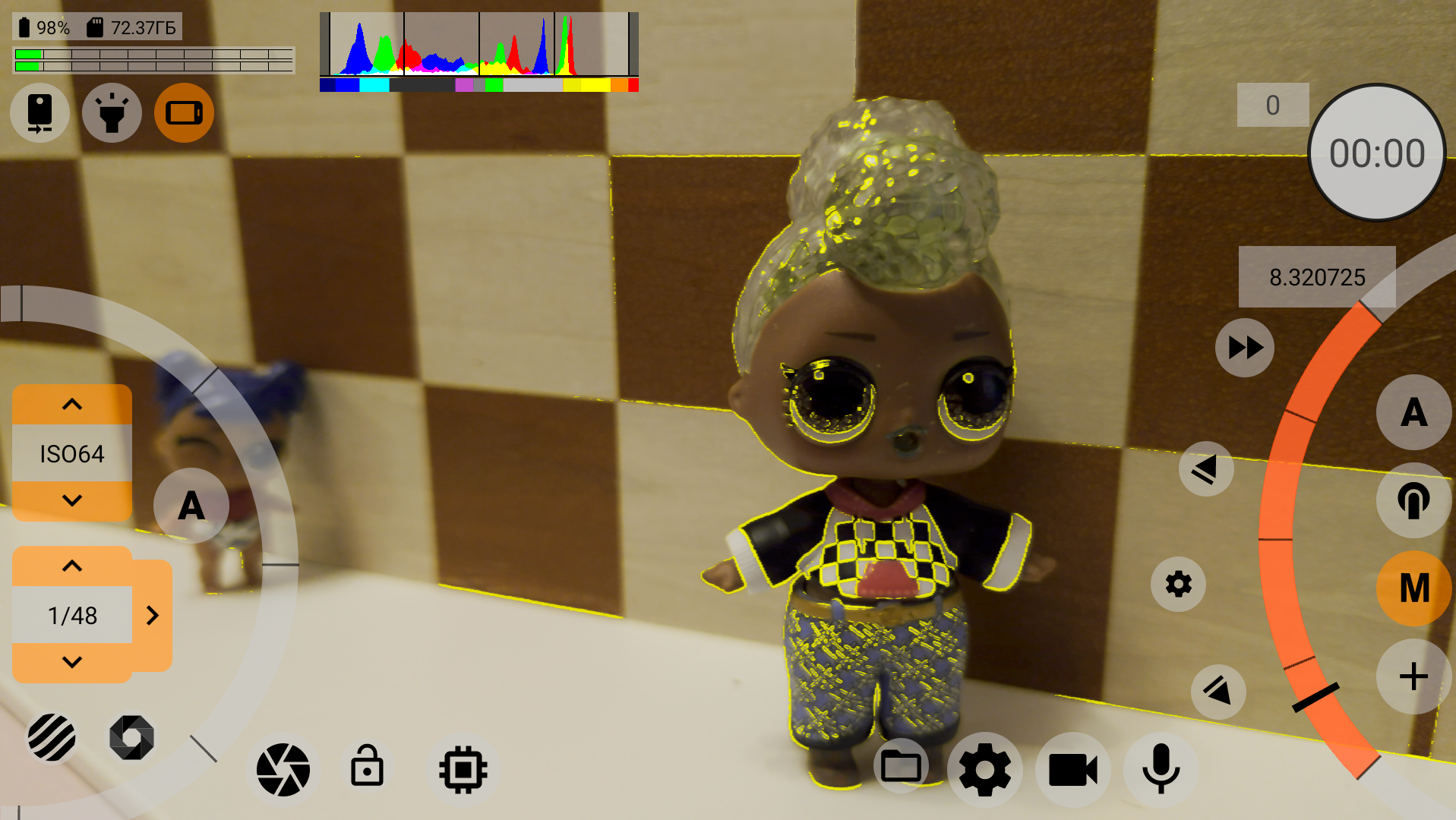
Focus peaking has three values: OFF, ON, Only in preview mode.
The last setting disables focus peaking during recording to reduce the load, i.e. focus peaking requires GPU resources.
To use the setting, the GPU for the viewfinder must be turned on.
1.3.2.1.10 Focus peaking mode
A setting that specifies when to display focus peaking if it is turned on. The setting has two values: by touching the focus control wheel and Continuous. If you select the first setting, focus peaking is only displayed while the operator's finger is on the manual focus control wheel. When the second setting (Continuous) is selected, the focus peaking is displayed all the time.
1.3.2.1.11. Focus peaking strength
The higher the number, the fatter the contrasting borders of objects are illuminated. The darker the scene, the higher the recommended value. The default value is 2.0.
When the focus peaking is increased, the image itself may become yellowish, highlighting details that are not very noticeable.
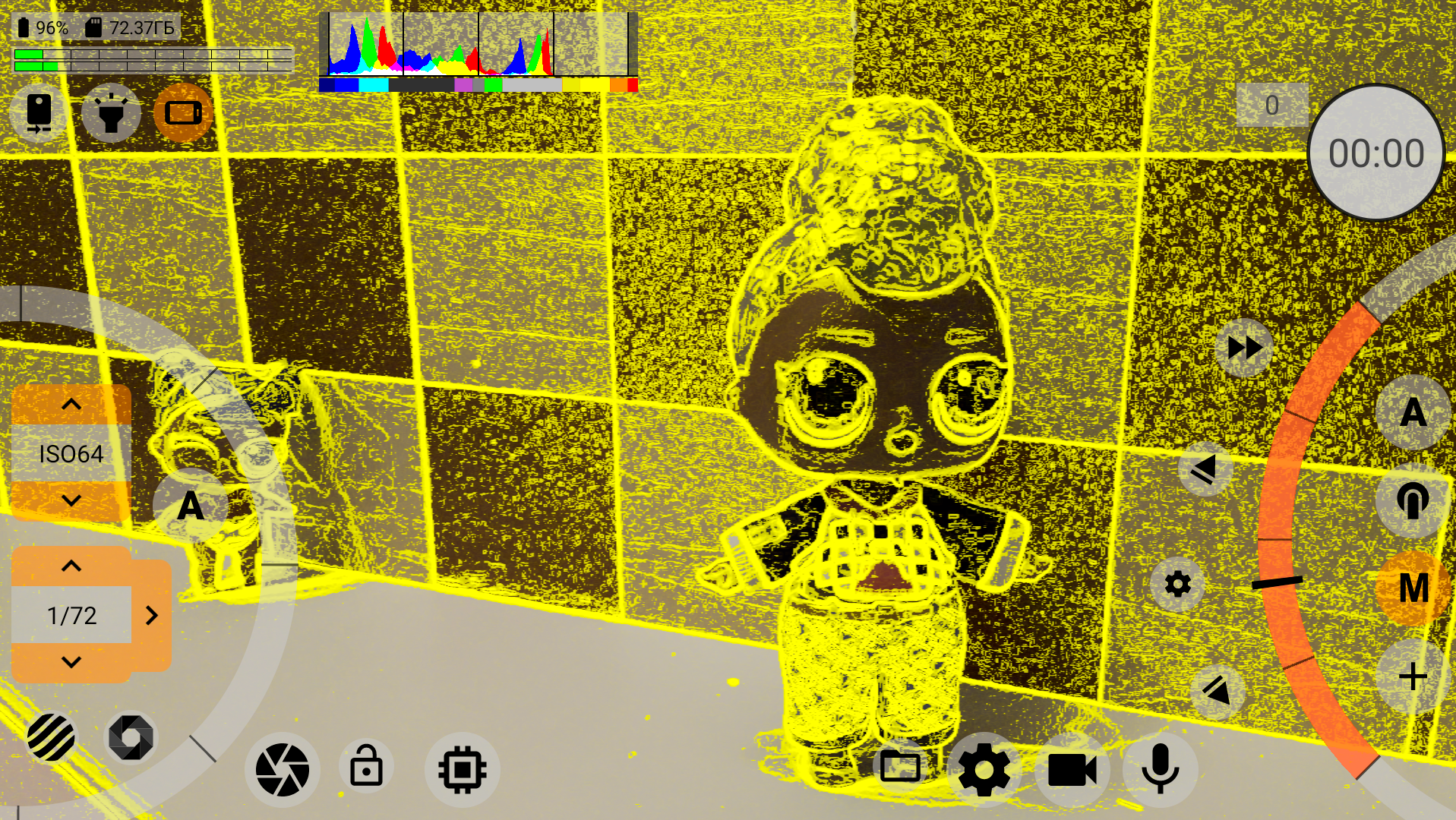
1.3.2.1.12. Expo-peaking (before preview LUT)
The setting superimposes visual exposure control directly on the image. Named by the general public to bring two types of control under its umbrella (at the moment): zebra and false color. The setting has three values: OFF, ON, Only in preview mode.
The last setting disables expo-peaking during recording to reduce the load, i.e. expo-peaking consumes GPU resources.
Expo-peaking works before the on-screen LUT is overlaid, i.e. its overlay has no effect on the indication. Expo-peaking continues to show an indication of what will be in the file.
The main peculiarity of expo-peaking mcpro24fps is that it tries to work within the sensor limits and reacts to artificial black point or white point decrease by means of a Log Profile (gamma curve). What does this mean? It means that when the gamma curve of the Log-profile lowers the white point from 100% IRE to, for example, 70% IRE, exposure-peaking begins to show overexpose at 70%, not leaving it at 100%. That is, the range between 0% black and 100% white narrows to a range of 0-70%. This is correct, because all gamma curve manipulations occur at the RAW signal level, the ready signal from the sensor with all underexposed and overexposed. With this in mind, it is impossible to "pull out" with the gamma curve help what is beyond the sensor's capabilities. If the highlights on the sensor is knocked out, no amount of lowering the white point will bring back the knocked out highlights. And that means that the expo-peaking has to follow the white point manipulation, so that the operator sees the real picture of the overexposure. The same goes for the black point. We strive to determine the limits of expo-peaking in automatic exposure mode as well.In automatic exposure mode, it is more difficult to determine the artificial change in black and white points, so failures can occur. For example, Samsung devices in 10-bit mode as the automatic gamma curve uses the PQ curve (and not the real one), which has a white point lowered to about 70% of 100%. Expo-peaking tries to take this into account. In the case of Xiaomi devices, the automatic gamma curve most often remains Rec.709. And this is what expo-peaking tries to take into account.
To use the setting, the GPU for the viewfinder must be turned on.
1.3.2.1.13. Expo-peaking type
This setting allows you to select in which view the operator wants to control the exposure. There are currently two types: zebra and false color.
1.3.2.1.13.1 Zebra
A zebra pattern is a red, right-sloping stripe in an over-exposed area.
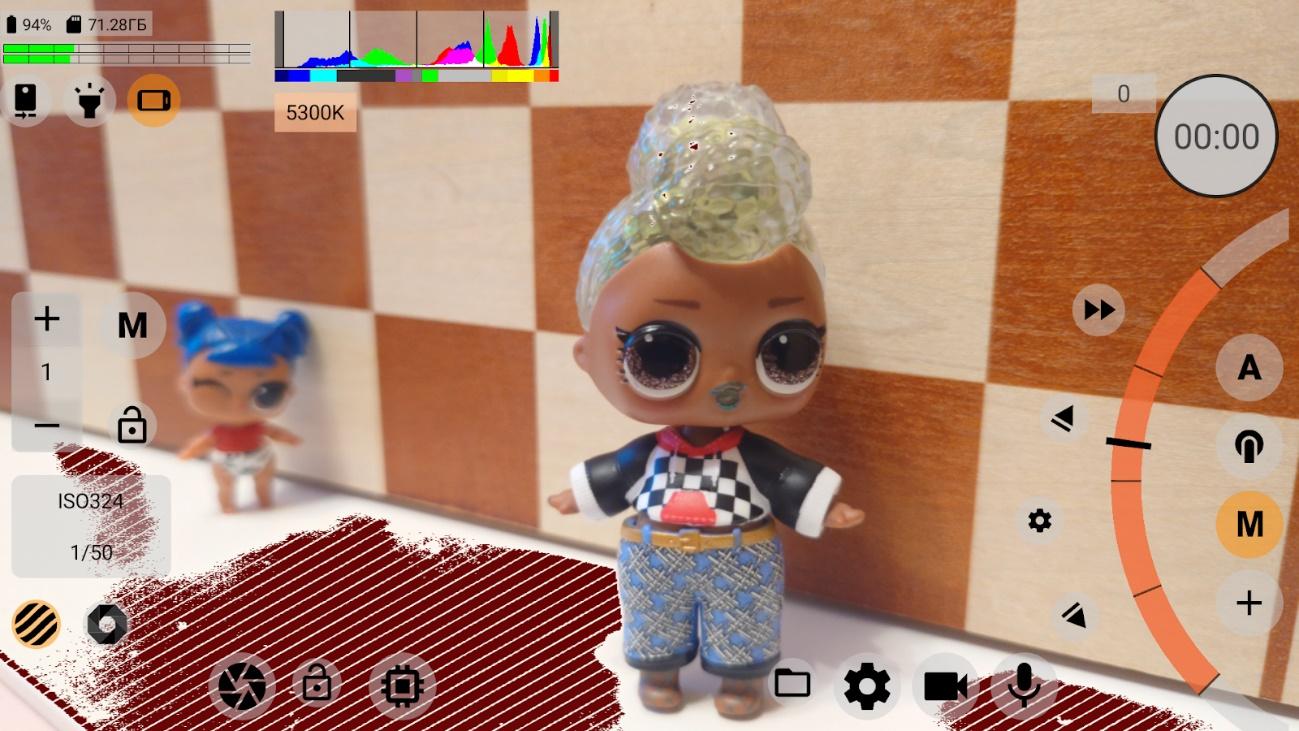
and light blue stripes sloped to the left, slightly different thickness in the areas of underexposure.
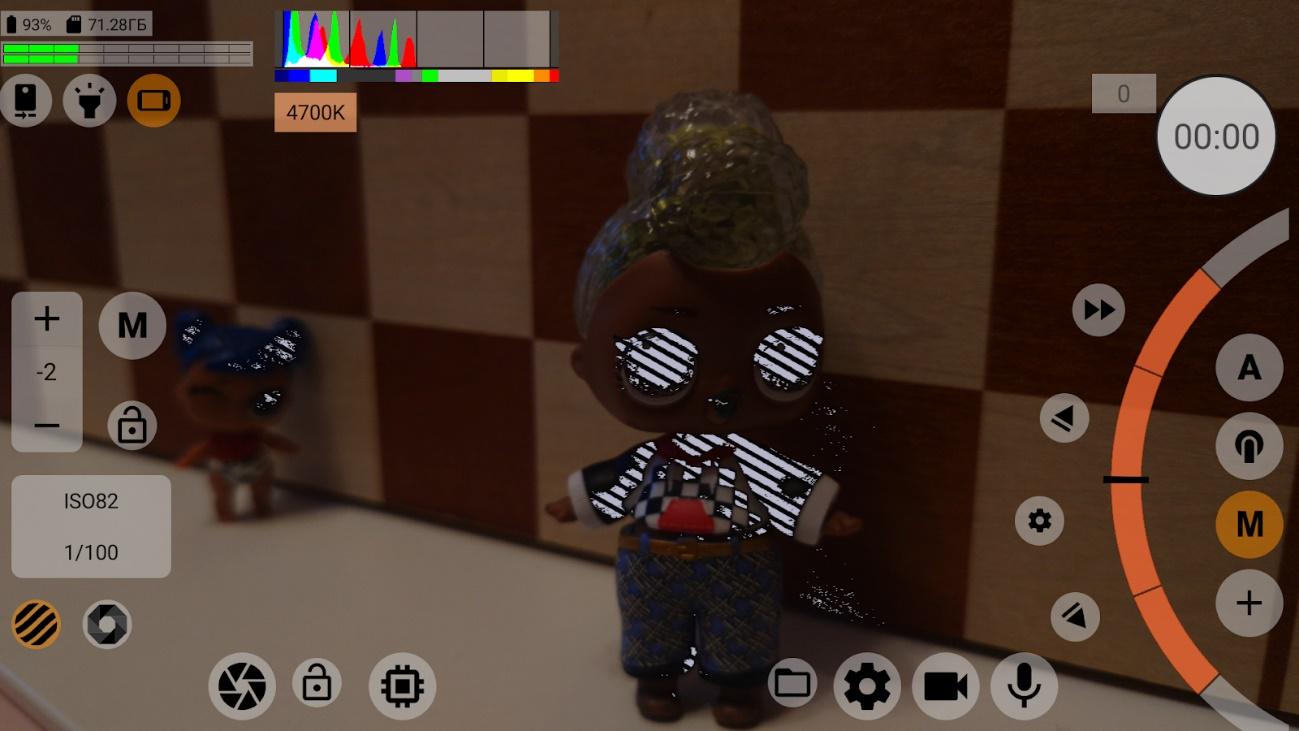
The zebra helps the operator to choose the balance between the darkest and brightest areas, and to choose what to sacrifice and what to be sure to keep.
1.3.2.1.13.2. False Color
False Color is the process of selecting areas of a certain brightness with a specified color.
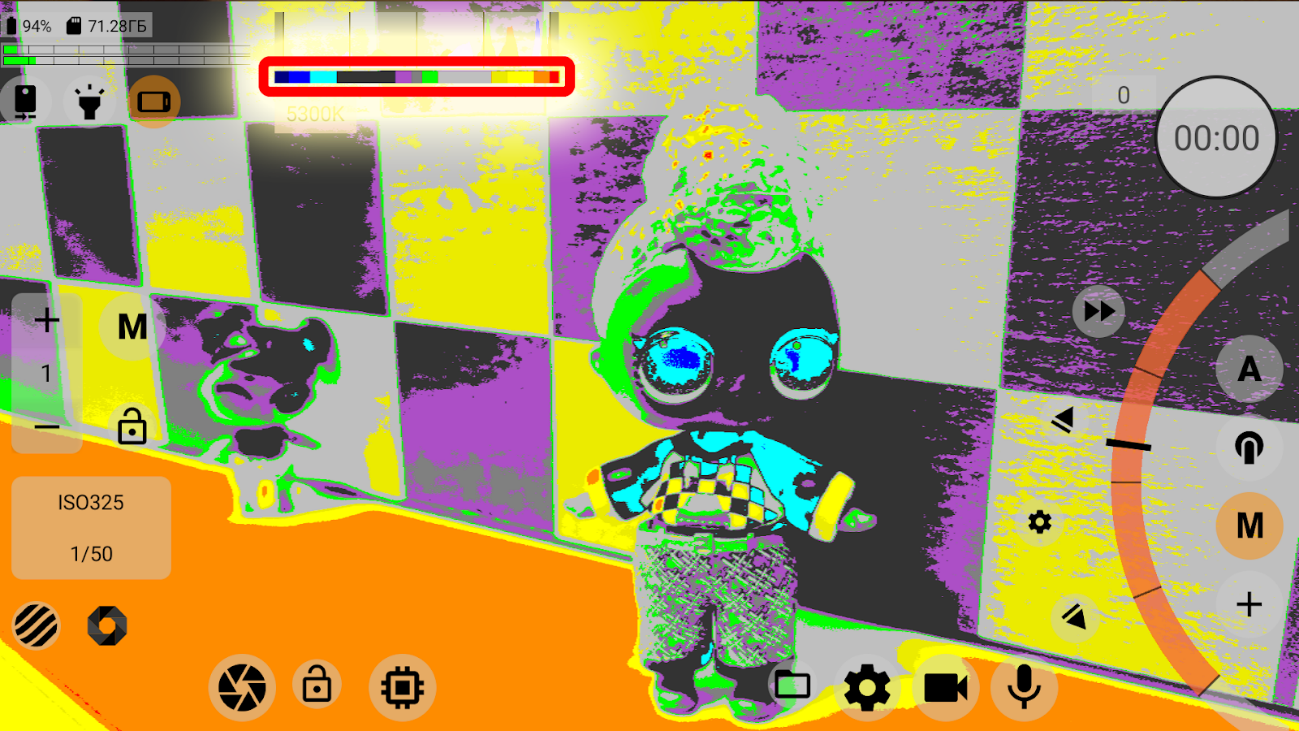
How colors are distributed brightness-wise, you can see on the diagram below the histogram. The histogram must be on for this to work.
The special buttons in the Exposure Control and Adjustment Area (see 1.5. Exposure Adjustment and Control Area) can overwrite the expo-peaking type, but only for the duration of this session. After exiting the application and returning back, the expo-peaking type will be reset to the one specified in the settings.
1.3.2.1.14. Bottom and top limits
In this menu item you can specify the levels at which the zebra will be triggered. The higher the value of the lower limit, the faster the zebra for underexposed areas will trigger. The lower the value for the upper limit, the faster the zebra will be triggered for overexposed areas. We recommend setting these values with a small margin.
1.3.2.1.15. Expo-peaking mode
A setting that specifies when to display expo-peaking if it is on. The setting has two values: by touching the ISO control wheel and Continuous. If you select the first setting, expo-peaking is only displayed as long as the operator's finger is on the ISO control wheel. If you select the second setting (Continuous), the expo-peaking is displayed all the time.
The special buttons in the Exposure Control and Adjustment Area (see 1.5. Exposure Adjustment and Control Area) can overwrite the expo-peaking mode, but only for the duration of this session. After exiting the application and returning back, the expo-peaking mode will be reset to the one specified in the settings.
1.3.2.1.16. Safe area
This setting allows you to specify the proportions of the safe area beyond which you do not want the subject to be taken. The second setting after OFF, "By Viewfinder Size", is not useful and was introduced at the request of users for purely decorative purposes. Some people find it helpful to see the edges of the frame in bright sunlight.
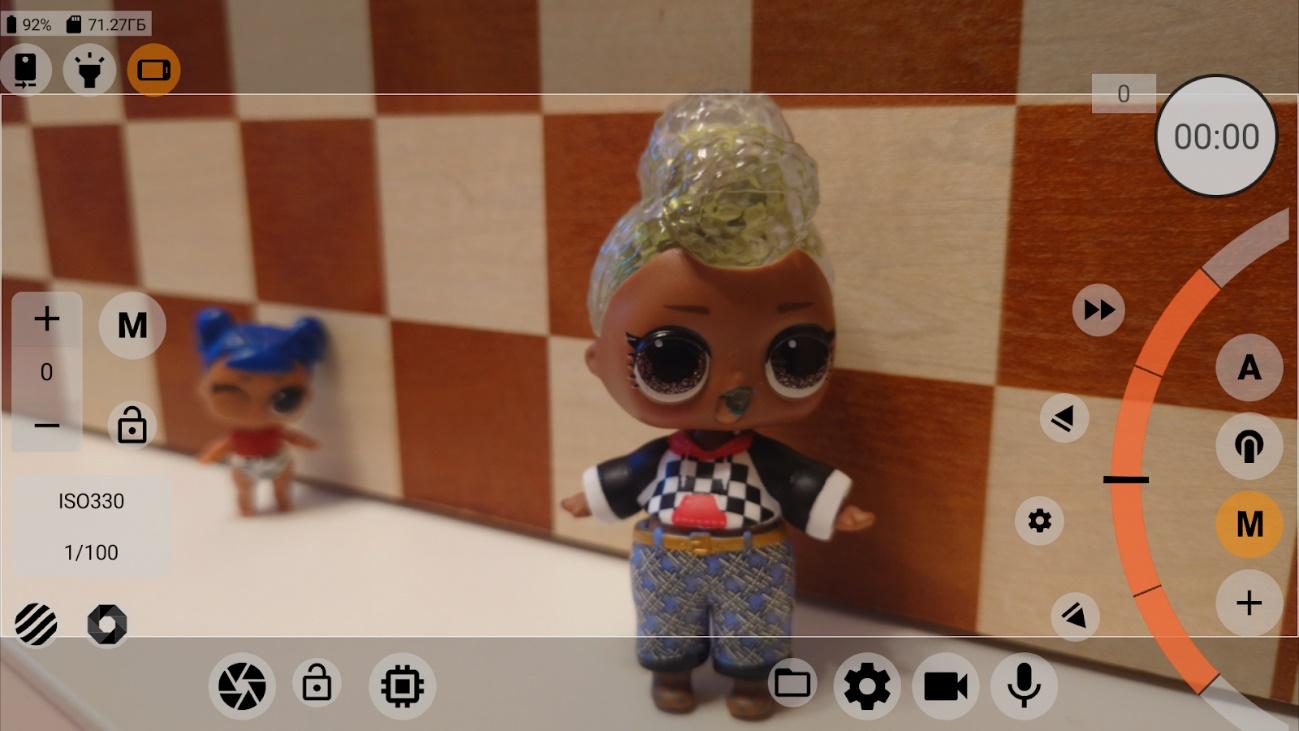
When this setting is turned on, the proportions of the safe area fit into the proportions of the video (the viewfinder has video proportions by default). The area outside the safe area is dimmed slightly.
1.3.2.1.17. Grid
Allows you to select a guide pattern to make it easier to build a frame. The grid will always fit within the viewfinder when safe area or desqueezing is disabled.
If desqueezing is on (see description of next menu item), the grid will fit in the desqueezed (compressed) area of the image.
If safe area is enabled (see description of the previous menu item), the grid fits into the dimensions of the safe area.
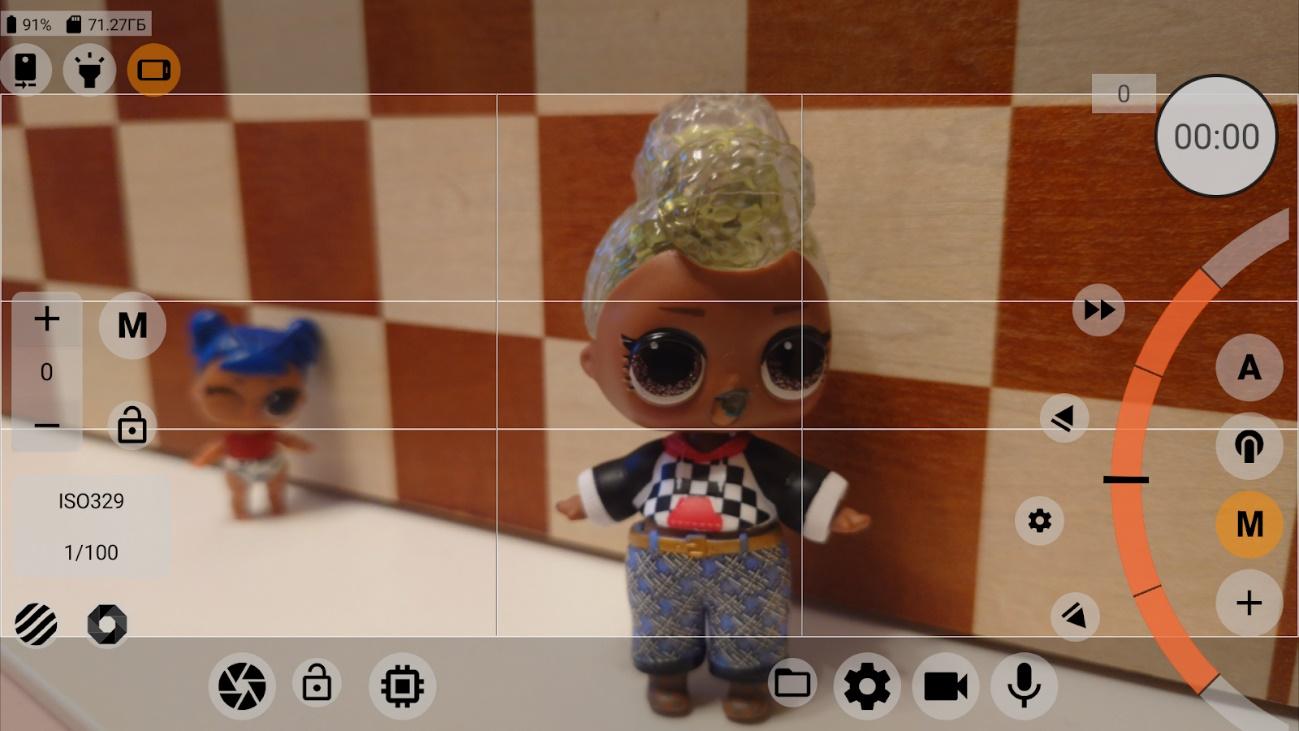
Selecting the safe area prevails over desqueezing in terms of the grid display. If both desqueezing and safe area are enabled at the same time, the grid will fit into the safe area.
1.3.2.1.18. Desqueeze viewfinder
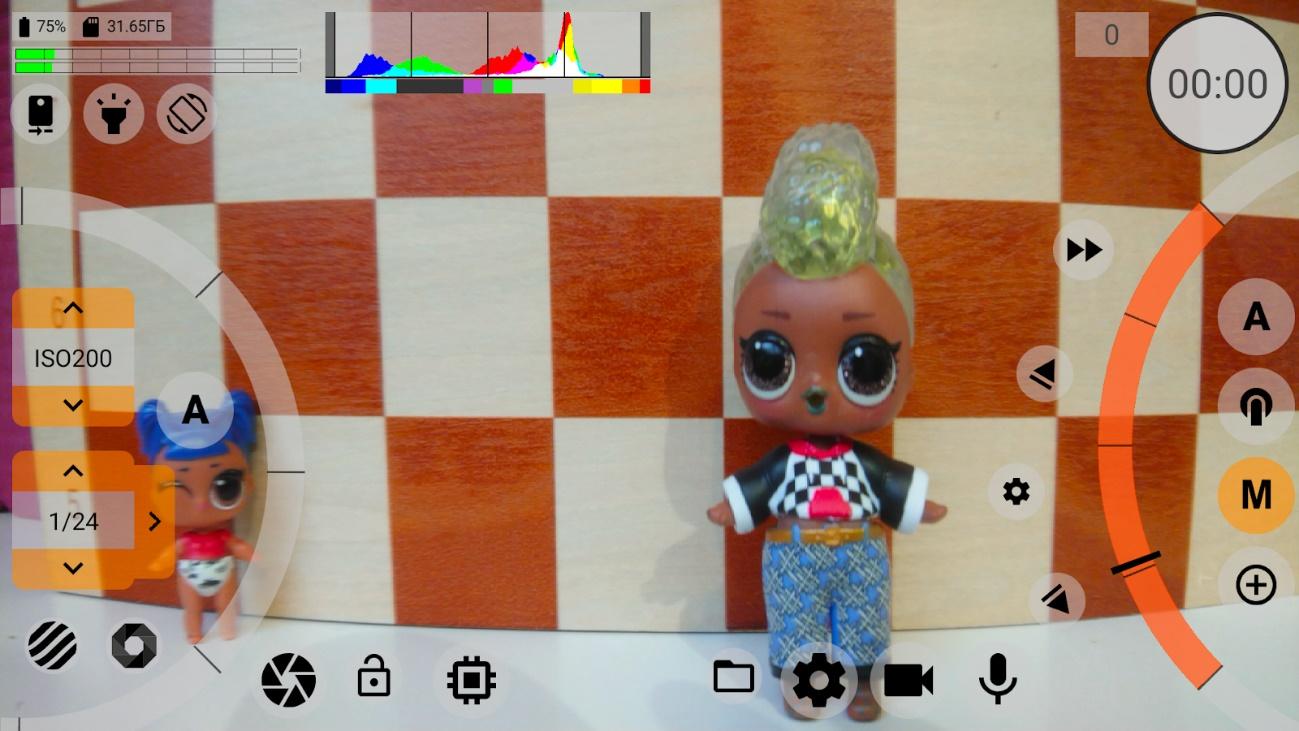
When using phone anamorphic lens, this setting returns the lens distorted image to an image with the correct proportions. This setting affects the viewfinder only and does not affect the recorded image. If desqueezing is turned on in the video settings (1.3.3.4.2. Desqueeze Video), this setting is disabled and the value specified in the video settings is forced.
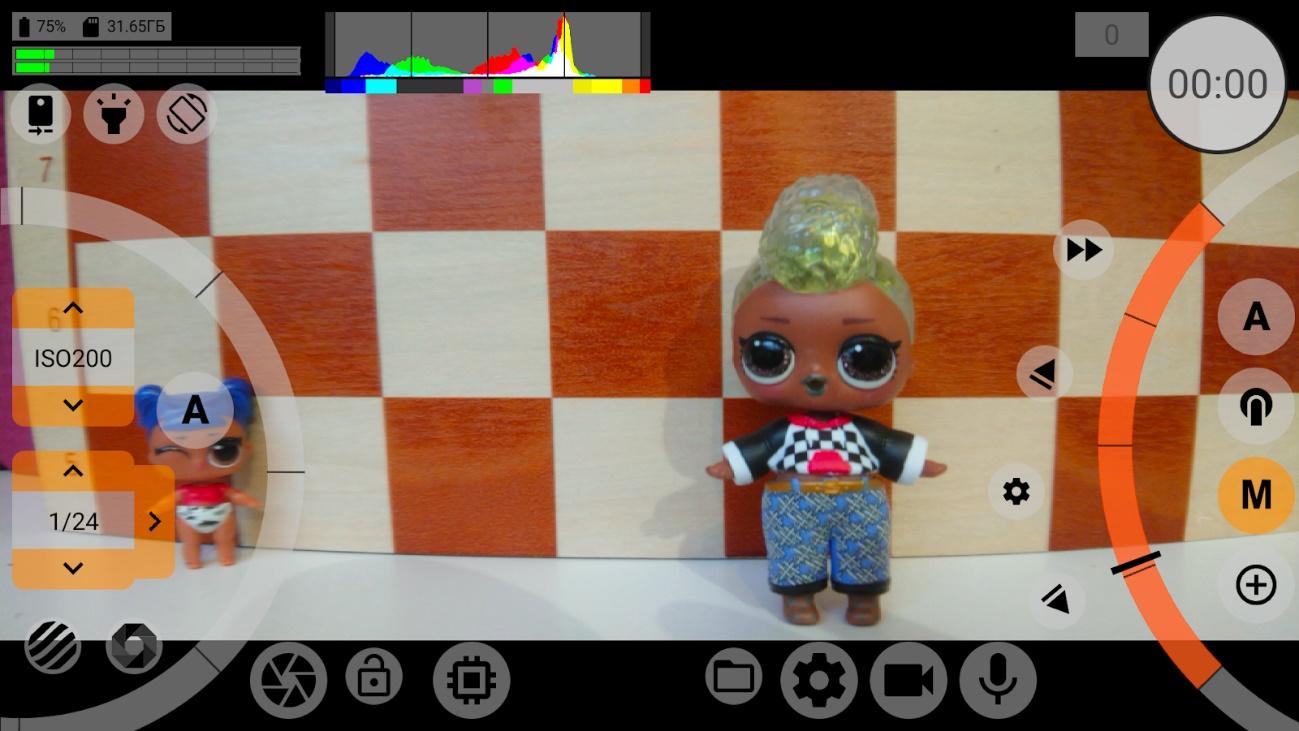
This setting has several values: None, 1.25x, 1.33x, 1.43x, 1.55x. The first one, of course, disables desqueezing. The second and fourth values fit some Chinese-made lenses. We have tried to adjust for everything that is currently on the market.
Most often this setting is used when the desqueezing process is performed in post-processing.
To use the setting, the GPU for the viewfinder must be turned on.
1.3.2.1.19. Audio level indicator
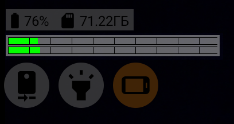
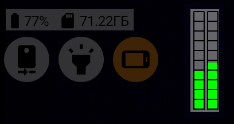
Enables the display of the audio level meter on the screen. The setting has three values: OFF, ON, Preview mode only. The audio level meter does not require the GPU to be turned on for the viewfinder, but because it is constantly visually changing and because the GPU is involved in displaying it, the user has the option of turning it off for the duration of the recording to take the load off.
1.3.2.1.20. Audio level indicator type
This setting allows selecting the location and type of the audio level meter. The setting has two values:
| Horizontal at the top; |
| Vertical. |
1.3.2.2. Section "Control"
This section contains the settings of the controls. Below you will find a description of the menu items of this section.
1.3.2.2.1. Stop recording by
This setting allows you to select the method of stopping the recording. It may be useful when you want to additionally protect the recording from being accidentally stopped. The setting has three values: Single tap (record button), Double tap (record button), Long tap on record button. We hope that each of these is sufficiently clear without further explanation.
1.3.2.2.2. Automatic locking of auto WB
This setting allows you to lock the automatic white balance when you start recording. The setting has three values:
"No" means never lock;
Only during recording. When you stop recording, the lock is released and the white balance works automatically again;
Once and forever. The first time you start recording, the white balance will lock and even after you stop recording, the lock will remain.
Keep in mind that the white balance lock is released when you exit the application (even when the application simply loses system focus when you move from application to application).
1.3.2.2.3. Automatic locking of auto exposure
Works in the same way as auto white balance locking. It has exactly the same values and the same reset conditions.
1.3.2.2.4. Maximal zoom
This setting duplicates the functions of the zoom in/out button (see "1.2.4. Zoom in/out via digital cropping"). This setting has three values:
Maximum. It allows you to zoom in as much as Camera2 API parameters allow.
Up to video size (x1.0). Allows you to zoom in to the video width, when the width of the cropping on the sensor is equal to the width of the video selected in the video and codec settings.
x1.5 of the video size. Allows you to zoom in as in the previous point, only the width of the cropping is limited by the width of the video divide by 1.5. If the width of the video is 3840 pixels, the minimum width of the crop is 2560 pixels.
x2.0 of the video size. Allows you to zoom in as in the previous point, only the width of the crop is limited to half the width of the video. If the width of video is 3840 pixels, then the minimum width of the crop is 1920 pixels.
1.3.2.2.5. Infinity focus mode
Duplicates the functionality of the manual focus selection button. On some devices the manual focus stroke is different from the auto focus stroke. And we often hear that it is impossible to focus to infinity in manual focus mode. This item solves this problem if it is possible to solve this problem on the selected device. Selecting "ON" switches the manual focus mode to the extended focus range when the upper focus limit is removed. The extended range allows you to turn the manual focus to infinity and keep its value as the upper focus limit. When "OFF" is selected, the manual focus works as the manual focus limit values according to the information in the Camera2 API suggest.
1.3.2.2.6. Volume buttons
This setting allows you to enable response to volume button presses. The setting has five values:
OFF;
Start/Stop recording. Applies the recording button functionality to the volume buttons;
Start/Stop programmable focus and zoom. Applies focus and zoom simultaneous start button functionality to the volume buttons (see 1.2.3.2. Simultaneous start button for focus and zoom);
Start/Stop Programmable Focus. Pressing the volume buttons starts the automatic focus in the direction of the greater remaining distance of control wheel. Pressing the volume buttons again stops the auto focus;
Start/Stop programmable zoom. Pressing the volume buttons starts the auto zoom in the direction of the greater remaining distance of control wheel. Pressing the volume buttons again stops the auto zoom.
This setting also works for Bluetooth buttons. The Bluetooth buttons mimic the volume buttons. The Bluetooth buttons do not mimic the camera button. Therefore, if you want to start recording with a Bluetooth button, you must select "Start/Stop recording" in this setting.
1.3.2.2.7. Camera button
This setting does the same as the item above, with one difference that all reactions are linked to the camera button. Very few devices, in particular Sony smartphones, have separate camera buttons.
Warning! This setting does not work for Bluetooth buttons. The Bluetooth buttons mimic the volume buttons. There are no Bluetooth buttons that mimic the camera button.
1.3.2.3. Section “Interface”
This section contains settings for the interface and how it reacts to changes in other application settings.
1.3.2.3.1. Margin left (top)
Changing the value to plus moves the left side of the interface toward the center. The feature is useful for two things:
When a clothespin with a hinged lens covers the interface;
When the left side control is too close to the edge and you have to twist your left thumb hard. This problem affects phones with very thin screenframe.
1.3.2.3.2. Margin right (bottom)
Changing the value to plus moves the right side of the interface toward the center. The feature is useful for two things:
When a clothespin with a hinged lens covers the interface;
When the right side control is too close to the edge and you have to twist your right thumb hard. This problem affects phones with very thin screenframe.
1.3.2.3.3. Position of top block
This is a block, which includes various kinds of indicators, including a bar graph and quick access buttons for some functions. The block can be located on the left and in the center. It can be convenient to move this block to the center because the lens clip covers it. When you move this block to the center, in the horizontal orientation of the interface, the block with the text information moves down. In the vertical orientation of the interface, the text block is always to the left below the block discussed in this paragraph.
1.3.2.3.4. Interface settings for hiding blocks
Next are the settings concerning the way different blocks in the interface are displayed. Each separate item is responsible for a particular block. And each item has the same possible values:
Always display. This means that this block will always be displayed.
Switch by touch/swipe. This value will cause this block to hide (disappear) when you touch an empty part of the interface. To display the block again, you must touch the screen again.
Switch by touch (swipe) when recording. The block will be hidden only during recording. The block will remain visible in preview mode.
Use these settings when the clutter of controls on the screen disturbs you too much.
Below you can see the numbered blocks indicated in the menu.
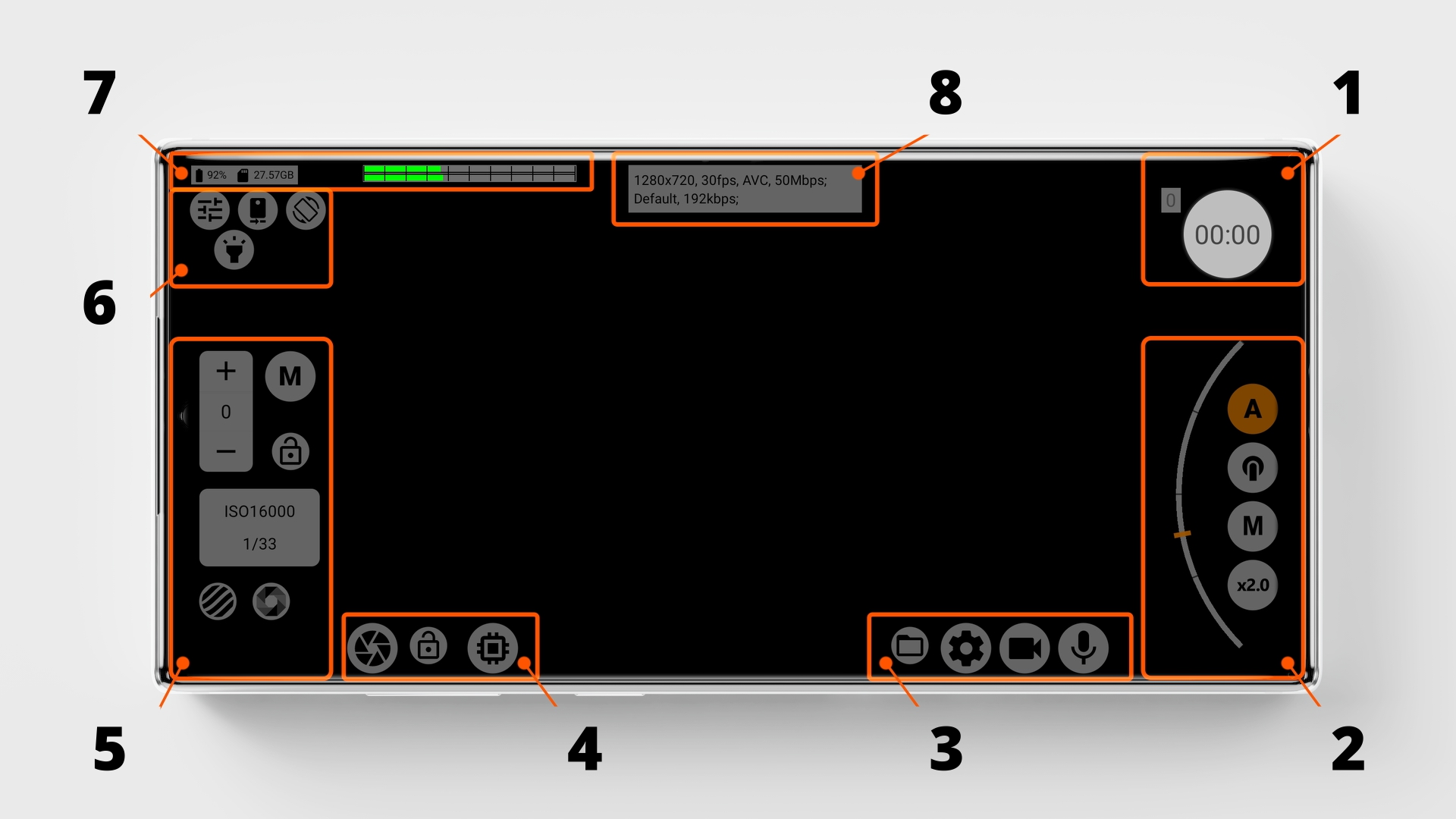
Top buttons - 6; Picture buttons - 4; Settings buttons - 3; Focus/Zoom control - 2; Exposure control - 5; Record button - 1; Indicators - 7+8.
By controlling these settings you have the ability to hide absolutely all the controls. This option may be suitable for those who are trying to record video via an external recorder.
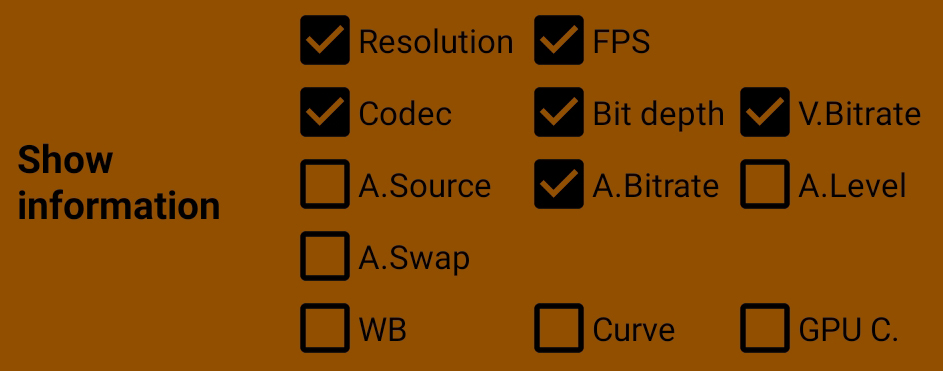
1.3.2.3.5. Show information
Here you can select the information that you want to display in box 8 in the figure above.
At the moment, you can select the following items (from left to right from top to bottom):
|
|
1.3.2.4. Section "Other settings"
Here you can see the settings that you did not manage to place in other sections.
1.3.2.4.1. Screen orientation
This setting helps to lock the camera interface in position. The setting has four values:
System. Totally depends on the system settings.
Horizontal. Locks the interface in the horizontal position, the camera unit is usually on the upper left in relation to the screen.
Vertical. Locks the interface in a vertical position, the camera unit is usually on the top right in relation to the screen.
Horizontal reverse. Locks the interface horizontally upside down, the camera unit is usually on the bottom right in relation to the screen.
1.3.2.4.2. Screen brightness
This setting allows you to adjust the brightness of the screen. The setting has three values:
System. When the brightness depends on the system settings.
Always maximum. The brightness of the screen is always maximum. This setting is recommended for proper exposure and control during recording.
Preview - maximum; Recording - system. When you start recording the brightness is switched to the system brightness. When you stop recording in Preview mode, the maximum brightness operates.
1.3.2.4.3. Storage
Allows you to choose where to record video files: to the internal memory of the phone or to the memory card.
On Android version 9 files to the memory card are written to the "sandbox", which is located at the path SD://Android/data/lv.mcprotector.mcpro24fps/Files/Videos. In the internal memory files are written in DCIM/mcpro24fps.
Starting with Android 10, video files are written to DCIM/mcpro24fps, and some WAV audio files are written to Music/mcpro24fps. This applies to both the internal memory of the phone and the memory card.
Warning! The memory card must match the speed required for the selected video quality, multiplied by two. Also, the device must have sufficient bandwidth for transferring information between the RAM and the storage device.
1.3.2.4.4. Divide into parts (about)
This setting allows dividing the recorded material into files of a certain size. Many devices prior to Android 11 have a limit of 4GB video file size. This limitation applies only to recordable video files. Therefore, to prevent errors and broken files, you should not select "No limit" on such devices. In addition to the value indicated above, available options include: 512MB, 1GB, 2GB, 3.7GB (this value is convenient for devices with a video file recording limit of 4GB).
1.3.2.4.5. Recording with overlapping
This setting only works if you selected the limitation in the previous menu item.
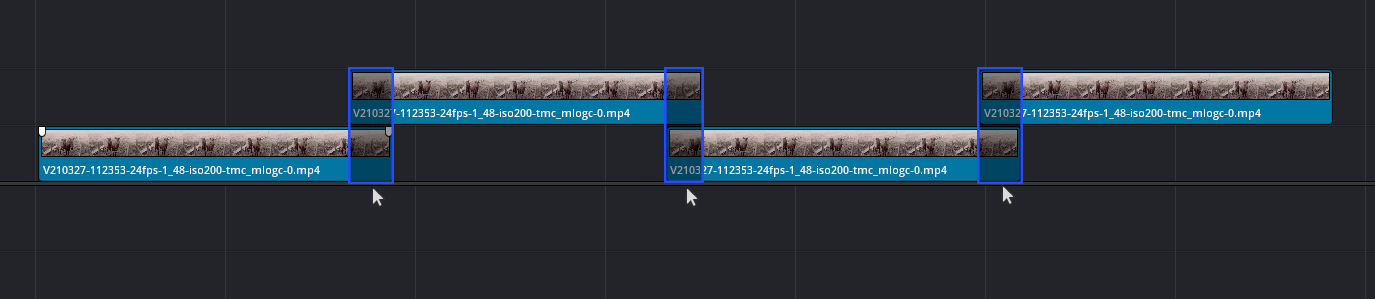
Setting it to "Yes" allows you to duplicate a portion of frames from one piece of video into another. These two files will contain the same set of frames, one at the end and one at the beginning. There is an overlap, so you don't lose any frames in the transition from one file to the other.
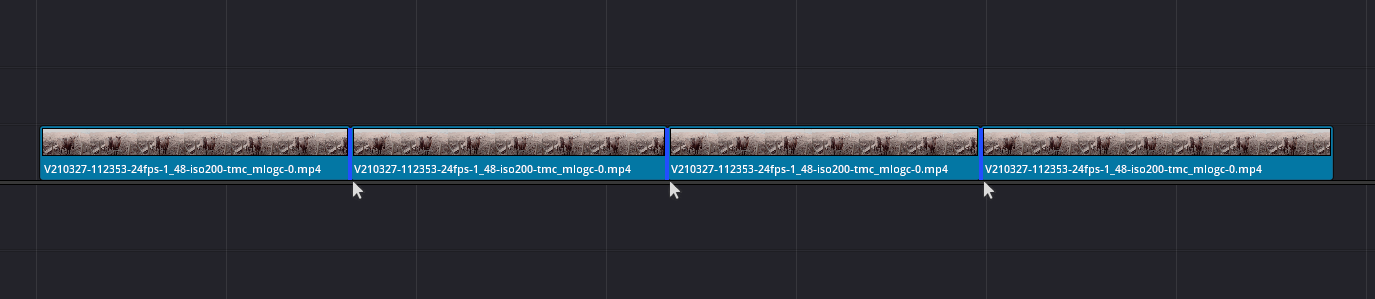
The "No" value assumes recording files one after the other without a common set of frames. Each successive file does not contain the same part as the previous one. The files are written one after the other. Under favorable conditions, when there was no frame drops, when there was no mismatch of video and audio, such files can be stacked one by one in post-processing. And there should be no gaps between them. This frees you from searching for a common part and fitting, as happens with files that are recorded with overlap.
It is worth considering the fact that sound also has its own frame rate. And at the end of each file there may be a place where there is no sound, because the sound fits into the timing of the video. This happens when the duration of the next sound frame, if inserted, goes beyond the video. If you do this, the last frame of the video will be doubled, and this frame will be recorded in MediaInfo statistics as dropped out. That is why we decided that it is better to omit audio than to spoil video.
1.3.2.4.6. Firebase statistics
Application usage statistics, including statistics on errors and crashes of the application. Two values are available:
Deactivate when recording. When recording starts, the statistics is deactivated so as not to take up the application's resources from the device.
OFF. Disables the statistics completely. Recommended for fans of tin foil hats.
1.3.2.4.7. Clear all settings
Pressing the trash can icon button resets all previously selected settings to their default values.
1.3.2.4.8. Technical information at the bottom of the menu
Rarely needed. But to solve some problems with a particular device we can ask for it.