
The fourth button is the zoom in/out mode. This button can have several icons depending on the selected zoom type. The zoom is adjusted with the ring (1).
The zoom has four modes of maximum zoom.
Maximum zoom to the width of the video. If the video is 3840 pixels wide, the maximum possible cropping on the sensor is 3840 pixels.
Maximum zoom to video size is divided by 1.5. If the video is 3840 pixels wide, the maximum possible cropping on the sensor is 2560 pixels.
Maximum zoom to the video size is divided by two. If the video is 3840 pixels wide, the maximum possible cropping on the sensor is 1920 pixels.
The maximum possible zoom as much as Camera2 API parameters allow.
You can change the zoom modes in the settings (see "Maximum zoom") or by long tap the zoom selection button. Each long tap changes the modes one by one in a circle.
The picture to the left shows these controls: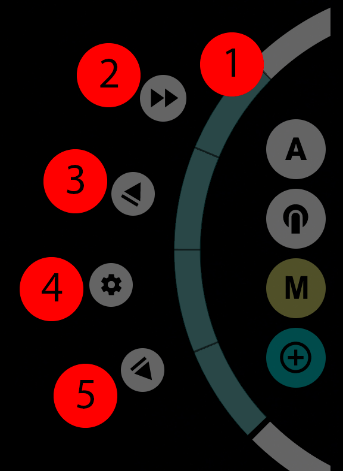
1 - Control wheel; 2 - Simultaneous Focus and Zoom Start Button; 3 - Automated Zoom-in Button; 4 - Zoom Settings Menu Button; 5 - Automated Zoom-out Button.
1.2.4.1. Control wheel
The directions of the control wheel (1): up - zoom in, down - zoom out.
1.2.4.2. Button for simultaneous start of automated focus and zoom
The simultaneous start button (2) is used to start the automated focus and automated zoom at the same time. See the manual focus section for more information about this button.
1.2.4.3. Automated zoom-in button
The automated zoom in button (3) is used to start the automatic upward movement of the zoom control wheel. The first top starts the movement and the second tap stops the movement.
Long tap this button reassign the upper limit of the manual (and automated) zoom control wheel.
The zoom will not go beyond this limit. In this case, the control wheel does not visually change in any way, but the upper limit now has a new value. So, the new stroke of the wheel extends over the entire green area. Repeated long tap resets the upper limit..
1.2.4.4. Zoom settings menu button
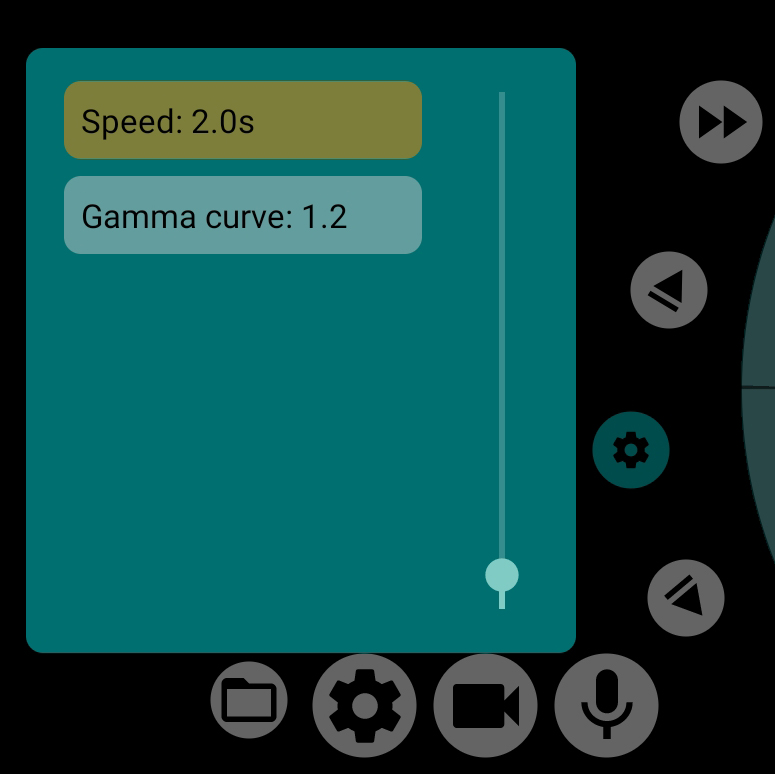
| The zoom settings menu button (4) brings up a menu with only two items at the moment: speed and gamma. The speed is the time it takes the zoom controller to travel from the bottom limit to the top limit (or back) when you tap the Automated zoom buttons (3) and (5). The speed does not take about present position of the controller, it is always calculated with the entire gap in mind. Gamma curve allows a slight distortion of the approaching velocity. A value of 1.0 performs a linear approximation motion, i.e. the rate of change of the frame coincides with the rate of movement of the wheel control (1). Values below 1.0 accelerate the approaching motion at the beginning and slow the approaching motion at the end. Values above 1.0, on the other hand, slow down the approach at the beginning and speed up the approach at the end. Adjustment of the gamma curve concerns both automated zooming and manual zooming control. |
1.2.4.5. Automated zoom-out button
The automated zoom out button (5) is used to start the automatic downward movement of the zoom control wheel. The first tap starts the movement, a second tap stops the movement.
Long tap this button reassign the lower limit of the manual (and automated) focus control. The focus will not go beyond this limit. In this case, the wheel control does not visually change in any way, but the lower limit now has a new value. So the new stroke of the wheel extends over the entire green area. Repeated long tap resets the lower limit.