
In the app: gear (settings menu) Control
Control: how recording is stopped, the app's sounds, automatic locks at the start of recording, zoom limits and the phone's hardware buttons.
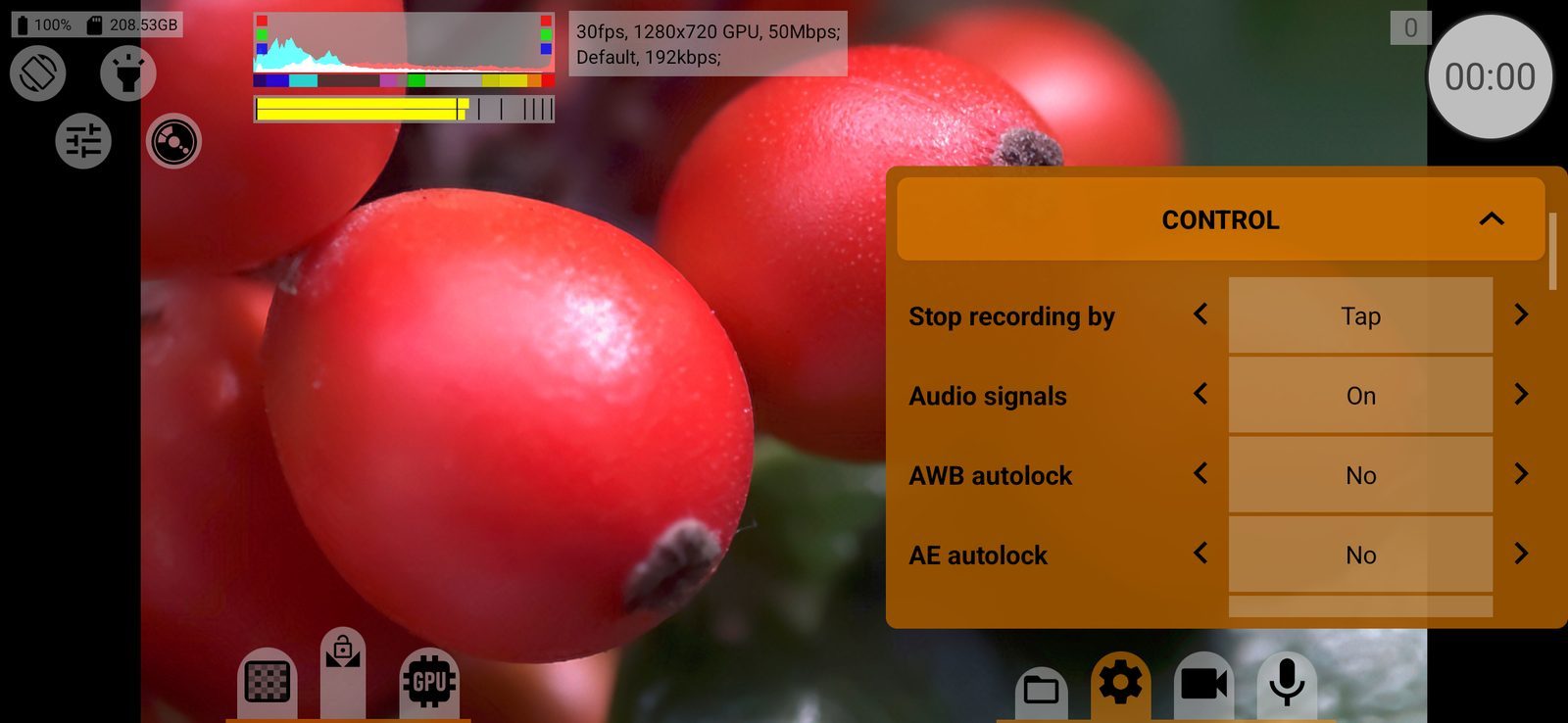
Stop recording by
Which gesture on the on-screen record button stops a recording: Tap, Double tap or Long press. Recording always starts with a single tap. A double tap or long press protects against stopping by accident. Hardware buttons and remotes are not affected. Default: Tap.
Audio signals
On / Off: sounds when recording starts and stops and when a snapshot is taken. They are not recorded into the video. Default: On.
AWB autolock
Locks the automatic white balance when recording starts, so the colour does not drift during the shot:
- No;
- Recording only: the lock is released when recording stops;
- Keep after recording: the lock stays after recording.
Works only with automatic white balance. Default: No.
AE autolock
The same for automatic exposure: No, Recording only or Keep after recording. Locks exposure at the start of recording, so brightness does not jump during the shot. Works only with automatic exposure. Default: No.
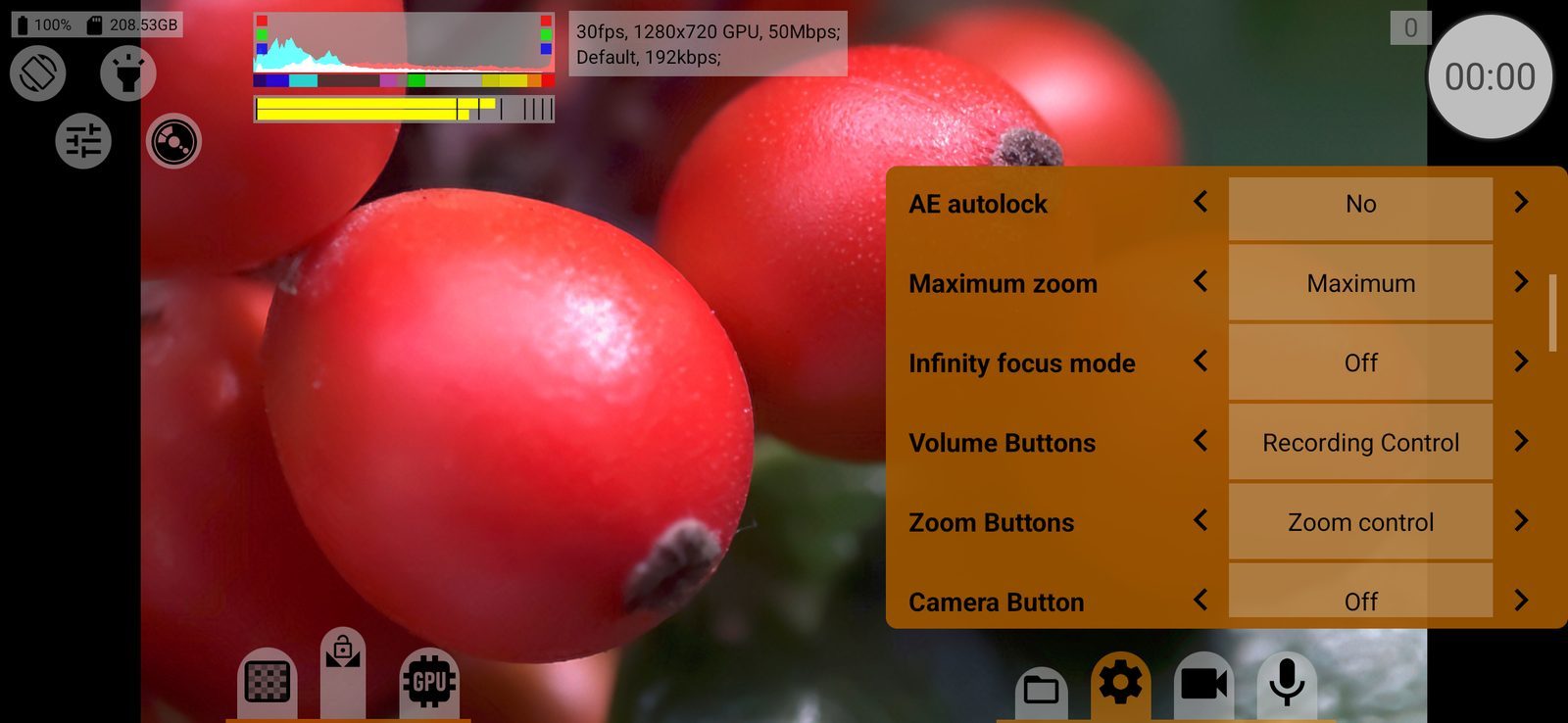
Maximum zoom
How far digital zoom can go:
- Up to video size: until the cropped area of the sensor equals the video size, without upscaling;
- x1.5 from video size, x2.0 from video size: allows up to 1.5 or 2 times upscaling;
- Maximum: up to the camera's limit.
Long-press the zoom mode button next to the focus wheel to switch this too. Stored separately for each camera. Default: Maximum.
Infinity focus mode
Off / On. Many phones focus past infinity at the far end of the focus wheel. With On the far end of the wheel is your own saved infinity point instead; the M button shows ∞. Set the point in the focus pull settings (the gear between the focus limits). Stored separately for each camera. Default: Off.
Face focus
Off / On. In continuous autofocus the camera looks for faces and keeps the focus zone on the largest one. Faces are outlined in the viewfinder: the chosen one in yellow, the others in white. When the face is gone for about a second, the usual focus zone comes back. Only focus follows the face, exposure does not. Not used in tap and manual focus and above 30 fps. On Sony phones with eye autofocus the camera itself picks the face and the eye. One setting for all cameras; the row is shown only if the camera can detect faces. Default: Off.
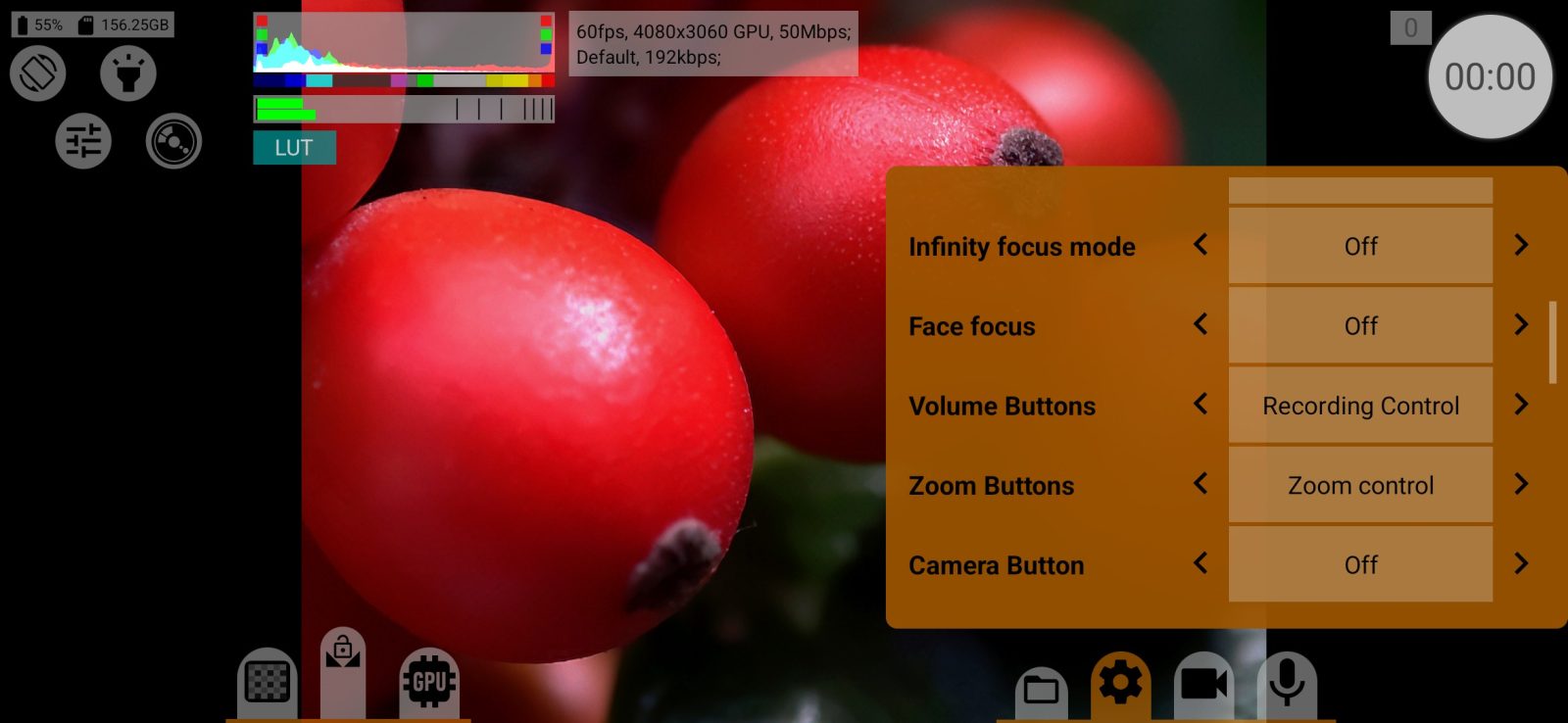
Volume Buttons
What the phone's volume buttons do on the shooting screen:
- Off;
- Recording Control: either button starts and stops recording;
- Focus control: in manual focus, focus moves towards the far (volume up) or near (volume down) limit while the button is held;
- Zoom control: the same for zoom;
- Start/stop program. focus+zoom: starts or stops the programmed focus and zoom move;
- EV Correction/Shutter Speed: exposure compensation in automatic exposure, shutter speed in manual (volume up is brighter).
While a menu is open, the buttons work as usual. Default: Recording Control.
Zoom Buttons
The same choice for the zoom rocker on phones that have one. Default: Zoom control.
Camera Button
The same choice, without exposure control, for the hardware camera button and for media buttons (play, pause, record), for example on a wired or Bluetooth remote. For focus and zoom the button works as a toggle: the first press starts the move towards the far limit, the second stops it. Default: Off.
A half-press of the camera button always starts autofocus in auto and touch focus modes.