
The Microphone and sound settings menu button (4) opens the settings window, which contains the microphone settings, audio codec settings, and sound processing settings available in android.
Below we will look at each menu item separately.
1.3.4.1. Section “Audio recording settings”
There is only one section at the moment, but in the future the settings will be placed in sections.
The bit depth of the audio record is fixed at 16-bit, so there is no option to select the bit depth. This is due to the complexity of implementing 32-bit recording. 24-bit in Android does not exist as a class.
1.3.4.1.1. Source
There are several logical sound sources in the Android system. Not all of them are applied in the application, but the most basic ones are available.
OFF. Sound is not recorded.
Default. The system selects the sound source and what effects and corrections to apply.
Unprocessed. The system selects the sound source, but does not apply any corrections or effects.
Camcorder. The Android documentation tells you that this is the source for recording video sound. When you select this value, the system must control the orientation of the device's position, and adjust the sound channels accordingly. Experience shows that the sound source will always be the device's built-in microphone(s).
Microphone. The system writes from the device's microphone, even if other physical sound sources are available. Somewhat similar to Camcorder. Most often writes in mono.
Bluetooth. The application tries to write sound from a Bluetooth headset or Bluetooth microphone. The application does not connect the sound source, this must be done first at the system level. This item is not available until a Bluetooth audio source is registered on your system. Once there is a Bluetooth source on the system, you can switch to it in the app.
1.3.4.1.2. Level
Sound level processing item. A word of caution is worth making here. This setting works with already recorded sound. If there is already overload in the source material, it will remain even after lowering the level.
Therefore, it is recommended to use this item with an unprocessed sound source, and raise the level to the desired level instead of lowering it.
This feature adds a load to the recording. The audio signal is processed on the fly.
1.3.4.1.3. Swap channels
On some devices the positions of the stereo audio channels may be incorrect. One can only guess why the manufacturer has made this decision.
The user has the possibility to swap the channels so that justice can be done.
This feature adds to the recording load. On-the-fly processing of the audio signal takes place.
1.3.4.1.4. Sample rate
The sampling frequency of the audio being recorded.
For AAC compressed to MP4 you can select the sampling rate up to 48KHz (it is a system limitation).
For a single WAV sampling rate is limited to 192KHz. Here it is worth noting that not every device can work with this frequency, so it makes sense to check if the device can handle it.
1.3.4.1.5. Bitrate (quality)
The quality of compression, as in the case of video. The maximum bitrate limit is determined by the system. Usually it is 510Kb/s for AAC.
In the same item, you choose to record to a separate WAV file, as well as the maximum bitrate. And it is actually the maximum, because WAV is basically a raw audio signal. The WAV file is recorded from the beginning of recording to the end of recording, even when the video files are split by, say, 3.7GB.
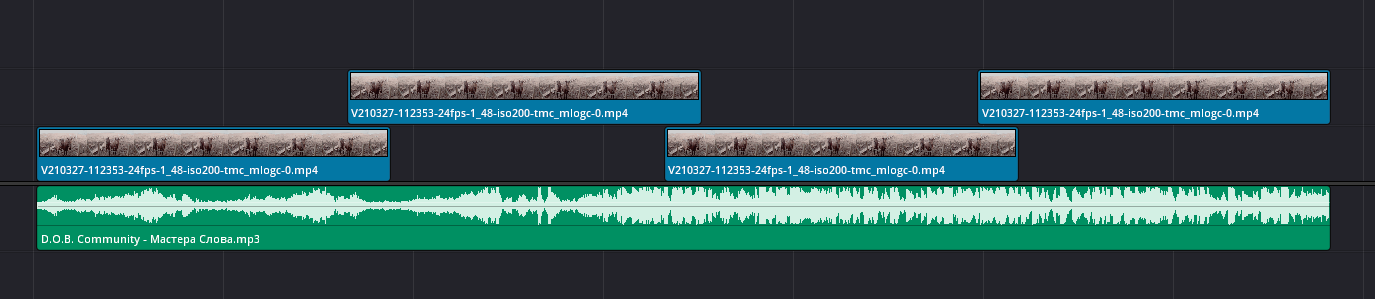
1.3.4.1.6. Duplicate to MP4 (WAV remains)
This setting allows you to import recorded WAV into an MP4 container after you finish recording. Setting values are AAC bitrate (quality) into which WAV will be compressed inside MP4.
Important: When this setting is enabled a limit on the number of video files will come into effect. You can only record one video file at a time. Once the maximum allowed video file size is reached the recording will be stopped forcibly and the recorded WAV will be imported into MP4.